Participant
November 18, 2024
Answered

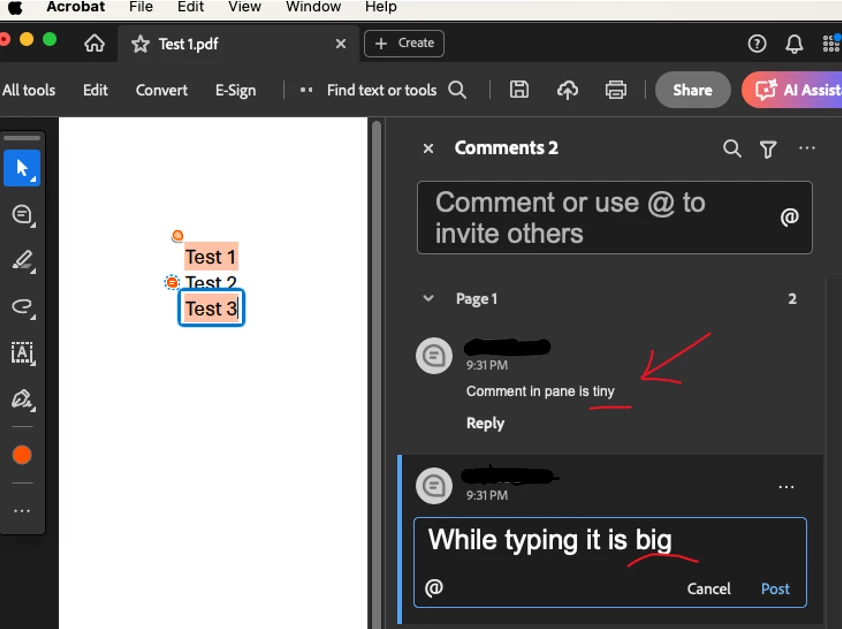
Comment text size small in pane vs large in edit mode

  • November 18, 2024
  • 3 replies
  • 6977 views

I am trying to make the comment text larger in the comment pane in Acrobat since I find the default size too small. I found this in both an existing document and a new document I made to test this.

Samplesteps:

  1. create a new PDF from Word (or open an existing PDF file)
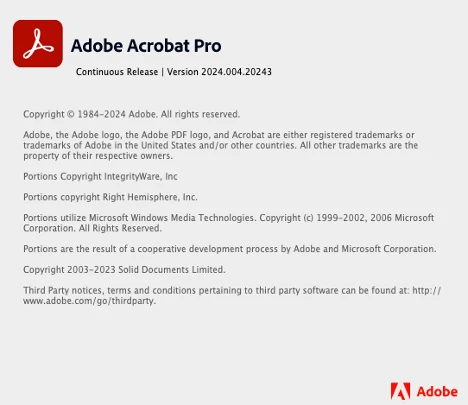
  2. open in Acrobat pro (I'm on Macbook pro -- Sonoma 14.6.1)
  3. Acrobat > preferences > Commenting: set font size 18, font Arial, OK (note: the option says "restart required" so ...)
  4. restart Acrobat, reopen file
  5. open comment pane
  6. select some text in the file > click the comment icon on the pop-up menu
  7. start typing the text in the comment pane --> RESULT: text looks nice and big!
  8. Post the comment

RESULT: the text is back to the automatic tiny text

***Is there some setting I'm not adjusting to set the "committed/posted" comment default text size?



Correct answer esh_3799

Forgot to add to the reply I just posted: This happens with all comments on all files. 


Hi @Lorel 5C88 , @LoriPax 

I see that you are using older Acrobat view. This issue is fixed with modern Acrobat view. You can switch to the modern Acrobat view by going to View->Enable new Acrobat and then cicking on Restart button.
Please refer the screenshots attached.
After switching to modern viewer, please try the workflow again.

Thanks.

3 replies

Participant
October 13, 2025

This issue with comment text size in Adobe Acrobat is surprisingly common. Even after adjusting the font settings under Preferences > Commenting, Acrobat often reverts to the default small size once comments are posted. Unfortunately, there’s no permanent fix yet — the program doesn’t retain larger font settings for committed comments. A workaround is to manually resize text after posting or use the sticky note tool instead. After all that tweaking, take a break 

Participating Frequently
October 17, 2025

It's been nearly A YEAR since I wrote complaining of this issue and it still hasn't been resolved. I updated today and the problem persists. I don't understand why a feature that once worked perfectly was downgraded to not working at all. Terribly frustrating!

Adobe Employee
October 24, 2025

Hi @Lorel 5C88 ,
Could you please let us know if this issue persist with all the files which has comments or some specific set of files and if possible, could you please share a sample file with us where you're seeing this issue.

Thanks.

andyw20084219
Participant
November 21, 2024

i'm having this same issue and cannot figure out how to make that text any larger. why must it be so hard to figure out?!

Adobe Employee
November 26, 2024

Sorry for the inconvenience, the concerned team is investigating this issue, will updated once this is fixed.


Regards,

Rohit A

graphic mac
Inspiring
February 13, 2025

Hi @warren_5652,


Hope you are doing well. 


We are live with the new update (24.005.20307), which has a fix for this issue.


Please update the app and let us know if it works for you.


-Souvik


@S. S This does NOT fix the issue at all. You clearly aren't understanding the question. We don't want to change the size of the text in the EDIT COMMENTS box, we want to change the size of the text of EXISTING COMMENTS in the COMMENT LIST/PANE.

I'll save everyone the trouble of checking back here. There is no (currently) way to change the size of the comment list text in Acrobat DC when using the "old Acrobat" interface. You can change the resolution of your display to make everything appear larger, but I suspect few people want to do that. However, if you switch to the "new Acrobat" interface, the text appears much larger in the list view, and from what I can tell, it actually respects the comment font/size preferences.


The only problem (in my opinion) is that the "new Acrobat" interface is confusing, cumbersome, bloated and takes up a lot of unnecessary space. In short, it's horrible.  

S_S
Community Manager
Community Manager
November 18, 2024

Hi @cliffw10481663,


Hope you are doing well. Thanks for writing in!


The setting you are referring to here is the UI and not the comments.

You can try playing around with the preferences at Page Display-> Resolution.


Or, you can try going to your System Preferences-> Display-> change the resolution of your device and select the radio button "System Resolution" in Acrobat's Preferences-> Page Display.


Hope this helps.


-Souvik

Participant
November 18, 2024

Thanks for the reply. When I adjust the Page Display settings, it seems to affect the page, and text on the page, but not the size of text on the Comment pane.

Adobe Employee
November 18, 2024

Hi @CliffW18997715 

You can try changing the display size of app to large from Acrobat Menu(top left) -> View-> Display Size-> Large.

Let me know if this helps. 


Thanks,

Rohit A