


Participating Frequently
August 11, 2013
Question

Converting MS Word Into PDF Produces Blank Pages

  • August 11, 2013
  • 12 replies
  • 131597 views

Hi All,

I hope somebody can help, i'm working with a MS Word document that was created by one of our users and is trying to convert the document into a PDF using Adobe Acrobat X (version 10). She does this either by doing a simple file save As and selecting the .pdf extension or using the Print To Adobe PDF function. After she converts the word document into a PDF and opens it up, some of the pages which is meant to contain text and images have completely disappeared and are replaced by blank pages. Some pages that have been converted have been successful while others are just blank white pages, no errors appear.

I've tested this by converting a completely different word document into a PDF which doesn't contain any images/graphs ect and this seem to work fine. Another test that i have done is to ask a colleague of mine to do the same test on the document but when he converts this all pages are produced successfully without any blank pages.

The user that has this problem is using Windows 7, is a laptop user with MS Office 2010 and as mentioned uses Adobe Acrobat X. I have replicated the issue on my work laptop and  fiddled around with Adobe for  printer settings for 3 hrs in particular sections that tailor towards images but no luck. The word document has 8 pages and after converting into PDF it also produces 8 pages , 4 of which has blank pages.

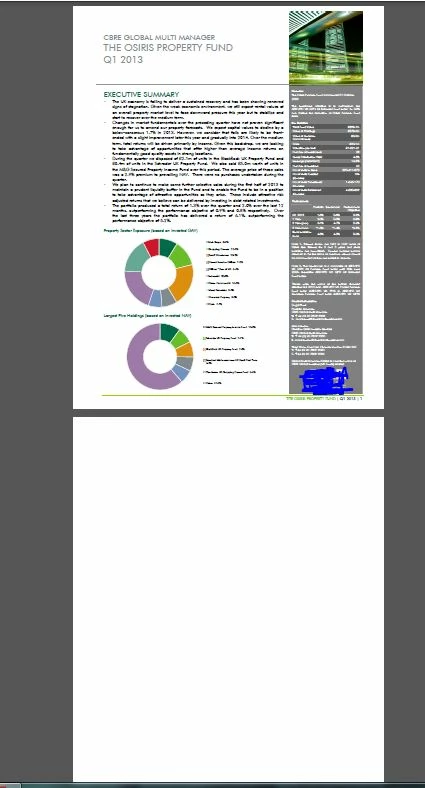
I've also looked at other forums but i've can't find any results that deal with my specific issue.  My though is that Adobe Acrobat Standard is not translating or reading the images onto pdf. I've attached a screenshot of the produced PDF as an example, the first page is fine while the second page is blank and the blue is my doing(disregard that). I would be very greatful if somebody can kindly tell me what settings i need to do ensure that i and the user can convert the document successfully.
12 replies

helpnow
New Participant
January 21, 2014

I wonder if anyone ever found a solution to Nvidia123's isssue. I have been and still is having the same problem.

The thing is my document is over 300pages with tables, graphs, text boxes with shadows around them. There are times when I pdf the document and some of the pages with the tables, graphs and text boxes are blank. Sometimes a page will have both text and a graph or table or a text box and the graph, table etc will be missing but the text is there.

I'll re-pdf and re-pdf and the same thing. Very interesting is that, it's not always the same pages with images that came out blank.  E.g. page 45 came out blank on the first pdf creation, but on the second try, page 70 came out blank and page 45 is now okay and so on.

I am using Word 2010, Windows 7 and the latest Acrobat Pro X1.

It would be nice to have a resolution.

New Participant
April 26, 2014

Hi helpnow,

Wonder if you've resolved your issue? I'm creating a PDF from a series of TIFF images and encountering the exact same problem.

The difference is that I'll always have only 1 content page replaced by a blank page and this can happen anywhere in the PDF file. Upon several retries, I may just get rid of the problem. The inconsistency is frustrating as my operations involved thousands of these documents and I now have to validate every one of them.

Could this be a memory issue? Im my case, it usually happen when I send a job of 5-10 such documents (50 & above TIFF pages) for PDF creation. The rest of the smaller files are okay.

Thanks!

helpnow
New Participant
April 28, 2014

No. The problem remains and for weeks Adobe tech support has been opening and closing tech support tickets for the issue and not one of them has a clue how to fix the problem. I kept uninstalling and reinstalling; creating and recreating the pdf file until finally –because it’s random pages that appear blank at any given pdf run- I will have multiple pdf files of the document, I’ll then extract displayed pages from 1 file to replace the blank pages in another file until I have 1 file of all pages displayed.

Sad, irritating, frustrating, maddening and quite time consuming, but true.

A million thumbs down and 0 rating for Adobe.

I got truly tired of doing this so I trierd Nuance pdf.

Nuance has a new version of their pdf out- give the trial version a whirl. I did (but with Pdf Pro 8) and it works.

Inspiring
August 11, 2013

I would make a guess that they are not blank, but are full page graphics. In such a case, the solution is to open the preferences in Acrobat and go to the Display tab to set view large images. I suspect that option is turned off.

Nvidia123Author
Participating Frequently
August 11, 2013

Since i'm not at work at the moment, if that doesn't work is there anything else i could check ? Any specific settings , I only ask because i won't see the user in the next week so i'd like to have a few possible options just in case.  If you are able to provide any step by step guid just so i know where to look that might be useful.

I appreciate the help

Nvidia123Author
Participating Frequently
August 11, 2013

Also ,while i was trying to troubleshoot this issue i was trying to edit the Adobe Print To settings on MS Word via Adobe PDF Document Properties, is there anything you might be able to think if that i might need to edit? Again i only because i won't be seing the user again for the next few days so i'd to ensure i can be prepared if 1 solutions is not working.