Participating Frequently
July 7, 2025
Answered

Creation of a custom dynamic stamp with Identifier

  • July 7, 2025
  • 2 replies
  • 2972 views

Hello,

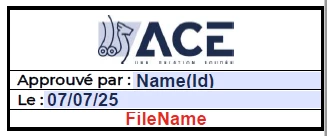
I would like to create a dynamic stamp composed of three different fields. The first field should include the Name and Identifier in the format "Name (Identifier)" from the "Identity" section of Adobe preferences. The second field should display the current date, and the third field should show the name of the file on which the stamp is applied. Here is an example. I have already tried, but only the date is dynamic; the rest does not work, and I am getting error messages in the JavaScript console saying that I do not have the necessary permissions. This stamp should be able to work across multiple sessions. The goal is to copy and paste it onto several users' PCs in the stamp directory on the C drive or the hidden AppData folder of Adobe.

Thank you.

Correct answer PDF Automation Station

Hello, I tested the stamp by modifying the script with #eDfOEniZ99McqbVPx6QPDB and it works! Thank you very much! The script from "bebarth" also works, but it is indeed less secure if I use multiple stamps, which will be my case. I had a few other questions:

  1. How do I find the name of the AP stamp #eDfOEniZ99McqbVPx6QPDB? I would like to create two other stamps, almost identical.
  2. Instead of the automatic file name, can I have a pop-up that allows me to manually fill in this field?
  3. How can I make the content wrap to the next line if the text is too long?
  4. Is it possible to lock the stamp once it has been applied?
  5. For my third stamp, can I copy and paste this stamp into AppData, rename it, and remove the part of the script related to the file name?

Thank you!


1.  There are two ways to do this.

a)  Open the stamp file and run the following script in the console:  this.templates

b)  Apply the stamp to a PDF, select the stamp and run the following script in the console:  this.selectedAnnots[0].AP

https://youtu.be/DePWr_1lnYg?t=184

2) Yes.  this.getField("File Name").value = app.repsonse("Enter file name:");

3)  Make the stamp field a multiline text field.

4)  By "lock", if you mean the locked check box in the appearance tab of the stamp properties is checked, you simply set the lock property of the stamp to true.  Anybody can access the properties and uncheck the box.  If you want the stamp to be locked so that there can be no user interaction with the stamp after it is placed, simply set the readOnly property to true.  This can only be undone with a script.  Having either of the settings executed automatically as the stamp is applied is proprietary information that I'm not willing to share here since most of the experts say it can't be done.

5.  You'll have to either change the template name or the document Title (which is the category in the stamp menu).  The template name mush begin with # or the stamp may only function once in a session.

2 replies

PDF Automation Station
Community Expert
Community Expert
July 7, 2025

Please upload the stamp file.

Participating Frequently
July 7, 2025

Thank you for your responsiveness. Here is the dynamic stamp with the authorization issues that I tried to create. I don't have Adobe Pro on my session, but I can do it on someone else's computer who has a Pro license. I would like to clarify that it should not be possible to change the identifier, as it is supposed to prove that the person logged into this session validated the document with the stamp.

Participating Frequently
July 16, 2025

As mentioned previously in the thread, the conditional statements were included to avoid errors when the calculation runs before the stamp is applied and in case the file contained more than 1 stamp.


Hello, I tested the stamp by modifying the script with #eDfOEniZ99McqbVPx6QPDB and it works! Thank you very much! The script from "bebarth" also works, but it is indeed less secure if I use multiple stamps, which will be my case. I had a few other questions:

  1. How do I find the name of the AP stamp #eDfOEniZ99McqbVPx6QPDB? I would like to create two other stamps, almost identical.
  2. Instead of the automatic file name, can I have a pop-up that allows me to manually fill in this field?
  3. How can I make the content wrap to the next line if the text is too long?
  4. Is it possible to lock the stamp once it has been applied?
  5. For my third stamp, can I copy and paste this stamp into AppData, rename it, and remove the part of the script related to the file name?

Thank you!

Community Manager
July 7, 2025


Hi @Mystical_passion8499,


Thanks for reaching out and for sharing your use case with the community!


Creating a custom dynamic stamp that pulls the Name (Identifier) from the user’s Identity preferences, along with the current date and the file name, is a powerful but slightly nuanced task in Acrobat due to JavaScript security restrictions and session persistence. Here’s how you can approach this:


Your Goal:

Create a dynamic stamp with three fields:

  1. Name and Identifier from Edit > Preferences > Identity

  2. Current Date

  3. File Name of the PDF being stamped


Step-by-Step Solution:

1. Create the Base Stamp File

  • Open Acrobat or any PDF editor.

  • Add form fields named:

    • userInfoField

    • dateField

    • fileNameField


  • Save the file as a single-page PDF.


2. Add this JavaScript in the Stamp Field (custom calculation script):

You’ll need to add the following code inside the form fields (you can use a custom calculation script in each):


For userInfoField:

try {

    var identityName = https://adobe.ly/3GtLxe3;

    var identityLogin = identity.loginName;

    if (!identityLogin) identityLogin = "NoID";

    event.value = identityName + " (" + identityLogin + ")";

} catch (e) {

    event.value = "Unknown User";

}


For dateField :

event.value = util.printd("dd-mmm-yyyy", new Date());


For fileNameField:

try {

    event.value = this.documentFileName;

} catch (e) {

    event.value = "Unknown File";

}


Important Notes:

  • If you see messages like “not allowed due to security settings”, it’s due to Acrobat’s sandboxing of dynamic stamp scripts, especially when trying to access privileged objects like identity.

  • To make this work:

    • Use the app.getIdentityString() method only inside a dynamic stamp context.

    • Ensure your script is placed directly inside the dynamic stamp’s calculation script, not in a global or document-level script.


Working Stamp JavaScript (All in One Field - Optional Approach):

If you prefer one single text field for all values:


try {

    var name = https://adobe.ly/3GtLxe3 || "Unknown";

    var id = identity.loginName || "NoID";

    var date = util.printd("dd-mmm-yyyy", new Date());

    var fileName = this.documentFileName || "NoFile";

    event.value = name + " (" + id + ")\n" + date + "\n" + fileName;

} catch (e) {

    event.value = "Stamp Error: " + e.toString();

}


Deployment :

  • Once you save your dynamic stamp PDF, place it in the user’s stamp folder:

    • C:\Users\<username>\AppData\Roaming\Adobe\Acrobat\<version>\Stamps\


  • Acrobat will auto-load any valid stamp PDFs from this folder on the next launch.


Some Notes:

  • Ensure Acrobat is restarted after copying stamp files.

  • If the identity fields are blank, users may need to set their Identity under:

    • Edit > Preferences > Identity


  • This stamp can work across multiple sessions as long as users have Acrobat (not Reader in strict mode), and permissions allow access to Identity info.


Wait for more inputs form the experts.


~Tariq