stephaniea20591185
New Participant
September 4, 2015
Answered

Extract PDF Pages Based on Content

  • September 4, 2015
  • 7 replies
  • 45145 views

Every fall and winter I have to work with PDF files that are hundreds of pages. Last fall I came across a java script that I was able to run and it worked beautifully. In the last year, I have either lost more brain cells or acrobat dc doesn't work the same way as acrobat X. I need to find a way to extract the pages based off of a word search and save those pages to another file. I would appreciate any suggestions. Also, I have added the java script that was used last year. Thanks in advance for your help.


// Iterates over all pages and find a given string and extracts all

// pages on which that string is found to a new file.

var pageArray = [];

var stringToSearchFor = "Total";

for (var p = 0; p < this.numPages; p++) {

// iterate over all words

for (var n = 0; n < this.getPageNumWords(p); n++) {

if (this.getPageNthWord(p, n) == stringToSearchFor) {

pageArray.push(p);

break;

}

}

}

if (pageArray.length > 0) {

// extract all pages that contain the string into a new document

var d = app.newDoc(); // this will add a blank page - we need to remove that once we are done

for (var n = 0; n < pageArray.length; n++) {

d.insertPages( {

nPage: d.numPages-1,

cPath: this.path,

nStart: pageArray,

nEnd: pageArray,

} );

}

  // remove the first page

  d.deletePages(0);


}

Correct answer Karl Heinz Kremer

I assume you were running the script as an Action in Acrobat XI (as described in my blog post). You can do the same thing in Acrobat DC. Just download the SEQU file again (from here: Extract PDF Pages Based on Content - KHKonsulting LLC) - then make sure that the filename is ExtractPagesWithString.sequ (when I download the file using Safari on a Mac, it appends .xml at the end - in that case, just rename the file so that it has the .sequ extension again). Now you should be able to drag&drop the file on the new Acrobat DC icon or into the application window. You should get get a confirmation dialog (or two). Once the Action is imported, you should be able to run it. To find the Actions interface, type "Action" into Acrobat's tool search bar. You will find that at the top of the right hand pane, and at the top of the Tools collection when you click on Tools on the left side of the Acrobat window, or you can try to find the "Action Wizard" on the Tools page and click on it. You can now run the Action on one or more files, but it will always just search for the string that I've put into the code. To change that. select to edit the Action. Let's assume that you click on the Action Wizard on the Tools page. You should now see the following:


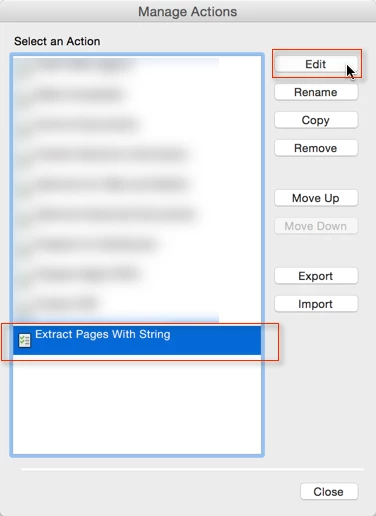
Click on the "Manage Actions" button and then select the "Extract Pages With String" Action and click on the "Edit" button:


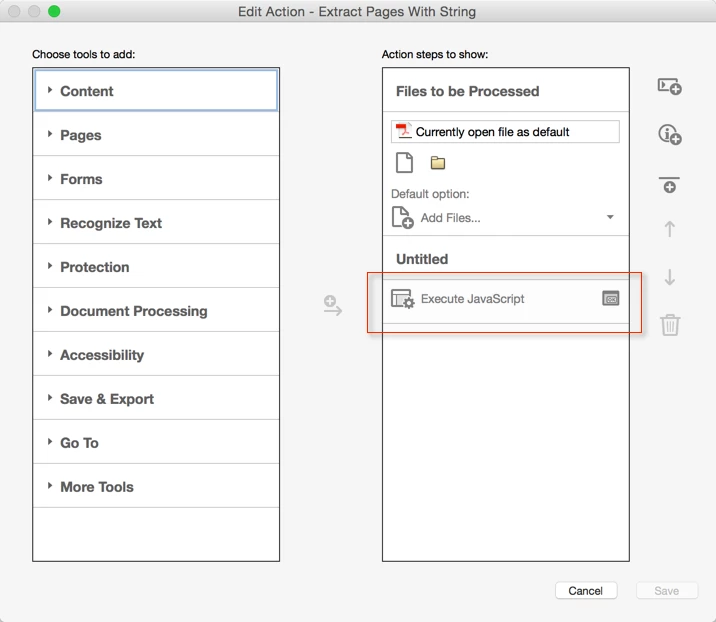
The next thing you will see is this:

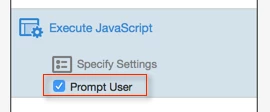
When you now click on "Execute JavaScript", this Action item will expand and will look like this:

Make sure that "Prompt User" is checked.

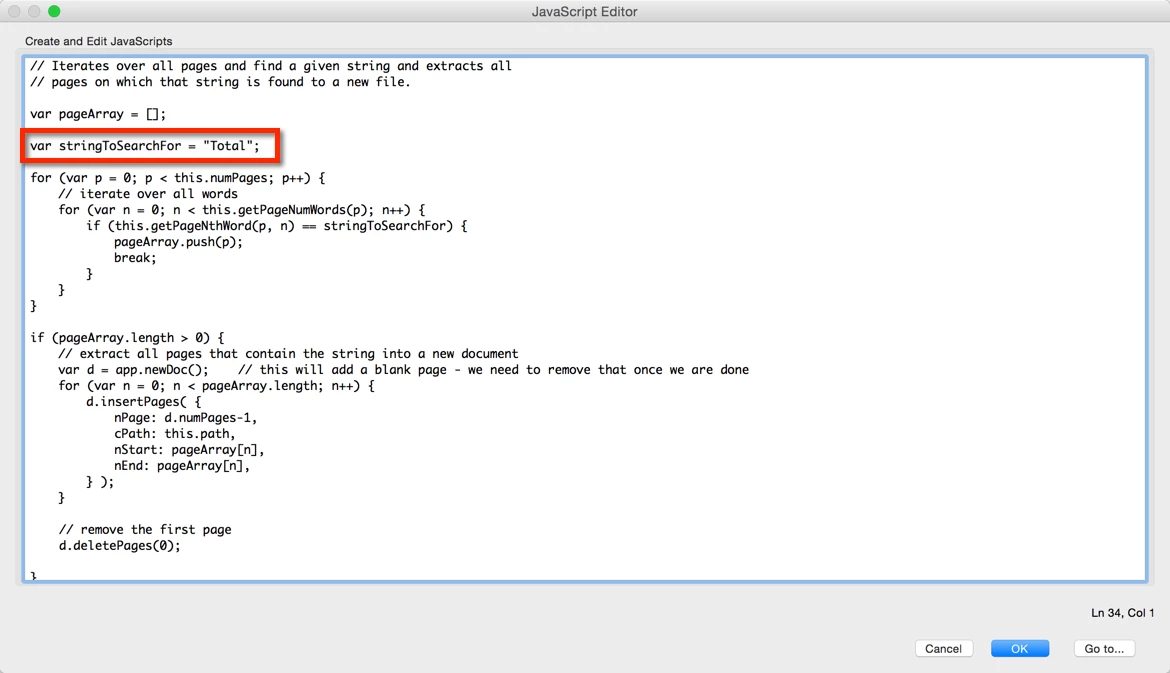
Now you can save your modified Action. When you run the Action, you will see the JavaScript editor pop up:

You can now change the "stringToSearchFor" variable and set it to whatever text string you want to search for and split the document at.

7 replies

New Participant
April 16, 2024

Is there a Javascript that deletes pages if they do not contain one of the multiple supplied keywords? I have a functioning version that allows page deletion for one keyword but not multiple.

Known Participant
December 9, 2021

Is it possible to get this action to work with 2 words separated by a space?  For example: "AB 123"

Were looking to extract a form with the form number printed on the page.  So far, we have been able to get this action to work but only for the "AB", and we get 8 different forms.

When we try "AB 123"  nothing happens.

Known Participant
December 9, 2021

Also we need to get the extract to save automatically to folder.

New Participant
March 4, 2021

Anyone know how I can make this process run over and over with different variables without having to sit in front of the computer and waiting? 

try67
Adobe Expert
March 4, 2021

Acrobat is not built for this kind of automation (on purpose). You would need to use a stand-alone tool to be able to do it like that. If you're interested I could develop for you such a tool (for a fee). You can contact me privately via [try6767 at gmail.com] to discuss it further.

Kasandra
Inspiring
October 18, 2018

Is there a way to extract the pages with the string and the pages that immediately follow it?

So for example, if page 3, and 7 contains the string 'Total' it will extract page 3, 4, 7, and 8?

Karl Heinz  Kremer
Brainiac
October 18, 2018

You can certainly do that, it's just a matter of expressing this in a script. Let's assume that the page you find the term on is n, then you would extract n and n+1. I would check to make sure that there is actually a page n+1 in the document.

Kasandra
Inspiring
October 18, 2018

Karl,

Thank you for the fast reply! I am pretty much an amateur at Javascript and see references to 'n' in the script, but I am not sure where to add the 'n+1' reference in the above code.

Could you help?

t_breeze09
New Participant
June 20, 2017

Is it possible to delete pages that contain 'Total'? Also, is it possible to delete full phrases from pages instead of the page itself?

try67
Adobe Expert
June 20, 2017

- Yes, this is explained above. Read the full thread.

- That's possible, too, using the "Search & Remove Text" tool. However, it will not cause the rest of the text in the page to "re-flow". It will just leave a blank space in the middle of it, where the deleted text used to be.

t_breeze09
New Participant
June 20, 2017

-I couldn't find where they provided a solution to delete the pages containing 'Total'.. I prefer to just delete them, not extract them

-Thank you, I was able to find and use the 'search and remove text' tool.

Participating Frequently
November 14, 2016

Would you have a suggestion to delete the pages that contain that word "Total" and save the others?

New Participant
June 19, 2017

I didn't know about this sequence. Very handy.

Can it also be used so that rather than looking for the word "Total", it could be used to find a regular expression/GREP?

Colin

try67
Adobe Expert
June 19, 2017

It's possible, but if the search term is longer than one word it is quite complicated to implement it.

Karl Heinz  Kremer
Brainiac
September 4, 2015

I guess you found the script on my web site

What exactly is different now vs. when you used this last year? As far as I know, the script should work without any changes in Acrobat DC. In order to help, I would need a better understanding of what exactly is happening.

Keep in mind that text extraction is a pretty complex task, and it only works correctly if the PDF file contains all the information needed to find text information. You can test this by doing a search in your PDF file (Ctrl-F or Cmd-F), then type in the term you are looking for. Can Acrobat find it? If not, then it's not the script's fault, it's the PDF file that cannot be searched.

stephaniea20591185
New Participant
September 4, 2015

First, I want to say that it worked perfectly last year so I’m sure it was me. It was a real time saver. I can’t seem to get to the right place to add the word that I need to search/extract. Also, I can’t find where to executing Java script in the newer version.

Karl Heinz  Kremer
Karl Heinz KremerCorrect answer
Brainiac
September 4, 2015

I assume you were running the script as an Action in Acrobat XI (as described in my blog post). You can do the same thing in Acrobat DC. Just download the SEQU file again (from here: Extract PDF Pages Based on Content - KHKonsulting LLC) - then make sure that the filename is ExtractPagesWithString.sequ (when I download the file using Safari on a Mac, it appends .xml at the end - in that case, just rename the file so that it has the .sequ extension again). Now you should be able to drag&drop the file on the new Acrobat DC icon or into the application window. You should get get a confirmation dialog (or two). Once the Action is imported, you should be able to run it. To find the Actions interface, type "Action" into Acrobat's tool search bar. You will find that at the top of the right hand pane, and at the top of the Tools collection when you click on Tools on the left side of the Acrobat window, or you can try to find the "Action Wizard" on the Tools page and click on it. You can now run the Action on one or more files, but it will always just search for the string that I've put into the code. To change that. select to edit the Action. Let's assume that you click on the Action Wizard on the Tools page. You should now see the following:


Click on the "Manage Actions" button and then select the "Extract Pages With String" Action and click on the "Edit" button:


The next thing you will see is this:

When you now click on "Execute JavaScript", this Action item will expand and will look like this:

Make sure that "Prompt User" is checked.

Now you can save your modified Action. When you run the Action, you will see the JavaScript editor pop up:

You can now change the "stringToSearchFor" variable and set it to whatever text string you want to search for and split the document at.