Unfortunately that didn’t work. As an example I have attached the file and circled the slide that I want to remove. Hopefully that makes it easier to understand what I would like to do with each of the slides on each page.
Oh gee, I thought you did a standard one page of PPT to one page of PDF. Yes, this will not work for what you have.
I have some new questions:
Do you have the original PPT? Do it from there.
What do you want to end up with? That is, are you expecting each cell to "word-wrap" to fill in the removal of the preceeding one? (If so, that WILL NOT happen, sorry)
There are two other options, both with potential issues:
1) in Acrobat Pro, go to Edit mode, you MIGHT be able to select each cell you want and paste that into Word. Depending on how Microsoft saved the file, this can have strange results.
2) You can try using screenshots. If you are on a Mac, the controls to do that are Shift-Command-4, that will give you a crosshair cursor and you marquee the item you want converted into a separate file. You can also do this on a PC, but I do not know the key commands. Please note that at this point you will have PNG images and will not scale without either bluryness or pixelation. You can change the size of your image on the screen (PDFs have vector capability)
3) Oh, I just thought of a 3rd option: If you Right-click anywhere on a page, there is an option to "Take a Snapshot."
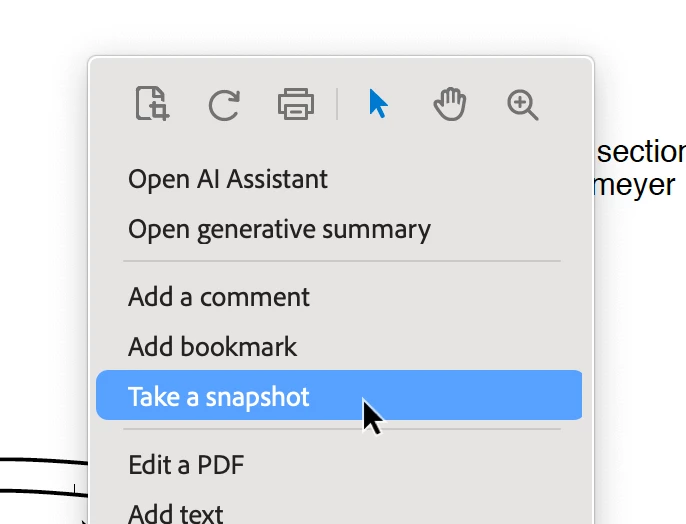
This is just like doing it from your computer (Mac or PC), but it stores the snapshot in your clipboard and if you look at the Create options, from the File menu, one is "Create PDF from snapshot." Unfortunately, these snapshots are PNGs so they will be pixelated or blurry (or both) depending on how you adjust the size.
Sorry, that's the best I can come up with.

 AdChoices