


File Explorer-Combine Files not selecting showing all selected files
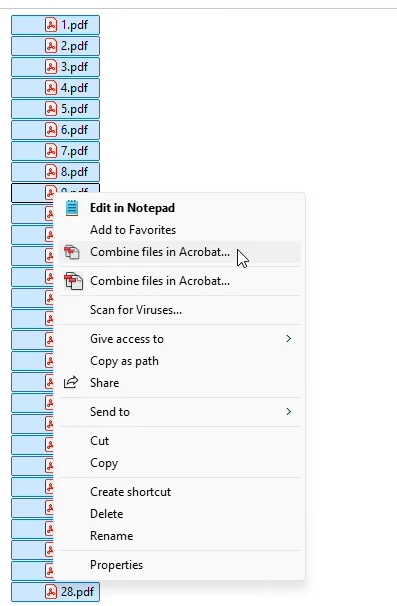
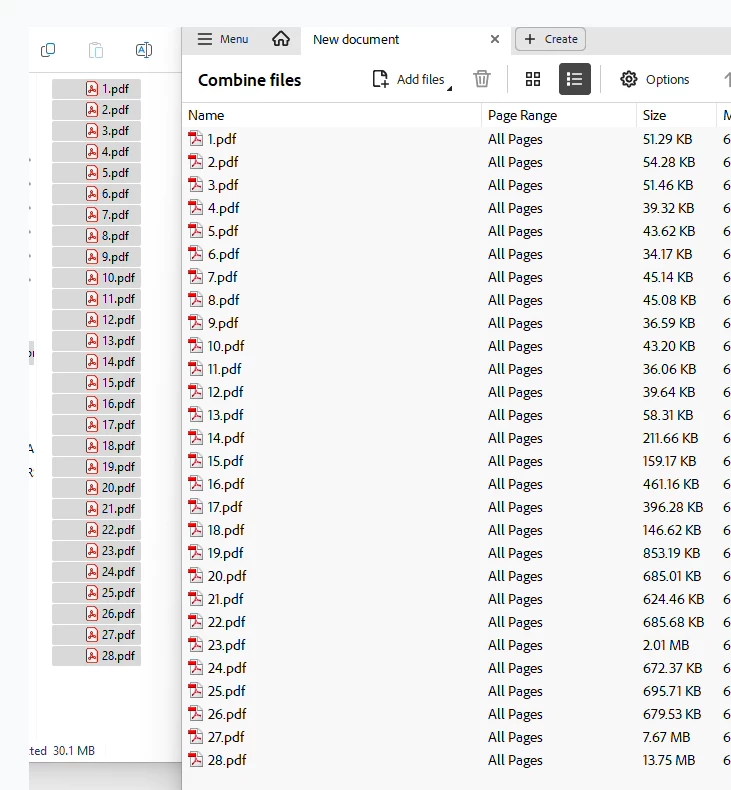
Windows 11 Enterprise, 23H2 OS build 22631.5472 and Adobe Acrobat Pro DC 2025.001.20531. I have a folder containing 28 PDFs. I select all, right click and choose "Combine Files in Acrobat". Acrobat will open into the Combine Files menu and it will only show a subset of the PDFs that I had selected, not all of the PDFs I had selected. All files are local on the computer, not out on a network or cloud drive.
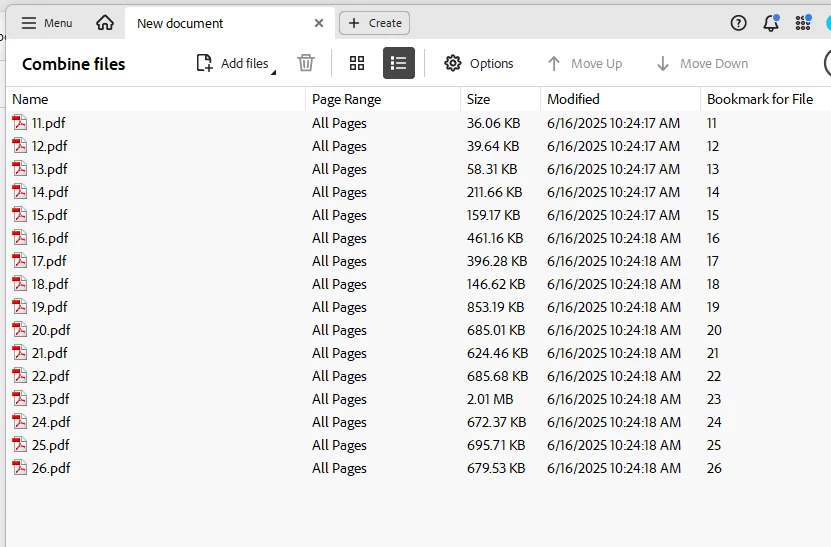
It is not always the same subset. Sometimes it is 10-25, sometimes 12-27. Now, If I select all, right click and choose "Show More Options", I then have two "Combine Files in Acrobat" listed. Either choice will then show all 28 files in the Combine files menu in Acrobat
I have tried tons of the suggestions for when the Combine Files option is not present when right clicking, such as
-regsvr32 "C:\Program Files\Adobe\Acrobat DC\Acrobat Elements\ContextMenu64.dll"
-Deleting the UserPrefs folder out in C:\Users\MyUsername\AppData\Roaming\Adobe\Acrobat\DC folder
-In Acrobat, navigate to Edit > Preferences > Security (Enhanced). Uncheck Enable Protected Mode at Startup
-Repair Acrobat installation
-Restoring original preferences through Windows registry. Navigate to the following location: Computer\HKEY_CURRENT_USER\SOFTWARE\Adobe\Adobe Acrobat[DC/2017/2020]. Right-click on the DC folder, choose Export and save the backup file locally on your machine.
Delete the [DC/2017/2020] folder in the Registry Editor. Relaunch Acrobat and it will recreate the key in the registry location.
Anyone have any other ideas?
Thanks
 AdChoices