


Participant
February 5, 2024
Answered

Free draw tool not available in Adobe Pro

  • February 5, 2024
  • 3 replies
  • 4031 views

This may be a simple fix that I'm just not seeing, but I can't find a way to use the free draw tool in Adobe Pro.


Until recently, I was using the free version of Adobe Reader, and used the Free Draw and Hilight tools all the time. However, since upgrading to Pro, I can't seem to access the Free Draw tool anywhere, and the hilight tool is very limited (doesn't allow me to select multiple colors, change size, etc). I have looked under every toolset available, and these options seem to have just dissapeared. Is there something I need to do in order to reintroduce them?
Correct answer gary_sc

OK, it sounds like you're looking at the old UI (be grateful).


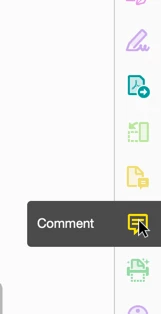
If you do not see the Commentary Tools on the right-hand edge

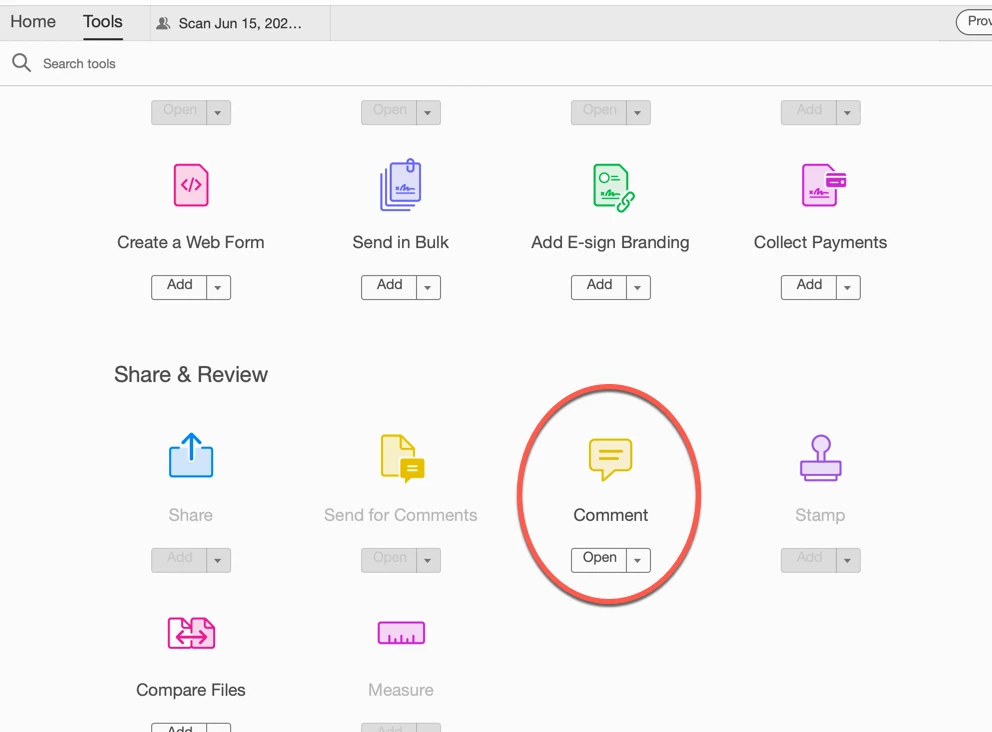
 Then you can access them via the Tools Panel (accessed from the left-hand upper corner

 (Notice that there's a dropdown menu under "Open." If you do not have that on the right-hand side, you can click on that and select "Add Shortcut." that will place it on the left-hand side.


Then, once selected, across the top, you'll see this: The Pencil will let you draw, the red arrow points to the line's thickness, and the green arrow points to where you can select the color (and opacity). If you want straight lines, the straight line tool is just to the left of the arrow.

Let us know if this is what you were looking for.

3 replies

JR Boulay
Community Expert
Community Expert
February 5, 2024

Try to revert to the Classic UI: https://community.adobe.com/t5/acrobat-discussions/acrobat-2023-how-to-revert-to-classic-gui-user-interface/td-p/14052807
Consider the "new Acrobat" as a beta version, many features are still missing or half-implemented.

Acrobate du PDF, InDesigner et Photoshopographe
Participant
August 1, 2025

Many thanks JR, 1.5 year after you posted this, it saved me a lot of hours and frustration!! I saw the message by the company (part of the string that opens with your link) from about 2 years ago was reading that things are still being tested but coming to a happy end soon, certainly not by now (August 2025)


Amal.
Community Manager
Community Manager
August 4, 2025

Hi there 


Hope youa re doing well and thanks for reaching out. 


I can see from the screenshot shared above that you are using the classic view of the application. To turn on the Modern viewer of the application, follow the steps below:

  • On Windows: From the top menu, select View > Enable new Acrobat.

  • On macOS: Go to View > Enable new Acrobat.


For more information, please check the help page https://adobe.ly/3IXdFXS 


Participant
February 5, 2024

That is exactly what I'm looking for, but I don't have that floating tool bar. Not sure if I'm on the new or old UI, but below is a screenshot of my page. Is there something I can do to enable that tool bar? 

gary_sc
Community Expert
gary_scCommunity ExpertCorrect answer
Community Expert
February 5, 2024

OK, it sounds like you're looking at the old UI (be grateful).


If you do not see the Commentary Tools on the right-hand edge

 Then you can access them via the Tools Panel (accessed from the left-hand upper corner

 (Notice that there's a dropdown menu under "Open." If you do not have that on the right-hand side, you can click on that and select "Add Shortcut." that will place it on the left-hand side.


Then, once selected, across the top, you'll see this: The Pencil will let you draw, the red arrow points to the line's thickness, and the green arrow points to where you can select the color (and opacity). If you want straight lines, the straight line tool is just to the left of the arrow.

Let us know if this is what you were looking for.

Participant
February 5, 2024

That seems to be working, thank you so much for the help!

gary_sc
Community Expert
Community Expert
February 5, 2024

I'm assuming you are using the new UI, so I'll show that here. If you've switched to the old UI, let me know and I'll show that.


On the floating toolbar, it should be the 4th icon from the top. By mousing down on that icon, you can access the straight line tool, rectangles, circles, etc. Follow the red arrow to access changing the colors (and opacity), and follow the green arrow to access the line thickness.


Is that what you're looking for? Please verify.


Participant
August 1, 2025

Thanks a lot for explaining about both the new vs. old GUI and how to in the new GUI, Gary. After I made the very common tools appear a little following your instructions (had the exact same problem) as of the question above, I lost them again. Saw the other post about how to revert to the old GUI (many thanks to JR Boulay, below) and doing exactly so now. Did not know about the transition and wish the company gave some warning every time (until one chooses to deactivate it), otherwise I feel it is free labor (and not exactly recreational) placed in by all of us towards improving Adobe Pro. This stresses out the importance of community forums.
