


Known Participant
June 17, 2021
Question

Help - Optimizing PDF rmoves tags and alt text even when selecting not to remove these

  • June 17, 2021
  • 6 replies
  • 9461 views

I have a PDF which was exported from InDesign and contains tags, alt text and other accessibility settings.  The PDF is 24mb which we feel is too large to upload to a website.  Therefore, we are trying to reduce the PDF output file. 


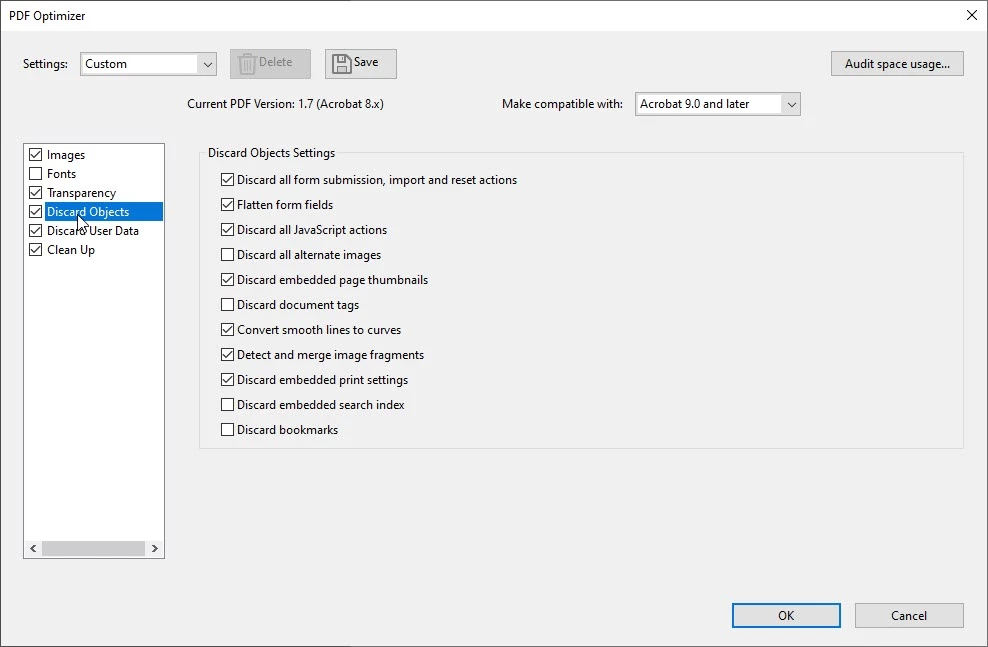
I have tried to optimize the PDF within Adobe Acrobat and under the "Discard Objects" settings, unticked "discard all alternative images", "discard document tags", "discard bookmarks" and "discard embedded search index" (as per screenshot).


When I open the PDF, all tags and alt text has disappeared. 


How do I retain all tags, alt text and any other accessibility settings that have been done in the InDesign file (exported PDF). 
 

This topic has been closed for replies.

6 replies

JR Boulay
Adobe Expert
February 28, 2023

In all, it would be interesting to know the settings for converting to PDF in InDesign and to know what these files contain.

Acrobate du PDF, InDesigner et Photoshopographe
Known Participant
February 28, 2023

I will see if our Graphics team can tell me what their settings are when converting to PDF from InDesign.  I have uploaded the PDF file if you want to have a look.  I appreciate your help because this is something we have been struggling with for a few years now.  

Bevi Chagnon - PubCom.com
Brainiac
March 1, 2023

I totally agree with you there and thank you for your help / feedback. 

I think the designers normally create two different versions:  1 for print and 1 for web.  They convert all images from bitmap to other file types, tag the web version etc.  However, sometimes we only get the print version as the designers don't have the time to create the 2nd file or convert images etc.

I will pass this onto them as a reference.

Our brand colours that an external design company gave us are not accessible colours so I came up with a list of accessible colours and the background colours that they can be used on, so ensure colour contrast.  
Personally, if we had time, all important PDF documents would be converted to HTML pages. 


quote
...These issues have been raised with designers and normally they create two different versions:  1 for print and 1 for web.  They convert all images from bitmap to other file types, tag the web version etc.  However, sometimes we only get the print version as the designers don't have the time to create the 2nd file.
By @agile_Miracle5DD0


Oh no, that's not necessary to do!

At our design studio — as well as in our classes and books on accessible InDesign — we create one layout and export both a press-quality PDF and an accessible interactive PDF for the website. Takes about 2-3 minutes to make both PDFs from the same layout. The layout doesn't change: only the export settings change.


  • The designers do not have to retool the layout from print to digital.
  • They don't have to switch the graphics' file formats because that's done automatically by the export setting when both PDFs are exported.
  • They don't have to switch color spaces or graphics resolution because that's done by the export settings, too.
  • The file isn't tagged in InDesign; instead, each paragraph formatting style defines not just the font, size, leading, etc. for the text, but also designates which accessibility tag should applied to it when exported to accessible PDF. One extra click in each style, that's it, and the job is done.
  • Alt text and artifact can be applied to all graphics in the layout, too.


It sounds like your designers haven't received good enough information about how to create layouts for both print and accessible digital. They'll be welcomed in my class! <grin>


|&nbsp;&nbsp;&nbsp;&nbsp;Bevi Chagnon &nbsp;&nbsp;|&nbsp;&nbsp;Designer, Trainer, &amp; Technologist for Accessible Documents ||&nbsp;&nbsp;&nbsp;&nbsp;PubCom |&nbsp;&nbsp;&nbsp;&nbsp;Classes &amp; Books for Accessible InDesign, PDFs &amp; MS Office |
JR Boulay
Adobe Expert
February 28, 2023

To keep the tags and matadatas intact, don't use these options and be sure to "Retain existing" version:


Acrobate du PDF, InDesigner et Photoshopographe
Known Participant
February 28, 2023

Thank you so much!  I think I've been going wrong with the "Make compatible with" as I wasn't ensuring that was set to "Retain existing".  I really appreciate your help. 

JR Boulay
Adobe Expert
February 28, 2023

To remove "Document overhead" you must tick this option:

Acrobate du PDF, InDesigner et Photoshopographe
JR Boulay
Adobe Expert
February 27, 2023

To find out where the weight of the document comes from and where you should intervene to reduce it, open the PDF in Acrobat Pro : File menu : Save as other : Optimized PDF, and click on the "Audit space usage" button.

Feel free to share the screenshot.


Acrobate du PDF, InDesigner et Photoshopographe
Known Participant
February 27, 2023

Thank you for sharing this.  I didn't know about that Audit space usage function.  I will try that next time with any PDFs exported from InDesign files by our Graphics Team, that are large.

As this post was put up 2 years ago, I cannot quite remember which document(s) we were having trouble with but if it happens again, I will share a screenshot.  Thank you for your help. 

Known Participant
February 27, 2023

I have actually just found a document that we had trouble with last year.  I'm not sure what it means by "Document Overheads".


hammer0909
Adobe Expert
June 18, 2021

Have you tried using File > Save As Other > Reduced Size PDF?

Known Participant
June 20, 2021

Yes but that removes all of the tags and alt text also.  

Known Participant
June 20, 2021

There doesn't seem to be an option to reduce (or optimize) that keeps the tags and alt text. 

JR Boulay
Adobe Expert
June 17, 2021

If you used the correct settings when exporting from InDesign you wouldn't need Acrobat Pro to reduce the size of your PDF!

Acrobate du PDF, InDesigner et Photoshopographe
Known Participant
June 17, 2021

Well that was really helpful!  So what do you think the correct export settings are?

We have the export settings correct (to our knowledge and as far as we know) but the file is still 24mb which we feel is too large to put onto the web.  We are trying to reduce the size of file so are trying all options.  I have posted in the InDesign community to check export settings, as well. 

JR Boulay
Adobe Expert
June 19, 2021

You have to do some tests because it depends on what is in the INDD file, there is no universal settings.

Acrobate du PDF, InDesigner et Photoshopographe