If this is happening in a work environment, and assuming that those computers are not administered by your organization, then each user must allow the operating system to give permission to Adobe Acrobat to access the file system.
For example, Adobe Acrobat still uses Internet Explorer 11 integration, which also acts as a file explorer between Acrobat and the Microsoft Windows operating system.
Because Internet Explorer 11 is no longer supported, for me to get the result that you're looking for, I had to disable Internet Explorer completely and all of its associated plug-ins.
As a second step, I also went to the control panel -->> "Programs Features" and enable apps to have access to the system libraries and file system.
The default setting in Windows 10 and 11 is Off, so it may be possible that these users have that setting restricted.
A note on that, as you enable this option it also opens up to any program to be able to read and write to system libraries, which contradicts the bult-in security of the operating system.
++ EDITED REPLY
If this is not a concern of your organization you can try the following guidelines from Microsoft Support:
Thank you again, ls_rbls, for all of your advice.
We are managed by our organization.
Internet Explorer is completely removed from our systems.
We are allowed to adjust privacy settings to allow/deny app access to the file system.
I finally got it to work. I don't know why this change did it, but I'll explain the process after I show you this little prologue.
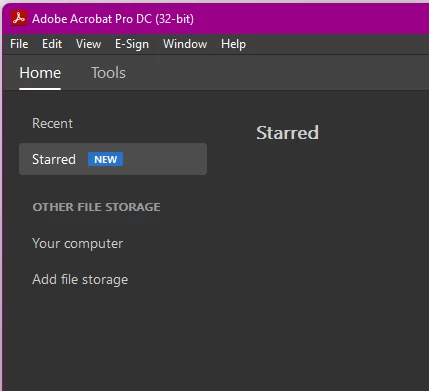
First, as you can see, I don't have any online storage options displayed in my Home tab -
If I do a search for anything here, it says I need to sign in. BUT it also now displays Adobe Cloud Storage, although greyed out -
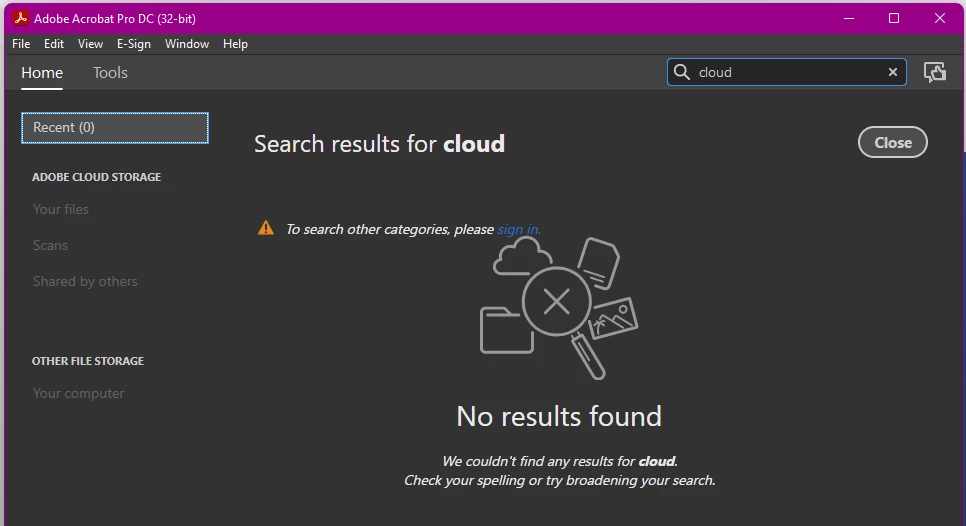
It is my assumption at this time that my organization has limited the use of Adobe Cloud Storage through Acrobat Pro DC, since we are a Microsoft 365 customer. I say "limited" because I can still access Acrobat Online and create/save files there. Additionally, going to my Adobe account page shows that I have Adobe for Enterprise with 100GB of total cloud storage.
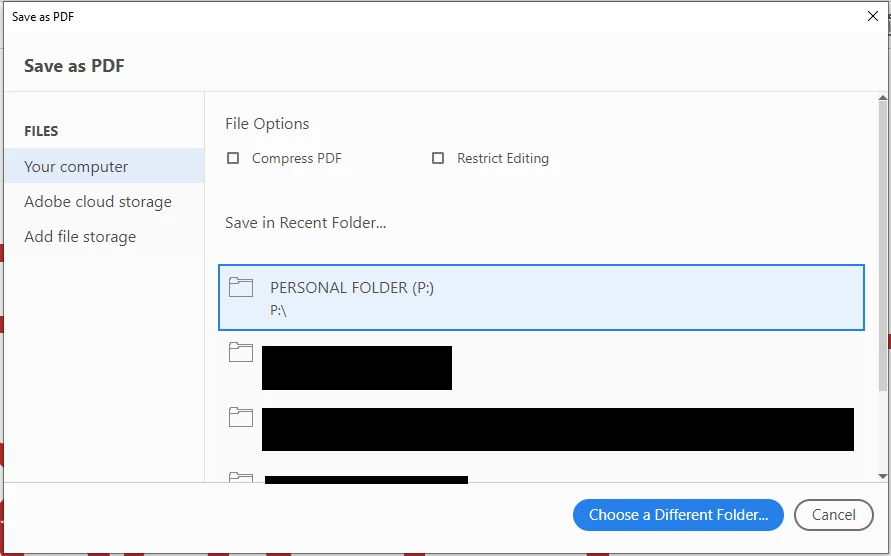
With that out of the way, I suspected that I was not getting the dialog I expected because I had no online storage options on the Home tab.
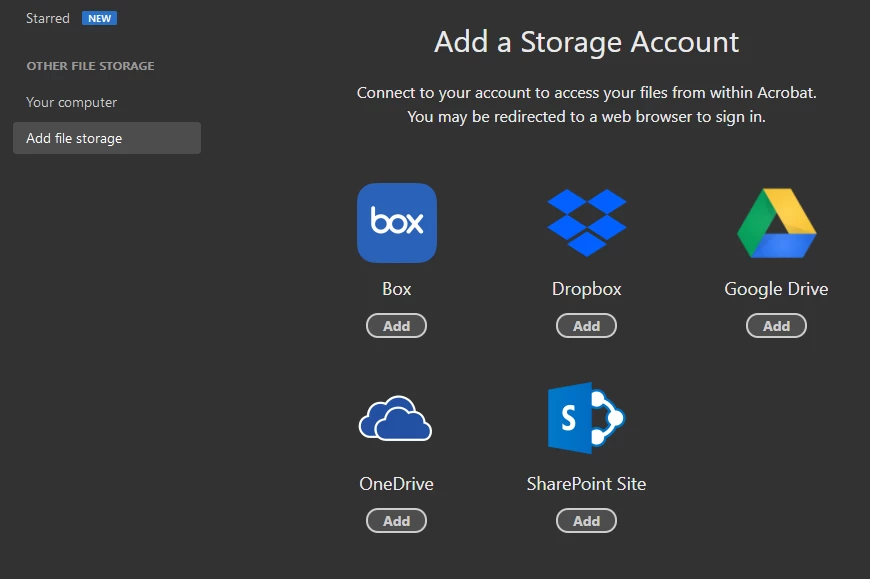
So I selected Add file storage, and then Add under OneDrive -
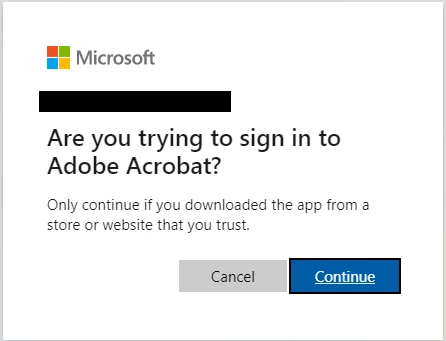
This prompted me to connect through Microsoft -
Once that process completed, OneDrive is displayed uner Other File Storage -
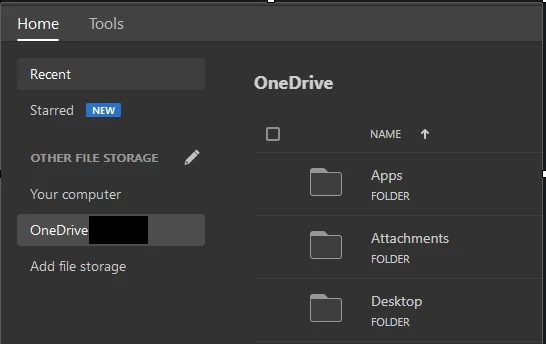
So now, when I try to save a file, I get this -
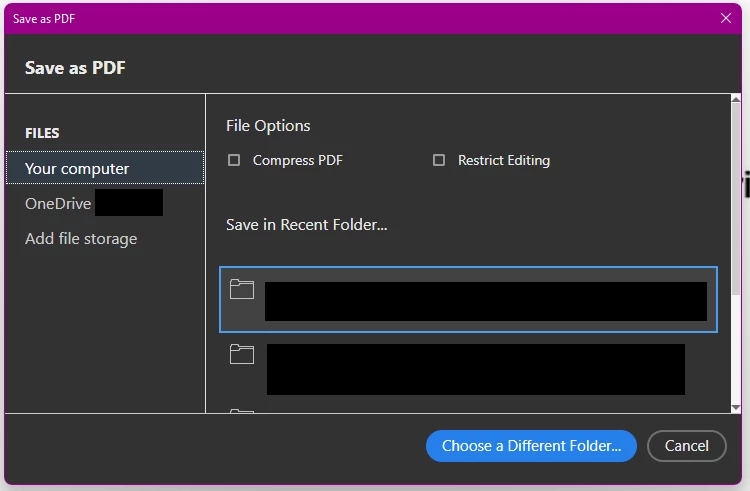
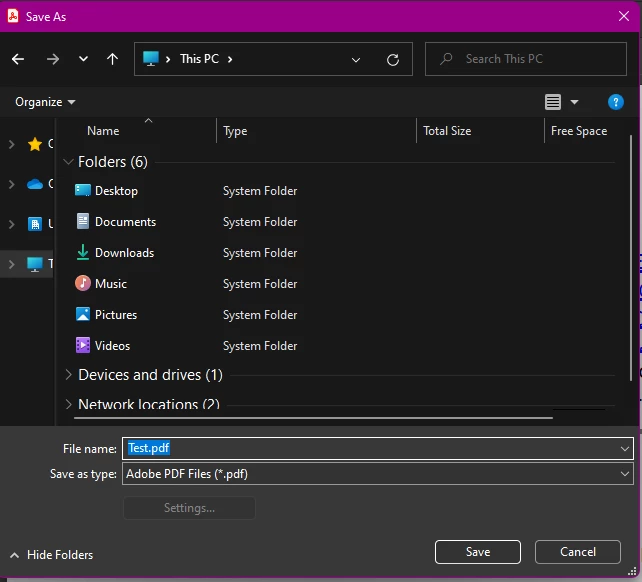
I think this is what my coworkers want, so I will demo the process to them and see if that meets their intent.
Again, thank you for the input, it gave me extra avenues to explore.




 AdChoices