
Participant
November 30, 2022
Answered

How do I move the quick actions toolbar in Acrobat Pro 2022.003.20281 on a Mac?

  • November 30, 2022
  • 64 replies
  • 194375 views

I'm using Acrobat Pro 2022.003.20281 on a Mac OS 12.5. In past versions I could dock the Quick Actions Toolbar to the top of the window, but in this version of Acrobat, it hovers in the upper left, sometimes covering art that I need to see when zooming in. Is there a way to dock it so it isn't hovering, or at least temporarily hide it? The attached image shows how it is "floating" above the window. I need it to not float so it doesn't cover my PDF workspace. Thanks!
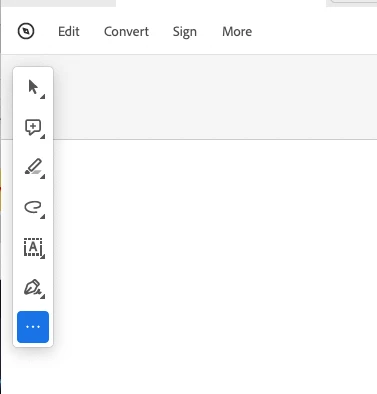
 

Correct answer Bevi Chagnon - PubCom.com

You can revert to the classic GUI interface by following the instructions here (for both Mac and Windows):

https://community.adobe.com/t5/acrobat-discussions/acrobat-2023-how-to-revert-to-classic-gui-user-interface/m-p/14052807


And let Adobe know your opinion at UserVoice: https://acrobat.uservoice.com/forums/590923-acrobat-for-windows-and-mac/suggestions/47082691-ditch-the-2023-user-interface-in-acrobat


64 replies

Participant
June 1, 2023

I don't understand why you tech people have to take a perfectly good product and mess it up and make it worse. If you want to add something fine, but don't make unnecessary changes, all it does is piss off your customers.

AkanchhaS8194121
Legend
June 1, 2023

Hello everyone,


This Quick action toolbar is added with Acrobat's new UI. There's no such setting to disable or Hide it. As a workaround, you can switch back to the earlier version. For that you can disable the new UI

Acrobat>View>Disable New Acrobat


You may also share your feedback about the same by filling out this feature request form: https://www.adobe.com/products/wishform.html 


Thanks,

Akanchha 


Participating Frequently
July 13, 2023

Unfortunately for me, reverting to the old design is an even bigger problem (see my thread here, which Adobe has ignored since initially trying--and failing--to help: https://community.adobe.com/t5/acrobat-discussions/unable-to-view-comments-or-unable-to-scroll-when-comment-pane-is-open-in-acrobat-pro/m-p/13914755#M418610). The floating toolbar is incredibly dumb--Adobe, there is a thing called USABILITY TESTING: try it--but not being able to see Comments in proofs brings the whole process of publishing to a complete halt. Adobe stands to lose hundreds of customers and a huge amount of money as those of us working in the publishing industry become increasingly frustrated. If you don't deliver waht your users need, some new company will come along and take your customers--remember QuarkXPress? Probaby not, because Adobe InDesign was vastly superior and destroyed Quark. The same thing is going to happen to Acrobat

Participant
May 11, 2023

For all of you having the same issue I was, just go to your menu in Acrobat Pro and select "Disable new Acrobat" and it will revert to the last version and solve this issue until they fix it.  It appears to work on Mac and in Windows.  Acrobat Pro opens in the new version, but this method puts it back the way it was.  I hope this helps you all.  It did for me.

Participant
May 27, 2023

Thank you! It was driving me crazy.

Participant
April 25, 2023

I have been looking for a solution to the same complaint about he toolbar location.  I found this thread and thought I was going to be good to go but,  My version does not have a View tab that I can find to select Disable New Acrobat.  Can you please point me to the correct location?

Participating Frequently
April 25, 2023

It's not a tab, it's a menu option at the top of the application.  On the Mac version, the top will read "File  Edit View E-Sign Window Help".  Click on View to get a drop down menu.


ScottHaugaard
Participant
April 15, 2023

Under View>Disable New Acrobat.

Things go back to normal.

Participant
April 15, 2023

You are my hero. Thank you. 

Participant
April 10, 2023

Agreed, it would be great to be able to move/remove/add tools in Adobe. Being able to remove the Quick Actions is a start, but I also think it'd be better if users could place tools on the top toolbar like in previous editions (and in almost every other MS Office product). Users would likely feel more comfortbale using your product if they could arrange their editing workspace in a way that suits them - not being forced to view things the way Adobe demands.

Participant
April 10, 2023

I agree!!! The change is very frustrating!


Participant
April 7, 2023

I am withdrawing my subscription from Adobe PRO and moving to Foxit. It is incredibly annoying that they cannot fix this simple thing in months. 

Participant
March 24, 2023

It would make more sense to dock the quick action toolbar in the pages/navigation sidebar on the right side.


I've removed as many quick tools as possible to reduce the size of the quick action toolbar, but 6 tools have been selected as default and can't be removed.

Participant
March 29, 2023

I agree. I'm looking at an agenda and double checking times. The toolbar blocks the first time listed so I have no idea if the time listed is corrected. Adobe, this is a major issue, please fix it!

Participant
March 16, 2023

It's been four months. Fix it.

Participant
February 27, 2023

Could not agree much more!!!


Participant
February 27, 2023

My Acrobat Pro was recently updated and now the tool bars are on the opposite side of my document.  This just caused me to have to change my written instructions with screenshots on a document I've been working on for weeks!  I cannot find anywhere a solution that shows how to move the tool bars where you want them.  Apparently they are fixed. We should have the option to choose what side of the page the tool bars sit.  Now I have to retrain how I work because the tools and navigation panes have been switched.  What was the reason for this?  And the floating toolbar is in the way!  Can't you fix it so we can arrange our workspace for how we work or change it back to the way it was?  This is so frustrating, and I've wasted hours just trying to find a solution.  I even uninstalled and reinstalled the program.  So upsetting!

Participant
June 15, 2023

If you click view - disable new acrobat it will return back to the original format.


Thank you for posting this information, this did exactly what I was looking for. For any other frustrated users in this tread try this step, it is a quick fix.


And Adobe, please hear the feedback. This program already does everything it needs to do. Moving things around doesnt improve the experiance it just frustrates users.

Participant
February 25, 2023

So absolutely annoying - please fix as soon as possible, this is so frustrating