


Participant
November 30, 2022
Answered

How do I move the quick actions toolbar in Acrobat Pro 2022.003.20281 on a Mac?

  • November 30, 2022
  • 64 replies
  • 193970 views

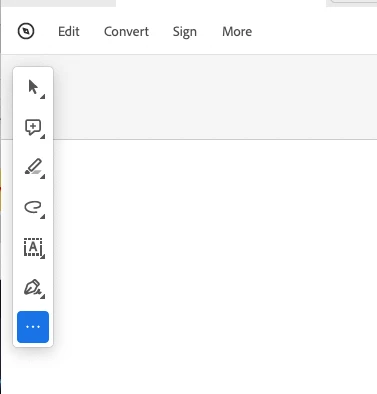
I'm using Acrobat Pro 2022.003.20281 on a Mac OS 12.5. In past versions I could dock the Quick Actions Toolbar to the top of the window, but in this version of Acrobat, it hovers in the upper left, sometimes covering art that I need to see when zooming in. Is there a way to dock it so it isn't hovering, or at least temporarily hide it? The attached image shows how it is "floating" above the window. I need it to not float so it doesn't cover my PDF workspace. Thanks!
 

Correct answer Bevi Chagnon - PubCom.com

You can revert to the classic GUI interface by following the instructions here (for both Mac and Windows):

https://community.adobe.com/t5/acrobat-discussions/acrobat-2023-how-to-revert-to-classic-gui-user-interface/m-p/14052807


And let Adobe know your opinion at UserVoice: https://acrobat.uservoice.com/forums/590923-acrobat-for-windows-and-mac/suggestions/47082691-ditch-the-2023-user-interface-in-acrobat


64 replies

Participant
October 13, 2023

As someone who uses a vertical monitor, this is the worst change that could've been made. Why are we at the very least not able to keep it hidden? It blocks half of the things I need to work on. 

Participant
September 26, 2023

Glad I'm not the only one! I was hoping google would answer this - so annoying there's not a solve - also why did thumbnails move from the left to the right. I want my old version back.

Participant
September 18, 2023

In Acrobat Pro 2022, the Quick Actions Toolbar might not have the same docking options as in previous versions. To address this issue, you can try the following steps:

  1. Customize the Toolbar:

    • Right-click on any part of the toolbar area or go to the "View" menu.
    • Select "Customize Toolbar..."
    • Look for the Quick Actions Toolbar and see if there's an option to dock it at the top or anywhere more convenient.
  2. Undock and Relocate:

    • If the toolbar remains undockable, you may have to undock it from its current position.
    • Click and drag the Quick Actions Toolbar to a different location on your screen court dimension, preferably to the side where it doesn't obstruct your PDF workspace.
  3. Temporary Hide:

    • Some applications allow you to temporarily hide toolbars by pressing a keyboard shortcut. Try pressing the "Tab" key to hide or reveal the toolbar when needed.
Meenakshi Negi
Community Manager
Community Manager
September 15, 2023

Hi all,


Please try updating the application to the latest version that addresses this issue. It's now possible to drag the quick tools bar and place it as desired. To update the application, go to Help > Check for updates.

For more information, refer to the following post: https://community.adobe.com/t5/acrobat-discussions/adobe-acrobat-and-reader-september-2023-updates-now-available/td-p/14081404.


Thanks,

Meenakshi

Participant
September 15, 2023

The update allows the toolbar to be moved from left to right, but I cannot get in my desired location, which is no top.  Am I doing something wrong.  

Participant
September 14, 2023

The Quick Action Tool Bar is the worst. Please fix this incredibly annoying feature. Covering up any portion of the PDF without an easy way to move the toolbar defeats the purpose of why I use Adobe Pro in the first place - to read and edit PDFs. I have wasted so much time on this because it blocks portions of the PDF I am working on. It seems like I am not alone.


Participant
September 13, 2023

Unbelievable - at first I thought it was a glitch on my end or something I couldn't figure out.  Why would Adobe put a toolbar floating in the document being worked on with no way to move it.  Its really an impendiment and annoying.  I finally googled and found this discussion.  Glad to know I'm not crazy.  C'mon Adobe - we know you're listening.... Fix this please.... Adobe????   not listing

Participant
September 12, 2023

It really really sucks that we cannot move the Quick Access Tool Bar in the latest version of Adobe. The types of documents I work with the toolbar is always in my way and makes it difficult to manuver around the document just to move it out of the way to view the material in my document. I end up reviewing the charts in my documents broken up which takes longer to grasp the information I need to review. Please add the ability to move the Quick Tools toolbar from its current location. 

Participant
September 8, 2023

I do not like the new layout. There should be an option to return to the old view. How do you put the tool bar at the top?


Participant
September 12, 2023

I also concur:  The floating toolbar is in the way of the document.  I had to disable "New Acrobat" to be able to actually work on the section of the PDF that the toolbar covered.  I hope the feedback on this question can actually affect change.


Participant
April 10, 2024

I went to the sight to find out how to disable and it didn't work. I can't figure out how to revert to the old one. I'm completely stuck with this junk. Honestly it is one of those things that is so irritating that it just makes you grouchy and irritable. I don't even want to turn on my screen.

Participant
September 4, 2023

Please allow for toolbar to move back to where it was once the only option is the new interface. 


S_S
Community Manager
Community Manager
September 7, 2023

Hi All,


Hope you are doing well. 


We appreciate your valuable feedback! We're always looking for ways to improve Acrobat, and we appreciate the time and effort you have taken to share your thoughts with us.


We acknowledge that the new Acrobat represents a notable change; however, we hope that as you get familiar with the new interface, you can be more productive and get more out of Acrobat.


We are actively working on all the currently unavailable features, such as moving, hiding, or re-sizing the floating/quick toolbar, and are being addressed with the highest priority.


If your critical workflows are impacted, you can switch to the old UI from the “Menu” on the top left corner of Windows and View Menu on MacOS.


We will follow up with a detailed community-featured post, guiding you to familiarise yourself with the new interface and regular updates on upcoming changes.


-Souvik

Acsheff
Participant
September 7, 2023

When Adobe's answer is "revert to previous version" LOL. "We are always looking to improve our products" - false. Nowhere on the uservoice feature request site was the feature request "Please move this toolbar that works perfectly fine out on top of my visible area that I cannot hide, move, or dock." Maybe if you're looking for ways to improve, go to the feature request site and do those instead of pulling stuff out of nowhere.

Participant
September 1, 2023

OMG this is worse than New Coke - go under Menu>Disable New Acrobat - it was just below View


Bevi Chagnon - PubCom.com
Legend
September 4, 2023
|    Bevi Chagnon   |  Designer, Trainer, & Technologist for Accessible Documents ||    PubCom |    Classes & Books for Accessible InDesign, PDFs & MS Office |
Randy CorpGraphics
Known Participant
February 22, 2024

I could not get this to work. The new update keeps crashing when I try to close the app or restart the app. SUPER ANNOYING.