

marthah54413492
New Participant
November 3, 2015
Answered

How do I reduce file size with Acrobat Pro DC?

  • November 3, 2015
  • 5 replies
  • 145589 views

I used to use Acrobat Pro and could reduce file sizes and break up PDFs. How do I do that now? Very important for sending docs to government offices that don't take attachments over 4MB. Help?

This topic has been closed for replies.
Correct answer Dov Isaacs

What you are saying is true Dov, however in Acrobat 9 Pro there was an option when you when to Document > Reduce File Size.   By doing this to just about any PDF, the file size was drastically reduced, but still maintained decent print quality.  I used it often to save better PDFs for web access as well.  It was just plain simple - it is too bad they have removed this easy to use function.  On a side note, there was also and option to "Optimize Scanned PDF" which was also very handy.

EDITED ADDITION:  29.7mb PDF (PDF/X-1a:2001) shrinks to 6.05mb using "Reduce File Size" from Acrobat 9 Pro and the quality difference on a high end colour copier is negligible - just tested. 
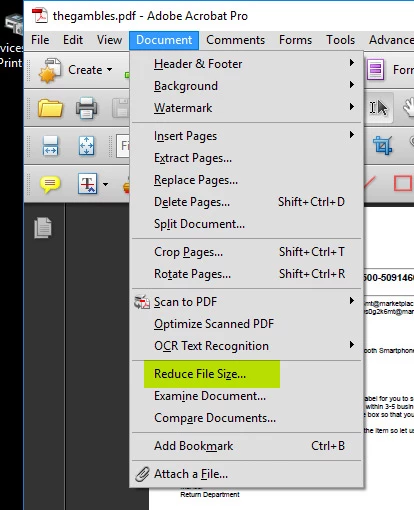
- WG

10 years in print.

17 year vet of graphic design.


That option still exists in Acrobat DC!!  You choose File=>Save As Other=>Reduced Size PDF. This feature is actually a headless version of File=>Save As Other=>Optimized PDF in which downsampling and similar settings are set to values that hopefully won't ruin quality too much.

The results of either Reduced Size PDF and Optimized PDF in terms of resultant file size depend upon:

(1)     The contents of the original PDF file. An original PDF file with significant high resolution raster graphics will yield more size reduction than a similar PDF file with low resolution, low quality raster graphics. And it is unlikely that you will see significant if any size reduction in a file that is totally vector and/or text-based.

(2)     What quality degradation you are willing to tolerate? A PDF file in which 300 dpi images in ZIP compression are downsampled to 72dpi with the highest compression / lowest quality JPEG settings might be tolerable on old 15 inch low resolution monitors, but simply are unacceptable for printing or display on high resolution devices including today's nearly 300dpi phones and tablets (as well as large 4K UHD monitors).

(3)     Other “junk” in the PDF file. For example, if you save a complex Illustrator file with large amounts of raster data embedded (i.e., not linked) as a PDF file and request the option by which that PDF file remain editable in Illustrator, all content in the Illustrator file is kept as a separate private data area in the resultant PDF file – typically such files are double or more the size of the PDF file without that option.

          - Dov

5 replies

New Participant
December 14, 2017

I can confirm a major flaw with DC vs pro 9.0  I had a contract file that was sent to me by a colleague for reduction, it came in at 13.8MB, when I attempted all the options to reduce this file    the result with DC was a 14.1MB product!! when I did the same with pro 9.0 on a 10 year old PC, the result was a readable printable file size of 2.1MB's  Very disappointed overall with DC for cost, cloud based and overall not nearly as fluid as Pro 9.0, FWIW, I'll be using my dinosaur loaded with pro 9.0 instead of my surface pro loaded with DC for any contractual processing like mentioned above.. Please fix this flaw adobe.

Brainiac
December 14, 2017

DC is not cloud based. It’s just got cloud in the name.

New Participant
December 12, 2017

File Save as Other only has a Text or Word or Excel Option. Not a downsampling option.

try67
Adobe Expert
December 12, 2017

Then you have the free Reader. You need Acrobat.

New Participant
January 2, 2017

None of these worked to reduce the file size of a B&W 3-page document from a gigantic 5.4 megs to a more appropriate size. The scan said it should be about 1mg. I tried reduce file size and optimize and it resulted in 0 size reduction. This is a significant problem with Acrobat.

Dov Isaacs
Brainiac
January 2, 2017

There is not necessarily a “significant problem with Acrobat” but perhaps a problem with either your settings for reducing files size or even your expectations.

Simply stated, you cannot legislate the size of a PDF file. The size of a PDF file depends on (1) the type and amount of content on the pages and (2) the degree to which you wish to degrade quality of the content of those pages.

In terms of any text and vector content in the PDF file, the only significant size reductions that you can effect are associated with compressing the object streams, a feature of PDF 1.5 or later (if you need PDF 1.4 or earlier, this optimization isn't available).

In terms of raster images, size reductions come at the cost of either reducing the images' resolutions, applying lossier compression, or both of these techniques. (Settings are available in Acrobat for these parameters!) In each case, you risk reducing the quality of what you see either on screen or print to the point where it is unacceptable due to lack of image resolution (typically yielding fuzzy-wuzziness) and/or compression artifacts.

          - Dov

- Dov Isaacs, former Adobe Principal Scientist (April 30, 1990 - May 30, 2021)
September 5, 2017

That option still exists in Acrobat DC!!  You choose File=>Save As Other=>Reduced Size PDF. This feature is actually a headless version of File=>Save As Other=>Optimized PDF in which downsampling and similar settings are set to values that hopefully won't ruin quality too much.

The results of either Reduced Size PDF and Optimized PDF in terms of resultant file size depend upon:

(1)     The contents of the original PDF file. An original PDF file with significant high resolution raster graphics will yield more size reduction than a similar PDF file with low resolution, low quality raster graphics. And it is unlikely that you will see significant if any size reduction in a file that is totally vector and/or text-based.

(2)     What quality degradation you are willing to tolerate? A PDF file in which 300 dpi images in ZIP compression are downsampled to 72dpi with the highest compression / lowest quality JPEG settings might be tolerable on old 15 inch low resolution monitors, but simply are unacceptable for printing or display on high resolution devices including today's nearly 300dpi phones and tablets (as well as large 4K UHD monitors).

(3)     Other “junk” in the PDF file. For example, if you save a complex Illustrator file with large amounts of raster data embedded (i.e., not linked) as a PDF file and request the option by which that PDF file remain editable in Illustrator, all content in the Illustrator file is kept as a separate private data area in the resultant PDF file – typically such files are double or more the size of the PDF file without that option.

          - Dov


Thanks for that Dov - I missed it!  Thankfully the quality of the image is not a huge deal for my uses.  We usually use this as a supplement to a web compressed PDF from Indesign.  Adding this as a step after significantly reduces the size on (as you mentioned) files with a lot of raster images.  Printing is not usually a priority, it is just getting it up on the web at decent size.

- WG

AbhigyanModi
Community Manager
Community Manager
November 4, 2015

Looks like you want to split a PDF file. On the right hand vertical panel, there is a box where you can type by name "Search tools". To find a function of Acrobat, you can just type there to search for it. For example, typing in Split there will show you the command to split PDF files.


Alternatively:

Tools on the top bar -> Organize Pages-> Split

Split a PDF document | Adobe Acrobat DC tutorials

November 3, 2015

Hi ,

You could save it as reduced size PDF or Optimize the PDF.

Please refer the following link for the same.

https://helpx.adobe.com/acrobat/using/optimizing-pdfs-acrobat-pro.html

Regards

Sukrit Dhingra

New Participant
December 12, 2017

Your directions are for Pro not DC.