
Participant
October 25, 2023
Answered

How to change default save location to last file I saved to

  • October 25, 2023
  • 4 replies
  • 24896 views

Hello,


I have the Adobe Acrobat standard subscription plan.   When I "save as,"  I would like the folder I last saved an adobe file in to appear right away and not have it default to my downloads folder.   It is so annoying because often I am saving to the same folder, but since "save as" takes me to the download folder I have to navigate through a number of folders to get to where I want to save it.   If I am not mistaken years ago Adobe did save to the last folder you saved in, but something has changed.    Is this possible?  
Correct answer Tariq Ahmad

Hi all,

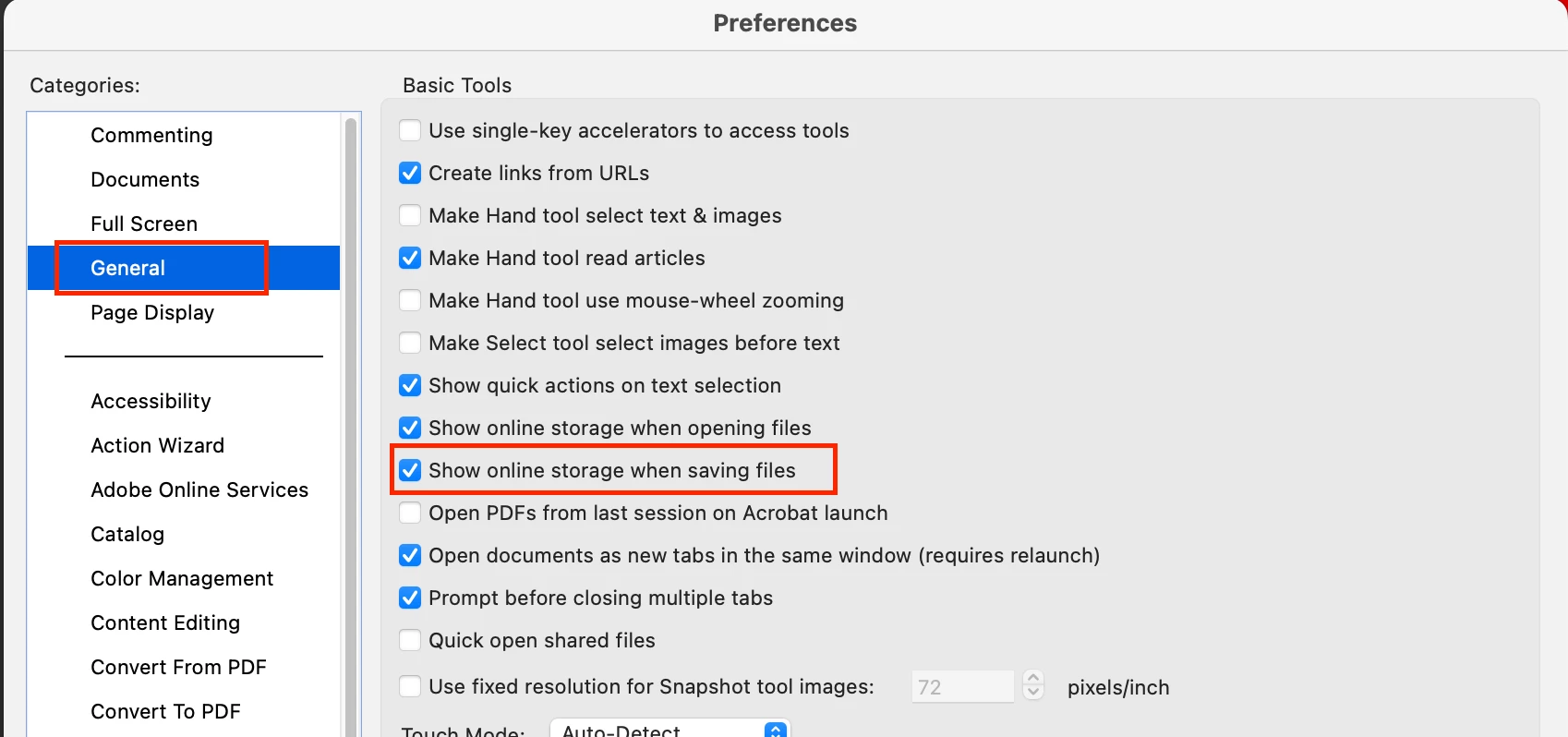
Sorry for the delayed response and troubled experience; you may try disabling a preference named "Show online storage when saving files." Try the following steps:


1. Open the Preferences dialog box in Acrobat:

  • On Windows: Choose Edit > Preferences > General.
  • On macOS: Choose Adobe Acrobat > Preferences > General.


2. Clear the check box for the following options:

  • Show online storage when saving files.

Show online storage when opening files (if you want to change the open dialog as well)


3. Click OK.


Let us know if that helps. 


~Tariq

4 replies

Participant
November 3, 2025

Yes!

As others have stated, Preferences - General - Show online storage when saving files = NO! (uncheck it)

That did the trick for me!

Participant
November 3, 2025

I just discovered that it works "sometimes" depending on the origion of the download.

Some company's creditcard statements open and download to the previous folder properly, while other company's open in a different manner and still download to the "downloads" folder.

Adobe should do something to make this easier...

Participant
December 13, 2024

Just a little work around using the old fashion windows explorer window:

- Save as

- Search your destination folder (or root for multiple folders)

- Copy the address bar

- Cancel your Save action

- Repeat Save As

- Paste clipboard (the link to your destinationfolder) into the address bar

- Enter

- Again Cancel you Save Action (no I am not joking you)

- Again Save As

- Now you can use the small arrow at the right side of the address bar and there is your link to your destination folder.

- Click and Save 🙂


Note: Why 2 times Cancel to get the address in the old fashion "Recent" list of Windows Explorer? I can't tell, but it helps me to get to the folder fast 😉


Good luck

Just an Adobe User

Participant
December 16, 2024

Unfortunately the Adobe Acrobat "Save as PDF" dialog looks nothing like the Windows Explorer Save As dialog box. There is no address bar to paste into. There are 5 recent folders to pick from, or "Choose a different folder".

Tariq AhmadCommunity ManagerCorrect answer
Community Manager
January 17, 2025

Hi all,

Sorry for the delayed response and troubled experience; you may try disabling a preference named "Show online storage when saving files." Try the following steps:


1. Open the Preferences dialog box in Acrobat:

  • On Windows: Choose Edit > Preferences > General.
  • On macOS: Choose Adobe Acrobat > Preferences > General.


2. Clear the check box for the following options:

  • Show online storage when saving files.

Show online storage when opening files (if you want to change the open dialog as well)


3. Click OK.


Let us know if that helps. 


~Tariq

Participant
April 24, 2024

I have the same annoyance! I often save downloaded Adobe files and it does not take me to the most recent folder used. I have to keep clicking through the sub folders from the beginning to get to correct folder. Does my head in. Surely developers can fix this most basic of requests!!!


Amal.
Community Manager
Community Manager
April 26, 2024

Hi there


Hope you are doing well.


if you are operating from a single folder to open/save files then that folder will be the topmost one in the recent folders list in My Computer tab. Please make sure you have the application updated to the recent version 24.02.20687. Go to Help . check for updates and reboot the computer once.


If it still doesn't work, please remove the application using the Acrobat cleaner tool https://www.adobe.com/devnet-docs/acrobatetk/tools/Labs/cleaner.html, reboot the computer and reinstall the application using the direct link https://helpx.adobe.com/acrobat/kb/acrobat-dc-downloads.html


~Amal

Amal.
Community Manager
Community Manager
October 25, 2023

Hi @Kara E32137734953m 


Hope you are doing well and thanks for reaching out.


There is not a way yet to mark any folder as the default save/open location. However, if you are operating from a single folder to open/save files then that folder will be the topmost one in the recent folders list in My Computer tab.


You may also share your feedback to the engineering team using the link https://www.adobe.com/products/wishform.html


~Amal