


Participating Frequently
March 15, 2023
Question

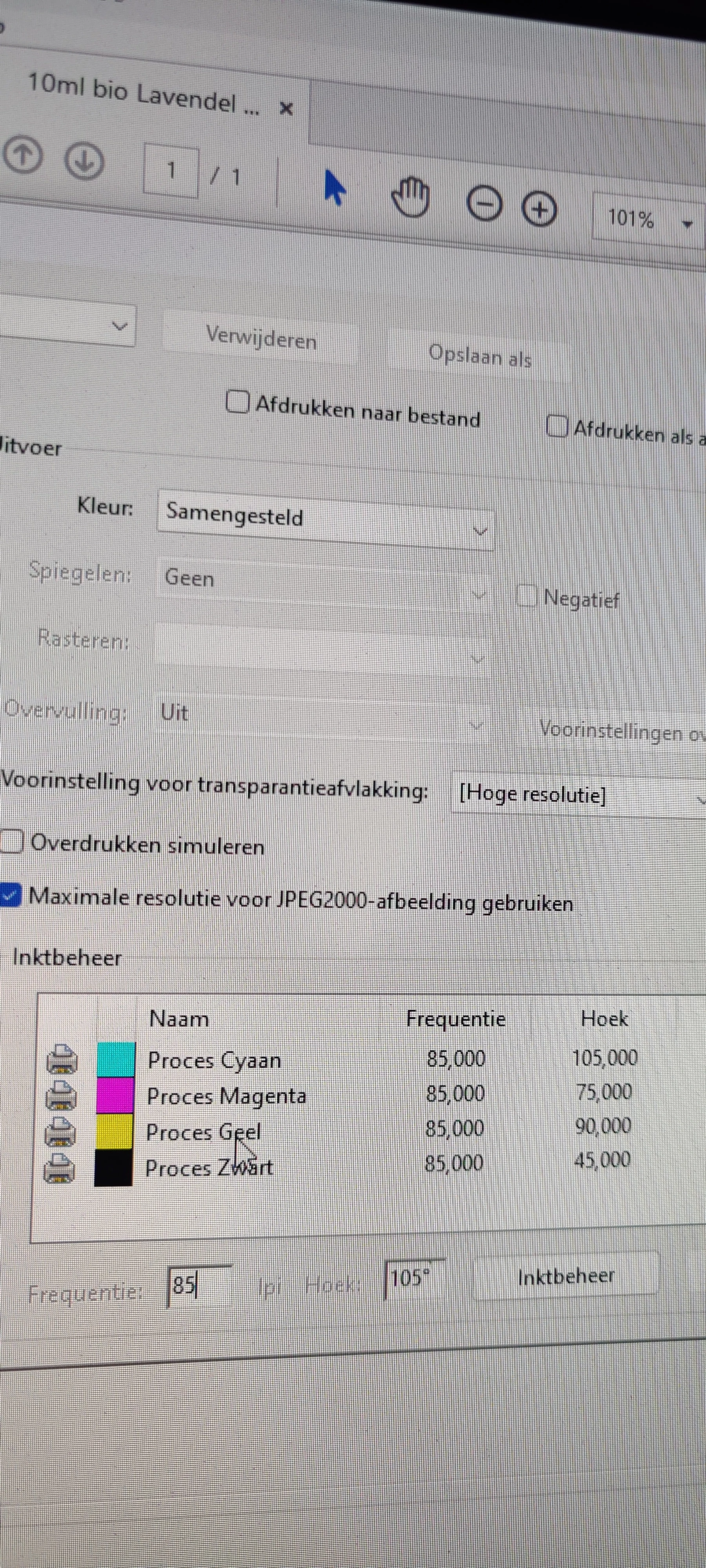
How to change lpi settings in PDF from 85 to 150

  • March 15, 2023
  • 2 replies
  • 5456 views

I don't think anyone can help me but I wanted to try.

I don't know why but, when I go in advanced settings in PDF when I want to print the file. 


It says ink management and it says Proces Cyaan, Magenta, Yellow and black. But when I want to change the frequency from 85 to 150 LPI it stays the same. How can I change this. This is so frustrating me.


Before it worked to do it, unfortunately it is now not working anymore I have no idea why.


Please help!
This topic has been closed for replies.

2 replies

Brad @ Roaring Mouse
Community Expert
Community Expert
March 24, 2023

The ability to change line screens is dependent on the ability of the SPECIFIC (usually Postscript) printer. From your screen grab, you have a universal printer driver selected, so probably will not accept line screen changes as it doesn't have specific information about your printer's capabilities. Even if you can change the setting in Acrobat it doesn't mean the printer can (or will) do it. For instance, my Xerox PS printer has what's called a Halftone Lock (in its printer driver settings) which ignores any instructions in the print stream to change the line screen, as the printer's own halftone screen is optimized for best results.

Even if your printer is a one that allows overrides, the screens won't change unless you have selected "Emit Halftones" under Postscript Options.

What was your printer driver/system when you were able to do this before?

What is your EXACT printer?

Participating Frequently
March 31, 2023

Thank you for your message,


The driver system was the same I think, I struggled very hard tried many many things to change the lpi I don't know where I clicked but it changed to 150 and the little letters were sharp printed. And when I opened the page of PDF again I saw the lpi at 85 again and couldn't change it again.


My printer is: Kyocera - Ecosys - M5526CDW - All-In-One colour Laserprinter - 

Brad @ Roaring Mouse
Community Expert
Community Expert
April 25, 2023

Hmm. Kyocera make this very difficult. I THINK that for this printer driver you need to go to printer properties and under "Page Description Languages (PDL)" choose "KPDL". See pictures:


Okay, I've looked at the Kyocera driver, and, although it does have a setting to change Halftone, it only does so to give you the best results for certain print situations. AND only available if you have installed the KPDL driver. The default is "Gradation" which gives you the smoothest blends of grey possible with your machine. The other two settings : "Detail" which will improve rendition of smaller items; and "Line Art". Both of these will compromise the reproduction of gradations and photos, because the finer line screen it is printed in reduces the possible levels of grey.

The reason you are not able to set 150 in Acrobat is because it means nothing to your Kyocera. Even if you could type any number in there, it will be ignored.

In any case, when you say you have small type in a photo... if this type has been rendered into the photo as a rastered bitmap and not vector, your image quality is defined by the resolution of your photo and NOT the output settings of your printer. Even if your photo is 300ppi, any rendered type will be soft and fuzzy; this is all that is physically possible.

If you care to share a sample file, we can suss that out.

Legend
March 15, 2023

Please send a screen shot - not a photo of the screen.

Participating Frequently
March 15, 2023

Why what does it matter? You see clearly on the picture what I mean. 

Legend
March 15, 2023

I can see what you think is important, but I can't see the other stuff that I think is important. Never mind.