_MGadAllah_
Known Participant
May 31, 2023
Answered

How to change page size in Acrobat Pro XI 11.0.23

  • May 31, 2023
  • 5 replies
  • 30515 views

Hi,

I do not mean to change from A4 to A3 or like.

I mean to adjust the exact size of inches for a custom paper size.

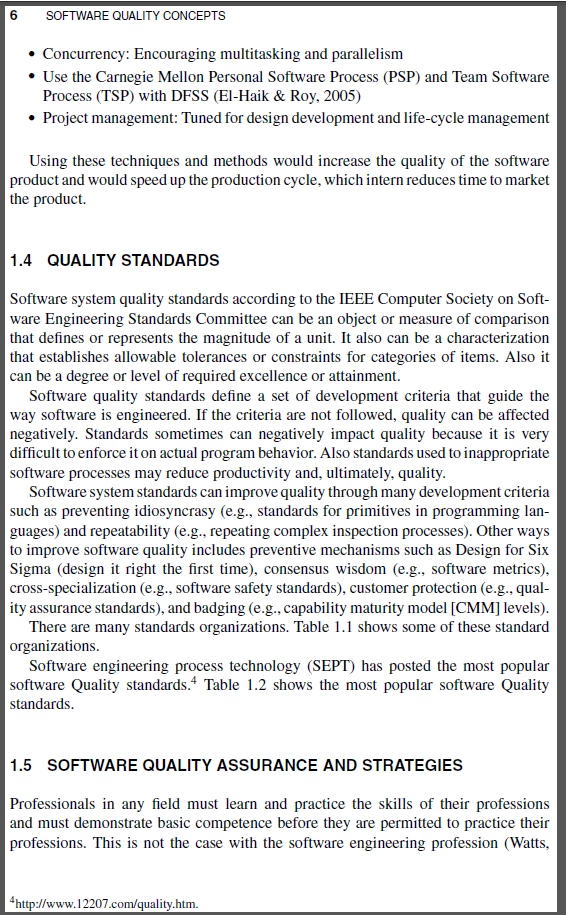
The reason for asking is that I have a file that needs to be printed and it has a lot of margins, so after removing all margins using the crop pages toolboxes, I am still not satisfied but the result for the printed document, because it still has some margins, while the soft copy has no margins at all.

So I thought about having a custom page size, then printing it.

I will print it on A4 paper.

This is the page after the crop:

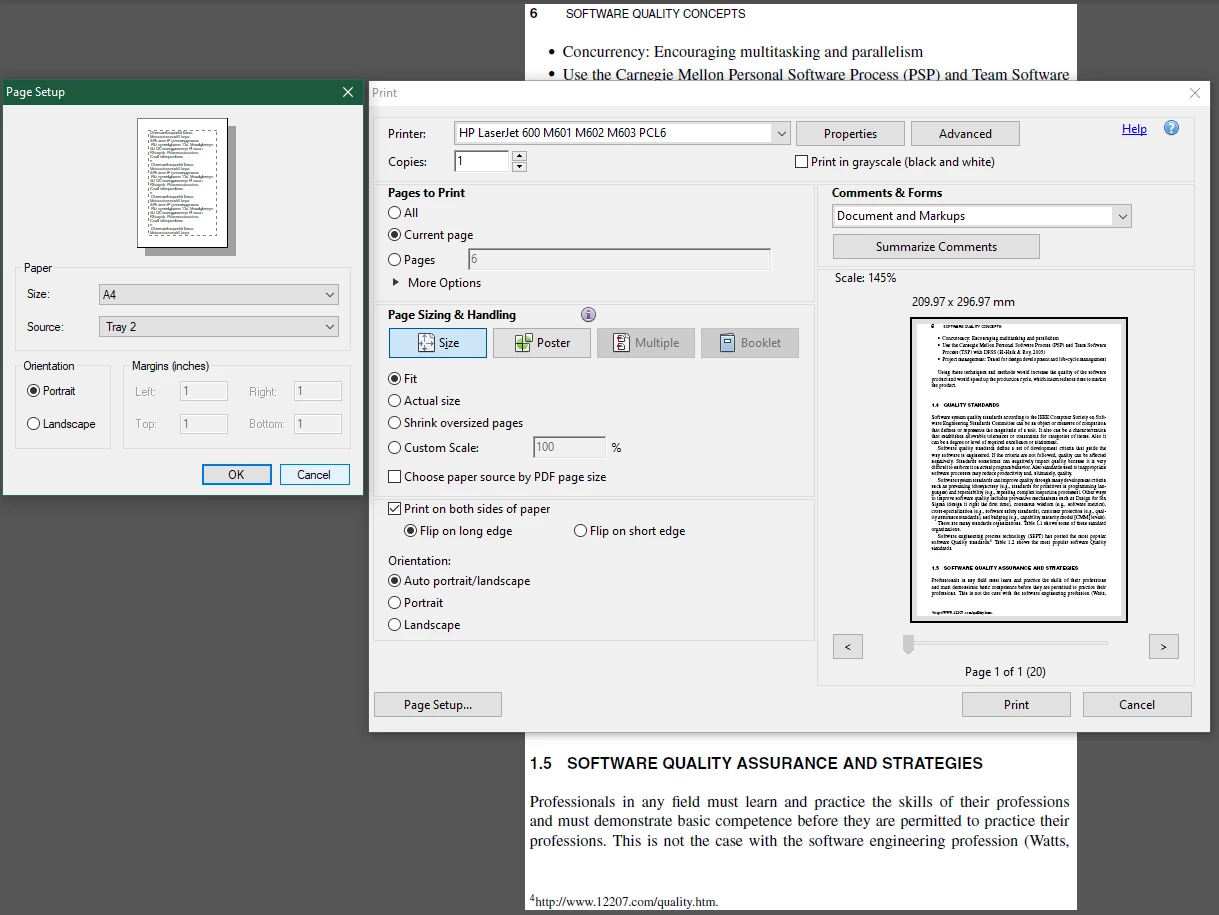
This is the page in print preview:

So is there any way or workaround to remove all margins and print without margins? I mean to let the printed paper page be precisely like the cropped one without margins.

The real printed paper page is exactly as shown in the preview, which is not what I am looking for.

Thanks

This topic has been closed for replies.
Correct answer bebarth

Thanks a lot, @bebarth for the fast reply.

Please, may I use this script with Acrobat Pro XI 11.0.23?


Here is the last script I used for the book I sent you back in PM:

d0=new Date();
starting=util.printd("mm/dd/yy – HH:MM:ss",d0);
var found=0;
for (var p=0; p<this.numPages; p++) {
	console.clear();
	console.println("Process starting: "+starting);
	console.println("Processing the page #"+(p+1)+"/"+this.numPages);
	if (this.getPageNumWords(p)) {
		var thisPage=this.getPageBox("Crop",p);
		var topAlign=780;
		var bottomAlign=90;
		var topLine=0;
		var header="";
		var bottomLine=0;
		var footer="";
		var topChapter=0;
		var chapter="";
		var leftMargin=Number(thisPage[2]);
		var topMargin=0;
		var rightMargin=0;
		var bottomMargin=Number(thisPage[1]);
		for (var i=0; i<this.getPageNumWords(p); i++) {
			var pagination=0;
			var q=this.getPageNthWordQuads(p,i);
			var m=(new Matrix2D).fromRotated(this,p);
			var mInv=m.invert();
			var r=mInv.transform(q);
			var r=r.toString();
			var r=r.split(",");
			if (Number(r[1])>35 && Number(r[1])<820) {
				if (Number(r[1])>topAlign) {
					if (!topLine && Number(r[0])<77) {
						var header=header+this.getPageNthWord(p,i,true)+" - ";
						var theAlignment="left";
					} else if (Number(r[6])>590) {
						header+="- "+this.getPageNthWord(p,i,true);
						var theAlignment="right";
					} else header+=this.getPageNthWord(p,i,false);
					topLine++;
				}
				if (Number(r[1])<bottomAlign) {
					bottomLine++;
					//var footer=this.getPageNthWord(p,i,true);
				}
				if (Number(r[0])<leftMargin) leftMargin=Number(r[0]);
				if (Number(r[1])>topMargin) topMargin=Number(r[1]);
				if (Number(r[6])>rightMargin) rightMargin=Number(r[6]);
				if (Number(r[7])<bottomMargin) bottomMargin=Number(r[7]);
			}
		}
		this.setPageBoxes({
			cBox: "Crop",
			nStart: p,
			rBox: [leftMargin-2,topMargin,rightMargin-2,bottomMargin-2]
		});
		var thisPage=this.getPageBox("Crop",p);
		if (topLine && (theAlignment=="right" || (theAlignment=="left" && header.length<60))) {
			var f=this.addField("header"+p,"text",p,[0,thisPage[1],thisPage[2],thisPage[1]-22]);
			f.textSize=10;
			f.alignment="center";
			f.textFont=font.HelvB;
			f.fillColor=color.white;
			f.value=header;
		}
		if (bottomLine) {
			var f=this.addField("footer"+p,"text",p,[0,12,thisPage[2],0]);
			f.textSize=0;
			f.alignment="center";
			f.textFont=font.HelvB;
			f.fillColor=color.white;
			f.value=this.getPageLabel(p);
		}
		found++;
	}
}
if (found) {
	this.flattenPages();
	this.saveAs(this.path.replace(/.pdf$/i," \(Cropped\).pdf"));
	df=new Date();
	ending=util.printd("mm/dd/yy – HH:MM:ss",df);
	temps=(df.valueOf()-d0.valueOf())/1000/60;
	var theMinutes=parseInt(temps);
	var theSeconds=(temps-theMinutes)*60;
	var theSeconds=parseInt(theSeconds*10)/10;
	var theTime="";
	if (theMinutes>0) {
		if (theMinutes==1) var theTime="1 minute";
		else var theTime=theMinutes+" minutes";
	}
	if (theSeconds>0) {
		if (theSeconds<2) var theTime=theTime+" "+theSeconds+" second";
		else var theTime=theTime+" "+theSeconds+" seconds";
	}
	var theTime=theTime.replace(/^\s+|\s+$/gm,"");
	var plurial=found>1?"s":"";
	var txt="Process starting: "+starting+"\rProcess ending: "+ending+"\rProcess duration: "+theTime+"\r\r"+found+"/"+this.numPages+" page"+plurial+" cropped.";
	console.clear();
	console.println(txt);
	app.alert(txt,3);
}

Attached is a pdf file with a header and a footer you can use if some pages are not correct.

@+

5 replies

_MGadAllah_
Known Participant
June 28, 2023

Hi,

Just want to sincerely thank every member here in the community as it is a treasure indeed, and especially @bebarth for the invaluable and amazing help I've got.

Thanks a lot indeed.

Thanks,Mohamed GadAllah
Dave Creamer of IDEAS
Community Expert
Community Expert
June 28, 2023

The best way to thank those who helped you would be to mark those answers as correct.


David Creamer: Community Expert (ACI and ACE 1995-2023)
_MGadAllah_
Known Participant
June 28, 2023

I've marked the replies that provided solutions as the correct answer.

But there are too many other useful replies, may I mark more?

Thanks,Mohamed GadAllah
_MGadAllah_
Known Participant
June 8, 2023

Hi,

Please, I am digging more and more to find desired results.

Please, and sorry for bothering you, but here is the editable copy of my PDF file:

After I do the crop for all pages, I get this result:

Which is fine and good enough for me.

Now after crop pages using Set Pages Boxes, I found some parts of pages are trimmed, which is making sense of course.

When I hit the Edit PDF option I can find all text editable, so does there is a way to move the headers inside a few inches?

Like here:

So here after I did the crop:

Now when I click on edit PDF I get everything editable, like here:

So my question is:

The area at the far top left of the page, where it says the title of the chapter and book, is an editable box that exists on all pages all over the document, so does there is any way or any profile in PreFlight settings to move the title to the right for all pages, so I can see the title after I cropped the pages?

I mean like this:


So is it doable?

I hope that I was able to express my point correctly.

This is the final result after the crop:

Which is good for me.

I do hope that you may help 🙂

Thanks,Mohamed GadAllah
Legend
June 8, 2023

No, there is no automation to move the box. Indeed, there is no actual box. It's just invented by the editor each time you visit the page, by guesswork, where it thinks editing would be most convenient. Move two boxes close together, and they are likely to become one box. Put white space in a box, it's likely to become two boxes.

Dave Creamer of IDEAS
Community Expert
Community Expert
June 1, 2023

I don't believe your cropped page has the same ratio (proportion) as your printed paper size, so it would be impossible not to have some margin on either the left/right or the top/bottom depending on the ratio.


David Creamer: Community Expert (ACI and ACE 1995-2023)
_MGadAllah_
Known Participant
June 2, 2023

Thanks for your reply.

Please, what would you suggest I do to fix such a thing to have printed paper with as narrow margins as possible?

Thanks,Mohamed GadAllah
_MGadAllah_
Known Participant
June 6, 2023

You can run both scripts with the file of the whole book at once...


Thanks a lot, @bebarth for the fast reply.

Please, may I use this script with Acrobat Pro XI 11.0.23?

Thanks,Mohamed GadAllah
Luke Jennings3
Community Expert
Community Expert
June 1, 2023

It looks like your cropped page is narrower than your paper. In order for the left and right margins to be removed, you will first need to distort the page, you can do this with a preflight profile (scale pages to specified size) or place the pdf into an InDesign or Illustrator page, scale it to fit, export to a new pdf.

_MGadAllah_
Known Participant
June 1, 2023
quote

It looks like your cropped page is narrower than your paper.By @Luke Jennings3

Thanks for your reply.

Yes, exactly!

quote

In order for the left and right margins to be removed, you will first need to distort the page, you can do this with a preflight profile (scale pages to specified size).By @Luke Jennings3

Please, may you tell me how to do so for my XI Pro version, I've googled and searched and the only things I've found regarding the preflight is this thread here:

Here

I am afraid that these steps are not suitable for my XI Pro version.

quote

or place the pdf into an InDesign or Illustrator page, scale it to fit, export to a new pdf.By @Luke Jennings3

Do I need to do so for every page? or it is could be at once for the whole document?

Thanks,Mohamed GadAllah
Luke Jennings3
Community Expert
Community Expert
June 1, 2023

I don't know if there is a preflight profile in Acrobat XI that can scale a page, in the preflight panel, type the word "scale" in the preflight search area after clicking the blue wrench icon.

If you have InDesign, you can use the "Place Multipage pdf" script to place a multi-page pdf into an InDesign file with one step, once you determine the desired distortion factor (say 115w x100H) you can apply the transformation to each InDesign page (Object> Transform again).

Amal.
Community Manager
Community Manager
June 1, 2023

Hi @_MGadAllah_ 


Hope you are doing well and thanks foe reaching out.


Please go through the help page https://acrobatusers.com/tutorials/how-to-create-a-custom-page-size/ and see if that works.


Note: Acrobat XI is an EOL application and not supported on latest Mac and Win OS. https://helpx.adobe.com/acrobat/kb/end-of-support-acrobat-xi-reader-xi.html


Regards

Amal

_MGadAllah_
Known Participant
June 1, 2023

@Amal. 

Thanks for your reply.

I tried to adjust the page sizes to various sizes but I am afraid that it is still printing with margins.

Regarding the EOL, I can not afford the monthly fees for the software upgrade, so I have no option except to stick to my current version, the latest update I get after installing a clean install for the software is 11.0.23, does there are any updates available for XI Pro?

Thanks,Mohamed GadAllah