
Answered
How to draw a straight line in Adobe Acrobat?
In all other programs, the Shift key is used. How is this accomplished in Adobe Acrobat?

In all other programs, the Shift key is used. How is this accomplished in Adobe Acrobat?
Attempting to clear up this discussion...
First, what is described above uses a markup and commenting tool to draw a faux line. It's not a piece of real content in the PDF, but instead is a comment tool similar to a sticky note or highlighter. And yes, you have the optional comment box, and the "line" comment will appear in the list of comments when that panel is expanded.
The faux comment line may or may not be visible to the end user (depends upon the PDF software that's used to view the PDF and the user's settings) or when the PDF is printed. That's because all markups and comments are not real content and not all brands of PDF viewing software can handle comments.
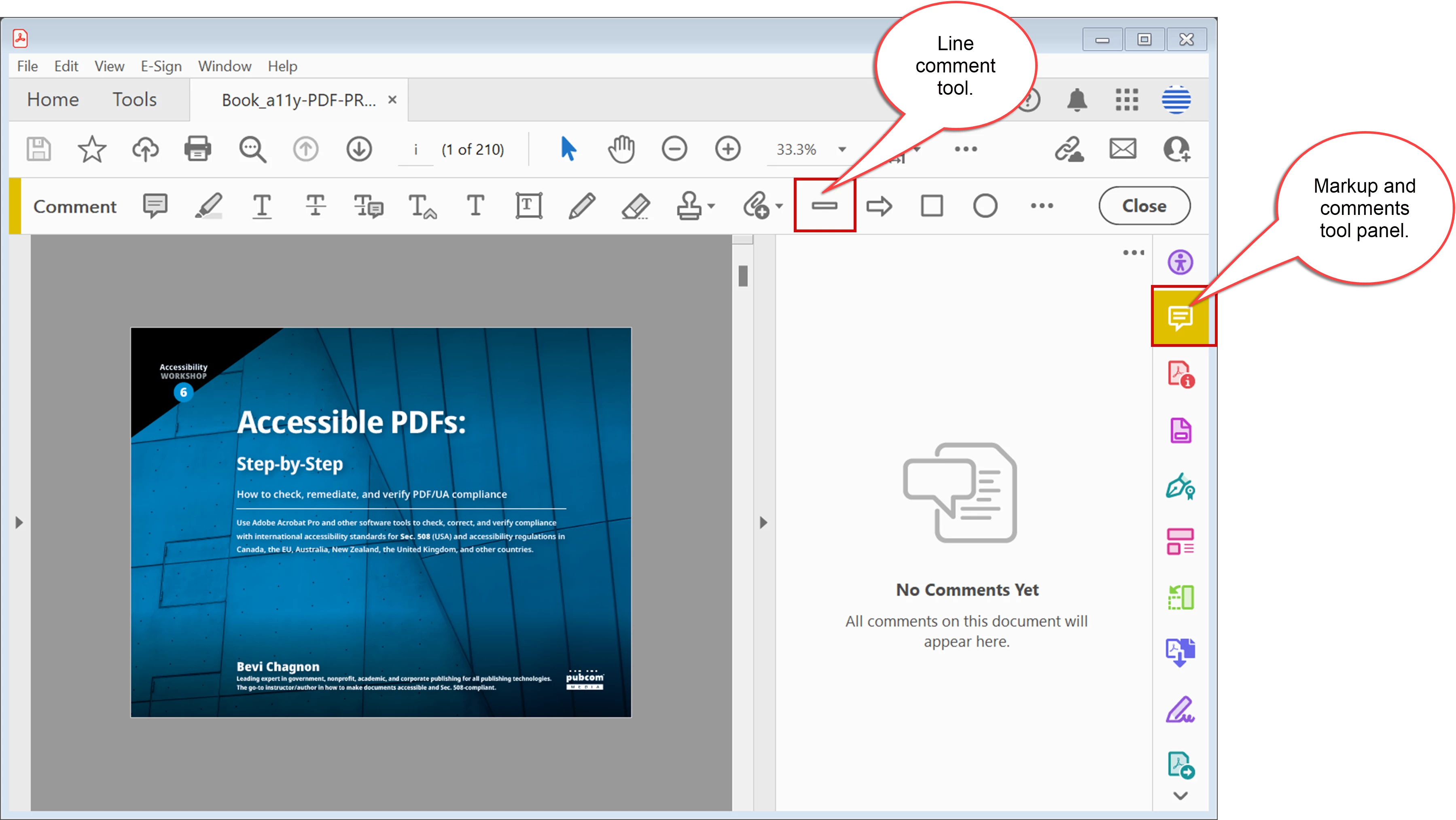
So a faux line created by the line commenting/markup tool may or may not do what you need.
A real line that's real content, on the other hand, can't be drawn in Acrobat. If it existed, it would be part of the Edit tool panel. At this time, that panel lets you edit live text, adjust graphics, and replace graphics. But there are no drawing tools in the Edit panel like you'd have in a proper graphics program.
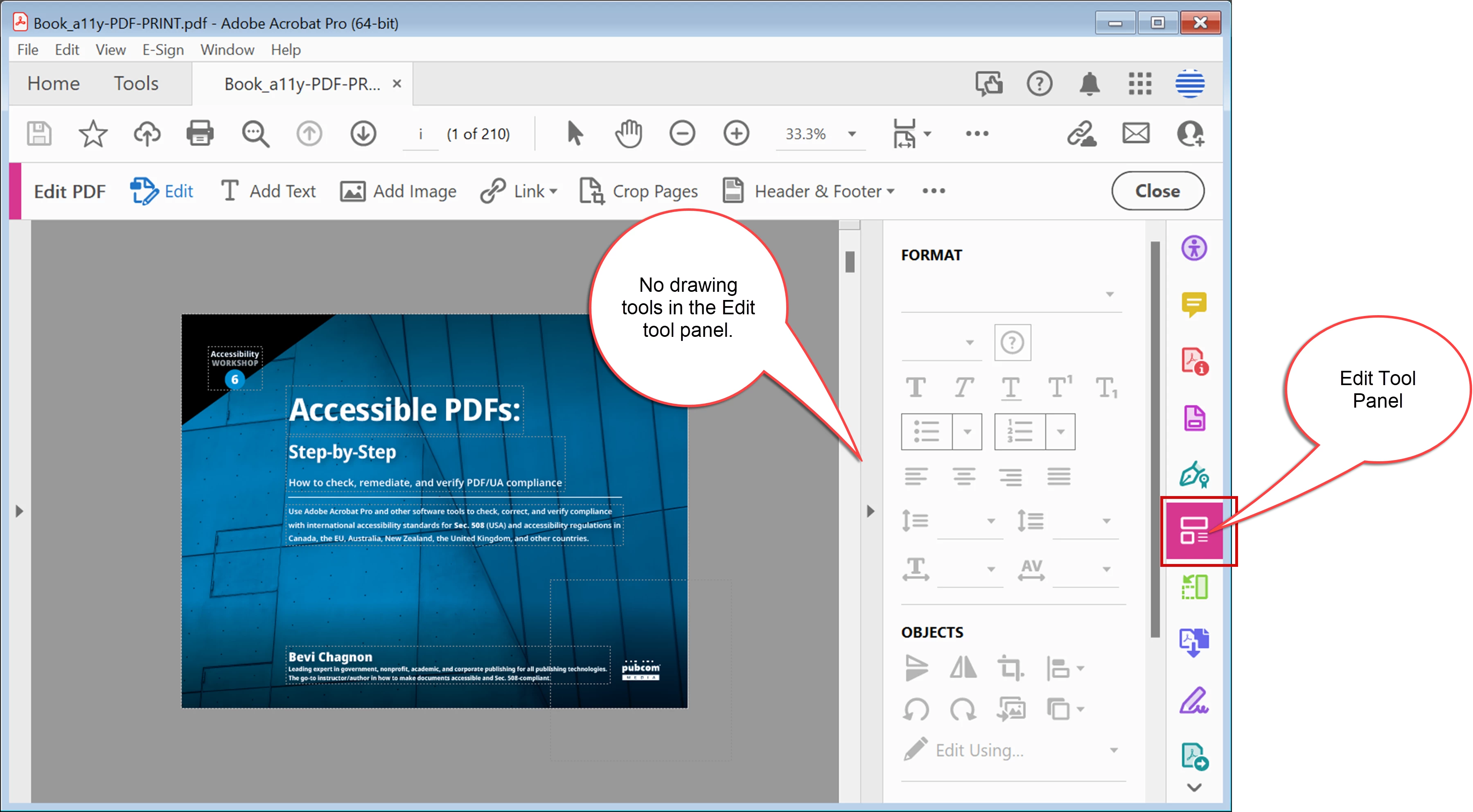
Remember, PDF files were never intended to be edited and the capability to edit text and graphics is relatively new to the file format itself, let alone Adobe Acrobat.
Summary: if a comment/markup "faux" line works for you (and you don't mind seeing a comment box), then use it!
But if you need to draw a line that is real content, you can't do that in Acrobat. You'll need to open the source file in its authoring program (Word, PowerPoint, InDesign, etc.), draw a real line there, and re-export a new PDF.
Already have an account? Login
No account yet? Create an account
Enter your E-mail address. We'll send you an e-mail with instructions to reset your password.


 AdChoices