


Participating Frequently
January 25, 2019
Answered

How to enlarge the text in Acrobat's Comments List?

  • January 25, 2019
  • 1 reply
  • 15125 views

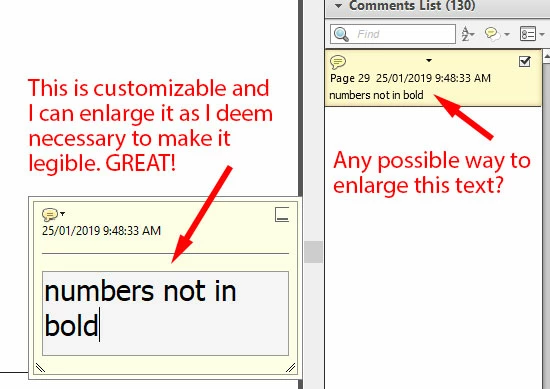
I have a mild visual impairment and my job requires that I work with annotated PDFs quite a bit. Below is an illustration of my question.

Is there a way to make the text in the Comments List bigger? I haven't yet found one, and the teeny, tiny text is incredibly problematic for me!
Correct answer Barb Binder

Hi Charis_Dancer:

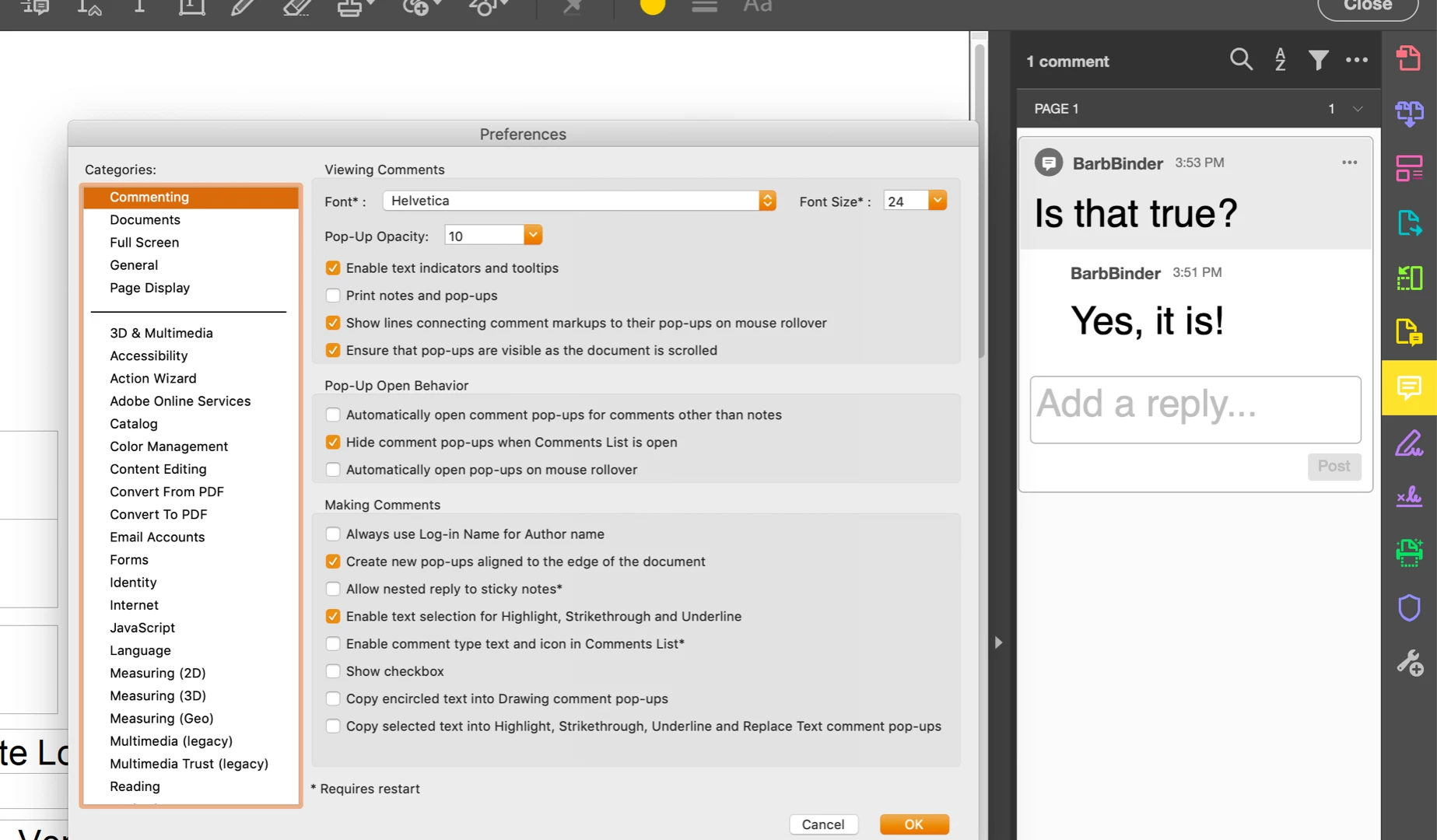
Set the commenting size via Preferences > Commenting > Font Size (top right of dialog box). You are not limited to the drop-down menu—type in any size up to 144 pts.

~Barb

1 reply

Barb Binder
Community Expert
Barb BinderCommunity ExpertCorrect answer
Community Expert
January 27, 2019

Hi Charis_Dancer:

Set the commenting size via Preferences > Commenting > Font Size (top right of dialog box). You are not limited to the drop-down menu—type in any size up to 144 pts.

~Barb

~Barb at Rocky Mountain Training
Participating Frequently
January 28, 2019

That's odd.

I'm using this version.

And I still get this:

Very tiny. Very hard to read.

Barb Binder
Community Expert
Community Expert
January 28, 2019

Oh, and I should point out also that in my drop-down menu, the largest font size is 18 and not 144.


Hi charis_dancer:

This is why it is important to always share your version when asking questions on the forum. My screen shot is from Adobe Acrobat DC. Your version of XI is from 2012 and I don't have it installed anymore. I did check my workbook for that version but don't see any reference to being able to resize the comments. I could be wrong, but I don't recall that it had these sizing options.

At this point, you could:

  1. upgrade to the current version
  2. decrease your display resolution (which makes everything larger) or
  3. take advantage of the accessibility features of your operating system—which you also didn't mention—to magnify an area of your display.

~Barb

~Barb at Rocky Mountain Training