


Participating Frequently
January 25, 2019
Answered

How to enlarge the text in Acrobat's Comments List?

  • January 25, 2019
  • 1 reply
  • 15125 views

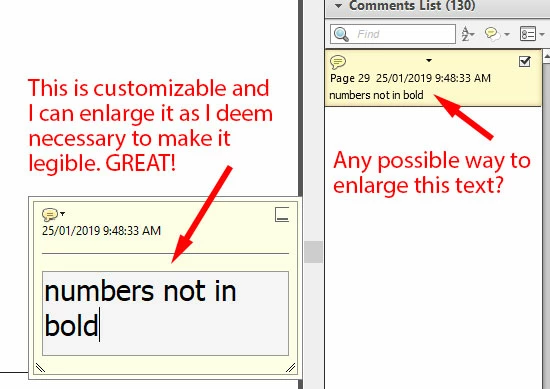
I have a mild visual impairment and my job requires that I work with annotated PDFs quite a bit. Below is an illustration of my question.

Is there a way to make the text in the Comments List bigger? I haven't yet found one, and the teeny, tiny text is incredibly problematic for me!
Correct answer Barb Binder

Hi Charis_Dancer:

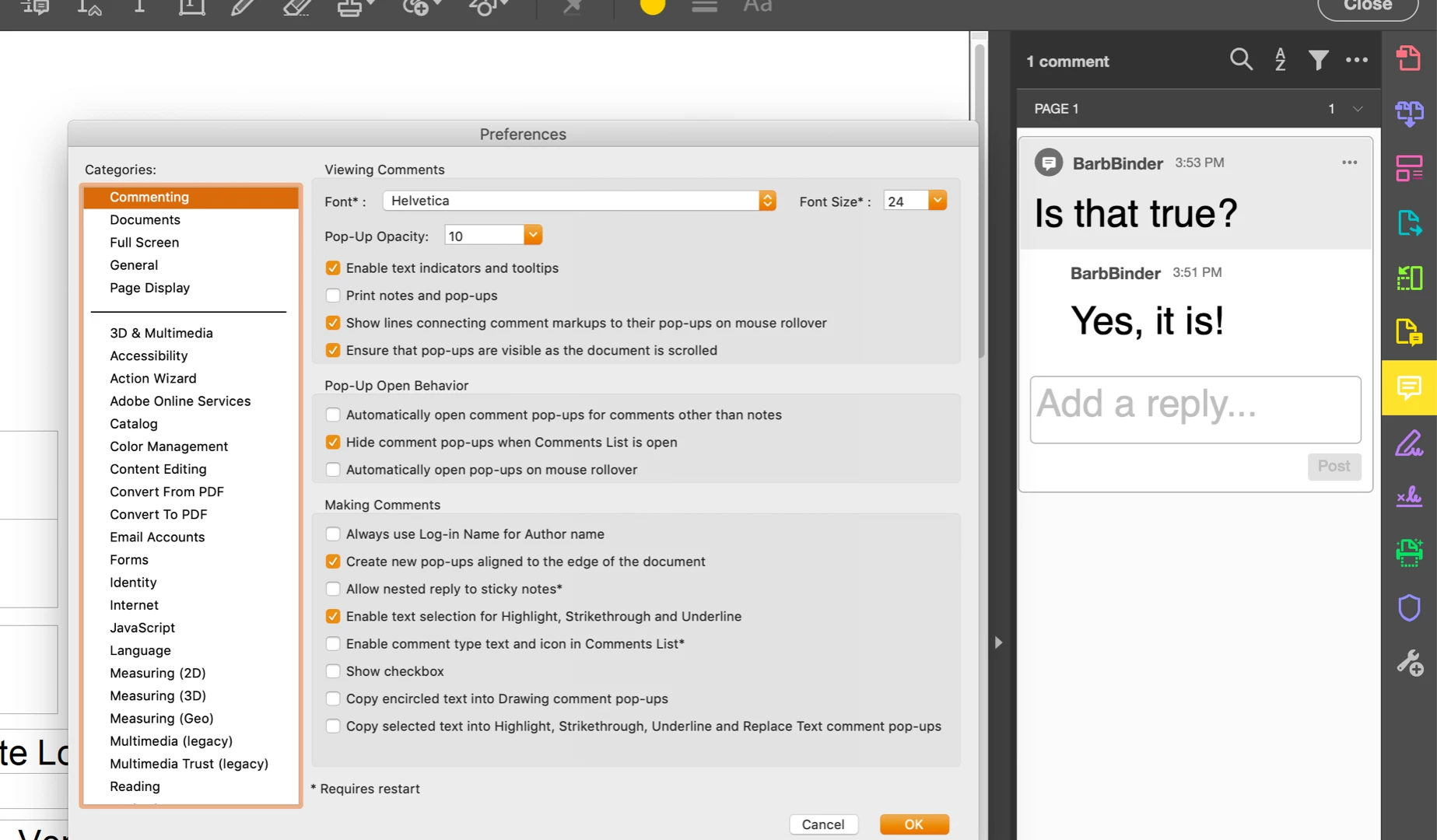
Set the commenting size via Preferences > Commenting > Font Size (top right of dialog box). You are not limited to the drop-down menu—type in any size up to 144 pts.

~Barb

1 reply

Barb Binder
Community Expert
Barb BinderCommunity ExpertCorrect answer
Community Expert
January 27, 2019

Hi Charis_Dancer:

Set the commenting size via Preferences > Commenting > Font Size (top right of dialog box). You are not limited to the drop-down menu—type in any size up to 144 pts.

~Barb

~Barb at Rocky Mountain Training
Participant
December 4, 2024

The answer is not correct. I have the most up to date version of Acrobat Pro and cannot make the list larger - I can increase my further comments which then look hideously out of proportion, but it doesnt alter the actual comments list - The actual standard comment size is the thing that we need to adjust. Attached is a screen shot shoing the bizarre combination of sizes that I now suffer. We have a team of ten people using Acrobat and a number suffer the same issue.

Inspiring
January 20, 2025

Same here! I want to be able to enlarge comments added by our clients, often I'll need to copy part of their comment but the type is too small so I end up missing characters, or selecting unwanted ones. There must be someway to do this, come on Adobe sort it out!