


Inspiring
May 26, 2020
Answered

How to hide highlighted area of editable field in PDF?

  • May 26, 2020
  • 2 replies
  • 6618 views

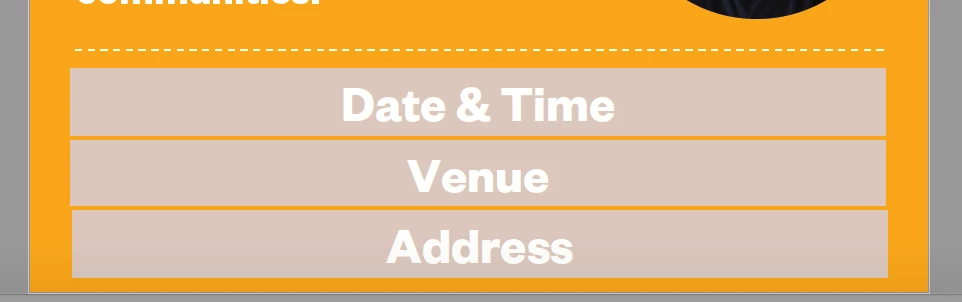
I have created a PDF and inserted editable fields, but when I save and send it to the client the highlighted box is still shown (as seen below). Can I just show the text (Date & Time etc) in the editable field without having the faded gray highlighted field?
 

This topic has been closed for replies.
Correct answer Thom Parker

Acrobat automatically highlights field so the user knows where they are. You can turn this off in your fields by adding this code to a document script.


app.runtimeHighlight = false;


2 replies

Participant
August 18, 2020

This is great! But I found it doesn't work if the pdf is opened up in Microsoft Teams, or in a browser. Any ideas in these use cases?

Thom Parker
Community Expert
Community Expert
August 18, 2020

The solutions presented hear are implemented in Acrobat JavaScript. While the script is a simple one liner, the minimum bar for this techniqe to operate in any PDF viewer, is that the viewer runs JavaScript, and that the scripting it will run includes the particlar objects and properties used in the script. Sadly, only a few good viewers actually implement the Acrobat Model, and only a few of these implement the complete model. 


The only solution for making a document equally usable in all viewers is to not include interactive features,i.e., scripts and form fields. Obviously, this isn't a tenable solution, and while it sounds bleak, there is another solution. Force the user to open the PDF in a compliant viewer.  Cover the page content with something, it could an annotation, form field, or OCG layer. This cover should tell the user to open the PDF in a decent viewer, like the free Adobe Reader. Then place code in a document script to hide the  cover.  If the cover is hidden when opened, then it's likely the viewer will run enough script to make the form usable. If the cover remains visible, then the form won't work on the vierwer and all the user sees is the message telling them how to open the PDF. 


Thom Parker - Software Developer at PDFScriptingUse the Acrobat JavaScript Reference early and often
Participant
August 19, 2020

An OCG is an excellent choice because it requires a high level of Acrobat model compliance.  OCGs can also be attached to form fields (not in the Acrobat UI). So both page content and fields/annotations can be hidden/shown at the same time with a single line of JS code. 

Here's a sample file that demonstrates and explains the techniques.  However, it is not free. Available to members only. But members can also download a plug-in for attaching OCGs to annotations and setting OCG properties that are not available in the Acrobat UI. 

https://www.pdfscripting.com/public/Lite-Document-Security-Description.cfm


Thanks for the advice, Thom. I'm laying out in InDesign and using layers - is that the same thing as an OCG? I found even a cover page layer doesn't render consistently across viewers - maddening!

I will definitely take a look at the pdfscripting.com site - having trouble using javascript to format a field for: phone number, zip-code, dollar value, etc., but I guess that's another topic entirely!

Thom Parker
Community Expert
Thom ParkerCommunity ExpertCorrect answer
Community Expert
May 27, 2020

Acrobat automatically highlights field so the user knows where they are. You can turn this off in your fields by adding this code to a document script.


app.runtimeHighlight = false;


Thom Parker - Software Developer at PDFScriptingUse the Acrobat JavaScript Reference early and often
Inspiring
June 7, 2020

Do you know if the script above is added in Indesign or in Acrobat?

Thom Parker
Community Expert
Community Expert
June 7, 2020

Not that I know of.  The code has to be added in Acrobat. 


The field highlight is a function of the user's setup. Field Highlights are turned on by default. The user can turn them off from thier preference settings, or you can put the code I posted into a document script. 

Thom Parker - Software Developer at PDFScriptingUse the Acrobat JavaScript Reference early and often