


txferg99
New Participant
May 8, 2021
Answered

How to remove scanners from list?

  • May 8, 2021
  • 1 reply
  • 5861 views

How do I remove old scanners from my list of scanners in the dialog box?  It's very confusing on which is good and which is old.

This topic has been closed for replies.
Correct answer gary_sc

Thanks for the screenshot, otherwise I would not have known the OS. 


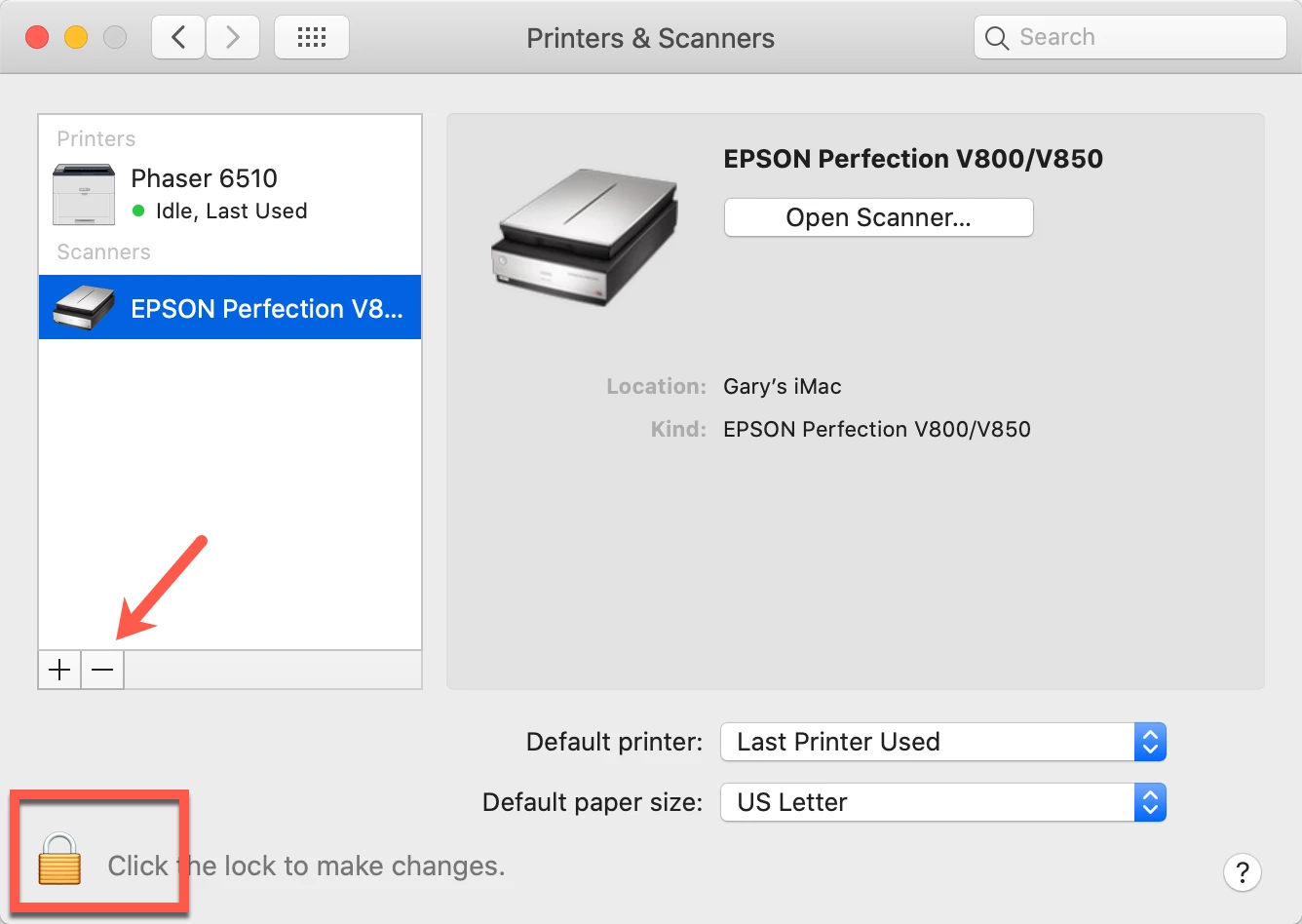
This is an OS issue: on the Mac, go into System Prefs and select Printers and Scanners. Click on the lock button (bottom left) with your sysem password unlock it. Then click on the item you wish to delete and then click on the minus icon (see arrow)


You "may" need to reboot to remove this from other application's awareness but I'm not sure on that. If you still see your scanners, than yes, you do need to reboot.


BTW, be aware that on the Mac, if you scan from within Acrobat, you are using Apple's Image Capture, the worst scanning software there is. And I'm a Mac user so this is not anything against Macs.
1 reply

gary_sc
gary_scCorrect answer
Braniac
May 8, 2021

Thanks for the screenshot, otherwise I would not have known the OS. 


This is an OS issue: on the Mac, go into System Prefs and select Printers and Scanners. Click on the lock button (bottom left) with your sysem password unlock it. Then click on the item you wish to delete and then click on the minus icon (see arrow)


You "may" need to reboot to remove this from other application's awareness but I'm not sure on that. If you still see your scanners, than yes, you do need to reboot.


BTW, be aware that on the Mac, if you scan from within Acrobat, you are using Apple's Image Capture, the worst scanning software there is. And I'm a Mac user so this is not anything against Macs.

New Participant
August 12, 2022

I have the same issue,  I a on a PC, and have removed them from my list, in my PC settings.   They still show here

ls_rbls
Braniac
August 15, 2022

++ Adding to the discussion,


If you're on Microsoft Windows, the best way to remove proprietary software is with the printer utility software that came with your device.


Best way to uninstall is by following the recommended guidelines from the printing device manufacturer's website before manually uninstalling from the control panel.


As Gary mentioned, a few reboots in-between may be necessary to complete the uninstall procedure and to get rid of old traces of the software.


NOTE:

With some newer devices, you may be required to perform the uninstall while your device is hooked up to the PC with an active Internet connection.


If you've already done all of this with nosuccess, try the suggestion posted in the link below: