New Participant
October 18, 2023
Answered

How to turn off Automatic OCR in PDF Edit 2023

  • October 18, 2023
  • 8 replies
  • 77185 views

Hello,

This topic has arisen before, but the solutions I found aren't working for me with the current version of Acrobat Pro.


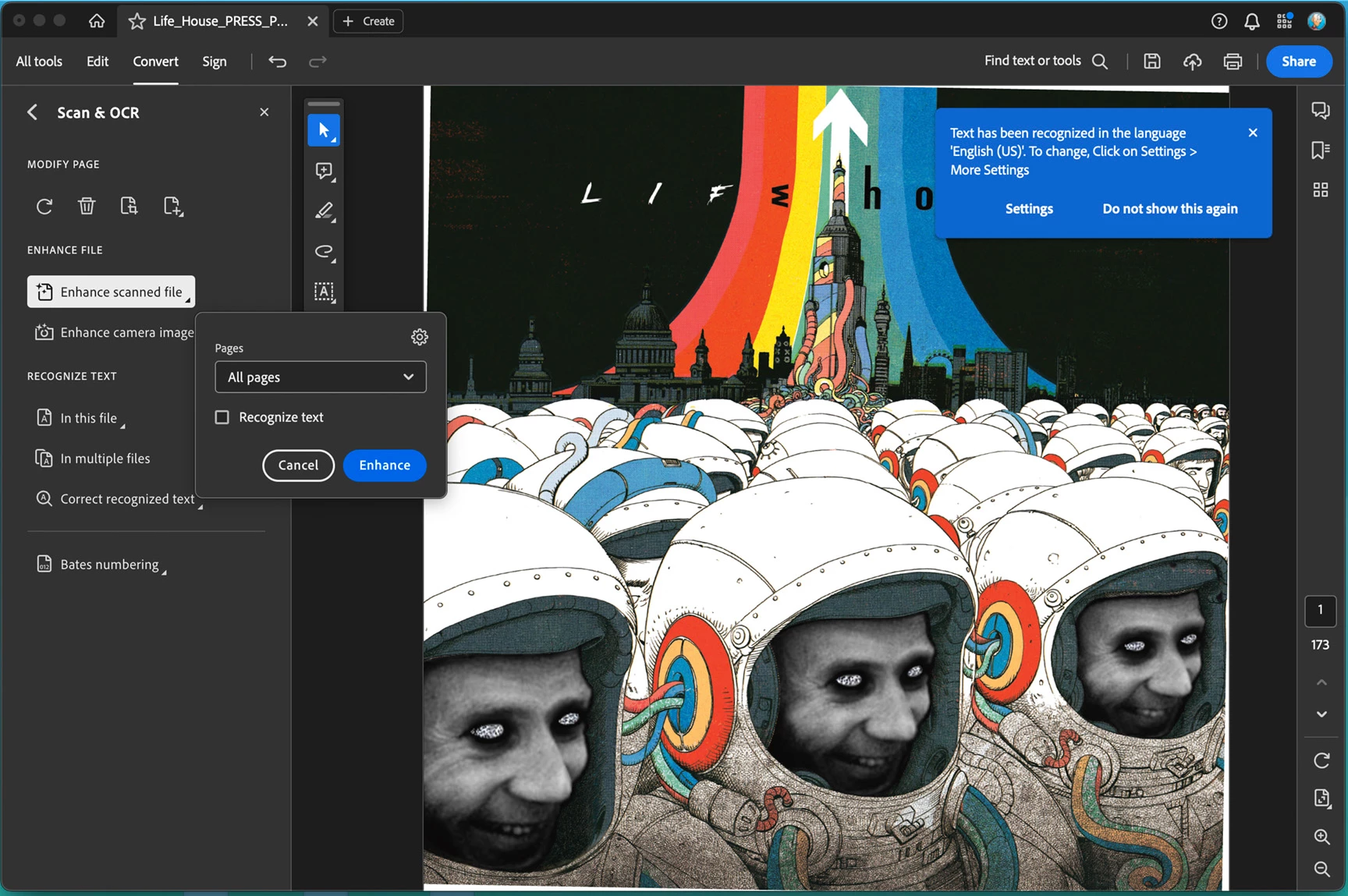
I assemble graphic novels - the latest one I'm working on has a problem with OCR as the cover page is being tilted when I don't want it to be (image 1 - red outlines indicate where the image has been tilted, creating a white edges that should not be there)

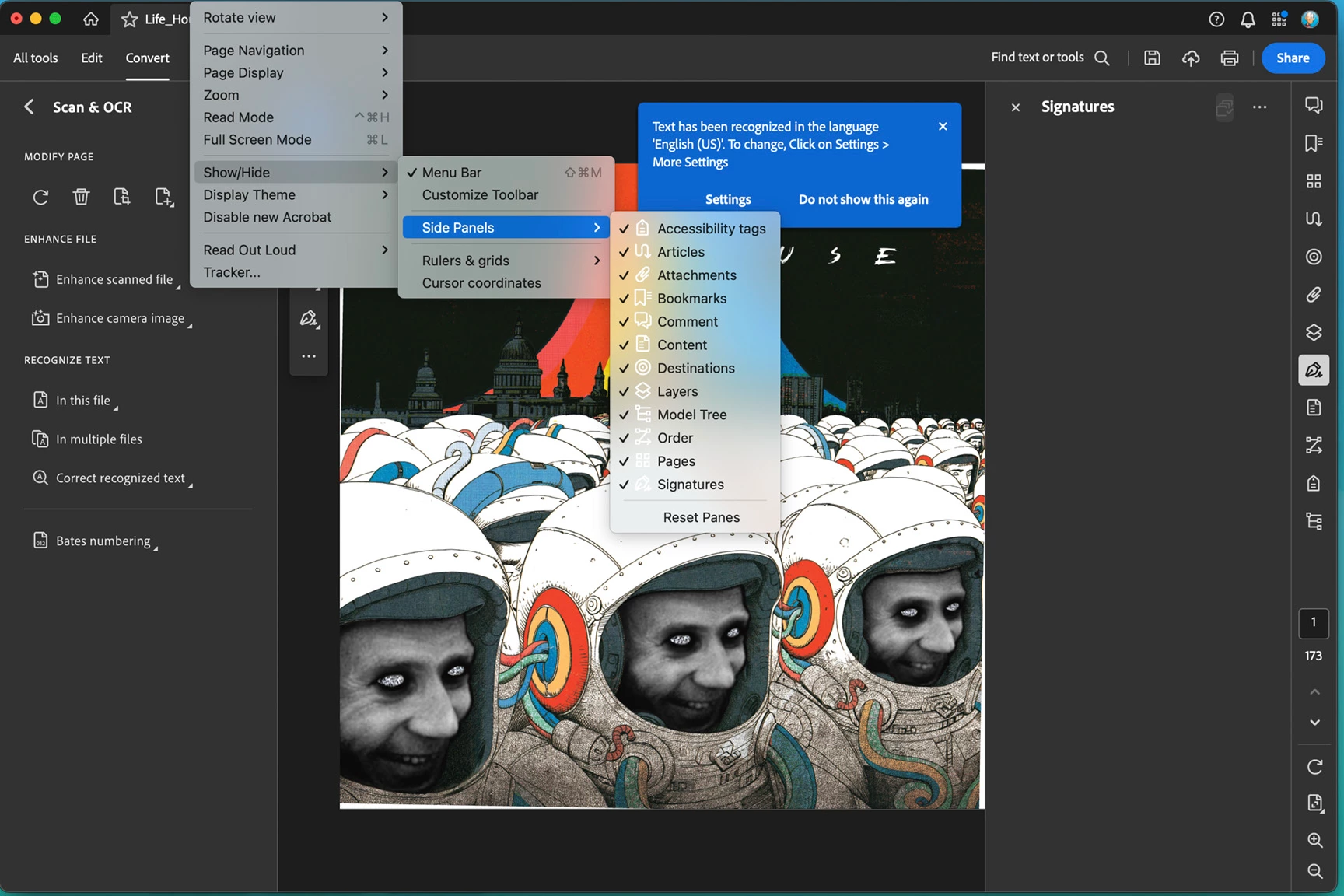
I went into the "Scan & OCR/Enhance scanned file" setting and unchecked "Recognize Text" - but the page is still being tilted. (image 2)


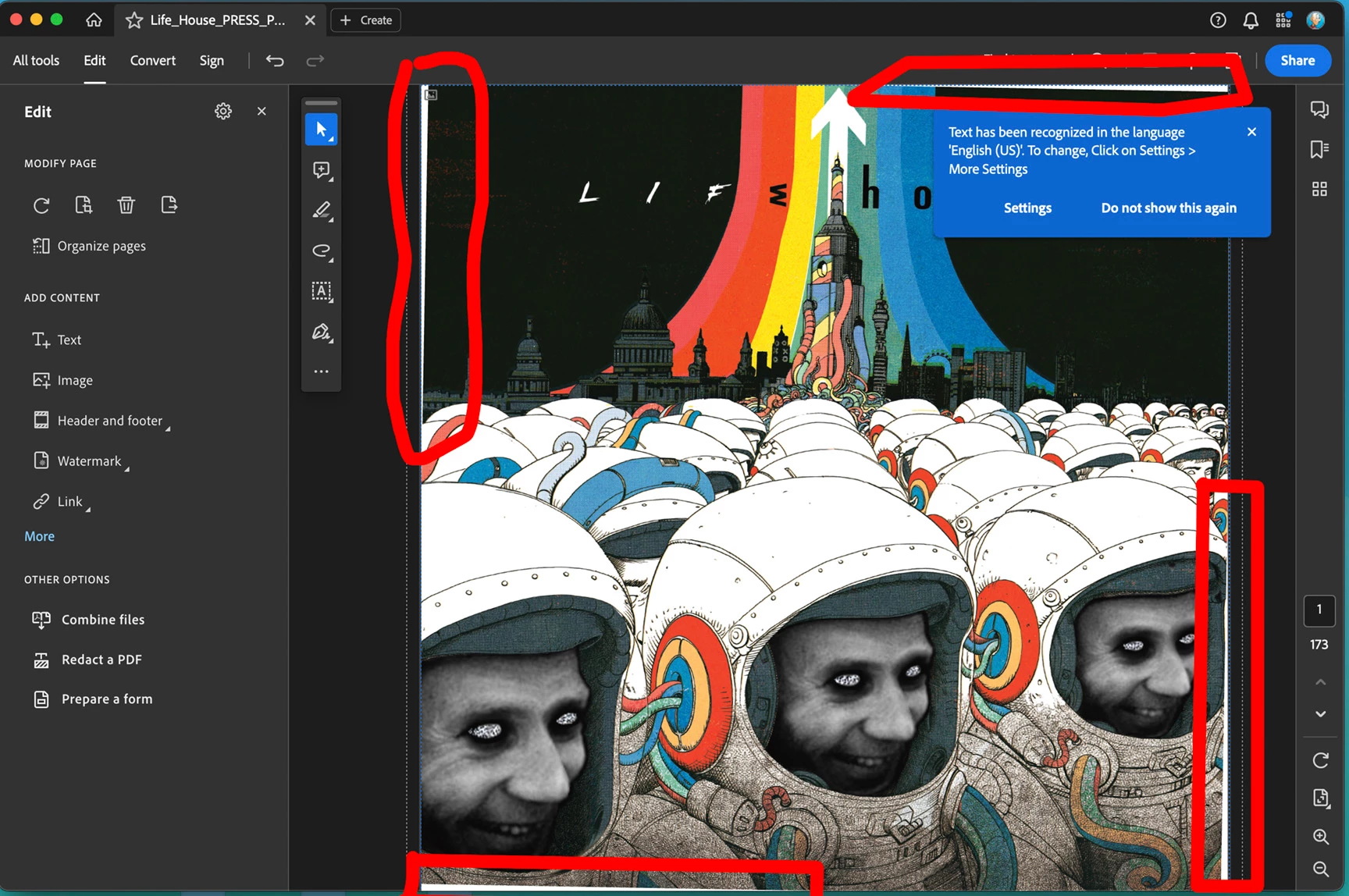
I saw advice that I can turn off "Recognize Text" via the right side panel using the "Scanned Documents" tab - but I don't have a "Scanned Documents" tab (image 3)

Final image is the version I'm using for reference.

Any help is greatly appreciated. Thank you.
 

Correct answer defaultlg5yll5q5ald

Windows 10 Registry Key to Enable/Disable:


HKCU\SOFTWARE\Adobe\Adobe Acrobat\DC\PaperCapturePlugin\


[DWORD] bEnableTextEditingScannedDocument

Disabled: 0x00000000

Enabled: 0x00000001 


Dwayne23403060scc6's answer is the only one answering the question of how to turn off by default this terrible automatic option. Don't forget to first close acrobat then change the setting in the registry (launch regedit then navigate to the key indicated, then change the value). Thank you !

8 replies

New Participant
January 27, 2026

WE HAVE TO CHANGE THE REGISTRY KEY TO DISABLE THIS HEINOUS “FEATURE”??? That is insane. You shouldn’t have to practically be a programmer to be able to stop automatic OCR in Acrobat. I don’t have experience with editing registry keys and don’t feel comfortable doing it. This is giving me a headache. Adobe, what in the world is wrong with you?!

New Participant
May 13, 2025

I am having the same problem. It is no good being able to turn the option off post-edit, because by then the PDF has already been damaged. This is an absolute deal killer.  

New Participant
May 13, 2025
OK, so you can then select 'undo' to undo the damage, leaving the auto ocr
setting off. but still, very messy. Why not just put this option back under
preferences?
New Participant
March 21, 2025

Replying a year later because the "correct" answer is incomplete. Click the Edit menu, then click the settings icon at the top (looks like a gear). Uncheck the "recognize scanned text" box, save file, and you're good to go. If the option to uncheck that box is greyed out, close the current PDF and open a PDF that contains images only (no text). You should be able to access the "recognize scanned text" box now. Uncheck it and save the file. It should be unchecked now for all PDFs.  

New Participant
April 14, 2025

Thank you so much! This has been driving me crazy and really slowing me down at my job, this is the only thing that worked for me out of all these other "solutions." 

Dear Adobe, fix your overpriced glitchy products please. 

New Participant
September 20, 2024

I have been trying to turn off the OCR because it is ruining court documents I have scanned! I think I've finally found a workaround!!!!! I went to preferences > Content Editing then selected the Image Editor button and directed it Photoshop (you could choose anything really), then selected the Page/Object Editor button and directed that to Illustrator.


I've been trying to make it run that OCR ever since and it's not doing it.

Mike_Abbott
Legend
June 6, 2024

Thanks Adobe for:
1. For making me look stupid in the eyes of my client by auto rotating elements in my image based pdf without even telling me.

2. Making this feature almost impossible to turn off.

3. Wasting hours of my time in trying to find a solution.


Genius.

New Participant
April 7, 2024

The only solution I found is 1st create any pdf file from images with text. then you can disable the "recognized scan text"


New Participant
May 5, 2024

This does not work my recognise scanned text box is unticked and greyed out but it still OCR scans

gudguy1a
Participating Frequently
September 14, 2024

Yep, I've found this issue going back to 2019....

When I open up a pdf in Acrobat pro, what is presented to me is a PDF image, like a bitmap or jpeg


As long as we are not editing the PDF in question, we can copy words, sentences - but when we go to edit the pdf, it returns to IMAGE state.

That is the problem many folks are getting and no one seems to have a resolution for working on the PDF for editable text and not waste time on trying to edit an IMAGE to get to the text.


None of the settings have worked, and I am a senior tech guy - for decades.


Attempted all of the various solutions, turn off 'recognize text', close acrobat and edit the registry HIVE KEY, do this, do that - so far, NOTHING works.

I tried to get it working last year and gave up.

Tried it again this month when I was going through security clearance renewal - WASTE of time AGAIN....!!!!

Acrobat is NOT letting us take a friggin' PDF that has an image (jpeg) of text and be able to convert / edit it into a PDF text document....


And of course, let's not forget the other "LOVELY" issue of:

unable to locate the Paper Capture recognition service. Your installation may be corrupt.

This is probably due to either a low memory situation or an corrupt installation. If the problem is not cleared up by shutting down other applications and/or rebooting, then please re-install Acrobat.

I've uninstalled, rebooted, reinstalled acrobat at least a 8 - 10 times over the past year. All to no avail... and I have 32 GB of RAM with CPU availability of 50% or more, so it is DEFINITELY NOT pc resource constraints...


And trust me, I am barely able to restrain myself from going into my former Marine Corps Platoon Sergeant mode with very, VERY salty language aimed squarely at Adobe...


New Participant
March 1, 2024

This solution DOES NOT work in the current version of Acrobat. The company I work for uses JPEGs exported out of Illustrator to make PDFs. This is a standard. I do NOT have the power to change this. The automated OCR feature is distorting and altering the layout of my documents. I NEED to be able to turn it off by default. This isn't a want, it's a need. This is making my job much harder.


The instructions given here and recommended by Adobe DO NOT WORK for the current version of Acrobat. The menu commands and locations ARE NOT PRESENT in the current version of Acrobat. Therefore, these instructions, DO NOT WORK AND ARE INCORRECT. Please see the attached screen shots to see that the listed locations in the instructions are WRONG.


As you can see in the image, If you click EDIT in the menu bar, there is no listing for "TEXT" given. Nothing in that menu matches the instructions given here by Adobe. If you open up the EDIT sidebar, there is no listing for "TEXT" and there is nothing in the sidebar that matches those instructions.

New Participant
March 1, 2024

In the "Screenshot 2024-03-01 at 1.12.44 PM.png" image, there's a little settings gear just above and to the right "FORMAT TEXT".  Should be that button that takes you to the text recognition settings.

Participating Frequently
March 26, 2024

Perhaps it should, but it does not, as already illustrated in Jan 2024 of this thread.

Amal.
Community Manager
Community Manager
October 18, 2023

Hi @danbergerink 


Hope you are doing well and thanks for reaching out.


The OCR process is turned on by default. When you open a scanned document for editing, the current page is converted to editable text. As you scroll, the page in focus becomes editable. You can disable the automatic OCR option if you don't want to convert your scanned documents to editable text.

  1. Choose Edit > Text.

  2. To turn off automatic OCR, deselect the Recognize text option in the right pane. Acrobat won't automatically run OCR the next time you open the document for editing.


    For more information, please go through the help page https://helpx.adobe.com/acrobat/using/edit-scanned-pdfs.html?screen=modern#


    Regards

    Amal


Participating Frequently
March 26, 2024

Amal, please unmark this as the correct answer. As many of us have already illustrated, it is incorrect.
Your answers are polluting google search results of many many frustrated users asking how to fix this.

Thank you.

Amal.
Community Manager
Community Manager
March 27, 2024

Hi there


This was marked as correct back in 2023.


I have also tried to reproduce the issue at my end and I am able to turn on/off the automatic OCR using the steps:

  1. Open any scanned PDF
  2. Go to Edit > click on the gear icon in the upper corner
  3. Check/Uncheck the option to 'Recognize the Scanned text'


Regards

Amal