Participant
February 4, 2019
Answered

How would I go about removing a background color if Adobe Acrobat cannot find a background to remove?

  • February 4, 2019
  • 4 replies
  • 13279 views

I have some autocad drawings that were scanned into PDFs with a varying yellow tint to them. To print them in D paper size would waste a lot of yellow ink.

I want to retain the colored, hand-written notes but remove the yellow tint on the drawings. Fortunately, there are no yellow notes.

I've tried to remove the background, but adobe cannot find a background to remove. I've tried deleting the background manually by selecting the

yellow background but a huge chunk of the drawing gets deleted along with it. I messed with the Print Production tool but to no avail.

If someone is more experienced with this issue, please point me in the right direction.
This topic has been closed for replies.
Correct answer gary_sc

Thanks Test Screen Name,

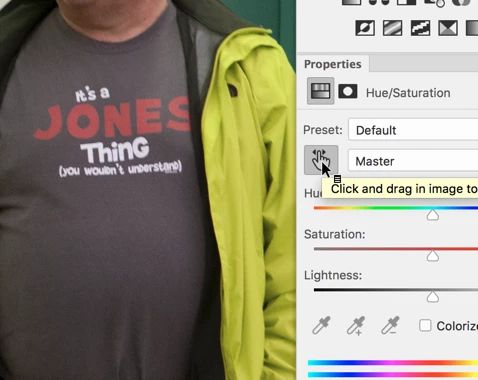
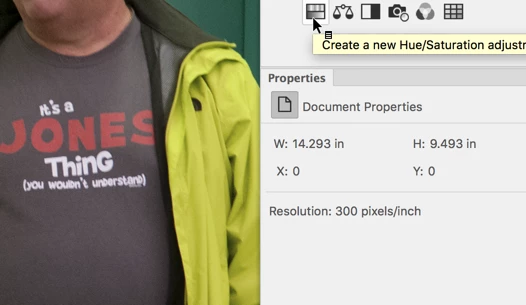
Here's the process:, open the PDF into Photoshop, go into the Adjustments Panel, and select Hue/Saturation

Now go into the Properties panel and click on the Target Adjuster

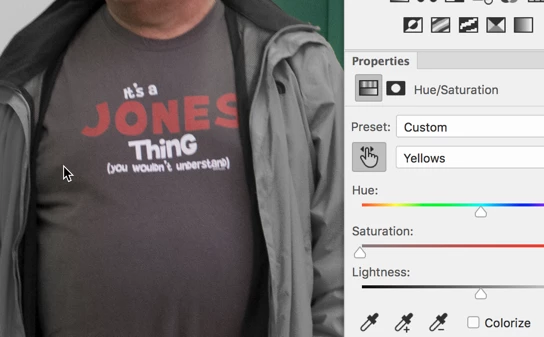
Now click on the image where the yellow is and drag to the left. That will exclusively desaturate just the color you've clicked on leaving all other colors alone.

Alternatively you might be able to create your document from AutoCAD without the yellow but since I've never used AutoCAD, I've not a clue as to how to do that. Please check with AutoCAD for that.

4 replies

Legend
February 5, 2019

Photoshop, yes, but definitely BEFORE it is a PDF. A non Photoshop PDF opened in Photoshop will rasterise to a possibly different resolution, rasterize all vectors, rasteruzecsll text, lose OCR text, lose all metadata and transparency and more. Disastrous!

Scan to TIFF. Fix in Photoshop. Make PDF.

gary_sc
Community Expert
Community Expert
February 6, 2019

Hi Test,

My apologies, you are correct. I could have sworn I had done that years ago but I just tested it in a simple Illustrator document, saved it as a PDF, opened it into PS and did a color desaturation, saved it as a PS PDF, and when I opened it up back into Illustrator, it had been completely flattened and lost its vector properties.

Not sure (at this point) what I had done years ago but either there was a big change in the intervening years or I was obviously using different software.

Simply, you are correct and I am corrected, thanks!

Legend
February 5, 2019

I really wouldn't ever open a PDF in Photoshop for editing. That could destroy the quality and much more.

Fix it before making the PDF at all.

gary_sc
Community Expert
Community Expert
February 5, 2019

Hi Test,

Huh? You were the one who suggested PS. And have you ever seen any evidence that it could destroy the quality? It would if you saved it in complete bitmapped format (e.g., jpg) but if you save it as a Photoshop PDF, all vectors are still vectors, all bitmapped are still bitmapped. There is not damage.

Anyone who claims that PS can damage and/or destroy a PDF has simply made an error in what they did, it was not PS's problem or cause.

HTH

Legend
February 5, 2019

By the sound of it you have a single scanned graphic with a lot of yellow, and some other colours. This can't be fixed in Acrobat. You should fix it before making the PDF, perhaps in Photoshop.

gary_sc
Community Expert
gary_scCommunity ExpertCorrect answer
Community Expert
February 5, 2019

Thanks Test Screen Name,

Here's the process:, open the PDF into Photoshop, go into the Adjustments Panel, and select Hue/Saturation

Now go into the Properties panel and click on the Target Adjuster

Now click on the image where the yellow is and drag to the left. That will exclusively desaturate just the color you've clicked on leaving all other colors alone.

Alternatively you might be able to create your document from AutoCAD without the yellow but since I've never used AutoCAD, I've not a clue as to how to do that. Please check with AutoCAD for that.

gary_sc
Community Expert
Community Expert
February 5, 2019

Hi Denis,

Does gray work?

If you go to the Print Production work tool, and after you select that. Then select the Preflight option

The, from the 2nd tier of options, under Digital Printing and online publishing, click on the Digital printing (B/W). Then click on the Analyze and fix. This will ask you to save a new copy (that way you can have your color and print the grayscale version) and you'll be good to go.

Please let us know if this works for you.

Participant
February 5, 2019

Yes, the digital printing (B/W) works, but it turn everything black and white.  I want to keep the notes in color.