


Duncan1101
Participant
January 28, 2020
Answered

Menu bar and part of tool bar missing from top of screen.

  • January 28, 2020
  • 23 replies
  • 220948 views

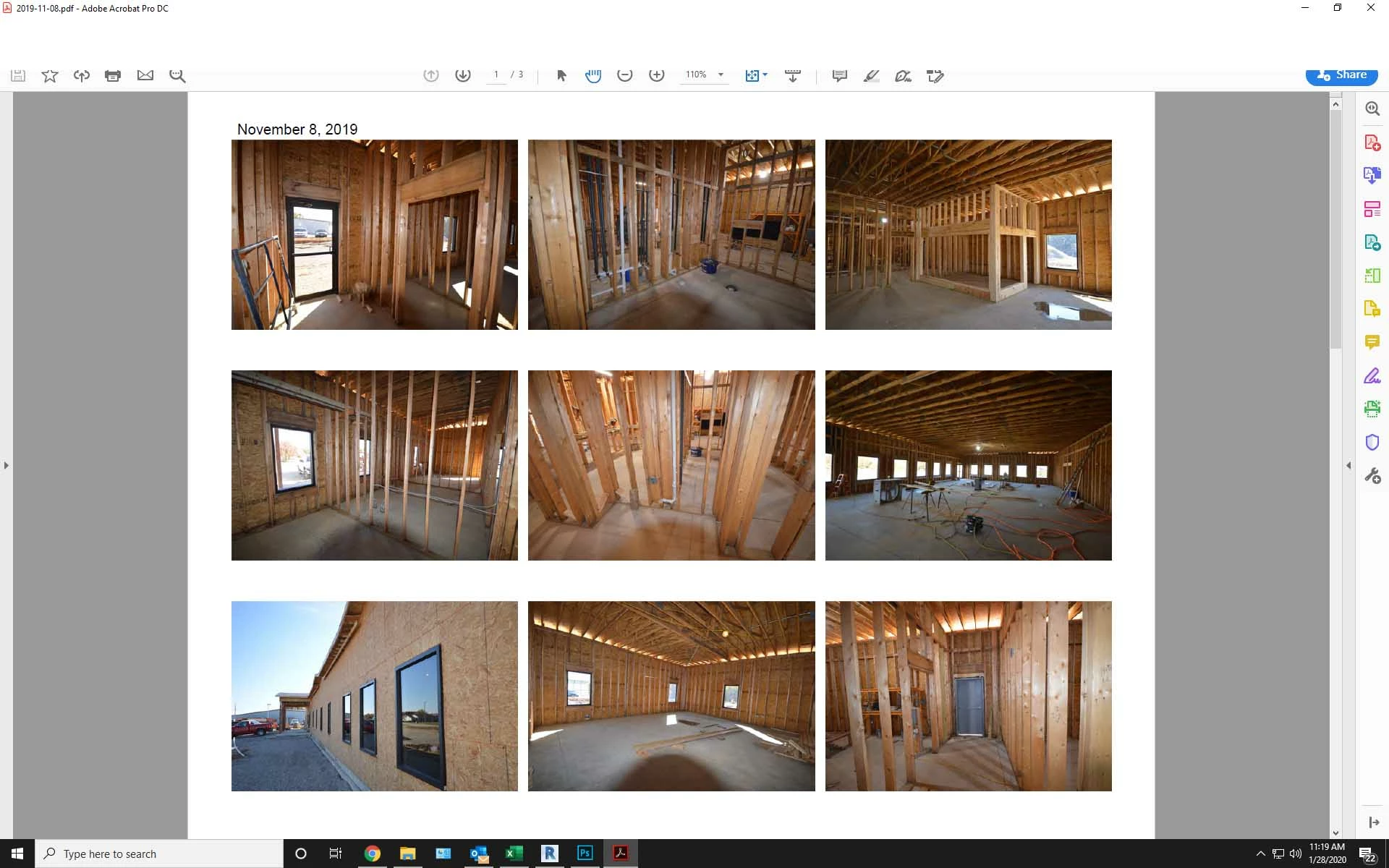
The menu bar and top portion of the tool bar will not display on Acrobat DC. When I try to click in that area it activates whatever application is running behind the Acrobat window. The only way to close Acrobat is to close the window via the Windows taskbar at the bottom of the screen. The partial icons that are visible will function but I can't access any tools or menu items above that point.


I have tried to uninstall then reinstall the program and that did not help. I have also run a repair on the program which did not work either. This version is installed from Creative Cloud.  help please.
 

Correct answer Brad33530775qom8

I was racking my brain over this. The solution was really simple after eventually finding it.


Try pressing Ctrl+Shift+Win+B to restart the graphics driver.

23 replies

Participant
March 28, 2022

I was able to solve the problem by doing a Windows graphic reset with the following:

Simultaneous Ctrl>upper case>Window>b

Participant
December 7, 2021

So I discovered that if I make another monitor the main display and set it back, it will be fixed.

So you can:

-Right click on your desktop and go to display settings

-Then, select another monitor as your main display by checking the check mark.

You may try to open your PDF as before and I noticed I was able to see the menu.

-Finally I reverted back and unchecking the main display to the privious monitor.

All back to normal

Participant
December 9, 2021

Just found another easy way to fix it... go to Settings > Display. Change Scale & Layout to 100% and voila, fixed!

Participant
November 20, 2021

I found that if you hover your mouse at the bottom right corner of the window, you can resize the window. As soon as you resize it to the left, it gives you the menu bar back and you can click the full screen tab at the top right of the window... fixed! 

Participant
November 19, 2021

Adobe this intermittent fault is really poor. I have a customer pdf that says in Windows file properties on the Security tab under Allow, Full Control not ticked, but in a file that I can see the menu, Full Control is ticked.

I only need to rotate, and put at full screen to copy and paste into a macro save of customer E-mail to docx.


Participant
November 19, 2021

Problematic pdf seems to open in a new Adobe App, even if I open in an existing App where the menu is visible for a different pdf. Your coders are useless Adobe, your software is useless, complacent monopoly position. No wonder my employer doesn't pay for your expensive Pro licenses any more.

Participant
November 19, 2021

Problematic pdf:

"PDF Producer" in Adobe document properties is: TCPDF 6.2.12 (http://www.tcpdf.org)

PDF Version 1.7 (Acrobat 8.x)


Printed the problematic pdf to CutePDF Writer, at 72dpi and I can see the menu when open this version. PDF Producer: GPL Ghostscript 8.15

PDF Version 1.4 (Acrobat 5.x)

So my issue is solved by Cute PDF Writer, not Adobe!

Participant
June 11, 2021

I fixed this issue. buy uninstalling the Graphic driver in device manager & allowing it to reinstall (dont select delete Driver )

Participant
August 31, 2021

This resolved for me.  Exact same issue on a Dell OptiPlex 7060 with Intel Graphics 630 (built-in chipset) with latest build of Adobe Acrobat DC Pro, happening on three (identical) Windows 10 21H1 systems.  Also occurs in Adobe Reader.  Removal of Intel Graphics 630 driver and reinstallation resolved.  I removed including "Delete drivers" and re-downloaded the latest fresh from Intel.

Participant
May 20, 2021

Updated on 20-05-2021.

After research some workarounds, I found another solution that might be helped.
1. Run command prompt with admin privilege and type the following command:
chkdsk /f /r
It would ask you to restart your computer for fixing and repairing the system's error. The progress could be fast or slow depends on your computer hardware. Then your PC would be booted up into Window automatically.
2. Runs the command prompt with admin rights and type:
sfc /scannow.
Wait for it to be completed. And the problem was fixed.

Participant
June 7, 2021

Have you ever been so desperate to fix your computer problem that you would be willing to trust total strangers online? I do, and I am so glad that I came across your comment because none of the other solutions posted in this thread worked. But yours did. 


To all of you who are not sure about messing with the command prompt because the wrong command could wreck your world, I get it because I thought the same thing. But desperate times call for desperate measures. So take the leap with this great fix. Yao, whoever you are, you have saved my bacon.

Participant
December 18, 2020

Hello,

So, yesterday was the first time I noticed this problem on both Acrobat DC and Acrobat Reader. I was trying to veiw my daughter's school report and wanted to reduce it in size, but couldn't because the whole menu bar had disappeared.
Today I did a search and came across this thread. I think the solution for now is to simply reduce the size of the window (WIN+arrow -->) and then manually resize it so it fills the screen - it will take up the same amount of space the fully expanded window would look like, and then just it as normal. I don't have the patience to be uninstalling, reinstalling, restarting my PC, this is as good as it gets. If it is to do with a Windows update, then hopefully that will be corrected and if it is to do with the Adobe applications, then again, they will be updated, so things will sort themselves out soon enough.

Hope that helps


Junade

Participant
March 5, 2021

This very same problem just happened to me, beginning this afternoon and right after an automated Creative Cloud update happened, which I just happened to notice as a Windows notification.  Adobe, your developers need to fix this problem!  Junade's work-around with WIN+arrow works just fine, but others who don't find and scan this entire thread are going to be very frustrated, I think.

Participating Frequently
March 25, 2021

I was lucky to find this thread on about the 3rd or 4th try to find a solution.  I used C5FDB's solution even though the description wasn't exactly what I am seeing. My title bar isn't grayed out it is non-existent.  So I don't have to click around the middle of the window I just hit option-spacebar (mac with parallels) and the system menu pops up with restore at the top. That works.  This problem is on the Macbook Pro monitor not on the external monitor.  

It is amazing that it's now been at least 15 months.  

Participant
November 13, 2020

I had this issue at a client site today and resolved it by updating the USB Graphics software for the USB docking station.  User had a Lenovo Yoga connected to a Kensington SD3600 Dual video dock with two external monitors.  Upon disconnected from the docking station Adobe DC worked as expected, displaying the fine and menu bar.  When connected to the dockingstation with Adobe window on an external monitor the file and menu bars did not display and the windows icons for minimize, maximize and close were non responsive.  Right clicking in the "white space" where the file and menu bars should display produced the windows desktop menu, not the window application menu.  Updated to the latest DisplayPort driver to the latest version directly from the DisplayPort website and it resolved the issue.

Participant
September 17, 2020

I have this same issue tonight and did the following to work around the issue.

I noticed it seems to be that the Acrobat window is maximized and just not displaying correctly. The title bar of the window is grayed out and you can't drag it or resize it natively via windows.

Click on the middle of your Acrobat window around a bit. You should show the titlebar 'active' again.
The the text in the titlebar goes from a grayish color to black text.

At that moment press and hold ALT and then tap the spacebar. (ALT+SPACEBAR)

A Windows pop-up menu appears.

Select the first item 'Restore'.


Your Acrobat window should slightly resize a bit smaller than fullscreen but your Toolbar should be restored.


We have been having this issue on high resolution laptops that are docked to monitors a few years old. For whatever reason the resizing goes out of whack. I have noticed in my case with two monitors (left one set as main display), the issue does not happen on the second monitor at all. We keep laptop lids closed when docked. 


Try this and hopefully it works for you.


Participant
October 21, 2020

I have been having this problem for quite a while. The workaround posted by C5FDB is the only thing that keeps me able to regularly use Acrobat.


Hopefully this will eventually garner some attention from Adobe.

I have done multiple "Clean" re-installs and the issue persists, with updates applied.

Participant
August 18, 2020

Does anyone from Adobe monitor the support community for resolution of these issues?  I found you can at least access the menu bar by using the shortcut keys and although not ideal, it made it useable, but this has been going on since January 2020 without correction.  I usually switch over to Foxit when I encounter problems like this until they are resolved and will probably change my default this afternoon.  The shortcut keys are not practical when accessing several PDFs during the day.


Adobe Acrobat Reader DC Version 2020.012.20041

Windows 10 Pro Version 10.0.1363.752 Build 18363

Meenakshi Negi
Community Manager
Community Manager
August 19, 2020

Hey Chris!


Sorry for the trouble.


We have released an update today for Acrobat and Reader DC (Continuous Track) desktop application.
Please update the application to the latest version by going to the Help menu > Check for updates in the application.

Check if that helps.


If that doesn't help, please try removing the application using the cleaner tool (https://labs.adobe.com/downloads/acrobatcleaner.html) and restart the machine.

Then install the latest version of the application from this link: https://get.adobe.com/reader/enterprise/ 


Let us know how if the issue persists.


Thanks,

Meenakshi

Participant
August 21, 2020

Hi,

It is still not working for me (Windows 10 Pro). I can change the size of the window on the screen with Win+arrow, and thereby access File, Edit, View, Help etc. from the menu bar; these menus appear semi-transparent in front of other applications. However, the title bar has completely disappeared, together with the window min, max and close options. Also, it is impossible to move the Reader window when it is not maximised.

First, I updated Adobe Reader DC to a newer version, which didn't help. Then I followed the guidelines above and removed it using the cleaner tool followed by re-boot and re-installation. Still the same as before. It seemed to have happened overnight, and it is pretty annoying. I hope this gets sorted soon, as this is no condition to work with PDF files. 

Here is a screenshot of Adobe Reader DC in front of a Powerpoint window: