


Participating Frequently
February 27, 2020
Answered

Need help with custom drop-down form I created

  • February 27, 2020
  • 3 replies
  • 3186 views

Hello Everyone, 


I'm new to the boards (just signed up a few minutes ago) and I need some help with some things. I attached the form I'm working on and edited some information as to not disclose anything company related. There are a few things I need some help with. As an FYI, my javascript skills are limited to scouring the web and pulling bits and pieces from different sources then making sense of it and trying to reverse engineer per se. 


1. The form I created needs to stay by default on dropdown: "Please select the Customer Type". I noticed that when opening the form it is on another option. 

2. When selecting a drop down the blue help boxes disappear from the various fields when they should appear to the person using the form. If I cycle throught he different dropdowns and then back up the list they reappear (weird). How can I fix this?

3. The ONLY drop down option that is different is the "Individual Vehicle" I wanted to have the CAN field and text disappear if a user chooses this option which I have accomplished (in case you were wondering why that field disappeared)


Bonus: 

It would be great if I could block printing if a drop down isn't selected by the user and the form is left on the default "Please select Customer Type". I'm not sure if this is possible but let me know guys.  


I'm at the finish line and I was hoping to roll this out by the end of the week. Any help would be greatly appreciated. 


This topic has been closed for replies.
Correct answer George_Johnson


I'm confused and I apologize for my mental capacity on this topic. The header name is TextMBID* and the actual field the person types in is Salesperson MBID. Those are the names correct or am I missing something? Is the name what is highlighted in RED or is it within the properties when I double click on the field?


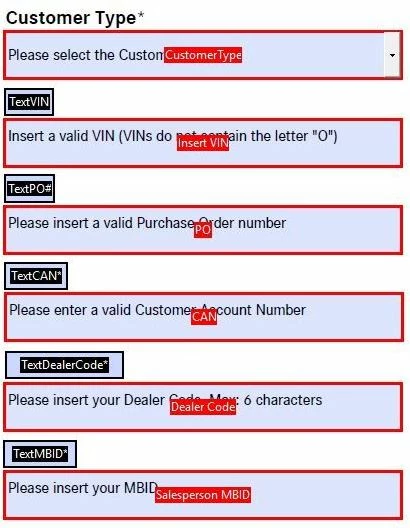
What you're calling "header name" is a field name. You're referencing those fields in your code, but you're not using the correct field name in some of the getField statements. Sometimes you're including an asterisk at the end of the name, and other times you're not, so there's a mismatch in a few of them.

3 replies

Inspiring
February 27, 2020

Here's a sample Keystroke script for the dropdown that should get you started.


// Custom Keystroke script for dropdown
if (!event.willCommit) {

   switch(event.changeEx) {
   case "Please select the Customer Type":

      getField("Insert VIN").display = display.hidden;
      getField("PO").display = display.hidden;
      getField("CAN").display = display.hidden;
      getField("Dealer Code").display = display.hidden;
      getField("Salesperson MBID").display = display.hidden;
      break;

   case "Individual Vehicle":

      getField("Insert VIN").display = display.visible;
      getField("PO").display = display.visible;
      getField("CAN").display = display.hidden;
      getField("Dealer Code").display = display.visible;
      getField("Salesperson MBID").display = display.visible;
      break;

   }

}


Participating Frequently
February 27, 2020

Thanks for the info. I appreciate your support. I changed the code to the keystroke field. I will continue playing with this. 

Participating Frequently
February 27, 2020

Here are my fields (see screenshot)


I'm about to pull out my facial hair (I'm bald) since I don't know what I'm missing. So here's the walkthrough so far. 


  • I open up the document and I see the "Please select the Customer Type" - Good
  • I choose the customer type to let's say the next available option and I'm supposed to see all the fields but 2 of them are missing. 
  • I cycle to the next dropdown option and even more are missing


Here is my code which is in the CustomerType drop down under Customer Keystroke Script: 


// Custom Keystroke script for dropdown
if (!event.willCommit) {

switch(event.changeEx) {
case "Please select the Customer Type":

getField("TextVIN").display = display.hidden;
getField("Insert VIN").display = display.hidden;
getField("TextPO#").display = display.hidden;
getField("PO").display = display.hidden;
getField("TextCAN*").display = display.hidden;
getField("CAN").display = display.hidden;
getField("TextDealerCode*").display = display.hidden;
getField("Dealer Code").display = display.hidden;
getField("TextMBID*").display = display.hidden;
getField("Salesperson MBID").display = display.hidden;
break;

case "Fleet Upfitter/RV Vehicle":

getField("TextVIN").display = display.visible;
getField("Insert VIN").display = display.visible;
getField("TextPO#").display = display.visible;
getField("PO").display = display.visible;
getField("TextCAN").display = display.visible;
getField("CAN").display = display.visible;
getField("TextDealerCode").display = display.visible;
getField("Dealer Code").display = display.visible;
getField("TextMBID").display = display.visible;
getField("Salesperson MBID").display = display.visible;
break;

case "Individual Vehicle":

getField("TextVIN").display = display.visible;
getField("Insert VIN").display = display.visible;
getField("TextPO#").display = display.visible;
getField("PO").display = display.visible;
getField("TextCAN").display = display.hidden;
getField("CAN").display = display.hidden;
getField("TextDealerCode").display = display.visible;
getField("Dealer Code").display = display.visible;
getField("TextMBID").display = display.visible;
getField("Salesperson MBID").display = display.visible;
break;

case "SME Vehicles":

getField("TextVIN").display = display.visible;
getField("Insert VIN").display = display.visible;
getField("TextPO#").display = display.visible;
getField("PO").display = display.visible;
getField("TextCAN").display = display.visible;
getField("CAN").display = display.visible;
getField("TextDealerCode").display = display.visible;
getField("Dealer Code").display = display.visible;
getField("TextMBID").display = display.visible;
getField("Salesperson MBID").display = display.visible;
break;

case "National/Strategic Account":

getField("TextVIN").display = display.visible;
getField("Insert VIN").display = display.visible;
getField("TextPO#").display = display.visible;
getField("PO").display = display.visible;
getField("TextCAN").display = display.visible;
getField("CAN").display = display.visible;
getField("TextDealerCode").display = display.visible;
getField("Dealer Code").display = display.visible;
getField("TextMBID").display = display.visible;
getField("Salesperson MBID").display = display.visible;
break;

}

}


Thanks in advance. 


Inspiring
February 27, 2020

Also, when using a script in a dropdown to make something happen when an item is selected, you should use the dropdown's Keystroke event, not the Calculate event like you've done. There are many samples around, and I'll see if I can post a suggestion based on your current script.

Inspiring
February 27, 2020

For the first problem, if you go to form editing mode and open the dropdown's field properties dialog and go to the Options tab, you'll see the following note: "Select an item in the list to make it the default choice."


The default choice is what the field will get set to when then form is reset. But if you set the field value and save it, and the field doesn't subsequently get reset, it will retain that value if the form is saved and reopened.