


Copy link to clipboard
Copied
Hello,
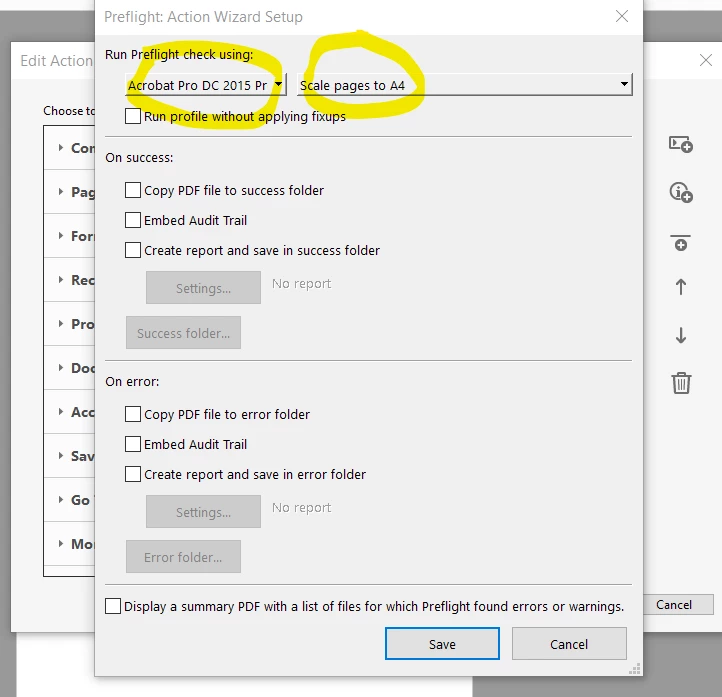
I am trying to use the "Preflight" Action to shrink documents (to mimic the action of shrinking documents in the Add Header and Footer action where one clicks on "Appearance Opitons" and checks "Shrink document to avoid overwriting...."). However, I have been unsuccessful at finding an option in the "Preflight" Action to specify the margins I want (Top: 0.5 in / Bottom: 0.7 in / Left: 1 in / Right: 1 in). All I seem to be able to find is the "Scale to A4" option (see below). I tried the other profiles but saw no other options. I am confused why the action would have such a limited amount of choices when the the preflight option outside of the action wizard allows for scaling to a specified size. Hopefully, it does exist in the "Preflight" actoin list and you can point me to it since I have been unable to find it. If there is no such option, is there anything else that can be done? (note that I think I cannot use the watermark script to achieve this b/c I am restricted from creating a new document or blank page for my document). Last, the reason I need to add this preflight step to my list of actions is b/c the "Add Header and Footer" action is removing headers and footers from some of my documents such that I cannot afford to keep it in my list of actions anymore (as a side note, I don't understand why the add header/footer is removing headers and footers but I digress).
I would very much like a solution to this as it has been a problem for months. Thank you in advance.
I am using Adobe Acrobat Pro on Windows 10.
Sue
Copy link to clipboard
Copied
To do this requires creating your own Preflight Fixup.
1) Open the Print Production Tools
2) Click on Preflight to open the preflight dialog
3) Select the "FixUps" set of tools by pressing the button that looks like a wrench
4) Then from the Options menu select "Create a Fixup"
5) On the Fixup dialog you'll find an option for scaling pages.
6) This literally scales the pages, so you'll also need to resize the pages back to the original size to get the margin.
Copy link to clipboard
Copied
Hi,
I sincerely thank you for your reply but maybe I need to explain better what the issue is. I am trying to apply the preflight action to a batch of documents within an action wizard.
I have an action wizard that labels all the documents (based on modifying one of your scripts). But before the javascript is executed, I have the Add Header Footer action to shrink the document to get it ready for labeling, as shown below:
This was mostly working fine but sometimes I would get complaints that the action wizard was sometimes removing headers and footers from the documents. I then thought a good solution to this would be to get rid of the Add Header & Footer action and replace it was javascript to achieve the shrinking and margin setting but then I was told that this cannot be done in javascript but instead can be done using the preflight action. Hence, when I tried the preflight action in the action wizard sequence, I noticed there was no option to set margins/shrink the document (hence the reason for my original question in this post).
Here are my revised questions for this post:
1) What can I do to prevent the Add Header & Footer action from removing Headers and Footers when all I am trying to do is set the margins for each page and shrink the page (as shown in the image above)?
2) Why does the Add Header & Footer action remove headers and footers from some documents and not others in the first place?
3) Is it truly the case that the preflight action is limited and cannot mimic the Add Header & Footer action set up that I really want?
Thx.
Sue
Copy link to clipboard
Copied
Hi @suemo22 ,
Thank you for reporting the issue and apologies for inconvenience caused.
It appears that the Preflight Action wizard is only showing the list of Preflight Profiles , and "Scale Pages to specified size" ,"Scale page content only to specified value" are the preflight single fixups.
Here is the way you can check and confirm :
Hence the fixup is not visible in that list.
As a workaround , can you try exporting your desired fixup as profile and importing back again. Then it would come under Imported Profiles and should also start showing in Action Wizard list.
Steps:
1.Select the desired fixup which is not visible there.
2.Select the "Options" dropdown from top right in Preflight dialog.
3.Select export profile and save it on your system. (You can rename it for convenience but not mandatory). It will be saved as .kfp file .
4.Now again select options and now select the import profile option and import the .kfp file exported in above step.
Now the fixup would start appearing under Imported Profiles and should also show in Preflight Action Wizard list.
Let me know if this works for you.
Regards,
Divya Kumar Singh
Copy link to clipboard
Copied
Hello,
Sorry for the late response. I was out of town and could not work on this. Yes, this totally worked. I just need to play with the scaling in inches. I have 2 followup questions for you:
1) Why does it say the following with this custom preflight profile? What is it removing exactly? I need the content to remain so this has me a little worried.
2) I also noticed some of the documents are not scaling to specified size. They just remain the same, as if they were untouched. Can you help me understand why that would be? (Notably, these are the same documents that also don't respond to shrinking documents in the Add Header and Footer action where one clicks on "Appearance Opitons" and checks the "Shrink document to avoid overwriting...."), which is the whole reason I set out to try and scale the pages in the first place.
One thing I noticed about these problematic documents is that when I try to edit any of the text on the page, I get the error below:
To circumvent this, I realized I have to re-save the pdf by going to File >Print and then selecting "Adobe PDF" for the Printer. If I do this, then the scaling works. (Based on articles I am reading, it also seems that how the person saves the document as a PDF really matters. When pdf's are saved any other way than what I described above, headers/footers go missing, etc., they cannot be shrunk or scaled.)
Anyway, since I now have to re-save the pdf using hte method above, can you tell me how to use the Action Wizard to take all of my pdfs and re-save them using File >Print and then select "Adobe PDF" for the Printer so that I can then make sure they scale? Note, I do see that this is an option on the action list. However, it does not let me "Specify Settings". Instead, it says it will default to what my printer has as a setting:
However, this is not helpful b/c I have numerous users out there of this action wizard and I cannot tell them what setting to have. Plus, they would have to do this everytime which would be annoying. It would be great if the action wizard sets the setting (File >Print and then select "Adobe PDF" for the Printer s). Is there a work around for this?
Thanks.
Sue
Copy link to clipboard
Copied
To remove the extended features use File > Save a Copy
Copy link to clipboard
Copied
Hi,
I see what you are saying but I found that if I do anything other than re-save pdf as File > Print and choose Adobe PDF for Printer, then scaling won't work. Hence, I cannot Save a Copy.
Sue
Copy link to clipboard
Copied
Hi @suemo22,
Ideally, it is not advised to use File> Print > PDF Printer because it flattens the document. If you have a PDF with layers and other information, you will lose it. Hence, it is advised to save the document rather than print it via PDF Printer.
~Tariq
Copy link to clipboard
Copied
Hi,
I am not using the header and footer action b/c I am scaling now using preflight. Also, Adobe is not recognizing the content as a header or footer so I cannot update it anyway.
Thx.
Sue
Copy link to clipboard
Copied
Hi @suemo22,
If the files previously were printed using a PDF Printer, this will happen as mentioned above; PDF Printer flattens a document.
Get ready! An upgraded Adobe Community experience is coming in January.
Learn more