



e ch n
Inspiring
August 23, 2024
Answered

No form field automatically added when creating forms.

  • August 23, 2024
  • 3 replies
  • 3115 views

I am having difficulties with the creation of forms, because the filling spaces are not generated automatically, even though, apparently, the settings are the right ones.


Thinking it might be a malfunction in the program, I uninstall it and reinstalled it, but the behavior is the same.


Any idea what could be wrogn?


Thanks!


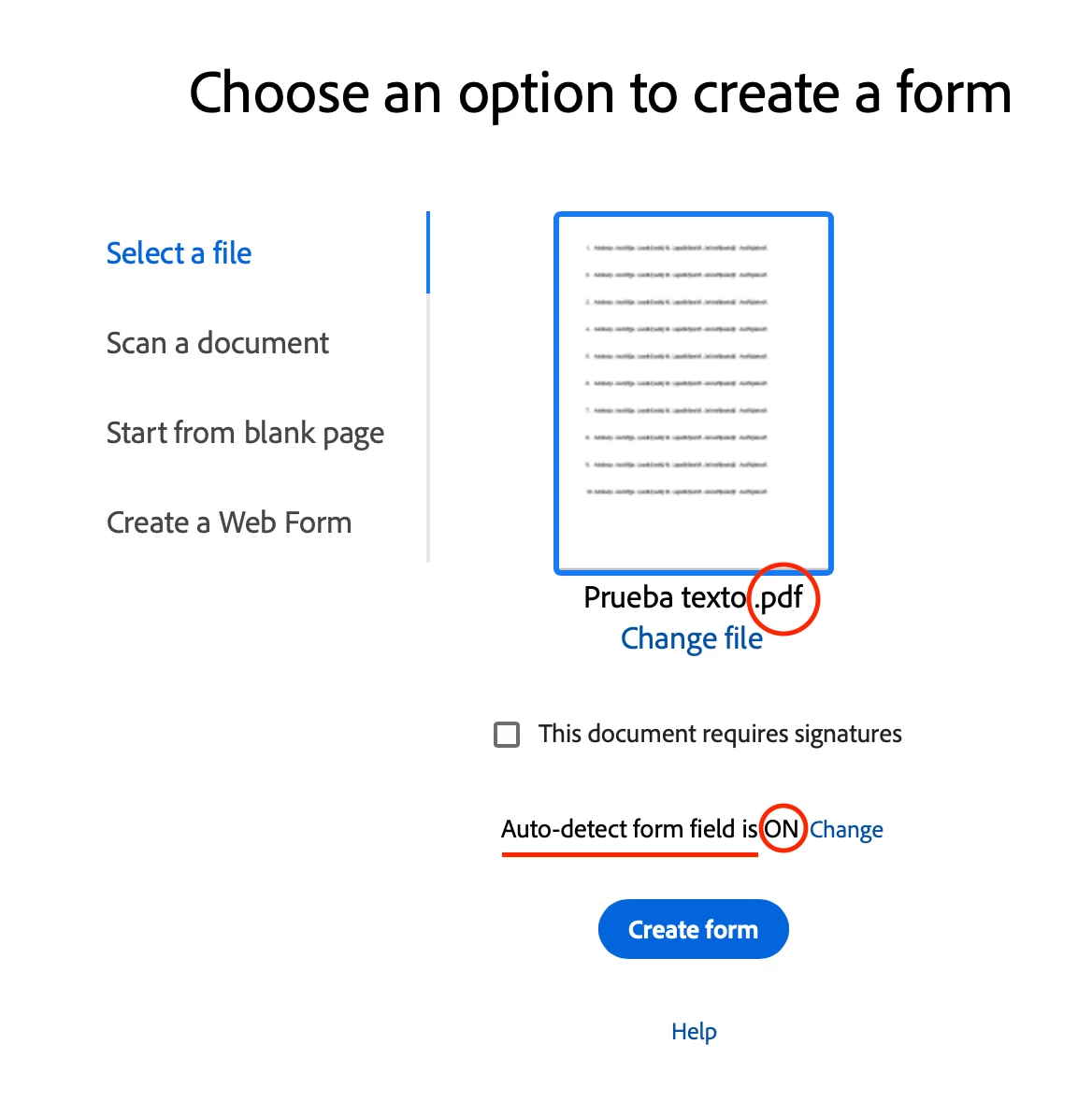
As can be seen, the document is a .pdf and Auto-detect form field is ON.


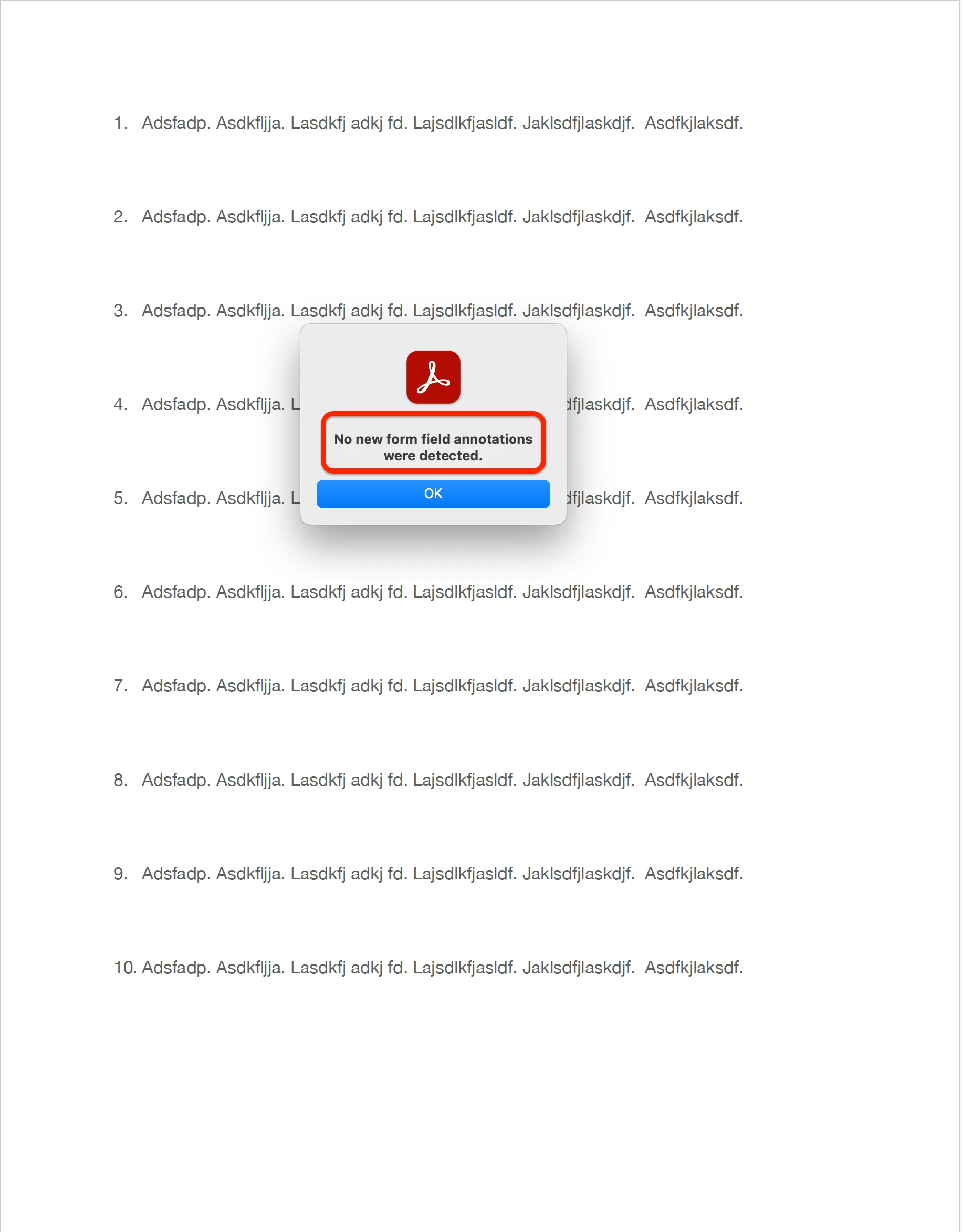
No new form field annotations were detected


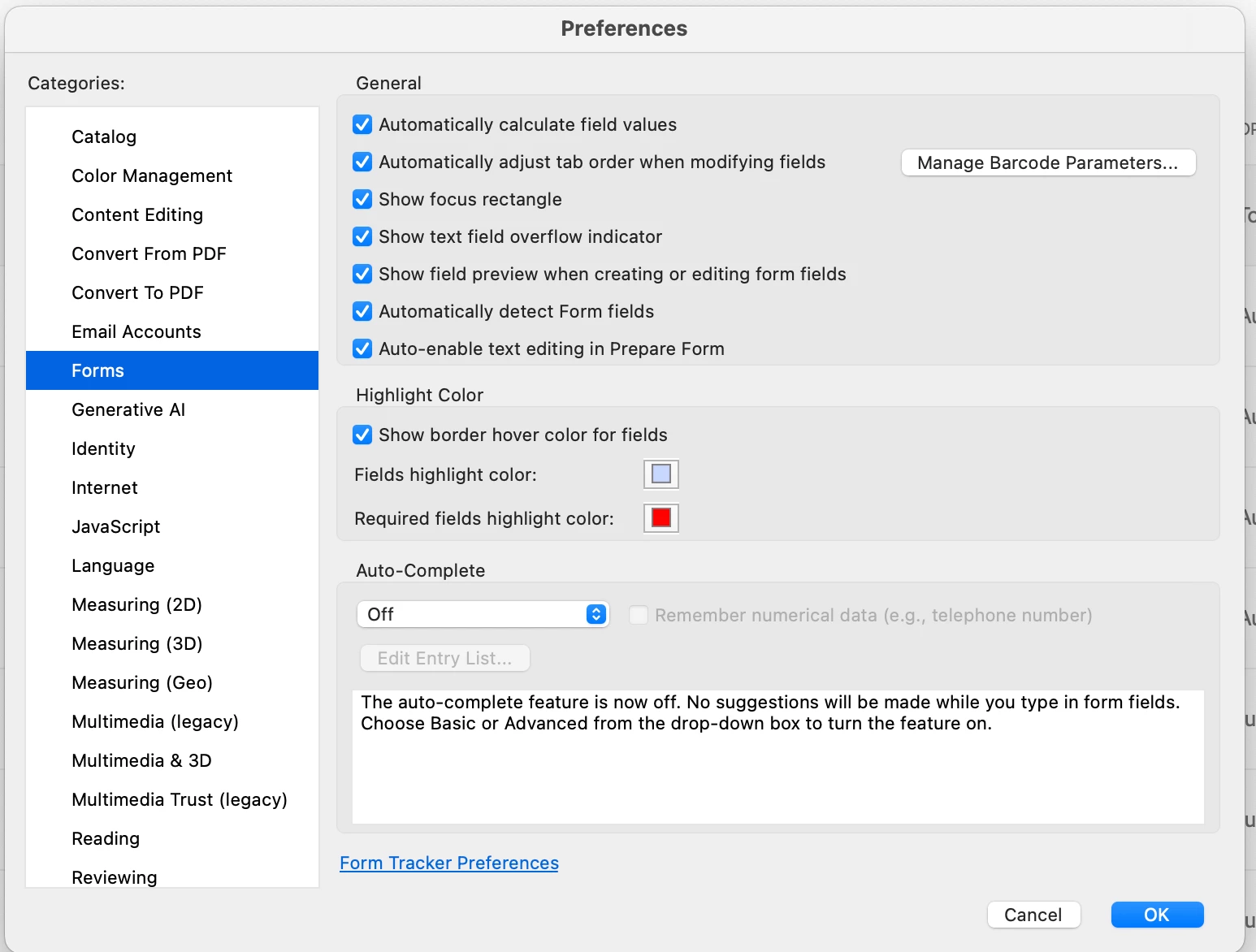
These are the configurations
 

This topic has been closed for replies.
Correct answer try67

The form detection wizard is far from perfect, but as was mentioned, you didn't really give it anything to use to create the fields, so it's not surprising it didn't create any. You must add some visual indication of where the fields should go, in the form of a box or a line.

3 replies

try67
try67Correct answer
Community Expert
August 25, 2024

The form detection wizard is far from perfect, but as was mentioned, you didn't really give it anything to use to create the fields, so it's not surprising it didn't create any. You must add some visual indication of where the fields should go, in the form of a box or a line.

e ch n
e ch nAuthor
Inspiring
August 25, 2024

I understand. Thank you very much for the clarification.

Dave Creamer of IDEAS
Community Expert
August 25, 2024

The PDF has to LOOK like a form in order for the detection to work. Even then, it's not always correct. I usually recommend trying it--it it doesn't work or looks like it's more work to fix--then build it manually. 


David Creamer: Community Expert (ACI and ACE 1995-2023)
e ch n
e ch nAuthor
Inspiring
August 25, 2024

Thank you, Dave. I will do it that way. 

At first I did not place lines or text boxes, because I did not want them to appear aesthetically, since they would not even be used to fill the document.

Dave Creamer of IDEAS
Community Expert
August 26, 2024

Thank you, your guidance has been very helpful.


What I have also tried, is to change the lilac color of the text box, but when changing it, the modification is only visible when selecting the file icon and showing its preview, and in fact, I have no idea what this function is for (I can only think that for the user to see in the thumbnail, which is a form) ... since when opening the file, this change is not visible, the text box returns to be lilac. Perhaps, the color of the box can not be changed.


What I wanted, is to change the lilac tone, to blue color, because it is part of the corporate colors, and it would not interfere with typing because the box disappears when you start typing.


Here I have selected these colors to make the changeover test


However, in the opened file, only the color of the frame changed


And here is the preview, where you can see the green and magenta frame of the selected fill.


This is probably how things are supposed to work, and I just don't know of any further use for those functions at this time. Although once the file is open, being able to change the color of the text box to corporate colors would certainly be useful.


The default blue highlight is a preference setting. While you can change it on your system, you can't do anything about other people's system. 


David Creamer: Community Expert (ACI and ACE 1995-2023)
PDF Automation Station
Community Expert
August 24, 2024

Why would you expect it to create fields in a number list of text with no lines or boxes?

e ch n
e ch nAuthor
Inspiring
August 24, 2024

Well... I was unaware that lines or boxes had to be created.

PDF Automation Station
Community Expert
August 24, 2024

The program detects where it might need fields for a form.  It's not perfect.  It doesn't usually detect field placement in white space.