Inspiring
July 8, 2024
Answered

OCR: Page elements get rotated instead of leaving them level

  • July 8, 2024
  • 1 reply
  • 3421 views

I would like to OCR the attached PDF page, preferably into editable text and images. However, whatever I try, it rotates the elements on the page by something like 20°. If I select Searchable Image (Exact), then the recognized text gets rotated. The rotation doesn’t even make sense.

How do I tell Acrobat not to rotate the elements on the page?

This topic has been closed for replies.
Correct answer gary_sc

OK, I also had the Old UI going, so I used that.

First, go into Scan & OCR

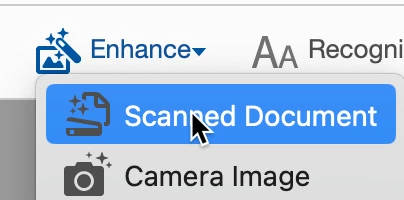
Next, along the top bar, select "Enhance" and then Scanned Document

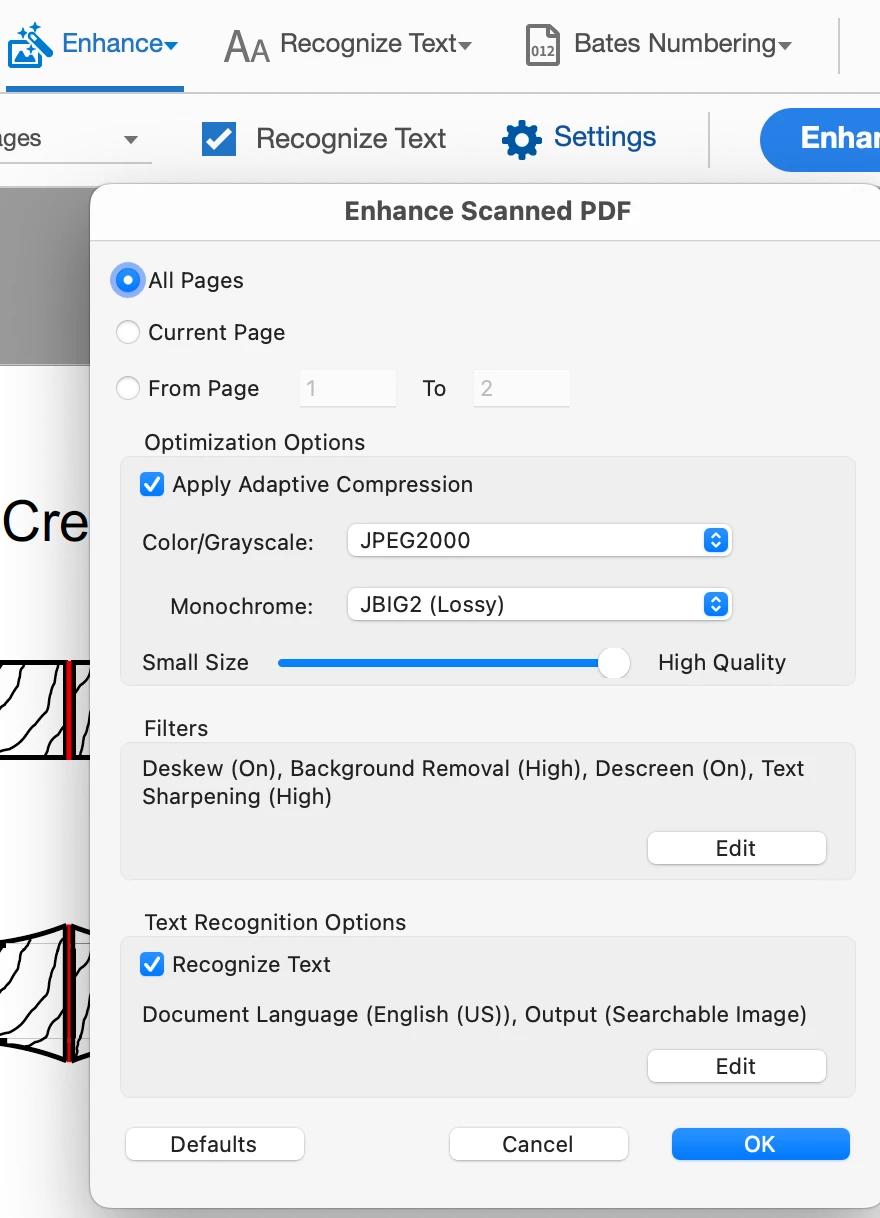
Next, click on the Gear icon for Settings


And lastly, on the bottom of the window (seen above) click on the Edit of  Text Recognition Options

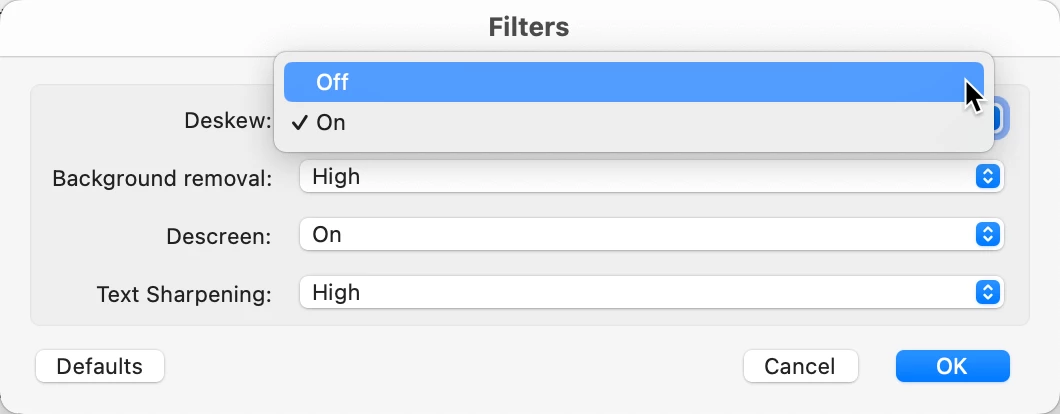
Then go to Deskew and turn that off. 

As a side, but related issue. I get a business-related journal that I scan for storage. On my flatbed scanner, I scan one side, flip 180°, scan the next page, wash, rince, repeat for all ≈ 60+ pages. With Deskew turned on, Acrobat's OCR recognizes that the text is 180° off and rotates the page back to 0° and I'm good to go. So, it definately has some advantages. So, when you're done with this, you might want to turn it back on.


Let me know if this solves your issue.

1 reply

gary_sc
Community Expert
July 8, 2024

My guess is that it's focusing on these lines (in red) and not on the vertical line.

 Let me know if you're using the new or old User Interface and I'll tell you how to turn the auto-roate off.

fekleeAuthor
Inspiring
July 8, 2024

Thanks for the quick and detailed reply, Gary!

I am using the new interface, but can switch back to the old interface in case that helps. I faintly remember encountering the same issue years ago.

fekleeAuthor
Inspiring
July 9, 2024

OK, I also had the Old UI going, so I used that.

First, go into Scan & OCR

Next, along the top bar, select "Enhance" and then Scanned Document

Next, click on the Gear icon for Settings


And lastly, on the bottom of the window (seen above) click on the Edit of  Text Recognition Options

Then go to Deskew and turn that off. 

As a side, but related issue. I get a business-related journal that I scan for storage. On my flatbed scanner, I scan one side, flip 180°, scan the next page, wash, rince, repeat for all ≈ 60+ pages. With Deskew turned on, Acrobat's OCR recognizes that the text is 180° off and rotates the page back to 0° and I'm good to go. So, it definately has some advantages. So, when you're done with this, you might want to turn it back on.


Let me know if this solves your issue.


Thank you very much, Gary! Unfortunately, this does not seem to work if I want to get editable text and images. The issue with Searchable Image as output is very big.


There are many pages that have black text on white background, plus a grayscale image. With editable text and images, the grayscale image is stored separately from the text, which can be compressed using different algorithms. This brings down PDF size to a fraction of the original size, while maintaining quality. With searachable image as output, the PDF size remains high.


I think I should slowly look at other software. This issue has been in Acrobat since ages.