


New Participant
March 7, 2022
Answered

Preview Pane File Not Found Windows 10

  • March 7, 2022
  • 15 replies
  • 17508 views

Today, we started experiencing this issue with the preview pane when clicking on PDFs in the office:
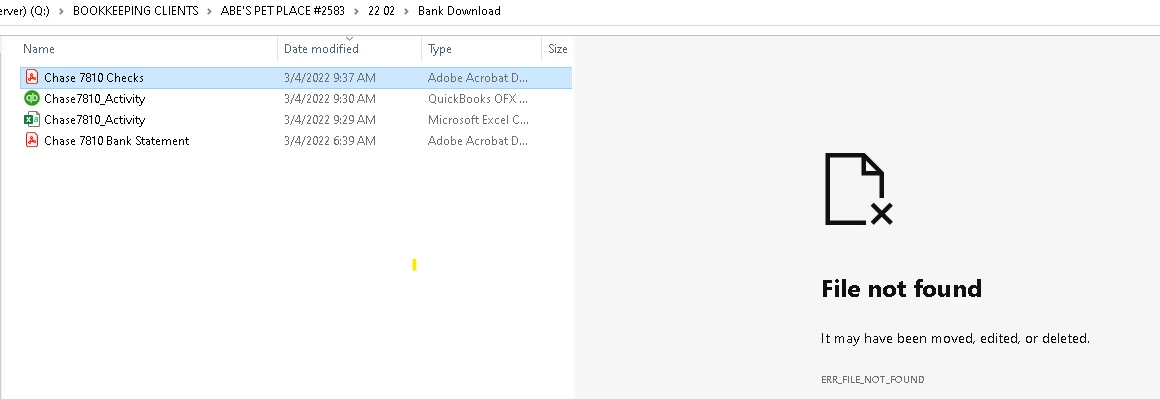
The PDF opens fine, but we can't preview. I already restarted the comptuer and unchecked and rechecked the preview settings withing adobe. All looks good. Please help. 

This topic has been closed for replies.
Correct answer jmc.ylci

Had the same issue today with some PDF attachments not previewing in Outlook, checked for updates for Adobe Reader and updated to the latest version out today 2022.001.20085 and the preview function worked again.

15 replies

New Participant
August 23, 2022

We have noticed the pdf files that won't show a preview has an "x" on the pdf logo beside the file and the files that can be previewed don't have the "x".  Can anyone answer this?


Participating Frequently
August 23, 2022

The issue itself is that the '#' or other symbols are "breaking" the file path in Windows, and so it can't preview the file. The same mechanism must somehow be involved with generating thumbnails, so it doesn't know the file is a ".pdf" filetype, since anything after the '#' is not seen as part of the file path.

New Participant
June 6, 2022

Hello, 

I hope you have solved the issue by now. If not, read below.

I too had similar issue and after hours of digging the internet found the solution. It looks like its neither Windows or Adobe or any other PDF reader per se issue. It’s basically Windows Edge bug which fails to preview the file if “#” is included within the file name. It performs as expected when there is no # sign in the filename.

Anyways solution is running commands to change the preview of the file from Edge to Adobe.

Open Command prompt in Admin rights.

Run these commands to change the default preview from Edge to Adobe.


reg add HKCR\.pdf\ShellEx\{8895b1c6-b41f-4c1c-a562-0d564250836f} /ve /d {DC6EFB56-9CFA-464D-8880-44885D7DC193} /f


Run these commands to stop Edge changing the default preview back to edge.


reg add HKCR\CLSID\{3A84F9C2-6164-485C-A7D9-4B27F8AC009E} /v EnablePreviewHandler /t REG_DWORD /d 0 /f

reg add HKCR\WOW6432Node\CLSID\{3A84F9C2-6164-485C-A7D9-4B27F8AC009E} /v EnablePreviewHandler /t REG_DWORD /d 0 /f


Close the window. It should be solved by now.

New Participant
June 29, 2022

Big thanks to you Marzukh! Y'all just need to run the 1st command to change the default from Edge to Adobe. 


I can Preview all of my docs that I had a # labeled on them which I was needed in my record keeping.


Thank you!

New Participant
May 25, 2022

My DC was up to date and this issue still happening. I repaired the installation and in my case this worked on 2 different computers

Participating Frequently
May 8, 2022

[Fix] PDF Preview Shows Directory Index or ERR_FILE_NOT_FOUND » Winhelponline:
https://www.winhelponline.com/blog/pdf-preview-directory-index-file-not-found/


"Step 2" in the article is important as it stops Edge from resetting the default preview handler.

Participating Frequently
March 29, 2022

I'd like to throw my hat in the ring here as someone who is also experiencing this issue.

Updating Adobe Acrobat DC to whatever was the latest version on March 15th seemed to resolve the issue, but it was still present in the free Adobe Reader version.

A week later, I returned to my client's site and they reported that the issue has returned. As no updates were applied to Adobe in the meantime, then I can only assume it IS some issue with Windows itself.

The workaround is to remove the '#' (and maybe other special characters) from the file path, but unfortunately for this client literally every file they work with has the '#' in it and a piece of software they use for processing PDFs requires this, so they are in a catch-22 - they can fix previewing, but it will break other parts of their workflow.

I'm mostly replying here so I can get notified of other replies.


Thanks,

Brian

Participating Frequently
March 29, 2022

I just confirmed that the affected users are running Adobe Reader 22.001.20085 and/or Adobe Acrobat DC 22.001.20085

I have the same version of Adobe Reader on my laptop and DO NOT have this issue.

The difference that I can see between my machine and theirs is that I'm on 21H2 and they're on 21H1 - so, I will look into getting this update installed and see if it resolves the issue.

Participating Frequently
April 14, 2022

Hi Laura,


As your OS is on "19042", that means you're on the 20H2 update. This means you're a couple of feature updates behind, although the ".1586" means you're on the latest patch level, so unless PDF previewing is a feature, you really shouldn't be affected. Talking to your IT about upgrading to the latest feature update, 21H2, might help.


Another thing I just thought about/noticed is that I'm running PowerToys for Windows, which includes a PDF preview function for Windows Explorer. It's possible that this is what is "fixing" the problem for me on my own machine. I won't be able to test this until next Tuesday when I return to my client site, but I will definitely be installing this application to see if it alleviates the issue for them.


Cheers,

Brian


GREAT NEWS #

I'm not sure what changed, but my Previews are back!! 

I have not run an update from our side and I never changed my naming scheme.
# are back #

Have a great day, everyone!

New Participant
March 22, 2022

I have the same issue. Adobe Support is claiming this is a Microsoft Issue. Can anyone confirm?


Removing the # from the file name works but our accounting department uses # in their naming convention so it'd be difficult to change. Thanks

New Participant
March 21, 2022

I believe the problem is related to any special character, not just #, that is located anywhere in the file path.  For me 2022.001.20085 still has the problem.

New Participant
March 21, 2022

Same issue here. Be curious if they do an update for this. We have a massive amount of file names using the "#" and other characters and there is no way we are changing the file names. So right now we just cant use preview for Adobe files, just have to open the file. Also noticed Adobe preview seems much, much slower as well too now. Our files are sometimes 50 to 100 page files. Better off just opening the file, since as if its trying to pre-load alll the pages just to preview. Adobe preview is almost useless for myself.

Participating Frequently
March 29, 2022

Jason, the bad thing is that when you send a file, users cannot Preview the file in Outlook either.  It's not just our personal preview via Windows File System.  Recipients have to open the file when sent to them - and they are confused because they get the same message we do.  File not found, so they think it is corrupt.

New Participant
March 18, 2022

is there any other solution other than removing the '#' character in the file name?  

i had the same issue, downloaded the update and it worked for a few days but now i can't preview the files again.  i receive emails with '#' in the file name all the time so that's a lot of files to change just to be able to preview. 


**this is the most helpful thread i have found, regarding this issue... thank you!**

Participating Frequently
March 29, 2022

I am the same!  I can preview any other file (Excel, Word, etc) with a # sign in the naming scheme.  Just not Adobe and guess what??  Project specific files and MOST of my files I save or send via Adobe.  Please Adobe, lets figure out why Preview has suddenly decided to block Preview of these files.

Dave Creamer of IDEAS
Community Expert
March 29, 2022

Just because Microsoft Office previews work on Microsoft Windows (big surprise there...), it doesn't mean the issue is with Adobe. It works on my system so I suspect something deeper in the OS is at fault. 

David Creamer: Community Expert (ACI and ACE 1995-2023)
Bernd Alheit
Community Expert
March 16, 2022

Remove the # from the folder name.