


Inspiring
March 14, 2017
Answered

Printing a booklet

  • March 14, 2017
  • 1 reply
  • 10870 views

Hi

I have a problem with printing a booklet using Adobe reader.

I have created a PDF file in InDesign from the "Print booklet" option in the file menu.

It is a simple 4 page brochure that is designed for a single piece of paper with printing on both sides.

When I open the PDF print settings in Acrobat Reader DC everything looks fine, both size, order and so on...
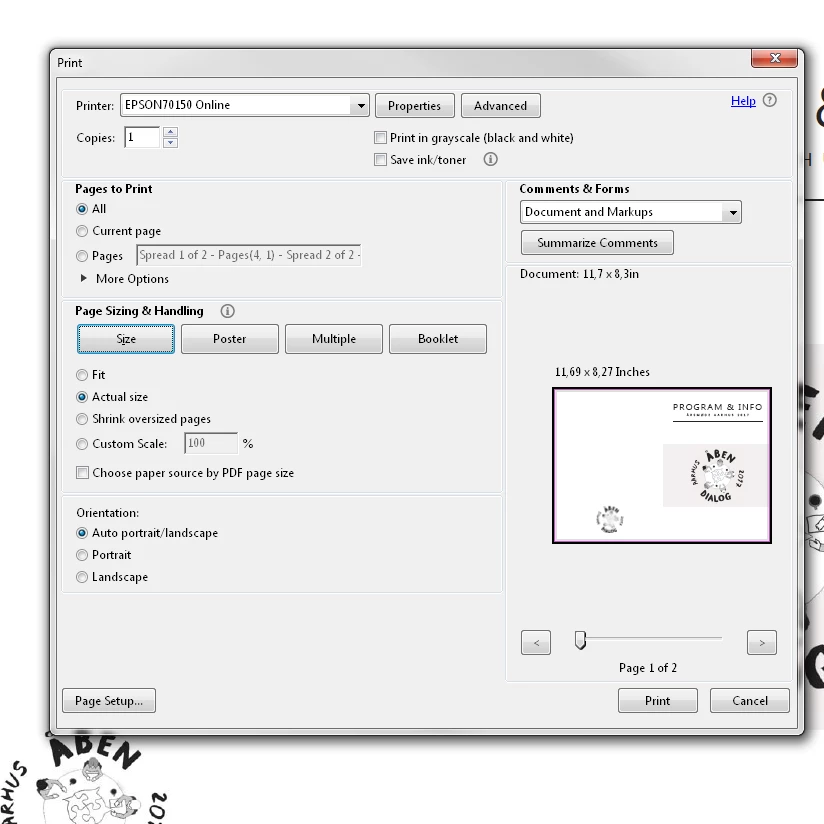
But as soon as I go to "Booklet" it shrinks my file to only cover half the size of the paper.
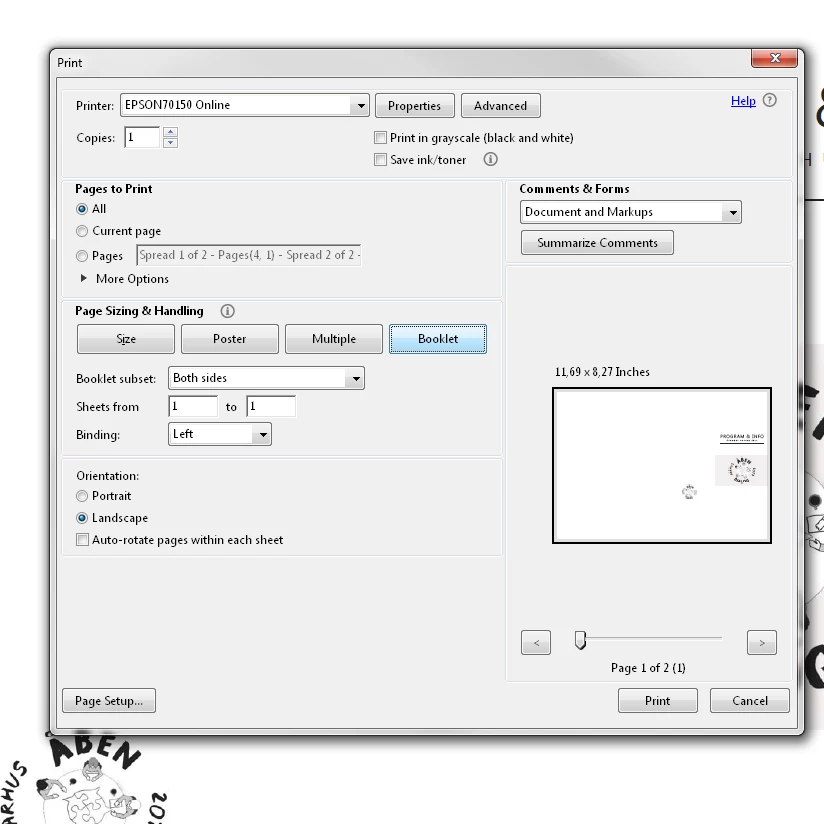
I have followed every step of this tutorial over and over: https://helpx.adobe.com/acrobat/kb/print-booklets-acrobat-reader.html

But nothing changes. It is still the same no matter what I do.

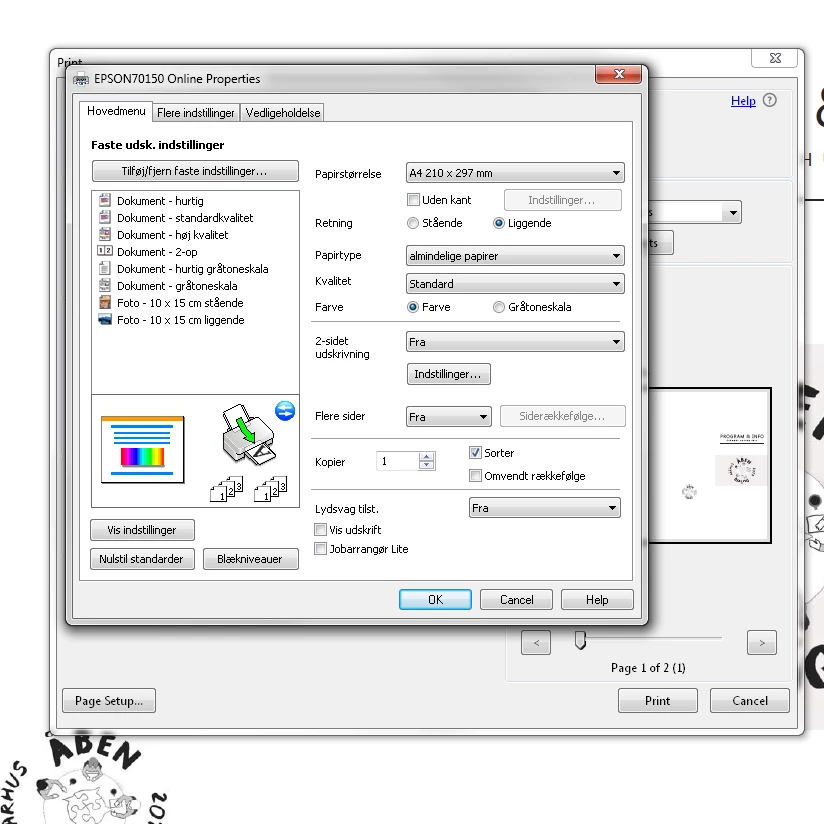
I have made sure that my paper size, and orientation is set correct, and more or less tried every possible settings available within the print window.
(Sorry it is in Danish, but A4 is the standard paper here, and "liggende" is the same as landscape)
What am I doing wrong?

Thanks

/Per

This topic has been closed for replies.
Correct answer jaybz11

If I just print "normal" its printing page 2&3 upside down?


1. Because the document is already formatted as a booklet, do NOT use booklet in Reader. Instead, select SIZE from the Page Sizing and Handling options.

2. In the next section, check the PRINT ON BOTH SIDES OF PAPER checkbox, and select the FLIP ON SHORT EDGE radio button.

3. Either AUTO PORTRAIT/LANDSCAPE or simply LANDSCAPE should both work in the orientation section.

I think that should work for you.

J

1 reply

Bernd Alheit
Braniac
March 14, 2017

Why do you use "Booklet" in Reader when you have already a booklet?

Per FritsAuthor
Inspiring
March 14, 2017

I wanna print a booklet

New Participant
February 10, 2021

1. Because the document is already formatted as a booklet, do NOT use booklet in Reader. Instead, select SIZE from the Page Sizing and Handling options.

2. In the next section, check the PRINT ON BOTH SIDES OF PAPER checkbox, and select the FLIP ON SHORT EDGE radio button.

3. Either AUTO PORTRAIT/LANDSCAPE or simply LANDSCAPE should both work in the orientation section.

I think that should work for you.

J


This is still not working for me - it looks OK on the Print screen (2 pages per landscape sheet, side by side) but Print Preview then shows it as 2 small pages side by side at the top of a portrait sheet - and that's what I get out of the printer!