


Participating Frequently
April 4, 2019
Answered

"Reading Order" is not working...

  • April 4, 2019
  • 2 replies
  • 17999 views

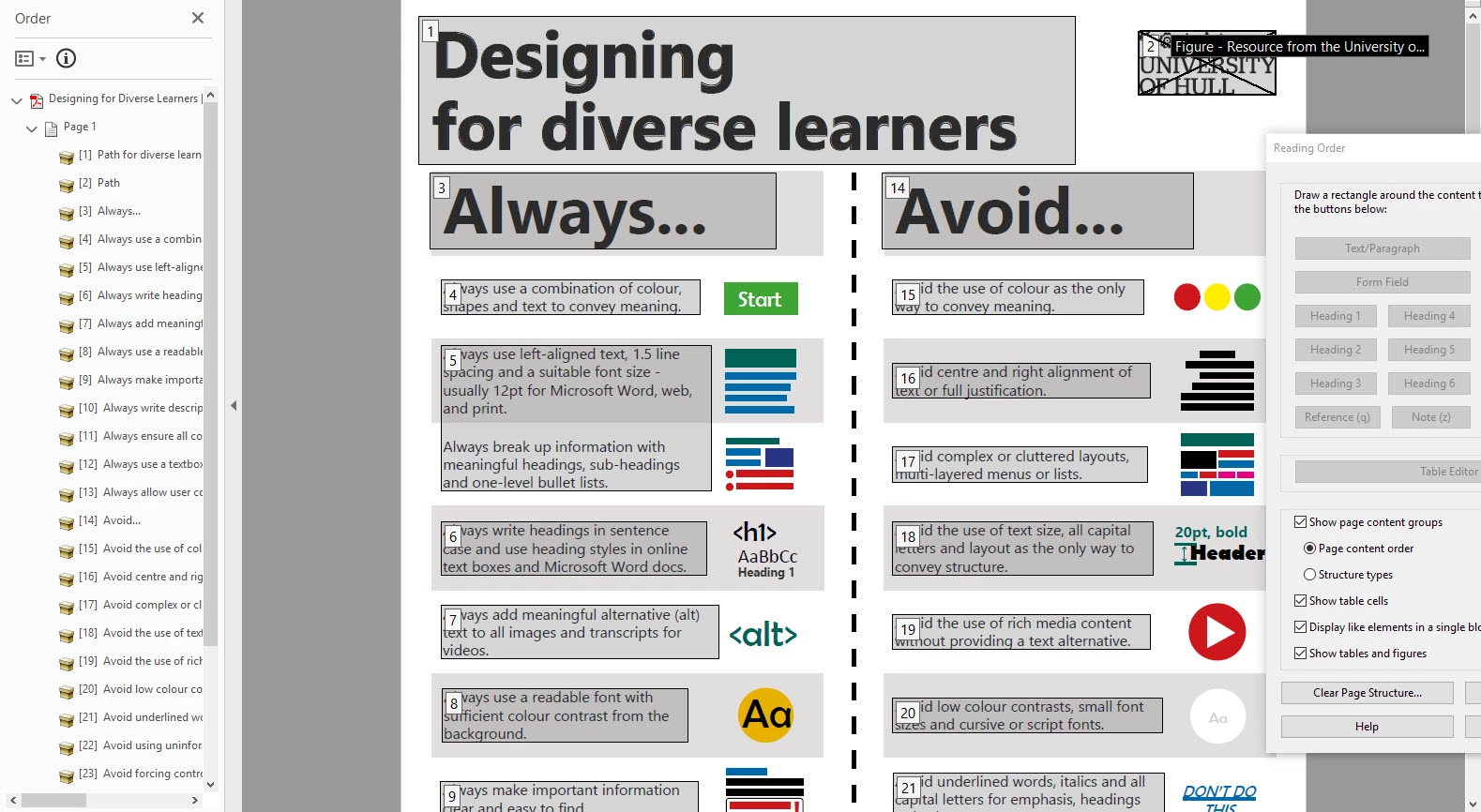
I've have used the 'Reading Order' option in Adobe Acrobat Pro DC.

After much tweaking, it shows the correct reading order in the 'Order Pane', and the overlay in the program shows all elements are numbered in the correct order.

However, when I use the 'Read Out Loud' feature - or the in-built Mac OS screen reader, it ignores this order. Any ideas? Elements are also tagged H1, H2 and P etc.
This topic has been closed for replies.
Correct answer Bevi Chagnon - PubCom.com

We teach a 3-step process in our PDF Remediation/Checking classes. It's based on the theory that:

  • If you make a change in the Order panel (change the tag or move it), it usually makes the same change in the Tag tree.
  • But if you make a change in the Tag tree, it may or may not also be done in the Order panel.

With that in mind, this process works very well:

  1. LOOK at the Tags tree and note where the errors are. Don't change them yet, just look and note.
  2. Move to the Order Panel and make your corrections there. In most cases, those changes will automatically be made to the Tag tree as well. To make changes there, use any of these techniques:
    1. Right-click an element in the Order tree and change its tag.
    2. Drag elements up/down the tree to change their reading order.
    3. Open the Reading Order Panel (Order panel's Options) and use those tools to select and re-tag elements, correct tables, whatever.
  3. Move back to the Tags Panel and make any final adjustments to the tag tree.

—Bevi

2 replies

Linda.R.Smith
Known Participant
September 10, 2020

I'm so glad this thread finally showed up in the Google search after days of troubleshooting reading order that looked correctly using the "z over book" icon on the left sidebar and reading oder "open page icon" on the right. My elements were numbered correctly but the reader was reading them out of seaquence. Then I Googles "tag tree" and found this to be mor comprehensive than Adobe's site. See page 6-10 of  https://www.hhs.gov/sites/default/files/pdf-tagging.pdf


Bevi Chagnon - PubCom.com
Brainiac
September 11, 2020

Here's a blog that explains the different reading orders in a PDF and how they correlate.

Accessibility: The 4 Reading Orders in PDFs 


|    Bevi Chagnon   |  Designer, Trainer, & Technologist for Accessible Documents ||    PubCom |    Classes & Books for Accessible InDesign, PDFs & MS Office |
Bevi Chagnon - PubCom.com
Brainiac
April 4, 2019

Several reasons:

Reason #1: The accessibility standards require that assistive technologies (such as screen readers) use the Tag Tree to present the information to the end user, not the Order panel.

Reason #2: Acrobat's built-in Read Out Loud is not a screen reader. It is an antiquated utility that a) does not conform to the standards (such as using the tag tree), b) doesn't give the user a functioning set of tools, and c) gives testers like yourself false positives and false negatives. (Shame on Adobe. Fix it or ditch it.)

Reason #3: Apple's Voice Over (built into the OS X) is not a fully functioning screen reader that fully complies with the standards. It sucks. It has gotten better in the past couple of years, but it's no NVDA or JAWS, for sure. Hopefully, Apple will continue to work on it to bring it up to snuff for people with disabilities on Mac devices. (Shame on Apple.)

Question: why are you checking your PDF's accessibility with the Order panel?

Or maybe a better question to ask is, given that the Tag tree should be handling all accessibility in the PDF, what's the benefit to ensuring that the Order panel is also in a good reading order?

Answer: because some legacy assistive technologies use it (older Braille embossers, for example). And many other technologies used by general users are affected by the Order panel. Example: when a PDF is read by e-reader technologies, it might break apart the visual layout into a sort-of-ePub-like single stream and its reading order is likely to come from the Order panel, not the Tags panel. You can see this by using Acrobat's built-in Reflow option (View / Zoom / Reflow). Caution: after switching to Reflow, don't save the PDF because it will permanently change the layout of the PDF.

Hope this helps.

—Bevi

|    Bevi Chagnon   |  Designer, Trainer, & Technologist for Accessible Documents ||    PubCom |    Classes & Books for Accessible InDesign, PDFs & MS Office |
Participating Frequently
April 4, 2019

Thanks for this so much Bevi - it explains everything! The tag tree was a complete mess - I didn't realise 'read order' could be ignored in favour of this.

Do you have any advice on tidying the tag tree up? I'm struggling to move the elements around in it - and it can't be as difficult as it is appearing to be. They are however jumping everywhere!

Bevi Chagnon - PubCom.com
Brainiac
April 4, 2019

We teach a 3-step process in our PDF Remediation/Checking classes. It's based on the theory that:

  • If you make a change in the Order panel (change the tag or move it), it usually makes the same change in the Tag tree.
  • But if you make a change in the Tag tree, it may or may not also be done in the Order panel.

With that in mind, this process works very well:

  1. LOOK at the Tags tree and note where the errors are. Don't change them yet, just look and note.
  2. Move to the Order Panel and make your corrections there. In most cases, those changes will automatically be made to the Tag tree as well. To make changes there, use any of these techniques:
    1. Right-click an element in the Order tree and change its tag.
    2. Drag elements up/down the tree to change their reading order.
    3. Open the Reading Order Panel (Order panel's Options) and use those tools to select and re-tag elements, correct tables, whatever.
  3. Move back to the Tags Panel and make any final adjustments to the tag tree.

—Bevi

|    Bevi Chagnon   |  Designer, Trainer, & Technologist for Accessible Documents ||    PubCom |    Classes & Books for Accessible InDesign, PDFs & MS Office |