jrsva
Known Participant
December 9, 2020
Answered

Selecting among digital IDs for signatures

  • December 9, 2020
  • 2 replies
  • 5356 views

We have two different digital IDs for use in signing different types of documents.  Somehow the images have gotten mixed up so the same image is attached to both IDs.  I need to edit one ID to embed the correct image or delete it and start over.  I'm kinda shaky on this whole procedure.  Please advise.


In Acrobat DC:  Tools / Certificates / Digitally Sign

Draw the signature box, click the drop-down for Sign As to show two choices.  The printed data shown is correct but both display the same image.

This topic has been closed for replies.
Correct answer ls_rbls

ls_rbls:

"The only difference in screenshots is the 'Modern user interface' which can be enabled and disbaled through Edit-->>Preferences--->>> Signatures."


I can't find anything about "Modern user interface" here.  Sure it isn't somewhere else under Preferences?


I'm more than half of that 150 yr all by myself.  😉


I apologize, I forgot to add that the "Modern user interface" was added in Acrobat workspace after your version. So your version still uses the classic interface when signing.


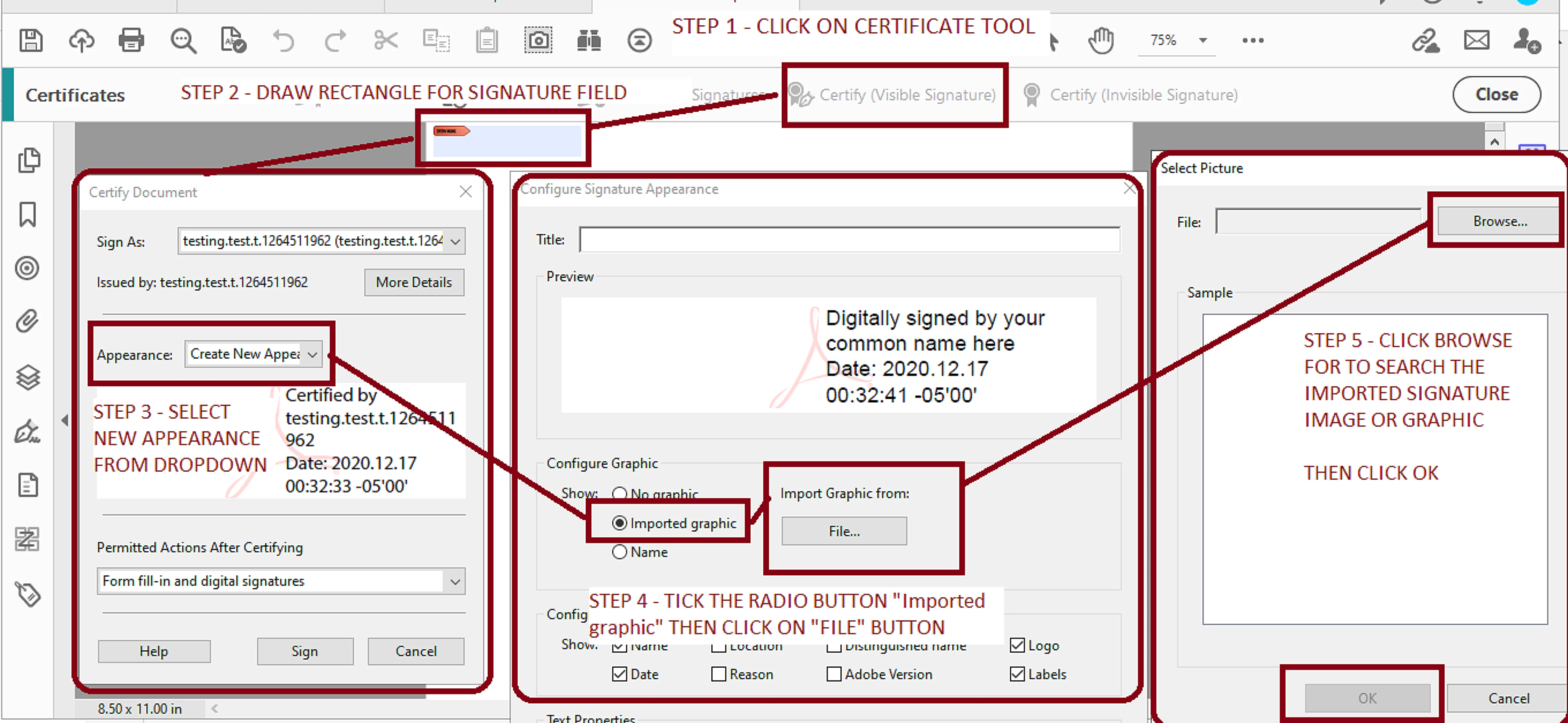
In the screenshots below I disabled the Modern user interface to illustrate that there is no difference between versions of Acrobat... maybe just some minute differences in the steps:


  • In my screenshots below I am using the same steps as you but I disabled the the modern user interface so you can appreciate the similarities of the classic user interface just like in the version that you're using


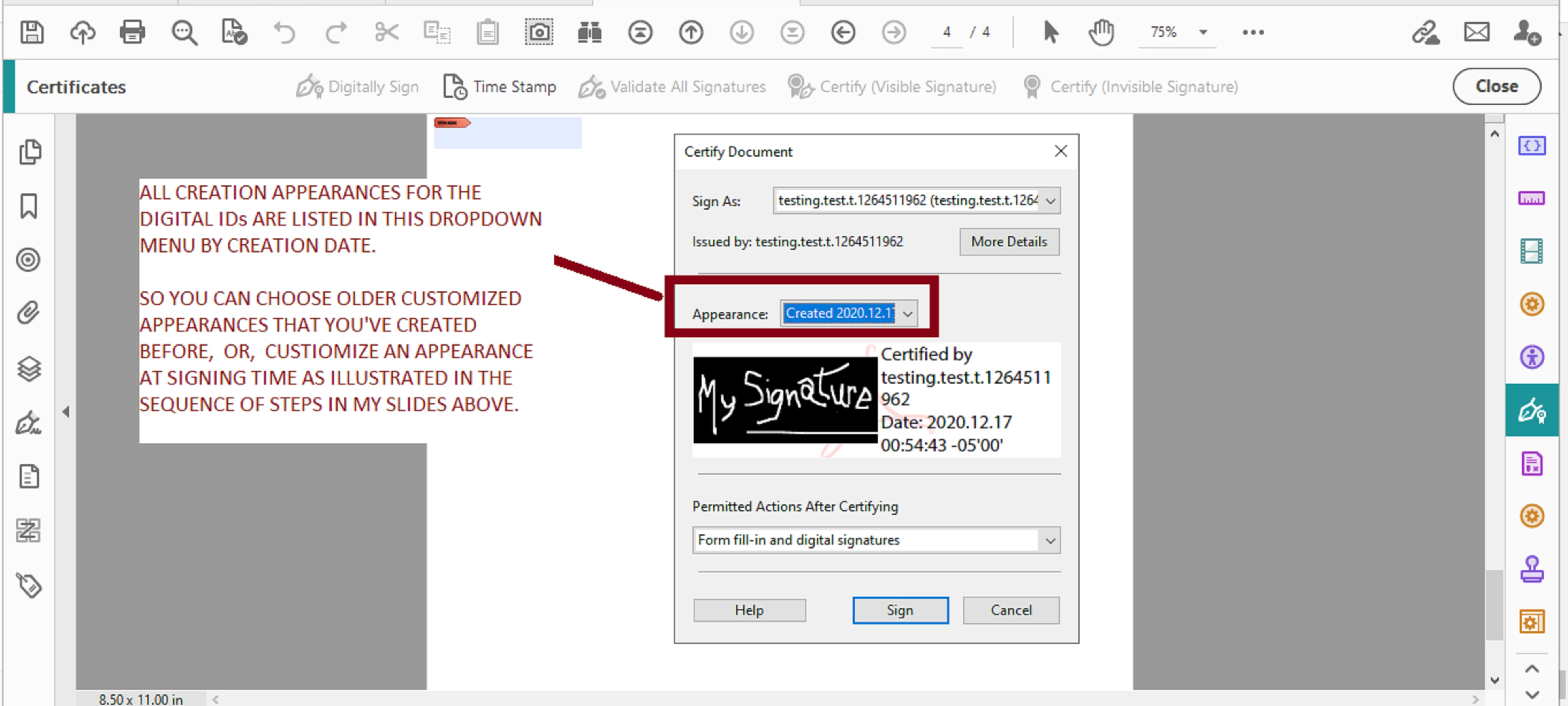
  • Below is the end result after I choose the desired graphic to be imported to the digitalID's appearance


And if I access these same settings from EDIT--->>>PREFERENCES--->>>SIGNATURE  this is how it looks with the modern user interface disabled in Adobe Acrobat Pro DC (paid subscription):
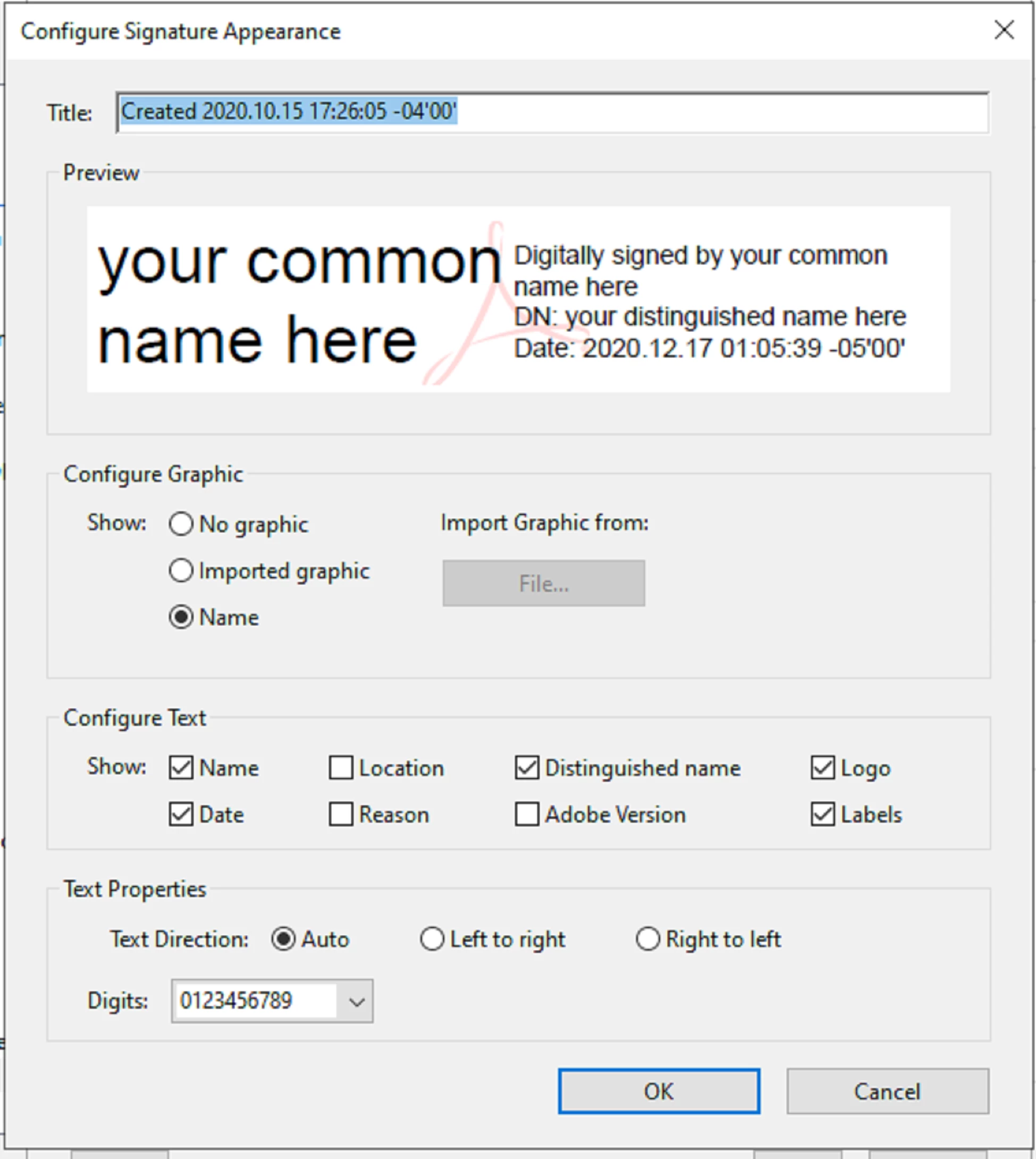


Note that there is no difference from the screenshots that you provided earlier. That is what I meant by Acrobat version been irrelevant. So it looks like we are missing an step.


But if none of this guidance works , I would say to click on Help and "Repair Installation", then try again.




2 replies

Bernd Alheit
Adobe Expert
December 18, 2020

The modern user interface is not available in your old version.

Dave__M
Participating Frequently
December 9, 2020

Go to your Preferences, and choose Signatures on the left.

Click on More..., and from there, you can choose the signature you wish to edit, and click the edit button.

I hope this is helpful.

My best,

Dave

jrsva
jrsvaAuthor
Known Participant
December 10, 2020

Sadly, this does not help.  We have two digital IDs and everything seems right in the edit mode.  They show the correct signature images and both say "Digitally signed by your common name here" and give the date and time.  When I look at the third item down, "Create and manage identities for signing," it also seems correct, referencing the proper digital ID files.  Now, when I try to apply the signatures, the printed names are correct but both use the image file for signature #1.  Oops.


I can make screen shots of these things if that will help to identify the problem; however. they will show both real names and real signatures, which I am not wild about posting on line.

ls_rbls
ls_rblsCorrect answer
Adobe Expert
December 17, 2020

ls_rbls:

"The only difference in screenshots is the 'Modern user interface' which can be enabled and disbaled through Edit-->>Preferences--->>> Signatures."


I can't find anything about "Modern user interface" here.  Sure it isn't somewhere else under Preferences?


I'm more than half of that 150 yr all by myself.  😉


I apologize, I forgot to add that the "Modern user interface" was added in Acrobat workspace after your version. So your version still uses the classic interface when signing.


In the screenshots below I disabled the Modern user interface to illustrate that there is no difference between versions of Acrobat... maybe just some minute differences in the steps:


  • In my screenshots below I am using the same steps as you but I disabled the the modern user interface so you can appreciate the similarities of the classic user interface just like in the version that you're using


  • Below is the end result after I choose the desired graphic to be imported to the digitalID's appearance


And if I access these same settings from EDIT--->>>PREFERENCES--->>>SIGNATURE  this is how it looks with the modern user interface disabled in Adobe Acrobat Pro DC (paid subscription):


Note that there is no difference from the screenshots that you provided earlier. That is what I meant by Acrobat version been irrelevant. So it looks like we are missing an step.


But if none of this guidance works , I would say to click on Help and "Repair Installation", then try again.