


Participant
March 4, 2014
Answered

Set Default Font Formatting for "Add Text" Content Editing Tool (Adobe Acrobat Standard XI)

  • March 4, 2014
  • 14 replies
  • 67966 views

We recently upgraded to Adobe Acrobat Standard XI.

Our users take system generated PDFs and customize them by adding additional text and images. They generally always use specific font formatting options when adding their text.

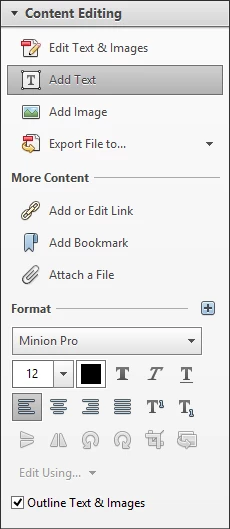
Unfortunately, we haven't been able to figure out a way to set the default font formatting options when using the "Add Text" Content Editing Tool. You are always stuck with the Minion Pro font at 12 point.

Therefore, each time the user adds new text, they must select the text that they just added, and then change the font formatting options from within the Content Editing tools pane. It would be really useful to be able to set the default font formatting options once and all new text added would use those settings.
Correct answer AnkitBal

AnkitBal — The Acrobat DC behavior is very strange. It does not seem to remember when I set the font, and in fact, when I add text near other text, it seems to want to use the nearest font. For example, I opened a pdf with a title in Chiller, and when I went to add text, it automatically set the font to Chiller. We are looking for a way to set a default across every document and regardless of other fonts in the document.


Hi,

We have added the functionality in Acrobat DC to pick up the nearest font of the neighbor during "Add Text", as a user would be adding text that would be in style with the existing content, and that manually replicating existing values is a tedious exercise. However, once the user changes the font or its size, Acrobat remembers the changes for the rest of the edit session for the document. Does that work out for you?

You have also requested for a default font and size setting across all documents and Acrobat sessions, set manually by the user. Is that correct? If so, unfortunately, that is not possible presently, but we can take this in as your feedback and evaluate it for our future releases.

Regards,

-Ankit Bal

14 replies

Participant
February 28, 2018

We really need a setting option - while this answer is helpful in some cases, it does not apply to others.  I am often adding a stamp and exhibit number to documents - the font, size and appearance need to be consistent, but usually larger than the surrounding font. Since there is no "settings" option, I have to select those options each time.  It gets pretty old when you have over 300 exhibits to label and number.

Note - I did find Schaapje72 Sep 14, 2017 4:50 AM post above helpful, in that it cut down on the repetitive actions.

Participant
September 14, 2017

Unfortunately, there seems no way to change the way Adobe Acrobat uses added text formatting, however, there is a way to at least change the default font by following the steps in this instruction:

Change default font for fallback in PDF editing and Add Text

The only problem that arises, is that formatting in this toolbox is limited to the font only and no paragraph spacing or line spacing can be edited.

At least, this makes the task a few steps lighter for those in need.

Good luck.

Fat Boy Tim
Participant
September 12, 2017

Correct Answer by AnkitBal on Jun 30, 2015 6:14 AM

Hello AnkitBal,

So sorry but Your "correct answer" is not acceptable. Adobe have chosen Minion Pro as a default font and not given me the user an option to choose another. As it happens 80% of the text I edit is Arial. I need the ability to choose Arial as my default font. Should my clients choose Gotham in the future, I need the option to choose Gotham too.

Not only is the default option of Minion Pro of little use, look at the steps one has to go though to choose an alternative font. If a user has more that 75 fonts installed you have to scroll to you chosen font. In other Adobe products, if you want Avenir, you type "Aven" on the keyboard to narrow down your search. In Acrobat DC you jump from "A" to "V" in the font list if you try this approach. What a ridiculous user experience.

November 4, 2016

I guess I am a little old fashioned about both the community response and Adobe response to the issue.  Default font options have been a part of every text editing program since they were first designed.  Not having a default font option is not an oversight its either intentional or its extremely poor design.  Since I doubt Adobe "overlooked" this required feature I can only assume Adobe intentionally decided to not give its paying customers the ability to do what they want because Adobe has a reason for not wanting them to do it (whatever that reason may be).  As a paying customer working for a large organization with literally hundreds of copies of Adobe Acrobat in our org, I can assure you I will do everything in my power to make sure we never purchase another of your products.  The missing "feature" is beyond ridiculous.  Having to manually edit a text block is tedious enough without having to then select the text and find the font you want and apply (the program doesn't even remember the last chosen font).

I have choice words for your product, use your imagination.

Participant
September 1, 2016

Understand various replied in the thread show answered. I didn't see the steps below offered. Hope it helps.

The solution I found was to change my mindset, along with CREATE QUICK TOOLS shortcut for TEXT BOX, not TYPEWRITER or ADD TEXT.

***I still believe Adobe is off the mark in creating the default text formatting to match nearby text on the existing documents. In my experience that is the exception, not the rule. Most of the time I am wanting to provide a font format and size that varies from surrounding text. I could understand it if WORD did this, but not a portable document format. In fact I wish WORD forced nearby font default automatically when you put the cursor near existing fonts

.

HERE ARE STEPs I TOOK - - - -

1- create short cut to TEXT BOX TOOL on the QUICK TOOLS MENU

2- place text in document anywhere using the new shortcut

3- USE CTRL / E to pop up TEXT BOX PROPERTIES (unfortunately ADOBE engineers believed docking this was not doable and/or productive for user. I guess other threads cover this).

4- set properties of text already placed to NO BORDER, NO FILL, font type and style as desired. This step helps to match the function of ADD TEXT tool does

5- pick "make properties default" before exiting the properties bar.

Now atleast according to my experience, I should be able to pick TEXT BOX from the Quick tools to PLACE TEXT and CTRL / E to edit format on the fly.

Larich5
Participant
May 16, 2016

My Acrobat DC updated and now my Comment>Add text comment had no default setting (Arial- 10pt - red) as before- that is needed for all of my markups. I cannot find a way to set it and it is extremely frustrating making several (50+) markups on one document and having to change it every single time. I do not want to use the Edit>Add text tool as it attempts to scan the doc for editable font and there is too much information on the document to do so- usually tells me it ran out of memory anyhow. For a bit it left the property box open but now its just closing that every time i click somewhere new too. Just another thing to waste my time. anyone know how to work around this?? any advice? Very frustrated with this.

Participant
May 15, 2016

I use Adobe Acrobat Reader DC. And I accidentally found a way to set the default property of "Add text comment". So first you type some random text with the font type and size that you want (with "add text comment"). Exit the add text (I did this by pressing ESC). Then hover your pointer (not clicking) on it so that the resizable box appears. Press ENTER on your keyboard and a "Properties" dialog box will appear. Under the "General" tab, tick the box of "Make properties default".

The font type and size (and colour too) are saved as a default. It works that way for me! Then the default can be changed anytime with the same way.

howardl73866491
Participant
September 15, 2016

I tried Astridi's May 15 suggestion in Acrobat Pro DC and I can report that it works!

Participant
February 21, 2016

I tried all the above suggestion  and wasted hours searching  . Finally this what worked for me - Go To contol panel  - program and features and then choose repair the abobe installation.   Font is now defaulting to Arial and not minion pro.  Thank God!

Participant
January 18, 2016

The guess is usually wrong and I've found that it does not remember. While your feature is fine, that's no reason for me to not be able to set what I want as a default.

October 7, 2015

I can assure you that Minion Pro 12 hasn't been the nearest neighboring font in the hundred or so documents that I've edited since Adobe Acrobat Pro DC was installed on my computer. What this tells me is that Minion Pro 12 is a default when Acrobat can't figure out the neighboring font. This is why we need the ability to set our own default. Please add this function.

LacyinTX
Participating Frequently
October 7, 2015

Try this:

Right click on the toolbar and choose "Customize Quick Tools". A list will appear.

Click on "Comment". This will open up another list of the tools associated with "Comment" options for adding comments to the pdf.

Click to highlight the plain "T". This is the "add text comment" tool.

Click the plus sign to the right of the list. This adds the quicktool to the toolbar so that it is always accessible.

Click save and the tool will now be permanently on your toolbar at the top of the page.

It is important to use the "Add Text Comment" tool that is found under Comments (Not the Add Text tool under Edit PDF... that is confusing, but it is what it is). The "Add Text Comments" tool will retain your formatting once you set it.

Thanks to try67 for pointing this tool out to me. It has been a life saver!

Participant
March 26, 2020

Thank you! I have always used the Add Text option and it drove me crazy that I had to change the formatting AFTER   adding it and that it would default back after every box. This solves a major first-world problem for me after suddenly having to work from home and not able to process my AP invoices in the usual way. Major time and headache saver!