Hi @cmvarga5,
Hope you are doing well. Sorry for the trouble, and the delayed response.
If you are still looking for a solution, here are a few suggestions that might help:
1. The Table Might Not Be Properly Tagged in the Structure Tree
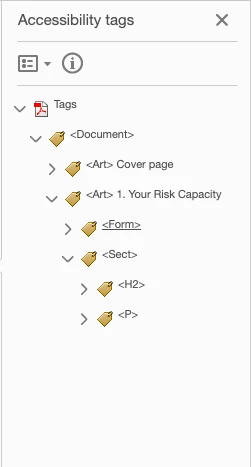
- Even though you’ve added the table to the Articles panel, Acrobat relies on the Tags tree for accessibility.
- Fix:
- Open the Tags panel (
View → Show/Hide → Navigation Panes → Tags).
- Expand the structure and check if your
<Table> tag contains all rows (<TR>) and cells (<TD> or <TH>) across both pages.
- If the table is split between pages, make sure the second part is inside the same
<Table> tag (instead of being treated as a separate table).
2. The Table Might Be Hidden from the Reading Order Flow
- If the Reading Order tool isn’t picking up the table, it might not be in the document’s logical reading flow.
- Fix:
- Open Reading Order (
Accessibility → Reading Order).
- Check if the table is marked properly as a Table and spans both pages.
- If not, manually select it and assign it as a Table.
3. Multi-Page Tables Often Break in Acrobat
- Acrobat struggles with multi-page tables, sometimes treating the second page as a new table rather than part of the existing one.
- Fix:
- In the Tags panel, drag the second page's table rows (
<TR>) into the first page's <Table> tag.
- Ensure that all
<TR> elements appear in sequential order within a single <Table> tag.
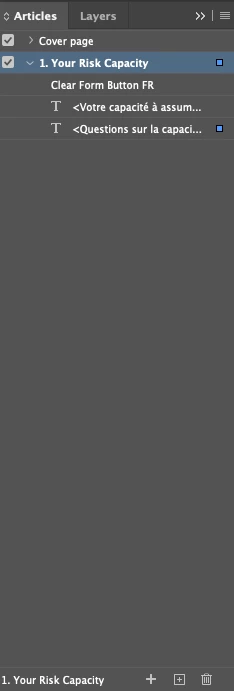
4. The Articles Panel Doesn’t Control Reading Order for Tables
- The Articles panel is mainly for alternative reading order in non-tagged PDFs. It doesn’t always work for structured content like tables.
- Fix: Ensure your Tags panel reflects the correct structure rather than relying on the Articles panel.
5. Run an Accessibility Check
- Go to Accessibility → Full Check and see if Acrobat flags any missing table headers or structure issues.
If the table still doesn’t appear properly, try exporting to Microsoft Word, fixing the structure there, and re-exporting to PDF with proper tags.
Hope this gives better clarity.
-Souvik


 AdChoices