This what I was able to come up with.
See the slide:
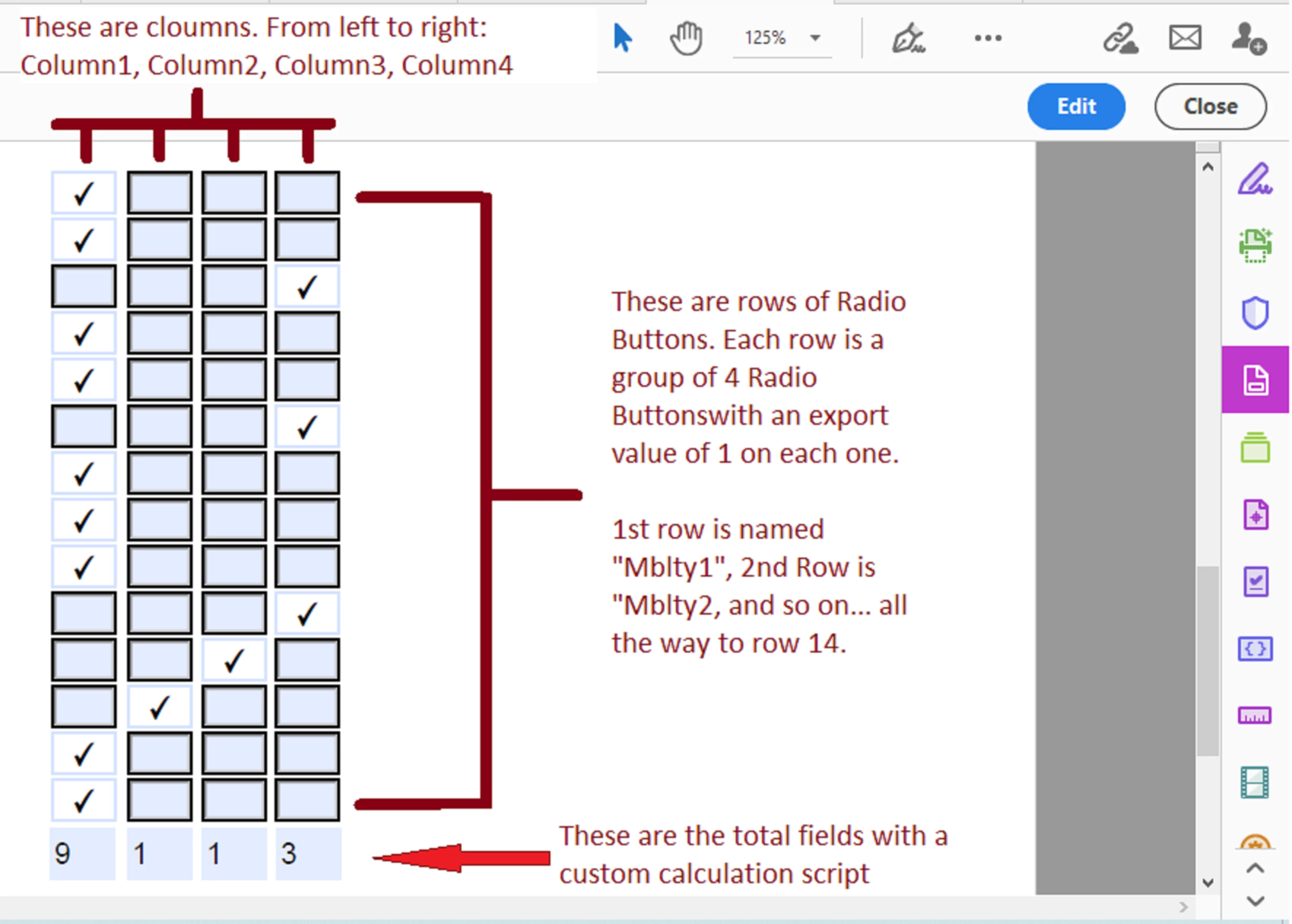
You need to create one radio button first and set an export value of 1.
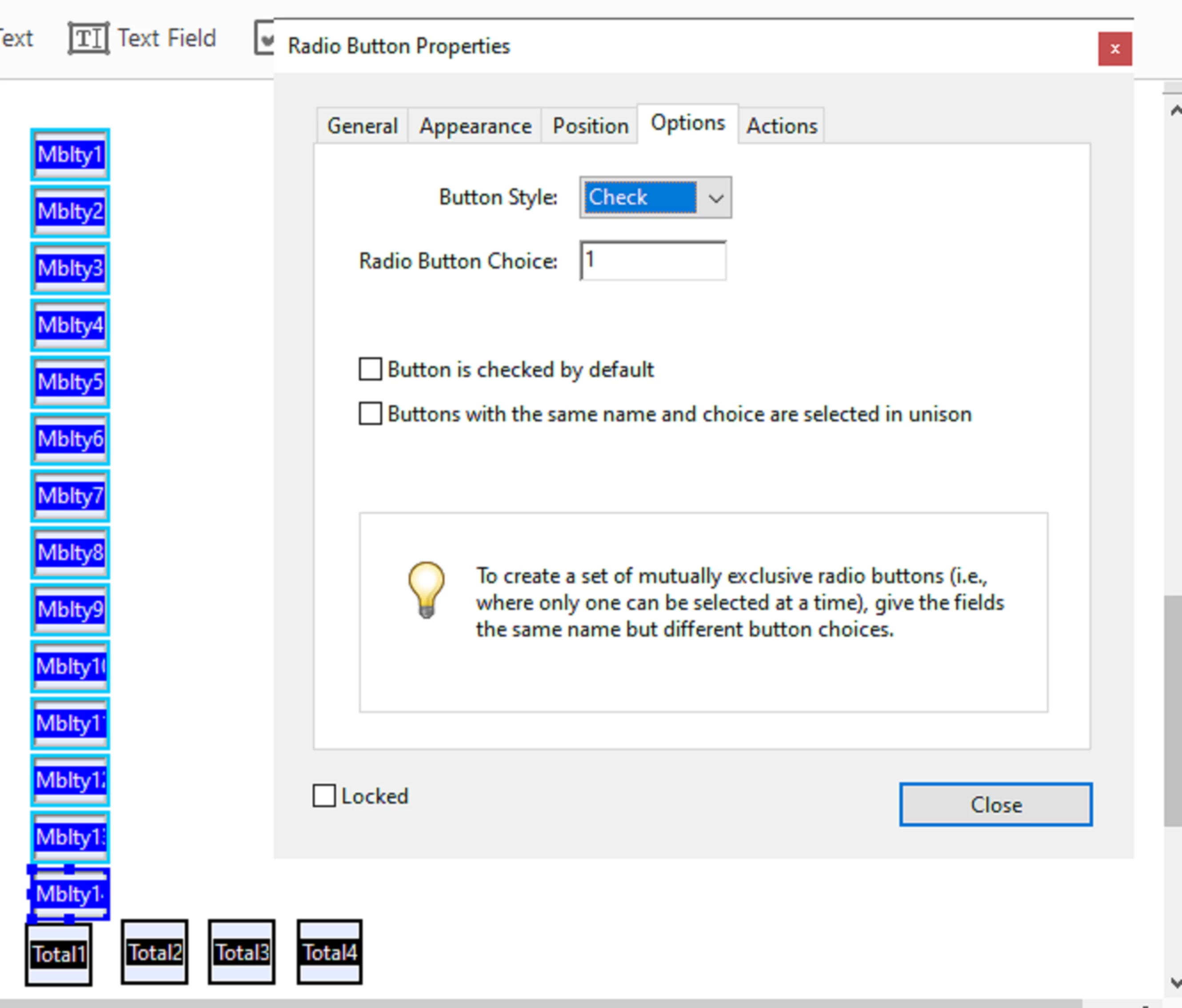
Keeping in mind that radio buttons work in pairs, but we are doing mutually exclusive group of 4 radio buttons per row, the first thisng you must do is right-click on that radio button-->> select "Create Multiple Copies" from the context menu and generate the first column only. So select "Copy selected fields down" and do 14.
You'll need to rename each field (in ascending order of course), after you perform this action before you move to the rows step; shown in the next sldie:
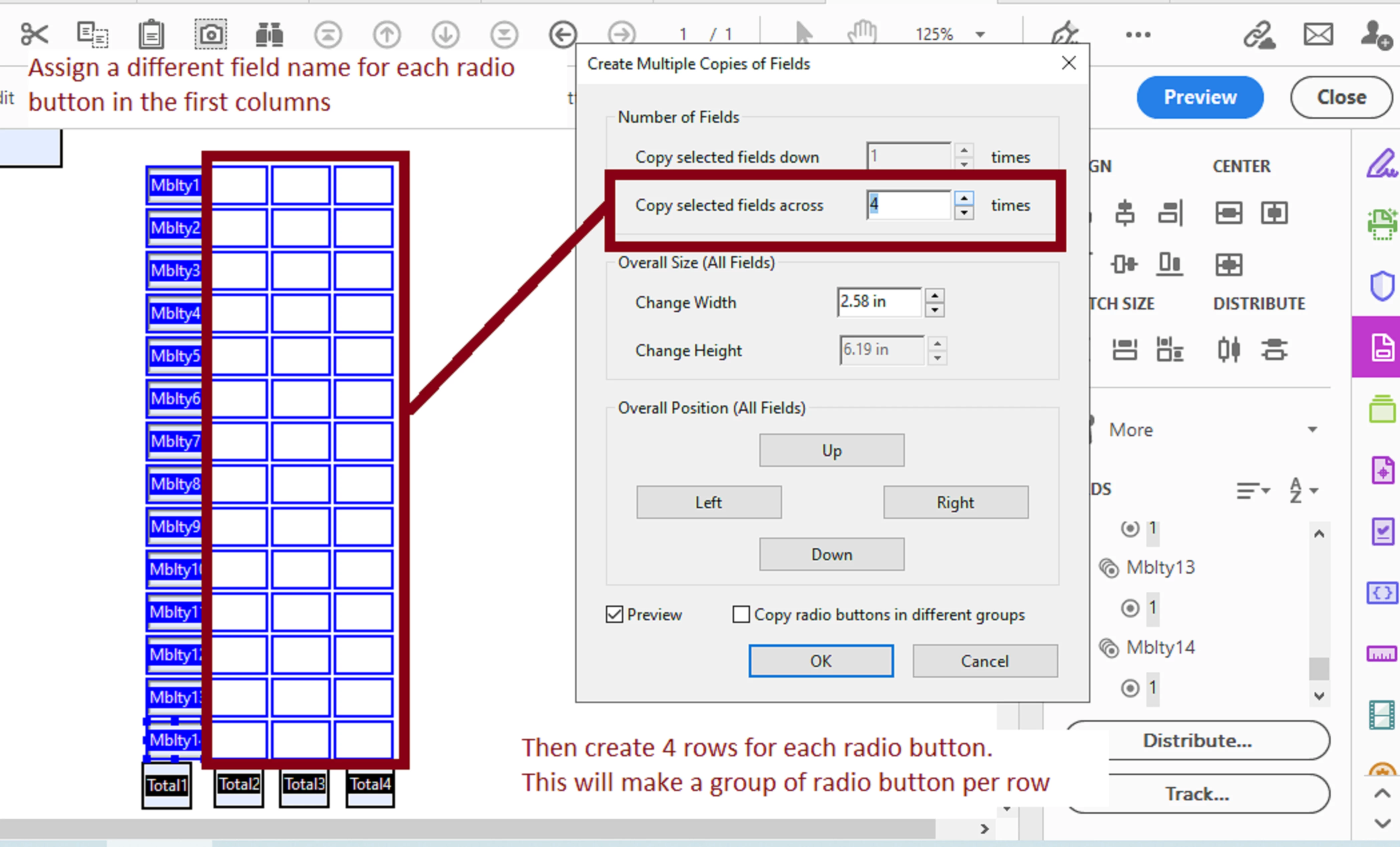
And now you select all of those fields, right-click again to select "Create Multiple Copies" again, and choose "Copy selected fields accros" 4.
This will generate your radio button table in the appropriate order for this calculation to work correctly.
Now, the fun part!
For this to work you'll need to use a custom calculation script (an Array() method is not exclusively necessary and the built-in Acrobat's "value is sum(+)" feature won't work because it won't understand the zero-based index that is involved in an array of fields like this case with checkboxes and radio buttons.
NOTE: In JavaScript, when you work with a group of objects, such as radio buttons, by which the same name is used for each field (but a different export value), the first button in a row is indexed as 0, the second as 1, the third as 2, the fourth as 3, and so on. The same applies for counting pages in a document via script. The first page would start at 0, not 1, for example.
For the total fields under each column I declared my variables as Rb1Col1 (to refer to the first radio button group in the first row under the first column). And I employed "isBoxChecked" in this script to determine if the radio button widgets are checked or unchecked before the calculating event is called for (I am not using the "getField" method here to obtain the export values, nor valueAsString methods) :
With that NOTE in mind, this is how the calculation script would look like in the total field under the first column:
var Rb1Col1 = this.getField("Mblty1").isBoxChecked(0);
var Rb2Col1 = this.getField("Mblty2").isBoxChecked(0);
var Rb3Col1 = this.getField("Mblty3").isBoxChecked(0);
var Rb4Col1 = this.getField("Mblty4").isBoxChecked(0);
var Rb5Col1 = this.getField("Mblty5").isBoxChecked(0);
var Rb6Col1 = this.getField("Mblty6").isBoxChecked(0);
var Rb7Col1 = this.getField("Mblty7").isBoxChecked(0);
var Rb8Col1 = this.getField("Mblty8").isBoxChecked(0);
var Rb9Col1 = this.getField("Mblty9").isBoxChecked(0);
var Rb10Col1 = this.getField("Mblty10").isBoxChecked(0);
var Rb11Col1 = this.getField("Mblty11").isBoxChecked(0);
var Rb12Col1 = this.getField("Mblty12").isBoxChecked(0);
var Rb13Col1 = this.getField("Mblty13").isBoxChecked(0);
var Rb14Col1 = this.getField("Mblty14").isBoxChecked(0);

event.value = Rb1Col1 + Rb2Col1 + Rb3Col1 + Rb4Col1 + Rb5Col1 + Rb6Col1 + Rb7Col1 + Rb8Col1 + Rb9Col1 + Rb10Col1 + Rb11Col1 + Rb12Col1 + Rb13Col1 +  Rb14Col1;
This how to use the same script in the total field under column 2:
var Rb1Col2 = this.getField("Mblty1").isBoxChecked(1);
var Rb2Col2 = this.getField("Mblty2").isBoxChecked(1);
var Rb3Col2 = this.getField("Mblty3").isBoxChecked(1);
var Rb4Col2 = this.getField("Mblty4").isBoxChecked(1);
var Rb5Col2 = this.getField("Mblty5").isBoxChecked(1);
var Rb6Col2 = this.getField("Mblty6").isBoxChecked(1);
var Rb7Col2 = this.getField("Mblty7").isBoxChecked(1);
var Rb8Col2 = this.getField("Mblty8").isBoxChecked(1);
var Rb9Col2 = this.getField("Mblty9").isBoxChecked(1);
var Rb10Col2 = this.getField("Mblty10").isBoxChecked(1);
var Rb11Col2 = this.getField("Mblty11").isBoxChecked(1);
var Rb12Col2 = this.getField("Mblty12").isBoxChecked(1);
var Rb13Col2 = this.getField("Mblty13").isBoxChecked(1);
var Rb14Col2 = this.getField("Mblty.14").isBoxChecked(1);

event.value = Rb1Col2 + Rb2Col2 + Rb3Col2 + Rb4Col2 + Rb5Col2 + Rb6Col2 + Rb7Col2 + Rb8Col2 + Rb9Col2 + Rb10Col2 + Rb11Col2 + Rb12Col2 + Rb13Col2 +  Rb14Col2;
This for the total field under column 3:
var Rb1Col3 = this.getField("Mblty1").isBoxChecked(2);
var Rb2Col3 = this.getField("Mblty2").isBoxChecked(2);
var Rb3Col3 = this.getField("Mblty3").isBoxChecked(2);
var Rb4Col3 = this.getField("Mblty4").isBoxChecked(2);
var Rb5Col3 = this.getField("Mblty5").isBoxChecked(2);
var Rb6Col3 = this.getField("Mblty6").isBoxChecked(2);
var Rb7Col3 = this.getField("Mblty7").isBoxChecked(2);
var Rb8Col3 = this.getField("Mblty8").isBoxChecked(2);
var Rb9Col3 = this.getField("Mblty9").isBoxChecked(2);
var Rb10Col3 = this.getField("Mblty10").isBoxChecked(2);
var Rb11Col3 = this.getField("Mblty11").isBoxChecked(2);
var Rb12Col3 = this.getField("Mblty12").isBoxChecked(2);
var Rb13Col3 = this.getField("Mblty13").isBoxChecked(2);
var Rb14Col3 = this.getField("Mblty14").isBoxChecked(2);

event.value = Rb1Col3 + Rb2Col3 + Rb3Col3 + Rb4Col3 + Rb5Col3 + Rb6Col3 + Rb7Col3 + Rb8Col3 + Rb9Col3 + Rb10Col3 + Rb11Col3 + Rb12Col3 + Rb13Col3 +  Rb14Col3;
And last, for the total field under column 4:
var Rb1Col4 = this.getField("Mblty1").isBoxChecked(3);
var Rb2Col4 = this.getField("Mblty2").isBoxChecked(3);
var Rb3Col4 = this.getField("Mblty3").isBoxChecked(3);
var Rb4Col4 = this.getField("Mblty4").isBoxChecked(3);
var Rb5Col4 = this.getField("Mblty5").isBoxChecked(3);
var Rb6Col4 = this.getField("Mblty6").isBoxChecked(3);
var Rb7Col4 = this.getField("Mblty7").isBoxChecked(3);
var Rb8Col4 = this.getField("Mblty8").isBoxChecked(3);
var Rb9Col4 = this.getField("Mblty9").isBoxChecked(3);
var Rb10Col4 = this.getField("Mblty10").isBoxChecked(3);
var Rb11Col4 = this.getField("Mblty11").isBoxChecked(3);
var Rb12Col4 = this.getField("Mblty12").isBoxChecked(3);
var Rb13Col4 = this.getField("Mblty13").isBoxChecked(3);
var Rb14Col4 = this.getField("Mblty14").isBoxChecked(3);

event.value = Rb1Col4 + Rb2Col4 + Rb3Col4 + Rb4Col4 + Rb5Col4 + Rb6Col4 + Rb7Col4 + Rb8Col4 + Rb9Col4 + Rb10Col4 + Rb11Col4 + Rb12Col4 + Rb13Col4 +  Rb14Col4;
The "isBoxChecked" method is explained in great detail with examples in the Adobe Acrobat SDK JavaScript API- JavaScript™ for Acrobat® API Reference , "Field methods"
See this part in Page 419:
isBoxChecked
Determines whether the specified widget is checked.
Note: For a set of radio buttons that do not have duplicate export values, you can get the value, which is equal to the export value of the individual widget that is currently checked (or returns an empty string, if none is).
Parameters
But in my examples illustrated earlier I am using duplicate export value of "1" on every radio button.



 AdChoices