Participating Frequently
February 12, 2021
Answered

Unable to create portfolios/binders and convert images to PDF's after 11-Feb-2021 update

  • February 12, 2021
  • 5 replies
  • 8930 views

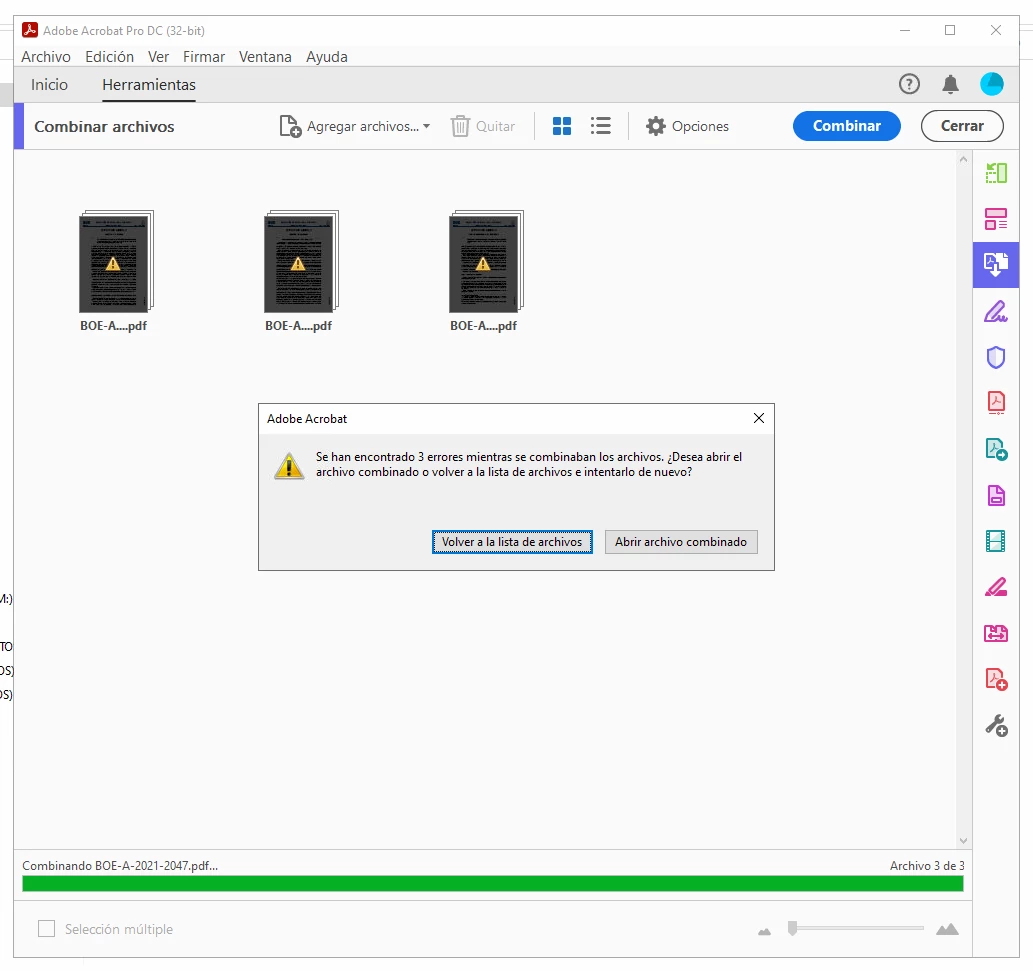
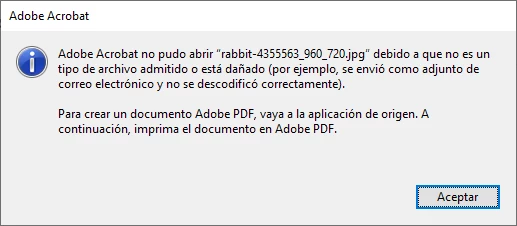
I am writing in behalf of some of the users i have to support. Since the 11th of february, we have a few users that are being unable to combine PDF's into a single portfolio/binder, and no matter what kind of images they try to convert, or import into a document, receive an error stating that the files are corrupted.


I have performed various tests without luck, and even reinstalled the application since a similar issue when combining PDF's has been attributed to a non working license. But the error persists and other pro functions work as expected. So it is not a licensing issue.


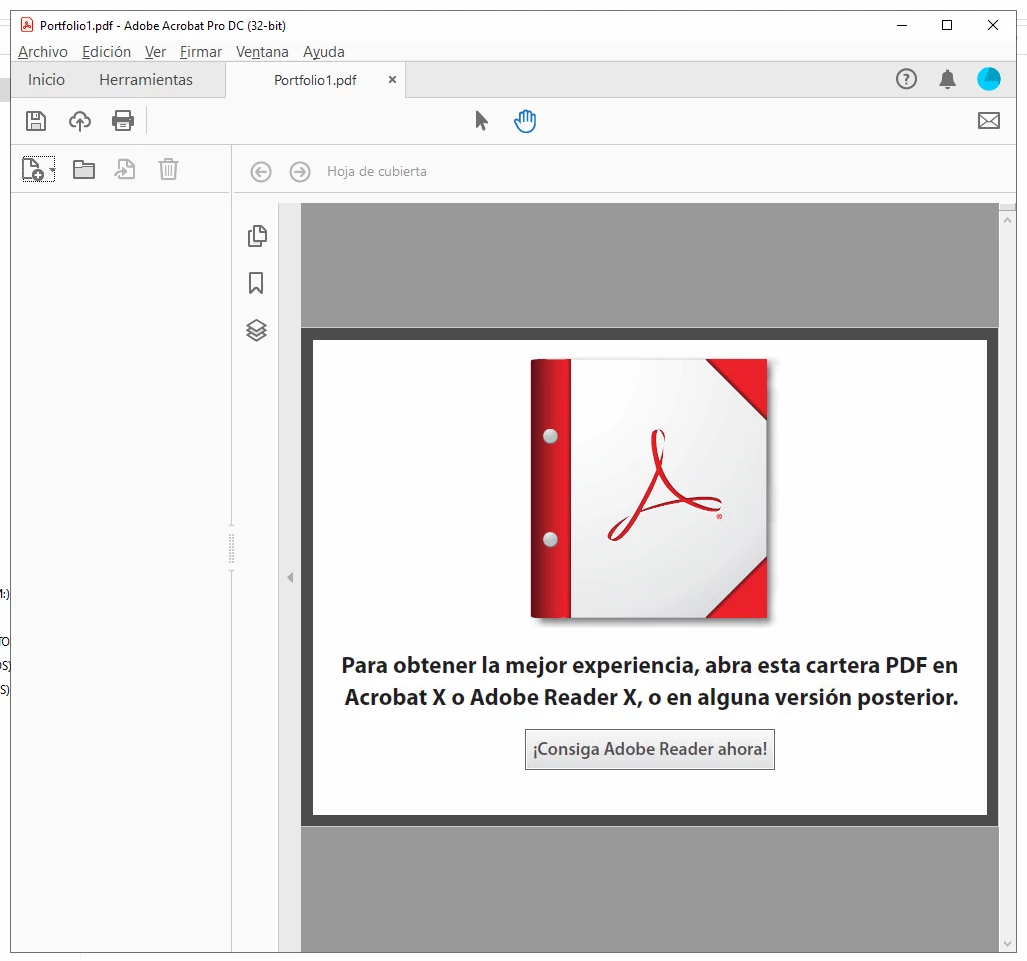
As an aside, if you open the failed document merge, you do get a warning saying you do need Adobe Acrobat X to be able to view it, despite being Adobe Acrobat DC Continuous Release Version 2021.001.20135


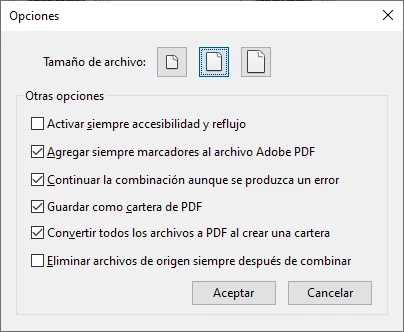
Following are a few screenshots of what settings are used when attempting an image conversion and the merging of multiple PDFs.
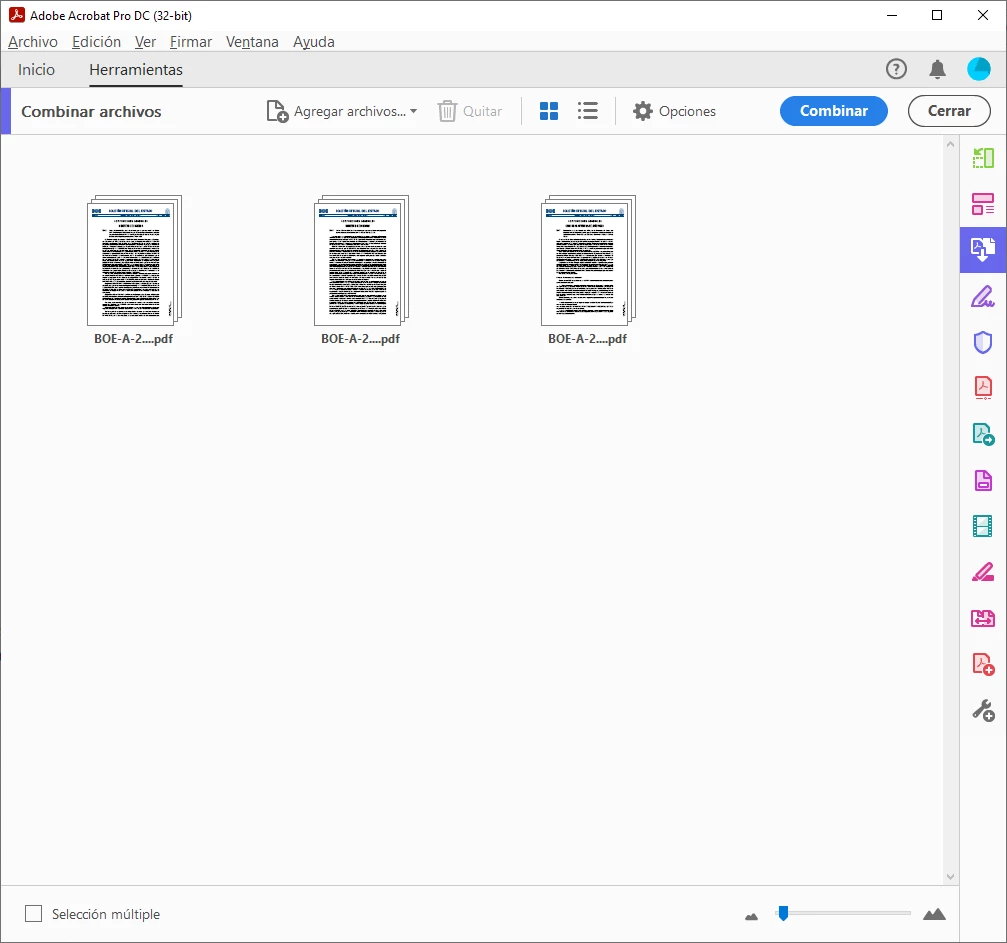


Any help would be appreciated.


Cheers.

This topic has been closed for replies.
Correct answer Pranav Kumar

Good day.


I can confirm that i have those two separate issues ocurring concurrently. PDF's cannot be created from images, and PDF's cannot be combined into portfolios.


To answer your question. These users are running on real hardware. They aren't running under Citrix, vSphere or Hyper-V. They operate with their Surface directly.


Hi azvalora90867902

We suspect your issue is being caused by Async I/O. Please create the following registry to disable it and see if it fixes the issue.

Path: HKEY_LOCAL_MACHINE\SOFTWARE\WOW6432Node\Adobe\Adobe Acrobat\DC\FeatureState (Create the FeatureState key if not present)
Key name: 4304509
Type: REG_DWORD
Value: 0

5 replies

Participant
January 2, 2023

Empresa de ventas exprés de productos de belleza y artículos para el hogar http://Venta exprés de productos de belleza y artículos para el el hogar  

Adobe Employee
March 4, 2021

Hi azvalora90867902

We suspect your issue is being caused by Async I/O. Please create the following registry to disable it and see if it fixes the issue.

Path: HKEY_LOCAL_MACHINE\SOFTWARE\WOW6432Node\Adobe\Adobe Acrobat\DC\FeatureState (Create the FeatureState key if not present)
Key name: 4304509
Type: REG_DWORD
Value: 0

Adobe Employee
February 23, 2021

Hi azvalora90867902


Can you please tell us the following:

1. What is the behavior when the customer creates a PDF using Tools->Create PDF->Single File workflow?

2. Which file extensions are causing the issue? Example .jpg, .pdf, etc.

3. Do the customers have any third-party plugins installed inside Acrobat? If yes, try uninstalling them.

4. Can you check if the same errors show up in the English installation of Acrobat?


Thanks

Pranav Kumar

Sofware Developer, Acrobat Team

Participating Frequently
February 23, 2021

I have managed to get the user to quickly check points 1 and 2. The issue when converting files happens with JPG and PNG files, but not with .docx or .xlsx files.


The first screenshot is a jpg that the user had on her computer, the second image is a PNG i've downloaded from the internet to check it out with a transparent PNG. The error about the file being corrupted persists.


The user would like to insist that she's getting by by using either print to PDF or using Office's convert to PDF functionality for this. And that verifying why portfolios cannot be created or modified should be more urgent.

Adobe Employee
February 24, 2021

Thanks for the info.

Just to confirm, you are reporting 2 separate issues:

1. You are unable to create image files to PDF

2. You are unable to combine multiple PDF files into portfolios.

We are looking into both these issues.


I have an additional question:

By any chance, are your customers using a virtualized environment like Citrix, etc.? I am asking because we have received another similar report from customers using a Citrix environment.


Participating Frequently
February 18, 2021


One more thing to add to the things the users cannot do. Adding some other file to a pre-existing portfolio gives the user the following error: "The overlapping I/O event is not a signaled state.". This proves at least that the users can not only create new portfolios, but they also cannot modify them.

Adobe Employee
February 12, 2021

Hi,


Greetings! Sorry to hear that you are facing issues with the Image conversion functionality.


It would be great if you could help us with a few queries that will help us in further investigating the bug:

  • Could you please confirm if the files are getting converted successfully if you drag-drop/open them directly in the Acrobat application?
  • Could you please confirm that this issue is happening with a specific file or with other files also?
  • Could you please confirm if the 'Protected Mode' is turned On in the Acrobat?
  • Could you please confirm if the issue is happening with Protected Mode off as well?


For checking the state of Protected Mode (Adobe Acrobat DC)

  1. Open the Preferences dialog in the Edit menu or press Ctrl+K on the keyboard.
  2. Check if the 'Enable Protected Mode at startup (Preview)' is turned On or not?


Thanks,

Adobe Acrobat DC Team

Adobe Employee
February 13, 2021

Also,

  • Could you please share the exact workflow with us?
  • Could you please share the process monitor logs with us?
  • Could you please share some sample files on which you're facing this issue?


Please find the steps to capture process monitor logs below:

  1. Download the tool from the below link: https://docs.microsoft.com/en-us/sysinternals/downloads/procmon
  2. Extract the contents of the downloaded file.
  3. Double Click on procmon.exe file.
  4. If you see a Process Monitor Filter window, please click on OK.
  5. Then Open Acrobat/Reader and run the problem workflow.
  6. Go back to the Process Monitor tool and click File>Uncheck Capture Events.
  7. Then File>Save >All Events.
  8. The logs will be saved in the same folder as the tool with the name logfile.pml.
  9. Please share the file for further analysis.


How to share a file using Adobe Document Cloud

Please follow the steps to share the file using Adobe send - https://documentcloud.adobe.com/link/send/ 

  • Open this link.
  • Click on “Select files to Send”
  • Click link "Choose file from my computer" and Select the file
  • Click on "Add Files", if you have more files to add
  • Click on Create link
  • Share this link with us.
Participating Frequently
February 15, 2021

Good day.


I will verify with our users and i will reply to you in detail when i hear back from them, and perform the test again to attach the monitor logs as requested.