


Using Named user Acrobate Standard DC licenses on Azure Virtual Desktop farm
I have a number of users, all licensed with Acrobate Standard DC that have been moved to Azure Virtual Desktop solution across 5 servers. We have an issue where the user is tied to 2 of the specific virtual host servers and has to keep managing their licenses to release a license from one virtual host to allow them onto another.
We can't split the server farm into host pools to force users into no more than 1 or 2 servers as the resources are insufficient for that to work without end users suffering performance problems.
There are no users that will not be licensed on this server farm so we're not trying to avoid license costs.
I have been recommended we use Acrobate Standard DC for Enterprise which apparently would work natively in this setup. However the DC license has been recently renewed and has 11 months left on it so is not something we can really throw away, and have been told there's no way to upgrade these licenses.
I was given something by someone how had some kind of workaround as pasted in below.
I wanted to check if this was not in breach of licensing and not something that may be a support issue later down the line.
Anyt thoughts, insight, recommendation would be much appreciated
Kind regards,
Marcus
Named user licensing
Named user licensing (NUL) is the preferred activation method.
DC products support NUL and user management via the Admin Console. The Console supports managing single user and group entitlements for all Adobe products as well as Single Sign-On. It also provides tools for managing software, users, and devices and support multiple ID types. With NUL, end users simply “activate” Acrobat by logging in to any VM or machine. License-related data is saved in the <user>/AppData/Roaming/Adobe/ folder which is synced to the VM on login.
Note
Trial installs and the Classic track do not support named user licensing.
Image-based deployment
- Set up profile redirection. User profile data in <user>/AppData/Roaming/Adobe/ as well as the HKCU hive must sync to the VM instance on which the user logs in. Admins should ensure that such data is saved on user logout or disconnect. Some systems provide VM tools; for example, Citrix (Citrix Profile Management) and VMware Horizon (View Personal Management). At a minimum, sync the following:
- Folders
- C:\Users\<User>\AppData\Roaming\Adobe\OOBE
- C:\Users\<User>\AppData\Roaming\Adobe\SLData
- C:\Users\<User>\AppData\Roaming\Adobe\Adobe User Info
- HKCU\Software\ registries:
- Adobe
- Microsoft\Internet Explorer\Toolbar\WebBrowser\{47833539-D0C5-4125-9FA8-0819E2EAAC93}
- Microsoft\Internet Explorer\MenuExt
- Wow6432Node\Google\Chrome\Extensions\efaidnbmnnnibpcajpcglclefindmkaj
- Wow6432Node\Google\Chrome\NativeMessagingHosts\com.adobe.acrobat.chrome_webcapture
- Log in to master image.
- (Optional) Customize the installer with the Customization Wizard.
- Install Acrobat on the master image by calling the default exe or the one you modified with the Wizard. Use the following command:
Setup.exe /sALL /msi ROAMIDENTITY=1 ROAMLICENSING=1
- Verify the following registry keys are present and the string (REG_SZ) values are 1 on the master image. If not, create the key and set the value as 1.
[HKEY_LOCAL_MACHINE\SOFTWARE\Adobe\Licensing\UserSpecificLicensing]"Enabled"="1" (REG_SZ)[HKEY_LOCAL_MACHINE\SOFTWARE\Adobe\Identity\UserSpecificIdentity]"Enabled"="1" (REG_SZ)
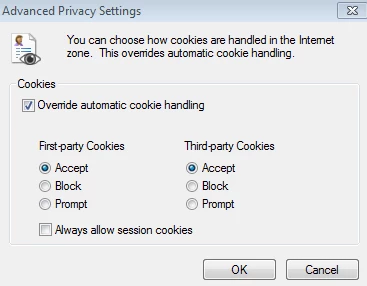
- If you are using a Federated ID or connectors (like Dropbox), enable third party cookies:
- Choose Internet Explorer > Settings > Internet Options > Privacy > Advanced.
- For First-party cookies, choose Accept.
- For Third-party cookies, choose Accept.
- Shut down the master image.
- Take a snapshot of the master image.
- Update all VM desktops with the new snapshot.
 AdChoices