Inspiring
February 20, 2022
Beantwortet

Why are my scanned documents so blurry?

  • February 20, 2022
  • 2 Antworten
  • 19545 Ansichten

I vainly spent a lot of time on trying to get text of scanned documents look crispy.

For one reason or the other they look blurry.

Attached 3 examples.

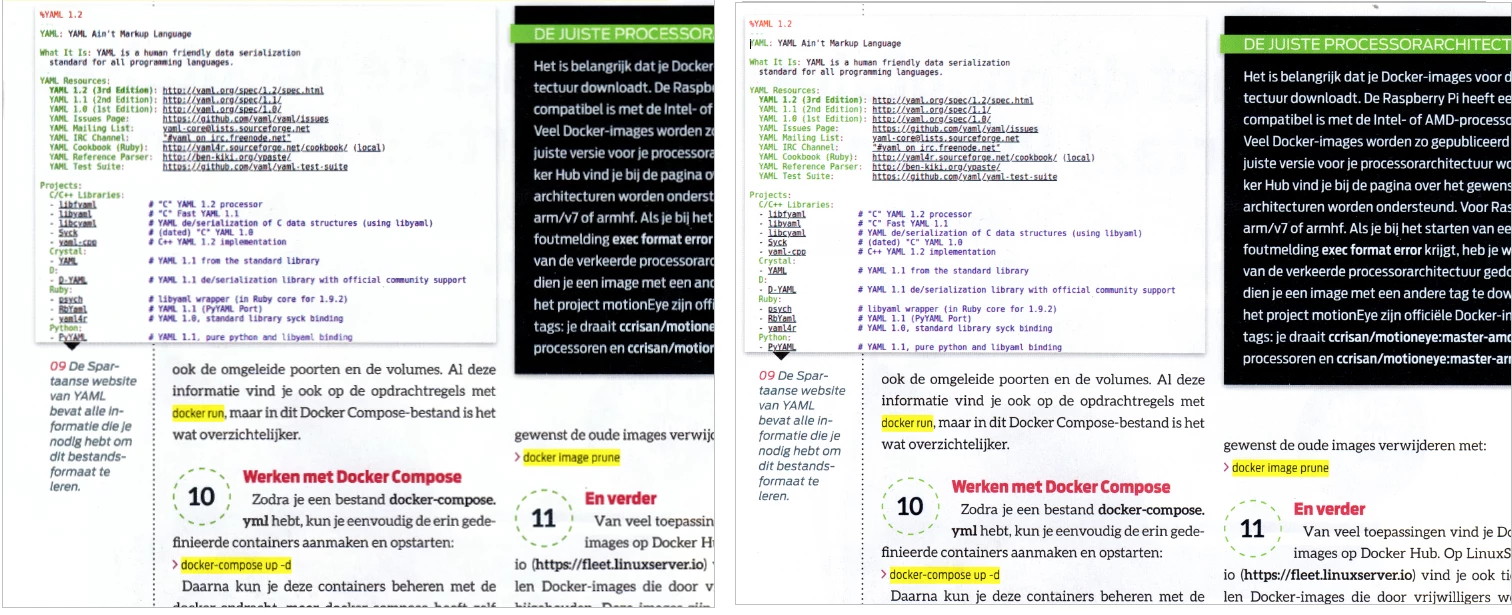
It is screenshot of text from Word, saved as a PNG file

1. Left is the screenshot opened by a viewer
2. In the middle is that screenshot converted to PDF - r-click convert to PDF - no, or no significant, loss
3. I printed the PNG file, printout looked fine, and then scanned it - result on the right.
View is 100%, scan is 300dpi, document size A4 (210x297mm) scanner Epson 5620


FWIW I have put some screenshots here.


Hope someone has a clue...

Thanks in advance.
 

Dieses Thema wurde für Antworten geschlossen.
Beste Antwort von adwul62

@gary_sc 
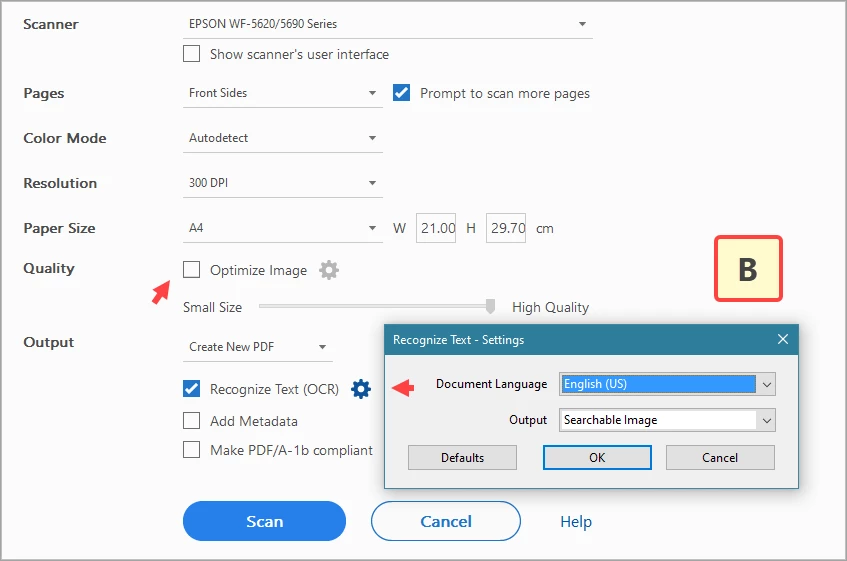
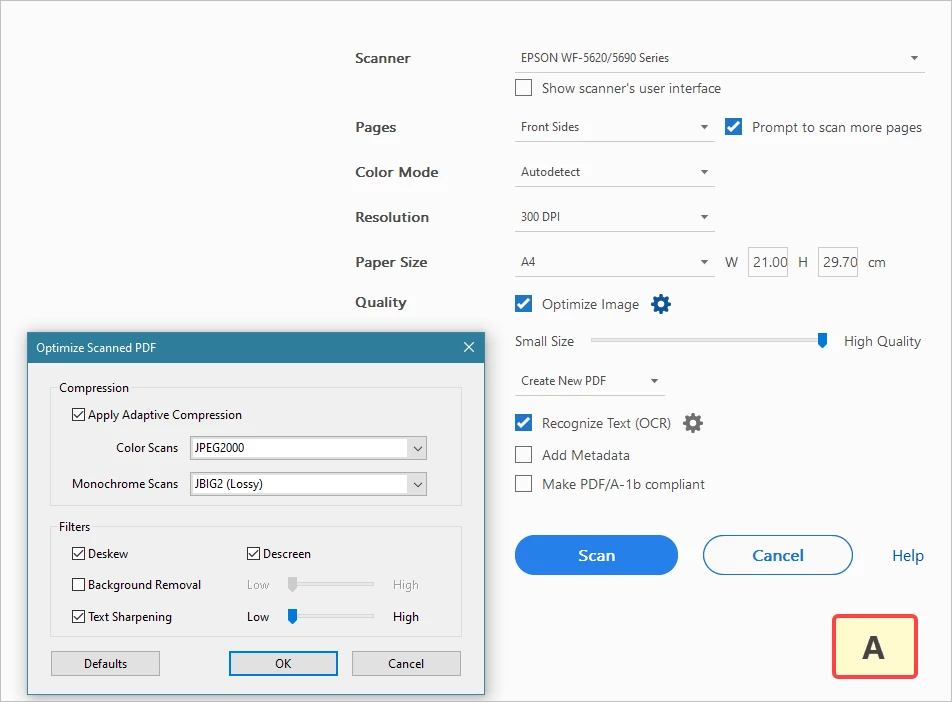
For your info, the settings I am scanning with are in the 4th attachment. 300dpi. At that point there is 'Exact Search'


However, I just found out: I should disable optimize... resulting in a fine scan. 

have added them as an attachment as I believe they don't come thru when pasting in this thread.
Pls do check out the attachments.


2 Antworten

gary_sc
Community Expert
Community Expert
February 21, 2022

Hi Adwul62,


Quick question for you. First, thanks for showing us your application settings, that helps. However, there was one I did not see. If you go to the Settings in OCR, you can get there one way here (there are several ways to this setting)

After opening that up, there are three ways to process the content, see below:

Which of the three ways is your system set to? Whatever it is set to, please try one of the others.


Also, I noticed that in your 3nd screenshot, you show using PNG format. Please try selecting TIF.


Lastly, In the last screenshot, there is an option to use the Scanner's software ("Show Scanner's User Interface.") Can you show what the default settings are when that box is checked?


Thank you,


adwul62AutorAntwort
Inspiring
February 22, 2022

@gary_sc 
For your info, the settings I am scanning with are in the 4th attachment. 300dpi. At that point there is 'Exact Search'


However, I just found out: I should disable optimize... resulting in a fine scan. 

have added them as an attachment as I believe they don't come thru when pasting in this thread.
Pls do check out the attachments.


adwul62Autor
Inspiring
February 25, 2022

Hi Adwul62,


OK, lots of stuff to cover here, let's see what I can do. First off, let me point out that I'm on a Mac, and my scanner is a flatbed photograph scanner (Epson V800), so my options are different from yours. As such, I cannot know for sure. So, I have no real knowledge of what to suggest so that you do not have to always reset the "Optimize Image." Please remember that Acrobat cannot scan and everything that you see is Acrobat dealing with your scanner's software. 


The 100% issue, congrats, that's what you needed. 


Disk space issues: Yes, you are correct about how cheap disk space is. However, there are other considerations to be aware of. The larger the document size, the more computer resources may be needed to process and work with that document. Add to the challenges that one has to electronically send that document to someone else (and the imposition to send a very large document to someone who may not have as much RAM or disk storage as you). I might be comparing apples to avocados here but my camera can take a 20 MB image. That's 5472 p x 3648 p. If I converted that image to the TIF (no compression) format, it's about 57 MB storage size. If I bring that down to 1500 pixels wide (the size one should bring it to for email purposes, as a TIF image it's now down to 4.3 MB. If I save that as a JPG, it's 480 kb. Now, I have lots of storage space but that does not justify sending you that image that's 57 MB. [Note: if you double the size of an image, the storage size quadruples.]


PNG format: be aware that there are two kinds of PNG: 8-bit and 24-bit. The former can contain up to 256 different shades and colors. The 24-bit can contain up to 12 million shades and colors. But if you have a document that is a text document saved in 24-bit, it will be significantly larger than the 8-bit. Unfortunately, Adobe does not specify which one they are using (and I do not know).


Here's another piece of trivia. when I scan a full page of text as a TIF document, it's about 8 MB. When I convert that into a PDF, it's about 80-150 kb. Same document. [Caveat to that: if I have lots of background imagery, that gets PDFed as well and the document can easily be 2-4 MB.


What all this is to say is that you need to experiment and see what works and what's best for you. Also, be considerate: what's best for you may not be the same as to whom you send a document. It's the "and then what" syndrome. If you send a 750 MB document to someone, then what do they do with it? How will/can you send it?


Hey, if it was all easy, how much fun would that be??


Thank you so much for your elaborate reply. As for the PNG, those are basically screenshots, hence quality, like with photos, do not play a role here.
The .jpg files are photos or scanned documents.
Checked out properties of canned documents, they are 2480x3507x24 JPEG 
Checked out properties of photos and they read 4032x1908x24 JPEG
(Simple Samsung smartphone stuff. Sony camera 5472x3648x24 JPEG)
I remember the .raw files were 20-22MB but I deleted all those


[Off topic]

Those big .PDF files are archive files and are being indexed by X1 Search.

Can be really old stuff and are just for personal memory only. Correspondence, important events, purchases, you name it, they are all scanned.
Usually, when people try to remember things, the best they can come up with is, 'I think it must have been somewhere around 19...so-and-so'

Like, when and at what price did you buy your first car, or when did first started with a computer, or moving from one city to the other. It is always a bit of 'wild guess'.


Anyway, that aside, again many thanks for all the help!

Amal.
Community Manager
Community Manager
February 21, 2022

Hi there


Hope you are doing well and sorry to hear that.


Would you mind sharing the version of the Acrobat DC you are using? To check the version go to Help > About Acrobat and make sure you have the recent version 21.11.20039. Go to Help > Check for updates and reboot the computer once.


Also try to create the PDF from the scanner as described here https://helpx.adobe.com/acrobat/using/scan-documents-pdf.html and see if that works for you.


Also check for any missing/pending updates for scanner driver and firmware and try updating it and check.


Regards

Amal