


New Participant
January 16, 2018
Answered

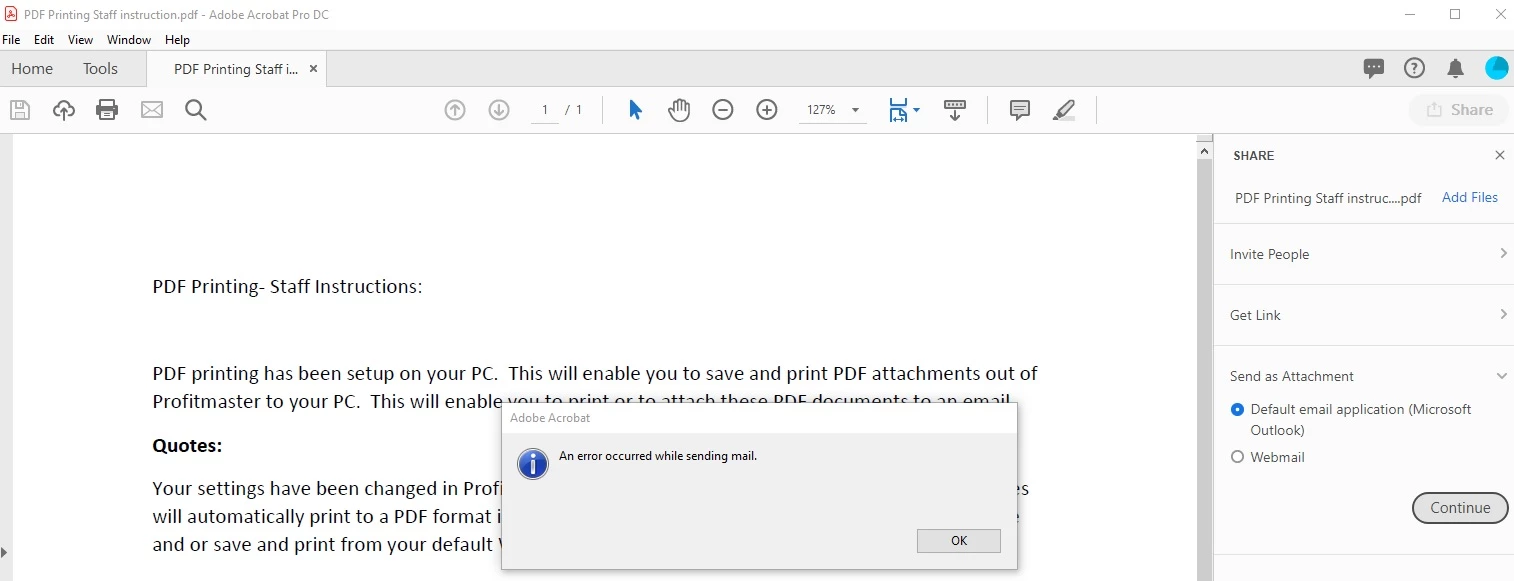
an error occurred while sending mail

  • January 16, 2018
  • 11 replies
  • 66834 views

Hello.

I get an issue when I press button "Send file as email attachment". An error says  "an error occurred while sending mail".

I want to attach into Outlook. Unfortunately, I have not found a solution on the Internet.

I tried:

1.Checked if outlook is setted as default email. Yes, it is setted.

2.Checked it if is true ( checked in regedit )

3.Checked if the file is not so big(size).

4.Un-ticked the check-box "Enable Enhanced Security" . Still didnt help

5.Checked if in preferences>Email account outlook is setted as default. It is.

I use outlook 2016.

Versions of my Adobe is 11.0.22

Please, really need your help. Trying to find a solution about 1 week.

Thank you.
    This topic has been closed for replies.
    Correct answer Tariq Ahmad

    This should not be marked assumed answered.

    Same problem, upgraded several of my users to Acrobat Pro DC today, we had the issue with the redirected with Reader DC and added the registry dword to fix it.

    With Acrobat Pro the new share feature is nice, but when selecting Send As Attachment getting this error.

    Windows 10. Pro Version 1809

    1. Restarted Computer,
    2. Uninstalled Reader DC - restarted PC.
    3. Checked Outlook 365 is default, in Registry and in Settings. Outlook Version: 1811 (Build11029.20079 Click to Run).
    4. Disabled Enhanced Security and Enabled Enhanced Security - not working for either.
    5. Tested with another User Profile and on another Computer - Windows 10 -1803 - same Outlook version - same error.

    One user reported new install worked, but the PDF was showing as "Windows" in the attachment and the subject was the name of the PDF file.  Checked and they hadn't signed in - once they had signed into Adobe, the pdf attached correctly.  Same Outlook version.

    Any other recommendations? Not too thrilled at making this purchase for our Team at this moment.


    Hi all,

    For the benefit of future visitors, if anyone is experiencing this issue, you may try to use the classic workflow of sending PDF as an attachment: How to use the email icon to directly send file as attachment to get the job done. While we discuss the symptoms of the issue with the other method.

    Feel free to update the discussion if you have further questions.

    -Tariq Dar

    11 replies

    New Participant
    November 20, 2023

    Hello,

    I have been searching for solution to this issue for some time now.  I have tried all the suggestions in this thread plus from other similar threads without making any progress.  Can someone please help.  The "Correct Answer" provided, while appreciated, is not a viable solution. As the button within the Acrobat Pro app suggests, it's function clearly specifies "Send a link or attachthis file to an email".  in the environment that I work in this feature is working for every other Acrobat Pro user with the exception of one user. Given the amount of documents sent out requesting for signatures, the functionality of simply opening an email with the pdf file attached saves a great deal of time and provides the optimal solution to our workflow. with that being said.  I have tried making sure Outlook is the default app, I have gone into the registry to ensure the default paths are correct.  I have signed the user out and back in to Creative Cloud.  I have tried the Repair option within the adobe app.  I have uninstalled and reinstalled CC and Acrobat.  I have deleted the users Windows profile and started fresh from building a windows profile and reinstalling all apps.  I have tried getting the user to sign into a new latpop entirely that had not been previously used by other users.  The problem still follows.  one peculiar thing is that if I login to the same device as the user in question everything works as intended.  is there a setting within adobe? a plug-in? some file or app association missing? please help.  I have attached some images, although this may seem redundant, I just want to include the images for clarification of the problem.  Images 1 through 3 are the user with the problem, and images 4 through 6 are the what the process looks like on all the other users' devices for whom the function works flawlessly.  The devices used are a Lenovo T14 Gen 3, and an HP ZBook Firefly 14 G8.  both devices have Windows 10 64bit and we use microsoft exchange.  any help here will be greately appreciated.  thank you

    New Participant
    November 21, 2023

    Hi Juan,


    I have a similar issue to you; unfortunately, I don't have an answer. I thought Adobe removed the option to send PDFs as attachments; only the link option was available for users.

    However, I recently acquired a new work laptop. While using the work laptop, I can send PDFs as attachments; however, the tool to send PDFs for signatures (I can sign but cannot send them out) is missing. (Pic 1)

    Using a personal laptop while working from home, I can email PDFs for signature but cannot email PDFs as attachments. (Pic 2). 

    I wonder if these two are related, and I hope I'll be able to find an answer when the experts get back to you.

    MattLucas
    New Participant
    November 2, 2022

    I recently came across this same problem but found the cause and solution to be different than what's been previously provided. If you've tried everything else, it may be worth exploring.


    In my case, Adobe Reader was unable to locate the path to Outlook due to a missing registry key/value. You can enter the following reg query into an elevated command prompt to see if it returns the correct path for Outlook.

     
    REG QUERY "HKLM\Software\Microsoft\Windows\CurrentVersion\App Paths\outlook.exe"
     
    Which should Return the following results: (path is dependent on your Outlook/Office version)
    HKEY_LOCAL_MACHINE\Software\Microsoft\Windows\CurrentVersion\App Paths\outlook.exe
    (Default) REG_SZ C:\Program Files\Microsoft Office\Root\Office16\OUTLOOK.EXE
    Path REG_SZ C:\Program Files\Microsoft Office\Root\Office16\
     
    If these are missing or incorrect, you can update them from the command prompt. Make sure to update the path to your version of Outlook.
     
    REG ADD "HKLM\\SOFTWARE\Microsoft\Windows\CurrentVersion\App Paths\outlook.exe" /ve /t REG_SZ /d "C:\Program Files\Microsoft Office\Root\Office16\outlook.exe" /f
     
    REG ADD "HKLM\\SOFTWARE\Microsoft\Windows\CurrentVersion\App Paths\outlook.exe" /v Path /t REG_SZ /d "C:\Program Files\Microsoft Office\Root\Office16\"
     
    I discovered the solution by using Process Monitor and wrote a short blog post about it, https://www.mattlucas.net/fix-adobe-reader-an-error-occurred-while-sending-mail/. Process Monitor is a free tool from Microsoft/Windows Sysinternals and may help you solve your specific issue if none of these solutions work for you.
    RT301
    New Participant
    November 6, 2022

    Thanks Matt, this worked! In short


    Under HKEY_LOCAL_MACHINE\SOFTWARE\Microsoft\Windows\CurrentVersion\App Paths\outlook.exe in your registry, make sure you have the following two strings defined to match the folder location on your machine. Restart Adobe. 

    (Default) REG_SZ C:\Program Files\Microsoft Office\Root\Office16\outlook.exe 
    Path REG_SZ C:\Program Files\Microsoft Office\Root\Office16\ 
    New Participant
    February 17, 2023

    This solved it for me, thank you!

    New Participant
    March 22, 2021

    Hi,


    I fixed this issue by uninstalling the 64-bit version of Microsoft Office and installing the 32-bit version.


    It was only when I stumbled on a slightly different MAPI related issue in another application that I discovered this.


    Hope this helps.


    Simon

    New Participant
    April 21, 2022

    Hi Simon,

    Thank you for this. solved my issue as well.


    New Participant
    February 5, 2021

    I was facing the very same problem with Reader DC on PC with WIN10 but with the eM Client. The local email client was properly registered. I was almost desperate - no measure took any effect. It was weird even more because another user of the very same PC did not have this problem. One thread elsewhere describes the same problem and the solution was in reinstalling the user account. So I add my gmail account in the Windows settings: "Windows Settings > Accounts > E-mail and accounts > Accounts used by e-mail, calendar and contacs". I added the g-mail account and now it works. Hopefully this will help you all.

    New Participant
    June 8, 2022

    Hi, tried that. Doesn't work.


    New Participant
    June 8, 2022

    If you're using a 64-bit version of Office, please try a 32-bit version instead.

    New Participant
    September 30, 2020

    We used to be able to do this, so I think users have grown accustomed to sending from inside the PDF created.  Yes, we can attach the file, but why are we not able to skip that extra step and send from within the document...when it was a function before? 

    New Participant
    October 30, 2019

    SOLUTION FOUND for our office.  We rolled back to 2019.012.20036 and emailing from Acrobat Pro DC now works.

    New Participant
    September 30, 2020

    Rolling back is not an option for me. 

    New Participant
    October 30, 2019

    We are experiencing this problem.  No one can send from Adobe and have to save and close the file, go to Outlook and then attach the file.  Not a satisfactory resolution but it does work.  Error is "An error occurred while sending mail."  - same as everyone else in this thread.  I have tried removing enhanced security.  No difference.  Any help is appreciated please.


    New Participant
    April 11, 2018

    I also have the same problem on win 10, the computer is brand new, only installed Outlook and Adobe Reader and it still dosen't work. Reinstalled the computer again just to try it, still same problem.

    Meenakshi Negi
    Community Manager
    Community Manager
    April 11, 2018

    Hi Prinsipp,

    As you have mentioned above "Send as an attachment" option does not work for you in Adobe Reader.

    Could you please let us know what exactly happens when you try to use the option?

    What is the exact error message you get? Please share the screenshot of the message.

    To share the screenshot, click on Insert image icon as shown below:

    Then click on "Choose File" and browse to the location where you have saved the screenshot.

    Select the image file and click on "Open". Then click on "Insert Image" tab at the bottom to add it to forum reply.

    Please share the Adobe Reader version you are using. Take help of the steps mentioned here Identify the product and its version for Acrobat and Reader DC

    What is the Outlook version?

    Did you check if you can send emails from outlook without any issues?

    We will be waiting for your response.

    Let us know if you need any help.

    Regards,

    Meenakshi

    New Participant
    December 5, 2018

    This should not be marked assumed answered.

    Same problem, upgraded several of my users to Acrobat Pro DC today, we had the issue with the redirected with Reader DC and added the registry dword to fix it.

    With Acrobat Pro the new share feature is nice, but when selecting Send As Attachment getting this error.

    Windows 10. Pro Version 1809

    1. Restarted Computer,
    2. Uninstalled Reader DC - restarted PC.
    3. Checked Outlook 365 is default, in Registry and in Settings. Outlook Version: 1811 (Build11029.20079 Click to Run).
    4. Disabled Enhanced Security and Enabled Enhanced Security - not working for either.
    5. Tested with another User Profile and on another Computer - Windows 10 -1803 - same Outlook version - same error.

    One user reported new install worked, but the PDF was showing as "Windows" in the attachment and the subject was the name of the PDF file.  Checked and they hadn't signed in - once they had signed into Adobe, the pdf attached correctly.  Same Outlook version.

    Any other recommendations? Not too thrilled at making this purchase for our Team at this moment.

    exaimingAuthor
    New Participant
    February 2, 2018

    answer please

    exaimingAuthor
    New Participant
    January 27, 2018

    still need help