


edwardbuck
Participant
August 7, 2016
Answered

Printing from Adobe Reader DC after Win10 Anniv. update prints streaks

  • August 7, 2016
  • 16 replies
  • 15130 views

Hello,

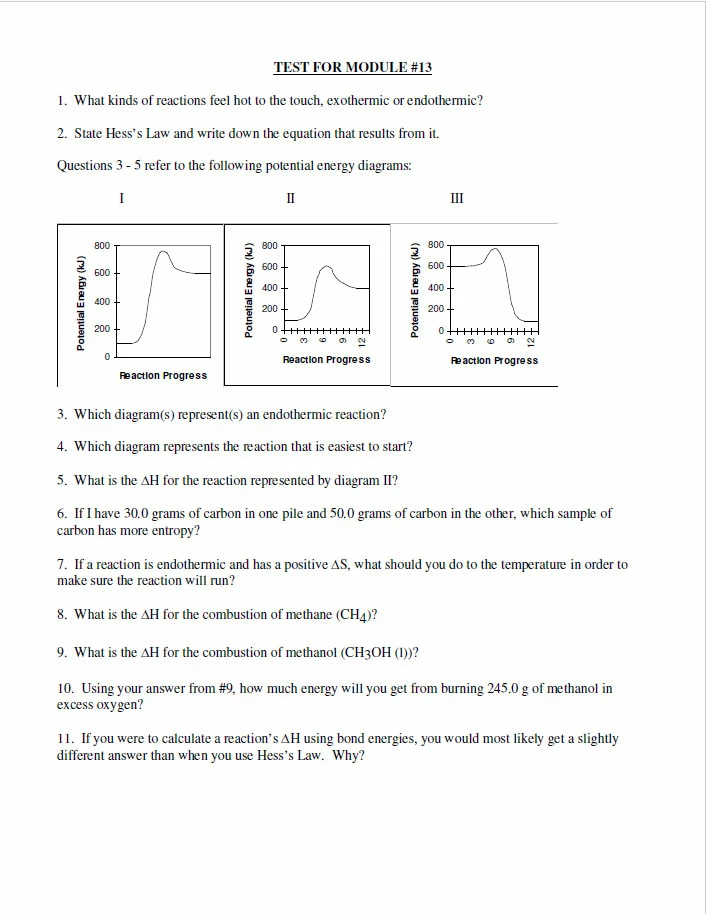
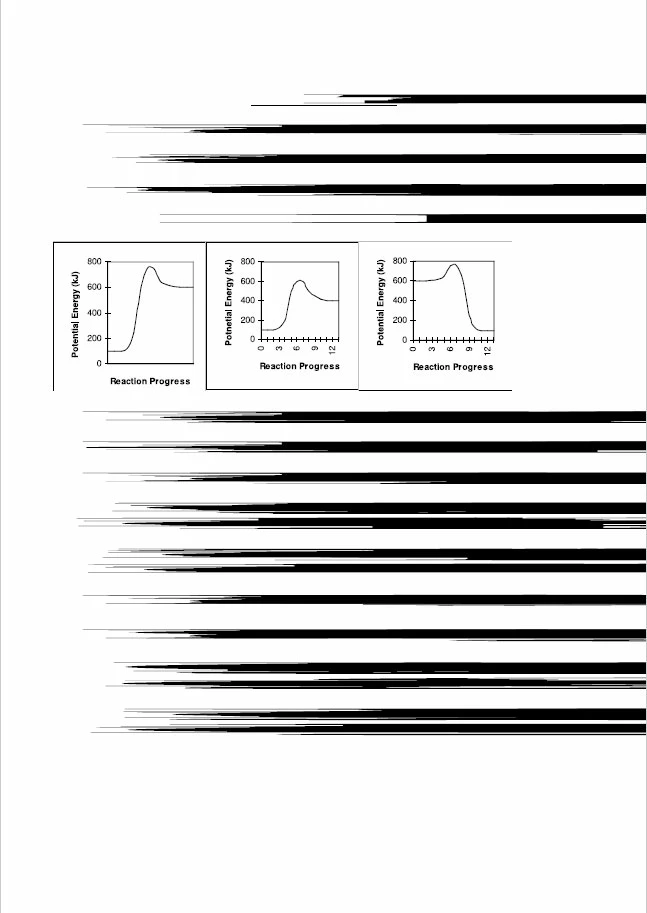
I updated to Windows 10 Anniversary update today (on 4 computers), and I noticed that when I try to print some pdf documents (both to my HP printer and Microsoft print to pdf) from all four computers that instead of text all I get are black streaks.  It worked fine before the update (I printed this same doc yesterday) and it prints the same from all four computers to two different printers (well, one printer, one pdf printer).  I uninstalled Reader DC and downloaded a fresh copy and installed it.  I also uninstalled the HP printer driver (though the fact that it prints the same to the pdf printer tells me that its not the printer driver).  I would appreciate any assistance.

I have attached a print screen of the original pdf and of the printed version.
This topic has been closed for replies.
Correct answer Adorobat

Hi All,

Sorry for the inconvenience caused to you. We thank you for your patience and support on this.

The issue is still under investigation and we are working on the fix. Since the issue appeared to start occurring after Windows 10 update, the fix might require some changes from Microsoft and it might take some time.

For now, the team has identified a workaround for this issue “black streaks while printing.”

Here’s the KB article: Acrobat Reader DC prints streaks after upgrading to Windows 10 Anniversary update

Thank You,

Shivam

16 replies

Participant
September 7, 2016

I have the exact same issue, went back to Adobe 11 and everything is printing good, I will use that until the issue is resolved.

Brian-007
Participant
September 1, 2016

We are having the exact same issue here with Windows 10 Anniversary Update and Adobe Reader DC (fully updated).  Printing the PDF through Microsoft Edge or using the Print as Image option in Reader is a workaround.

Wasted a LOT of paper and time on this.

Brian

Participant
August 31, 2016

We have this same issue ... Adobe please help or I have to start using Nitro

Adorobat
Community Manager
Community Manager
September 1, 2016

Hi danieln24978930 ,

We are sorry for the inconvenience, we are looking into it and will update you with the progress.

Thank You for your patience.

ahmedb55124053
Participant
September 1, 2016

Que no entiendo el ingles mandate lo en español

El jueves, 1 de septiembre de 2016, Adorobat <forums_noreply@adobe.com>

escribió:

Printing from Adobe Reader DC after Win10 Anniv. update prints streaks created

by Adorobat <https://forums.adobe.com/people/Adorobat> in Acrobat Reader

- View the full discussion

<https://forums.adobe.com/message/8979708#8979708>

Participant
August 28, 2016

I had the same problem with adobe reader 11.0.10 printing some pdfs.  I have fixed this problem by locating a patch for adobe reader 11 here 11.0.17 Planned update, July 12, 2016 — Acrobat and Adobe Reader Release Notes​ . This strongly suggests that it is a adobe reader issue with windows 10 anniversary update, rather than anything else. Hopefully there is also a patch for DC that will fix this.

Adorobat
Community Manager
Community Manager
August 30, 2016

Hello all,

We have tried to reproduce the issue at our end, and found that  Adobe Reader DC printing streaks instead of text after upgrading to Windows 10 Anniversary update. We will further look into it and will update you with the progress.

Thank You for your feedback.

1234qwer_
Participant
August 22, 2016

I have the exact same issue with a pdf file (not all pdf files) on all the computers I've upgraded from Windows 10 build 10586 to build 14393 (anniversary update), using Adobe Reader DC 1501720053.

It prints the exact same streaks pattern on 3 different printers.

If I print the same pdf from a Windows 10 build 10586 computer, it prints fine.

Even if I print the same pdf using Remote Desktop on a Windows 10 build 10586 computer redirected to the same printers on a Windows 10 build 14393 computer, it prints fine.

The pdf also prints fine using Microsoft Edge on Windows 10 build 14393 (anniversary update).

N.B. The "Print as image" works as a work-around, but isn't a solution.

Adorobat
Community Manager
Community Manager
August 8, 2016

Hi edwardbuck ,

Could you please tell if this is happening with some pdfs or with all of them?

Have you tried printing from other applications like MS Word or Notepad?

Also , try to perform the step which are given here: https://answers.acrobatusers.com/Why-does-my-Turbo-Tax-print-verticle-black-lines-using-adobe-q154041.aspx

Let us know about the results.


Thank You!

Shivam

edwardbuck
Participant
August 11, 2016

Hello Shivam,

It is only happening on certain pdfs, not all of them.  I'm not sure how I would open a PDF in Word or notepad, but when I open the pdf in Chrome or Edge browsers and print from them, it prints fine.

Also, following the steps in the link you provided ("Print as Image" under advanced settings) the pdf prints fine, also.

So I guess this is a workaround, either printing in a browser or printing as image, but it is disappointing (and a little odd) that it won't print correctly from the native Adobe Reader application (without the advanced settings).  Since everything worked correctly before the Windows 10 anniversary update, and doesn't after (on four different computers), it is obviously something that changed in Windows 10 that is causing the problem.

Do you know if it is possible to make "print as image" a default setting so I don't have to change it every time I print?

Thanks again for your assistance.

Ed

Adorobat
Community Manager
Community Manager
August 12, 2016

Hi edwardbuck ,

Try to check if there is an update available for Reader,

Launch Reader>click on Help menu>Check for updates. If there is, download and install it ,restart Reader and then try to print and check if its printing fine.

For setting "Print as image" a default setting,Launch Reader, click on Print,select your Printer from the list,click Advance>check the box Print As Image if you haven't already .Then,close Reader and next time when you will print , it will remember the settings.

Let us know if you face any issue.

Thank You!

Shivam