


New Participant
November 20, 2019
Answered

Screen turns to black and white dots using Adobe Acrobat Reader DC 19.21.20049

  • November 20, 2019
  • 5 replies
  • 37149 views

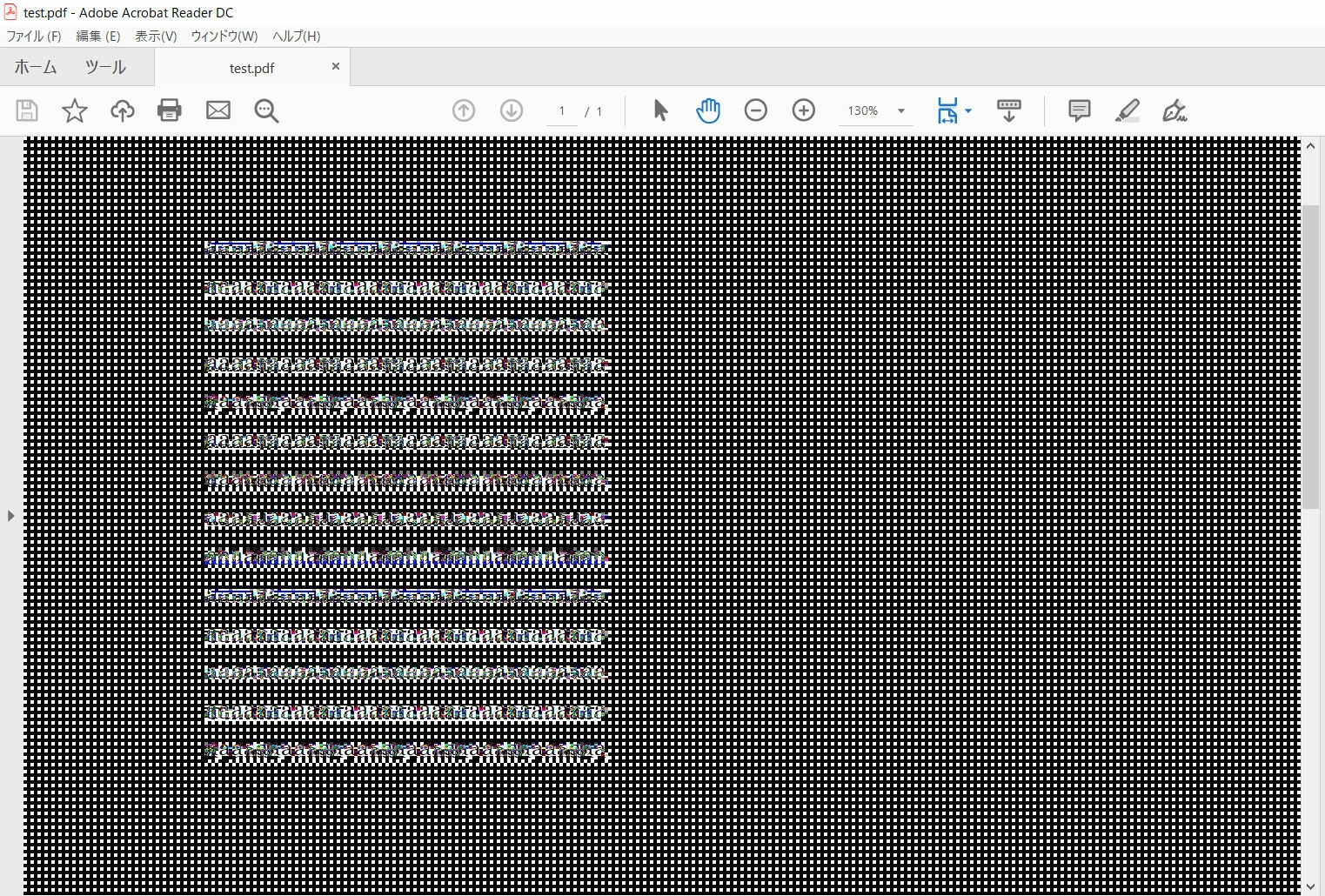
Please help me about the screen noise like mosaic problem as bellow.

This is the screen when I just opened the file.
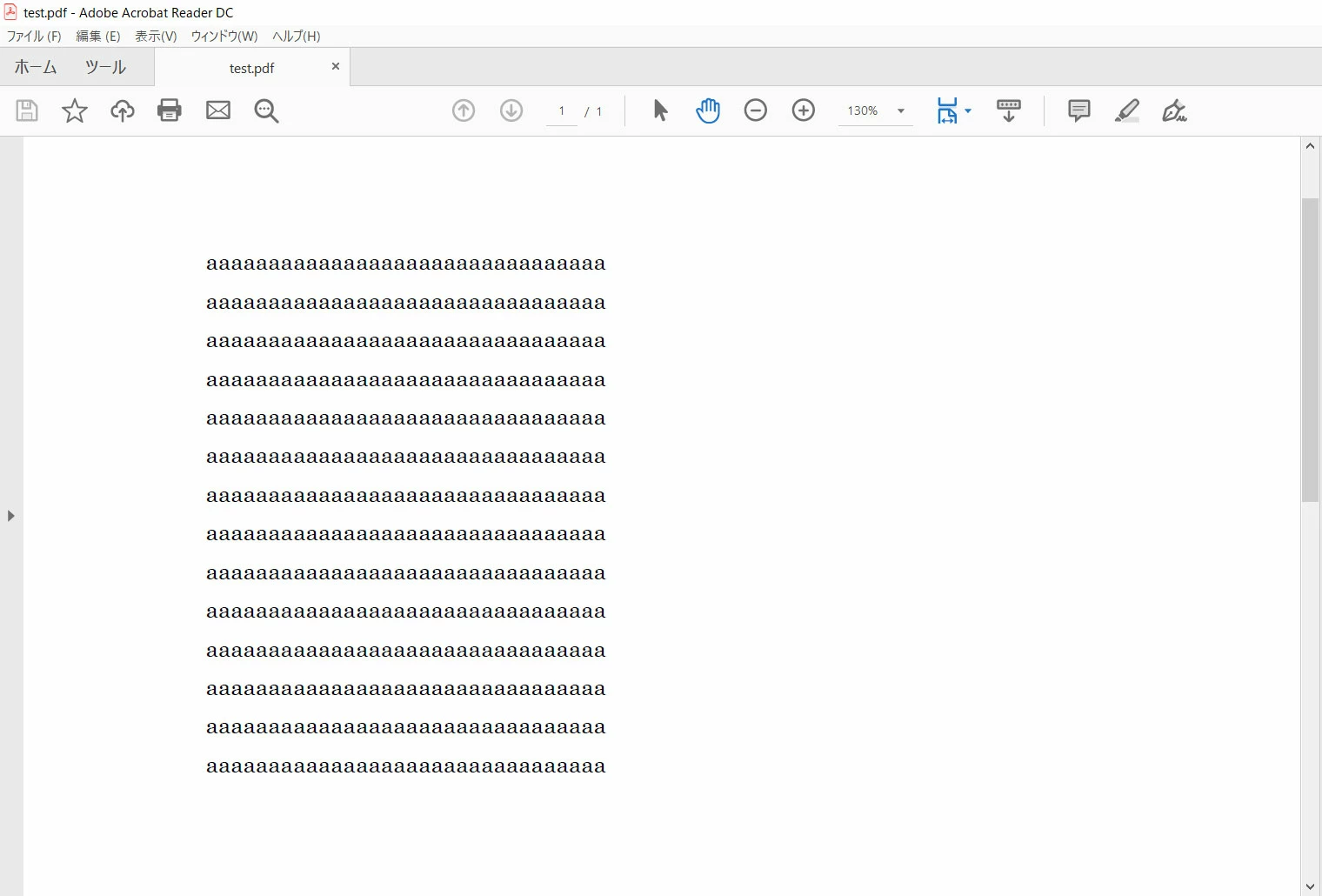


When I click on the screen, noise appears.

If I change the zooming, it will disappear.

But if I click on the screen again, noise will be shown again.


My PC condition

Windows 10 Home 64bit

Acrobat Reader DC 19.021.20049.27333

I already installed latest patch (19.021.20049 Optional update), but it didn't work.


[Title Edited by Moderator ]

Correct answer Amal.

Hi there


Sorry to keep you waiting.


This issue is fixed with the recent version (22.1.20142) of the Acrobat/Reader DC application.


Please update the application from the help menu > check for updates and reboot the computer once and check.

You may also download the patch manually from the link https://www.adobe.com/devnet-docs/acrobatetk/tools/ReleaseNotesDC/index.html


Regards

Amal

5 replies

day7a1
New Participant
March 4, 2022

It's abslutely ridiculous that Adobe Acrobat Reader DC needs to run in Windows 7 compatability mode on Windows 11. 


Thank you all for helping me with this infuriating issue, but this shouldn't be an issue at all. 


Windows 7!!!!??? Really!!!???

New Participant
April 2, 2022

This issue is still going on after 2 years and has not been fixed, just workarounds. I'm using Vega 3 graphics on Windows 10 64-bit. I installed 32-bit version of Adobe Reader instead and there is no issue. Issue is only with 64-bit Adobe Reader.


I don't know who's guilty here, Adobe or AMD but this is a joke.

Amal.
Community Manager
Amal.Community ManagerCorrect answer
Community Manager
July 6, 2022

Hi there


Sorry to keep you waiting.


This issue is fixed with the recent version (22.1.20142) of the Acrobat/Reader DC application.


Please update the application from the help menu > check for updates and reboot the computer once and check.

You may also download the patch manually from the link https://www.adobe.com/devnet-docs/acrobatetk/tools/ReleaseNotesDC/index.html


Regards

Amal

New Participant
October 15, 2020

I am having the same issue, I have Windows 10, I have tried all of the solutions that you have posted here and I am still having the issue.

- I have reinstalled the softaware

- I have intalled the latest driver for my AMD RYZEN 5 videocard drivers

- I have the lastest Adobe Reader DC version

- I have ran the Troubleshoot compatibility

not sure what else to do to get this issue taken care of... any thoughts???

New Participant
October 15, 2020

Why didn't you try the solution mentioned in this thread? Running Acrobat in compatibility mode solves the problem

New Participant
July 27, 2020

i reach to this folder - C:\Program Files (x86)\Adobe\Acrobat Reader DC\Reader .

Now how to Choose "Troubleshoot Compatibility."  Help me with this.

New Participant
July 31, 2020

right click the icon from desktop then it will show. I couldn't find that in folder either. 

New Participant
March 11, 2020

I have both Adobe Acrobat and Adobe Reader on my lap top.  When reader is used for a PDF, it opens normally.  However, once I click on the active part of the screen or document, it blackens with white areas around text.  Difficult at best to try and edit or add signatures, notes and the like.

I am updated; this is only happening with PDFs in Adobe Reader not Acrobat. Running Windows 11.

Suggestions so Reader doesn't cause this in the active document screen?  All other aspects of the software are fine...the top and side toolbars...just the active document turns black.

Participating Frequently
February 7, 2020

The problem:

When I open a PDF  in Adobe Acrobat Reader DC (19.021.20061) the document renders fine. As soon as I click anywhere, it is over-rendered with black and white dots, as in the screenshot below. 


What I've tried so far:

Updating video drivers to latest available

In Adobe Reader:

- turning off "Enable Protected Mode at Startup"

- turning off "Enable Enhanced Security"

- setting Touch Mode to Auto-Detect with No scaling


Even with restarts in between the various steps, I'm not seeing any improvement. Any ideas appreciated.


My system details:

Windows 10 Pro, 64bit (10.0.17763 build 17763)

Adobe Acrobat Reader DC (19.021.20061)

Proc/graphics: AMD Radeon 5 3400G with Radeon Vega 11 Graphics, driver (26.20.15019.1003 - latest from 30/1/2020)

Amal.
Community Manager
Community Manager
May 14, 2020

I had the same problem I loaded down Acrobat onto a new computer.  Your solution worked like a charm.  It seems Adobe is more interested in software working with dated operating systems than with current operating systems and hardware.


Hi there


We are glad to hear that the issue got fixed.


Feel free to contact us for any assistance required in the future.


Regards

Amal


Amal.
Community Manager
Community Manager
November 20, 2019

Hi there,


We are sorry for the trouble. Would you mind sharing more information about the issue you are facing:


We are here for help, just need more information.


Regards

Amal

New Participant
November 21, 2019

Hi Amal. Thank you for your reply.

This behavior occours for every PDF.

And I updated latest version now, but sitll happened.


> Would you mind sharing the exact workflow or steps you are doing?

I just installed Adobe Reader DC.

But I think I had been using with no problem before.

It happened suddenly.
I'm not sure the cause is from Windows update or DC update.
FYI, my OS is Japanese version.


Version 1903
OS Build 18362.476


Amal.
Community Manager
Community Manager
November 21, 2019

Hi there,


Thanks for sharing the details. Would you mind sharing the procmon logs and a sample file with us for further  investigation?


Download the process monitor tool here (https://docs.microsoft.com/en-us/sysinternals/downloads/procmon) run the process monitor tool and then open the PDF file to reproduce the issue and collect the log files and share them through private message. 


Click on the message icon on the top right corner of the screen to start the private message with us.


Regards

Amal