


New Participant
March 1, 2014
Answered

Security Warning: This document is trying to connect...

  • March 1, 2014
  • 4 replies
  • 53715 views

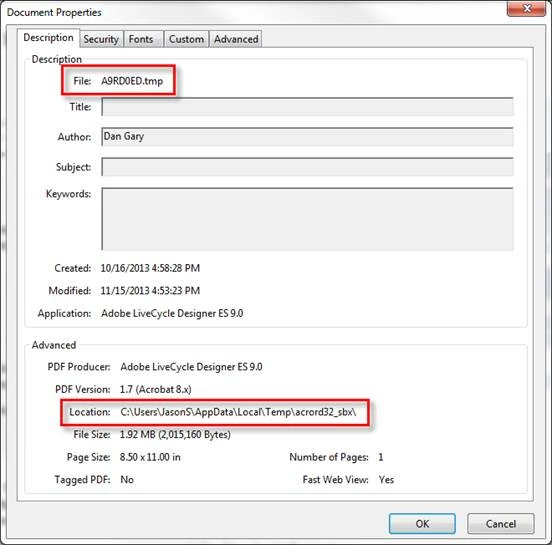
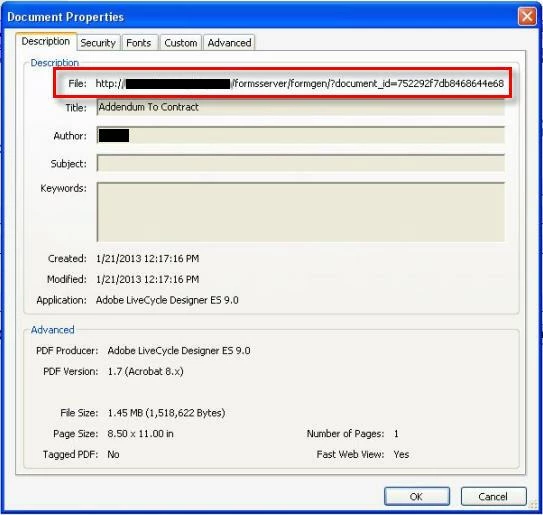
We have a forms program for real estate that allows agents to fill out contracts and save them online. Just recently when I try to save the contract within the program, I receive the Adobe Security Warning pop-up that reads: "This document is trying to connect to: file//formsserver/processsubmit/" and then gives the option to Allow, Block, Cancel. What we have found is that instead of reading the file directly from our servers, it downloads the file, places it in a temp folder, but still displays it within the browser, which seems kind of strange. Since the file is being downloaded, the connection of the save buttons we have programmed on the contract to our servers has been cut-off, thus triggering this warning statement. This started happening out of the blue with Reader 11.0.6, so I rolled back to 11.0.3, same issue. Rolled back to 10.1.4, and everything works perfectly. We just cannot seem to figure out why Reader 11 is behaving this way, and what makes it even more difficult is that this behavoir is not easiliy replicable, my home laptop has Reader 11 and I do not have any issues. We have received a few calls from certain users that have run into this as well.

The first image is of Reader 11 showing that the form has been downloaded as a file, the second image shows how it should be, the file location being our server. Any suggestions on this would be very much appreciated!
This topic has been closed for replies.
Correct answer reoprocessingspecialists

Per Adobe:

Home / Using Acrobat X Standard / Security / Application security

Allow or block links to the Internet in PDFs

Clicking any link to the Internet poses a potential security risk. Malicious websites can transfer harmful content or silently gather data. If you are concerned about these risks, you can configure Acrobat and Reader to display a warning when a PDF attempts to connect to an Internet site.

You can allow Acrobat and Reader to contact selected websites by adding their addresses (URLs) to your list of trusted websites in the Trust Manager preferences. Alternatively, you can allow all URLs.

Note: If the options in the Manage Internet Access dialog box are disabled, select Custom Setting. If options are still disabled, your product could be under an administrator’s control with those restrictions in place.

  1. 1.        Choose Edit > Preferences (Windows) or Acrobat/Adobe Reader > Preferences (Mac OS).
  2. 2.        From the Categories on the left, select Trust Manager.
  3. 3.        Click Change Settings to specify the default behavior for accessing the Internet from PDFs.
  4. 4.        Choose from the following options:
  • To allow access to all URLs, select Allow PDF Files To Access All Web Sites.
  • To restrict access to all URLs, select Block PDF Files’ Access To All Web Sites.
  • To restrict access to only the URLs you specify, select Custom Setting.
  • To add a website, type its URL in the Host Name text box and click Allow or Block.
  • To remove a URL you no longer want to visit, select the website in the list and click Delete.
  • To specify what the program should do with websites not in your custom list, select one of these options: Always Ask, Allow Access, Block Access.

For more information, see the Application Security Guide at www.adobe.com/go/learn_acr_appsecurity_en.

Note: If you open a protected PDF and receive a prompt to allow or block a URL, select Remember My Action For This Site. This reply adds the URL to this list.

4 replies

January 12, 2024

Why on any earth would a photo editing program need access to my documents downloads and desktop for me to use their program. Simple they absolutely dont. Completely disgusting. Really wanted to use the program but unfortunately they and their big brother freinds make it impossible. You might as well give them the password to your computer and I dont have to be a computer geek or want to waste the time trying to figure out all the ramifications of it. Completely unecassary period. 

try67
Community Expert
January 12, 2024

What are you talking about?

try67
Community Expert
November 9, 2019

Can you share a sample file? My guess is there's some kind of embedded script in the file that's trying to submit data from it automatically as soon as you open it.

Participating Frequently
November 10, 2019

Sure but I don't really know how to share a file with this system.  Are there instructions on how to share a file?  I can tell you that the hyperlink location is like this--

  file:///C|/Dropbox/CL/Broadway%20Plan/Administrative%20Record/5.%20AdminRecord/AR%203-4.pdf

So it's just a path to a file that is located in the same folder.  The hyperlinks work fine.  It's just that they raises this security warning every time you click on the hyperlink before it will show a document.


I don't have a security issue because the link is going to a file that is on the same machine and in the same folder.


Thanks


try67
Community Expert
November 10, 2019

I think you answered your own question... You should not be using the file:/// domain for files that are located on the local computer. This will trigger a security warning because it is considered an attempt to access a file using an external link.

Instead, you should use an "Open a File" command, which points to this file. If it's a PDF then no warnings will be shown when you click it (maybe only during the first time).


Adding attachments to a message in this forum is possible, but unfortunately (like so many other things in this new system) very cumbersome. I recommend you just upload it to a file-sharing website and then post the link to it, instead.

Participating Frequently
November 8, 2019

"this document is trying to connect to" machine keeps doing this. Stop doing this

Participating Frequently
November 8, 2019

allow access to all preference not doing nothing

Participating Frequently
November 8, 2019

The links are in an Acrobat pdf file and they link to an Acrobat pdf file in the same folder.  Why are we getting a security warning trying to link to something that is in the same folder?  This is Acrobat 9. We have 1000s of links.  Every time it asks us do we trust something that is on your own machine and in the same folder.

reoprocessingspecialists
New Participant
April 17, 2015

Per Adobe:

Home / Using Acrobat X Standard / Security / Application security

Allow or block links to the Internet in PDFs

Clicking any link to the Internet poses a potential security risk. Malicious websites can transfer harmful content or silently gather data. If you are concerned about these risks, you can configure Acrobat and Reader to display a warning when a PDF attempts to connect to an Internet site.

You can allow Acrobat and Reader to contact selected websites by adding their addresses (URLs) to your list of trusted websites in the Trust Manager preferences. Alternatively, you can allow all URLs.

Note: If the options in the Manage Internet Access dialog box are disabled, select Custom Setting. If options are still disabled, your product could be under an administrator’s control with those restrictions in place.

  1. 1.        Choose Edit > Preferences (Windows) or Acrobat/Adobe Reader > Preferences (Mac OS).
  2. 2.        From the Categories on the left, select Trust Manager.
  3. 3.        Click Change Settings to specify the default behavior for accessing the Internet from PDFs.
  4. 4.        Choose from the following options:
  • To allow access to all URLs, select Allow PDF Files To Access All Web Sites.
  • To restrict access to all URLs, select Block PDF Files’ Access To All Web Sites.
  • To restrict access to only the URLs you specify, select Custom Setting.
  • To add a website, type its URL in the Host Name text box and click Allow or Block.
  • To remove a URL you no longer want to visit, select the website in the list and click Delete.
  • To specify what the program should do with websites not in your custom list, select one of these options: Always Ask, Allow Access, Block Access.

For more information, see the Application Security Guide at www.adobe.com/go/learn_acr_appsecurity_en.

Note: If you open a protected PDF and receive a prompt to allow or block a URL, select Remember My Action For This Site. This reply adds the URL to this list.