


New Participant
February 15, 2021
Answered

The CTRL+F command in Acrobat Reader DC in 21.001.20135 version does not find the searched term

  • February 15, 2021
  • 5 replies
  • 35819 views

When type a search term into the search window and get the message: “Adobe Acrobat Reader has finished searching the document. No matches were found”. This is even though the search word is included in the document.

See here example for the term "High"
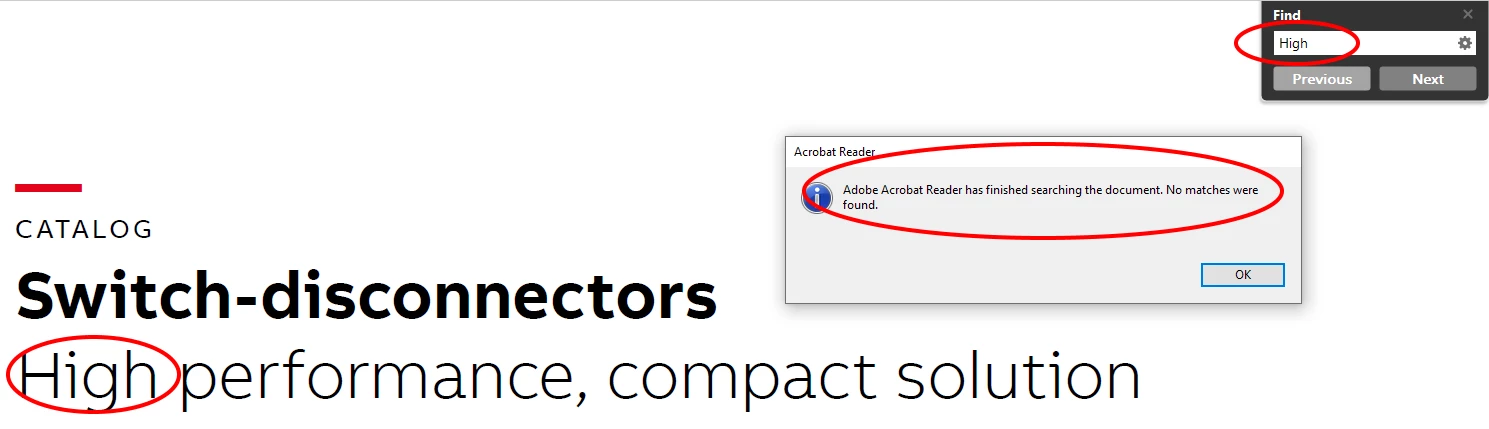
This happens on many documents that I use regularly and for which the function has always worked. Search stopped working last week, but after a long search, I also found documents in which the search works.

I have alredy try to:

- change all the search options like: Whole Words Only, Case sensitive etc…

- repair the installation : "Help / Repair Installation". 

but none of that helped.


Can you advise what else should I try? However, it will probably be a mistake in the last update, because everything worked until last week.

I run Acrobat on 64-bit Windows 10 Enterprise 1809

Thanks

Jiri

Correct answer Janmei26906490s344

OK--so I am in Acrobat DC 2022, not Reader. I was able to resolve the issue by selecting "Security (Enhanced) option in Edit > Preferences, then deselecting "Enable Protected Mode at Startup (Preview)."  For the record, previously, there was a button to "Enable ..." however, despite selecting it, functionality did not respond accordingly. 

5 replies

New Participant
August 26, 2022

I have just downloaded the adobe acrobat DC. I cant use Ctrl +F to search in pdf files. Although I have tried to click on Purge Cache Contents. I am very disapointed with the solution. I need to find the way to use Ctrl + F asap. Hope someone else can help. Thanks

New Participant
November 1, 2022

Ditto - this is a new thing--it worked before. CTRL+F does not open the search dialog box. After selecting the magnifying glass, the dialog box opens, but does not accept any characters in the search field. Please fix this.


Janmei26906490s344Correct answer
New Participant
November 1, 2022

OK--so I am in Acrobat DC 2022, not Reader. I was able to resolve the issue by selecting "Security (Enhanced) option in Edit > Preferences, then deselecting "Enable Protected Mode at Startup (Preview)."  For the record, previously, there was a button to "Enable ..." however, despite selecting it, functionality did not respond accordingly. 

New Participant
April 15, 2022

More than a year later, I am still having this problem. Is it still on the engineering team's radar? 

New Participant
April 15, 2022
For some things I have the problem and for others I do not. For example
when I download the NY Times Digest, which is delivered in a PDF format,
CTRL+F finds the searched terms all the time. But if I try to search in a
document that I have scanned and saved as a PDF (or if someone emails me a
previously scanned document) the search DOES NOT WORK.
New Participant
January 6, 2022

I've just discovered something interesting about the "search" function.  When I search for a word in a printed document that was emailed to me -- like the TimesDigest -- the search function works.  But when I search for a word in a document that I have scanned and saved, the function does NOT work.   Does anyone know why this happens?

Adobe Employee
February 15, 2021

Also, could you please answer some queries as well?


  • Could you please share the environment on which Acrobat is getting used?
  • Could you also please perform your workflow and share the process monitor logs with us?
 

Please find the steps to capture process monitor logs below:

  1. Download the tool from the below link: https://docs.microsoft.com/en-us/sysinternals/downloads/procmon
  2. Extract the contents of the downloaded file.
  3. Double Click on procmon.exe file.
  4. If you see a Process Monitor Filter window, please click on OK.
  5. Then Open Acrobat/Reader and run the problem workflow.
  6. Go back to the Process Monitor tool and click File>Uncheck Capture Events.
  7. Then File>Save >All Events.
  8. The logs will be saved in the same folder as the tool with the name logfile.pml.
  9. Please share the file for further analysis.


Please follow the steps to share the file using Document Cloud - https://documentcloud.adobe.com/link/send/ 

  • Open this link.
  • Click on “Select files to Send”
  • Click the link "Choose file from my computer" and select the file.
  • Click on "Add Files", if you have more files to add
  • Click on Create link
  • Share this link with me.
New Participant
February 15, 2021

Here is the link to download the logfile


Here is a link to one of the documents in which the search did not work.

Adobe Employee
February 15, 2021

Hi,


We have informed our engineering teams regarding this issue and we will let you know once the bug has been fixed.. For now, we have a workaround for the issue where Find (CTRL+F) is not working.

Can you please perform the below steps and let us know if it is working for you?


Steps:

  1. Launch Acrobat and Go to Edit -> Preferences
  2. Click the “Search” option
  3. Click the “Purge cache contents” button.

  4. Now Search any word in a PDF file using Find Tool (CTRL+F), and let us know if it's working for you or not.


Thanks

Adobe Acrobat DC Desktop Team

New Participant
February 15, 2021

Yes, it helped. In documents where CTRL+F did not find the words before, it will now find them. Thank you.