


ashimg23377171
Inspiring
January 11, 2017
Answered

hyperlinks from MS Word not working in PDF

  • January 11, 2017
  • 17 replies
  • 372615 views

Hello

I have created a MS Word document that i have converted into a pdf.

the hyperlinks in the images link to the bookmarks against headings 1 and 2 in the following pages.

However, when i convert my MS Word document into a PDf, the images are not linked, and i don't see a hand icon when i mouse over the images.
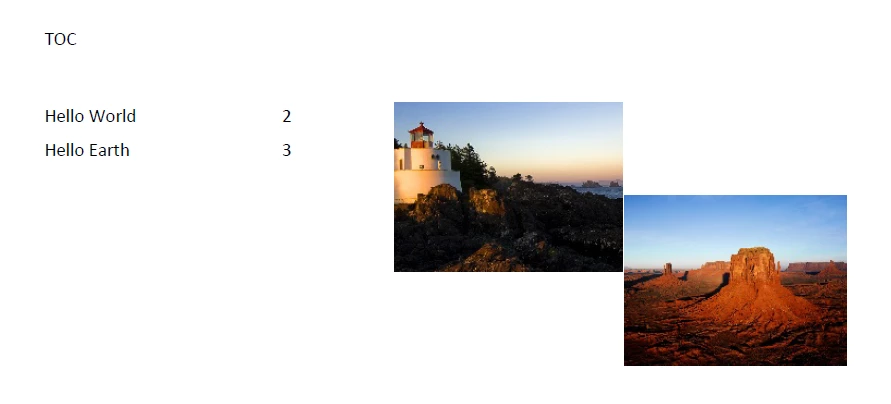
I wld appreciate if someone can provide some insight into this.

Regards

This topic has been closed for replies.
Correct answer MarkAH

Hi all,

I was having the same issue and here is what I found:

Before attempting to convert the document from Word to PDF, look to see if it says "compatibility mode" at the top of the Word window. Mine did, even though it was already a .docx file. If it does, there will be a "convert document" option under the FILE menu (which disappears after you choose this option). Choose that. It will convert to the most recent file version. After I did that, I was able to successfully save the file as PDF with the hyperlinks active. Note also that after I did this, choosing  PDF under the SAVE AS  option caused two new options to appear where I had to choose between best for electronic distribution or best for print. You want to select "electronic distribution." If you choose "print" the links will not be active.

17 replies

New Participant
June 16, 2023

test

New Participant
June 16, 2023

Hello, I found a creative solution around this:
Suppose I have a 9 page Word document and my 8th page has words that are supposed to link but aren't after export to PDF. I finalized the work in Word and exported as PDF, then in parallel, I worked only on page 8 in InDesign and exported page 8 with the working links. Finally, upon opening the 9 page PDF document exported from Word, I selected page 8, deleted it and replaced it with page 8 exported from InDesign with working links - and voila!

New Participant
November 2, 2022

I cannot believe that 5 years later there is still no actual fix of this idiotically simple issue! 
I tried EVERY SINGLE suggested fix on this thread and every time there's something wrong with each of these 'work arounds'. 

My word doc contains an Excel WorkSheet, so if i use the PDF convert option then the space where my Worksheet used to be is just a big blank space. But yea the hyperlinks work, but a new problem was created. 

If I try it via Pages, it messes up the formatting of the document. 

Another 'workaround' messes up the fonts. 

It is just never ending and I wish someone at Adobe Actually looked into this because it is driving me absolutely nuts! 5 years people! 5 Effin Years!!! 

Bevi Chagnon - PubCom.com
Brainiac
November 2, 2022
quote

It is just never ending and I wish someone at Adobe Actually looked into this because it is driving me absolutely nuts! 5 years people! 5 Effin Years!!! 

By @mayo001


Oh, you need more than Adobe to look into this! Microsoft is a huge part of the problem, too. And Apple, as well, especially for those trying to make PDFs from Office on Mac OS.


[Warning: this post has details so it's long.]


Trying to get these billion-dollar corporate behemoths (trillion-dollar behemoth for Apple) to coordinate their programs is worse than herding cats because they all have their own financial interests and investor-dominated boards to deal with. In one way or another, they are all competitors.


There is no reason why they should coordinate their programs — or even abide by the PDF standards (defined by ISO 32000 and available to any company that wants to make software that either creates PDF files or processes PDF files).


By "process," I mean that the software can open, read, interact with, and provide functionality for us users. The hyperlinks problem in this thread is an excellent example of these programs either not making the hyperlink correctly or not processing them correctly for the end user to click.


Microsoft, Apple, and other companies don't often make fully standards-compliant PDF files from their software, nor do they fully process PDF files. They'll do fine on some items and fail on others. There is no law that requires them to follow the PDF ISO 32000 standards. Following a standard is voluntary.


The only reason why these companies would invest money into proper programming is to make you, me, and other customers happy.


And honestly, how likely are they to do that!  Investors want to invest the least amount of money in a company, spend the least amount on programming the minimum functionality needed to sell the product, and then take out as much money as possible.


But we users can still vote with our wallets.

Oh, and at https://acrobat.uservoice.com/


Some suggestions to help ameliorate the problems:


(Note: I used "ameliorate" not "correct" or "fix." These are intended to help make a lousy situation a bit better. Maybe. Sometimes.)

  • Note re: updates of software. Any changes to Microsoft programs, Adobe Acrobat and PDF Maker, or your operating system can affect how well a solution works. Might work today, but next week after an update, it might not. Just a warning...
  • The most compliant-making software is by Adobe because they invented the PDF file format 30+ years ago and are part of an international committee that maintains the PDF ISO 32000 standard. Although Adobe is highly committed to doing PDFs "right," they do botch it now and then. Beware of updates of Acrobat and Creative Suite and always test new software before depending on it for your livelihood.
    • Exports from MS Office — use Adobe PDF Maker or File / Save As Adobe PDF. Make sure you check all options/settings that are appropriate for your needs. There are no magic wands: check your options 100% of the time.
    • Exports from Adobe InDesign and other Adobe programs — use the File / Export or File / Save As utilities in those programs. This works for both Windows and Mac versions of Creative Suite.
  • Microsoft's built-in PDF export utility is available in MS Office programs (Windows only). It's fairly decent, but is known to develop some bugs after updates.
  • Exporting PDFs from MS Office (Mac) is a nightmare. I'm told by engineers it's a problem with Apple's control of the OS. Try using Adobe's online PDF-making service (upload the source file and then retrieve the PDF), but that doesn't work well for accessible PDFs and forms. Try some of the vendors listed below who have PDF-making software for Macs. And it might be easier to just give up the Mac for this part of your work, and go with Windows. (I know...as a former Apple dealer, that statement makes me a heretic. But I have to get work done!)
  • File / Print to a virtual printer creates a dead file that usually can't be machine readable (for accessibility software), edited, or with any interactivity like clickable hyperlinks. It's the worst way to make a PDF: find another way!
  • The PDF file format (not Acrobat software, just the file format itself) is in the public domain, so any coder can write software that creates PDF files. The problem is how well the coder adheres to the ISO 32000 PDF standard! So try some different PDF manufacturers. Here's a decent list: https://sourceforge.net/software/pdf/  Our shop has used the following brands with varying degrees of success: FoxIt, Nitro, ABBYY FineReader,  WinZip PDF Pro, and Kofax Power PDF meet, more or less, the ISO 32000 standards. We have no experience with the others on the list.
  • No one solution fits everyone. It all depends on what you need in the PDF, like accessibility features, clickable hyperlinks, color fidelity, usable forms, digital signatures, etc.
  • PDFs for press/professional printing must be usable by the print shop's prepress and press equipment, and usually require conformance to the PDF/X standard for printing and graphic arts. Only Adobe's products make that kind of PDF, unless you have other industry software. If you do, you're not likely to be reading this thread because you're in a different universe! <grin>
  • Any solution that works today might be broken tomorrow. Just a warning about those updates by everyone.


—Bevi

Disclaimer: I'm just a volunteer here on this user-to-user forum. Not an Adobe employee and don't receive compensation from Adobe, Apple, Microsoft, or any of the other companies listed. That means whatever you choose will make no difference to my retirement fund.


I do have quite a lot of experience in PDFs because I was on the original brainstorming team that came up with the concept of a "portable" file format in the late 1980s for Adobe (no money or patents 😞  ). I've been a beta tester for Adobe, Microsoft, and many other companies since then, and have taught / consulted with countless humans on making and using PDFs, probably well over a million by now. I'm a US Delegate to the ISO committees for PDFs and PDF/UA standards.


And I still don't know everything about PDFs!

|&nbsp;&nbsp;&nbsp;&nbsp;Bevi Chagnon &nbsp;&nbsp;|&nbsp;&nbsp;Designer, Trainer, &amp; Technologist for Accessible Documents ||&nbsp;&nbsp;&nbsp;&nbsp;PubCom |&nbsp;&nbsp;&nbsp;&nbsp;Classes &amp; Books for Accessible InDesign, PDFs &amp; MS Office |
New Participant
October 28, 2022

Same problem, tried everything mentioned here. Then opened the doc in the browser instead of word, went to File > Save As > Download as PDF and it worked like a charm.

New Participant
August 3, 2022

In case anyone stumbles on this thread in anguish (as I just did). Tried many of the suggestions above, but only thing to works was another workaround - use Pages! Basically, open the Word file in Pages and go to "File > Print". Then choose "PDF > Save as PDF" from the print dialogue. Bingo!


Details here: https://www.macworld.com/article/181738/embedpdflink.html


New Participant
October 19, 2021

A coworker shared this today as it's an ongoing issue with a coworker on a PC


Based on that Adobe article, it looks like it is a known issue with Microsoft Word having been updated.  It would explain why some people are able to export successfully and some are not.


Windows runs updates to Word (Office suite) as part of Windows update if it is enabled. (Do you know how to check if windows update is set to auto update?)


An article I found with a solution was to downgrade your MS Word software and make sure that automatic updates are disabled. (You will want to re-enable them in the future to make sure your software is kept secure.)


Here is a link to the forum article: https://answers.microsoft.com/en-us/msoffice/forum/all/cross-references-and-toc-in-word-do-not-work-when/712d50ee-e8dc-4266-9810-bb2d20dcc2c3


In the Answer, he links to the instructions to downgrade/rollback Word but Ill put it here too: https://support.microsoft.com/en-us/topic/how-to-revert-to-an-earlier-version-of-office-2bd5c457-a917-d57e-35a1-f709e3dda841

ERROR in MAC or PC

https://acrobat.uservoice.com/forums/590923-acrobat-for-windows-and-mac/suggestions/44270718-errors-links-in-pdf-made-from-word

New Participant
January 24, 2021

Thank you MarkAH: you are a life saver.

Sigh: I'm old enough to remember when Acrobat Reader just worked.

New Participant
December 18, 2020

Hello<top> 

No
New Participant
August 4, 2020

What solved the issue of Word non-working underlying links in PDFs for me: 

File > Save as > Browse > [select target dir] [Save as type: PDF] > Save 

"Print" apparently is, regardless, for a paper printer and therefore links are deemed not required and aren't active unless they are spelt out …


Participating Frequently
August 4, 2020

Yes, that fixed the links - thanks. However, there is no option of saving images without downsampling them so I can't use this method. Anyway, I solved the problem (see previous post) but I don't understand why it was solved.

Participating Frequently
July 24, 2020

I'm using MS Word 16.0.13001.20255 (32-bit) on Windows 10 v2004 build 19041.388 and have problems with the hyperlinks when printing on the Acrobat Printer (Acrobat Pro v11.0.23). URLs that are spelled out get linked but not words that I have hyperlinked in Word. When I use "save as PDF" the links work but I want to make a high-resolution PDF, which isn't possible with the "Save As PDF" command. Any insight on this problem would be highly appreciated.

Bevi Chagnon - PubCom.com
Brainiac
July 24, 2020

When you "Print to PDF", whether that's to the Adobe Acrobat Printer or some other manufacturer's virtual printer,  you'll loose most, if not all, of your interactive features like functioning hyperlinks. So it's not the best method to use.


File / Save As / PDF  uses a Microsoft converter that is built into MS Word. It is not an Adobe product. But you can control some of the properties in the final PDF by selecting the Standard (publishing online and printing) option before saving the files. This gives sufficient resolution of graphics for office printing (but not commercial printing presses).


To get a high-resolution PDF that also has full interactive functions, you'll need to use Adobe's PDF Maker plug-in, which is installed in MS Word when Acrobat Pro or Standard is installed.


If PDF Maker is installed, you'll have a Ribbon tab in Word labeled Acrobat. On the ribbon, select the Preferences icon to control how the PDF is made, including resolution.


Start by selecting one of the pre-sets from Conversion Settings drop-down menu, you'll have more control over color, image resolution, fonts, and more. Consider Press Quality, or PDF/X-3 for better quality at commerical print shops. And check the option to Add Links.


If you need even more control, click the Advanced Settings button, which takes you to the custom settings dialogue section. Change whatever you need to change, such as the resolution settings for graphics shown below.


When done, you'll need to Save the settings, and they will then be available from the first drop-down menu for future use. Very handy if you do this regularly.


Hope this helps.


|&nbsp;&nbsp;&nbsp;&nbsp;Bevi Chagnon &nbsp;&nbsp;|&nbsp;&nbsp;Designer, Trainer, &amp; Technologist for Accessible Documents ||&nbsp;&nbsp;&nbsp;&nbsp;PubCom |&nbsp;&nbsp;&nbsp;&nbsp;Classes &amp; Books for Accessible InDesign, PDFs &amp; MS Office |
Participating Frequently
July 24, 2020

Thanks for the reply. I do have the PDF Maker installed but I get the same problem when using "Create PDF" instead of printing with the printer "Adobe PDF". However, it works if I first click "options" in the PDF file saving dialog (no changes made in the options).