


New Participant
March 20, 2018
Question

word table borders displaying erratically in PDF

  • March 20, 2018
  • 5 replies
  • 135014 views

I am having some issues with Table borders in the finished PDF.

OS:  Win10

Word--Office 365 ProPlus

Acrobat 11.0.23

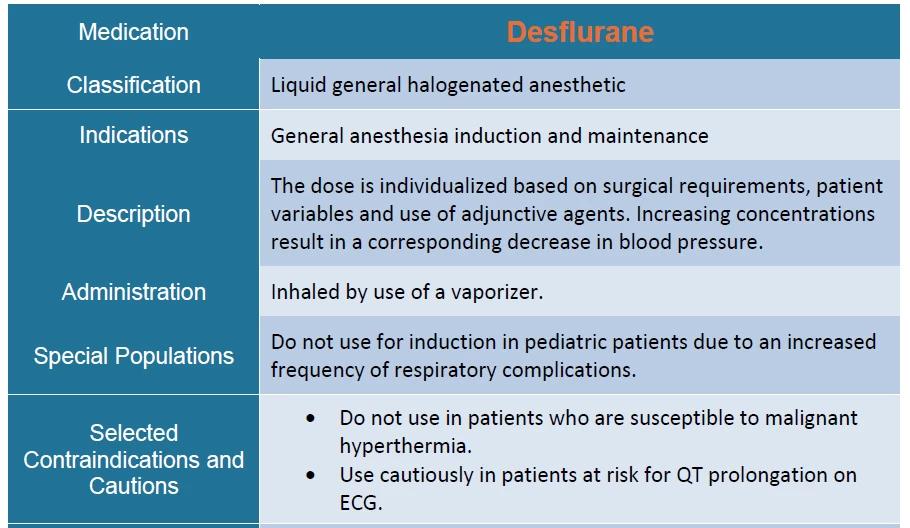
Have a file with a table. The table has borders. When I PDF the doc and open the PDF, random horizontal borders are missing.  They print properly, though.

Same result with using the PDF printer and the Word Save as PDF plugin.

There are multiple posts with similar issues, but I haven't seen any solutions.

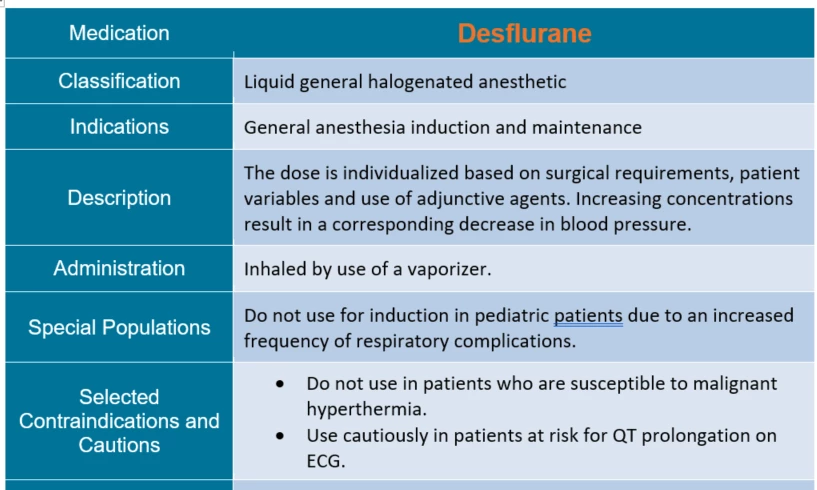
Here's how the table looks in Word:
Here's how it looks in Acrobat (And Reader, and MS Edge):
Any suggestions?

5 replies

New Participant
April 20, 2022

Two solutions that have worked well for me:

1) Set all table/cell margins to 0 and then use line spacing to achieve the desired result. (Suggested by Luke Grayson)

2) Save file as .odt > open file with LibreOffice > save as PDF (this could be quicker if you have lots of tables which you don't want to have to adjust spacing etc.)


New Participant
February 22, 2023

LibreOffice method did it for me! Thanks, 

Didnt have to mess around with modifying my tables, which were all done intentionally with spacing and margins to make it look right. Wish Office would fix this. Thanks to LibreOffice for the solution here

New Participant
September 17, 2020

I had a similar issue while converting word document to pdf. I tried different options, it dint work as the word doc looked fine but pdf had issues. So I used the table tools for border and selected all the cells facong this line/border issue and selected the option of all all borders under the dropdown of Borders. This made all the cells bordered witht the default border. U can now change the border specs using a format painer. Dont know how and why it works internally, but it does. Hope it helps.

lisao43568713
New Participant
November 27, 2020

This is an adobe issue - if you go to Acrobat Preferences, Page Display and then UNCHECK Enhance thin lines this will force acrobat to display the lines properly - so your pdfs from word, powerpoint etc should look correct.

New Participant
December 10, 2020

Great - thanks  - this one worked for me.

Inspiring
June 19, 2019

Me as well . . . I thought it was maybe a Macintosh issue, but when I looked up the problem, I noticed MANY posts about this—one in particular noting that the problem has existed since 2004 (I'm sure before, but maybe he's referencing it being an issue noted on the forum). Any many of the people were Windows users. The two strings I followed for assistance/suggestions:

As it is really a presentation/screen problem which I'm assuming Adobe cannot control and does not know how to address so they stay quiet hoping people figure out a work-around, or realize it's not an *actual* problem (PDF and Word Doc I have print out just fine), merely visual. What I did do to help some of the border inconsistencies go away leaving only the most minute, barely noticeable issues on the onscreen viewed PDF, was to recreate the tables fresh and type the content back in myself. As I had many tables that were similar, I did this once, and then used the upper left corner selection icon, when hovering over that part of the table, to copy the entire thing and then manually make content adjustments. I did this because I realize that when you copy and paste in MS docs, it copies much formatting in the background which the user is not intending to paste. This did result in many border issues when we had copied the content of a top header row, into the cells of a secondary header row to make one row (in an effort to pass accessibility, which likes one header row, one header column!). When I recreated these tables and typed in directly rather than copy/pasting data, much of the border problems ceased to subsist.  I also set that one table that was copied (different than copy/pasting data from within table cells), to border width of .75 points, which wasn't too big and ugly, but made the borders look more solid. Just my 2 cents! Hope it helps.

Participating Frequently
May 19, 2019

I had this issue as well. Bloody annoying. Adobe doesn't care. They never have and they never will. Customer service is not a priority to them. Only money is.

But I do have a solution that might work - it worked for me. It looks like you have top and bottom padding set on the cells. Try setting that to 0pt and instead using line spacing (Paragraph > Spacing (Before / After) to create the padding effect. This immediately solved my problem. Having said that I'm also using thick borders - 1 1/2 pt.

New Participant
September 25, 2019
That solved my problem - thanks for posting that!
Participating Frequently
June 1, 2024

No worries! Stoked that it helped you. 🙂

Dov Isaacs
Brainiac
March 20, 2018

Unfortunately, by the time either Acrobat's PDFMaker, the Adobe PDF PostScript printer driver instance, or even Microsoft's built-in “save as PDF” gets the content, the formatting is already baked-in. In all cases, Word (and for that matter Excel and PowerPoint) create a Windows EMF stream from the original contents which is then used for print or PDF creation.

What can you try?

(1)     One long-shot solution would be to adjust the setting for the current / default printer within Word to a significantly higher resolution. This may cause Office to allow a thinner line specification in the output. But I something think that this might not work.

(2)     Byte the bullet and increase the width of the table border lines.

          - Dov

- Dov Isaacs, former Adobe Principal Scientist (April 30, 1990 - May 30, 2021)
New Participant
March 21, 2018

Whatever the problem is, it has to do with how the file is displayed rather than the content of the file.  As I mentioned, the "missing" borders are present; they just don't display when the file is viewed at 100%.  They show up when the file is printed, and if you adjust the zoom to 200% or higher.

I ended up increasing the border size to 1.5 points, and that more or less fixed the problem.  The borders display, but there are some minor variances--some appear to be 1.5 points, some appear to be 1 point. I'll have to live with that.

danielp61704510
Participating Frequently
July 3, 2018

Of course, this introduces other issues for files that don't really need that artificial enhancement! 

          - Dov


If you save the word document with the problematic table borders as a .pdf, and then export the .pdf to a .tiff at a resolution suitable for your purposes (I export using Mac Preview at 600 ppi), and then export the .tiff back again to a pdf, the whacked table borders look to me to be entirely corrected.  I am not an expert so "entirely corrected" should be taken with a grain of salt, but maybe this workaround can nonetheless still help someone experiencing the issue.