


New Participant
September 25, 2015
Question

Prevent files uploading to the document cloud

  • September 25, 2015
  • 9 replies
  • 52214 views

Can someone from Adobe please give clear step by step instructions how to stop Acrobat Pro CC from sending files to the online storage, and how to remove those files from your servers. My work computer has sent a bunch a sensitive files to the document cloud. I need to stop this happening, or even better close the document cloud part of my account down (while keeping the creative cloud part). Due to our clients, I am legally bound to not have these documents stored anywhere other than on a work server, and this is a sackable offence for me. I need a solution quickly. I disabled sync, but then I was prevented from sharing files across CC libraries, and there are still files in the cloud.

In your arms race to compete with DropBox icloud etc and grab as much of the market as possible by forcing users to use your cloud, you are putting people's security at risk. We all remember the Adobe password hack of not that long ago which is one of the reasons why we can not store docs anywhere in the cloud

The recent list shows there are docs in the cloud, and if I click them they download from... where?... I have no idea:
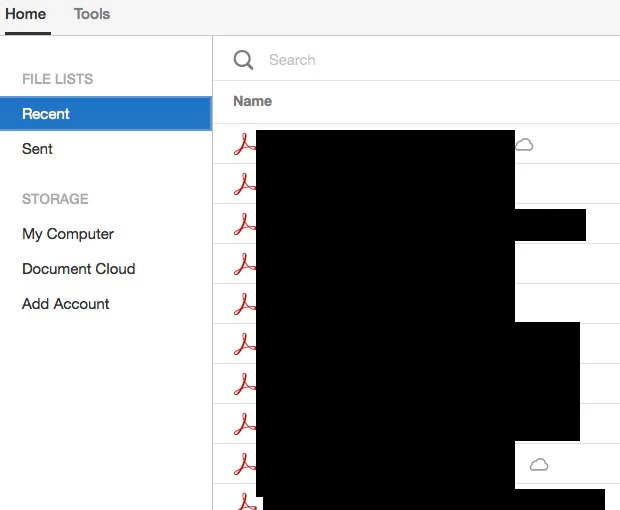
If select the Document Cloud option, it only lists one file:
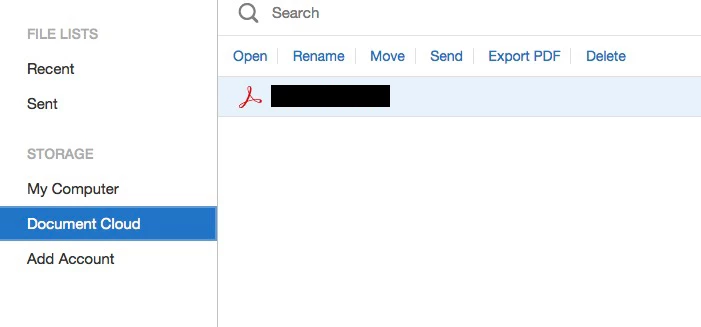
You can see from this that the files are stored in the cloud somewhere:

9 replies

rsdisegno
New Participant
April 30, 2019

For large AI files with PDF compatibility,  only change the extension to .pdf to open with Acrobat without online convertion.

officemike
New Participant
September 21, 2018

Bruh, relax! It's actually super easy, just like you want it to be. Here is a link to where I learned how to deactivate auto-sync in CC applications:

Turn Off Creative Cloud File Sync | IT@UMN

Stay feisty my friends!

Participating Frequently
September 21, 2018

The problem is that it is 'on' by default. I didn't realise for quite a while the adobe was syncing PDFs to the cloud.

Better that is an  'opt in' than an 'opt out' option.

New Participant
June 15, 2018

I want to chip in and say that this seems very wrong from Adobe and there doesn't seem to be a mainstream discussion about this at all. So every time I'm opening a document as a pdf with Adobe Acrobat it is automatically sending the contents of that document to the Adobe Cloud (unless I download other software to disable it or go into the Windows Registry)? Can someone explain to me if this is true?

New Participant
May 10, 2018

This is unacceptable behavior, and routinely wasting my time and bandwidth. Adobe appears so desperate these days.

Inspiring
March 23, 2018

I just discovered this too when trying to view a .ai file in Acrobat DC. Instead of giving an error or offering the option to convert it, it automatically uploaded the very large .ai file without any warning to Adobes' server for presumably conversion over there instead of just doing it locally. This almost seems like a legally actionable offense by uploading my sensitive local document to their servers without any consent and barely any notice it was happening. Is the only option to install Little Snitch to block it?

The other stupid thing is the .ai file was saved with pdf compatibility turned on, so just changing the file extension to pdf let it open without any conversion necessary. You would think Acrobat would be smart enough to automatically detect that.

Was DYP
Inspiring
March 23, 2018

This almost seems like a legally actionable offense by uploading my sensitive local document to their servers without any consent and barely any notice it was happening. Is the only option to install Little Snitch to block it?

Absolutely. This is very offensive and objectionable behavior.

Luckily I had on older version of Acrobat I could open it in.

Participating Frequently
March 26, 2018

Only at Adobe you pay for the product and you are the product!

But don't worry, they keep your data private, they promise!

beng19398581
New Participant
June 20, 2016

Users really need an option in their profile and in their purchased software to TURN OFF uploading files to the cloud. I'm trying to go through the steps posted by STAFF: RAVE, but I can't open the files for the Wizard customizer packet because I "don't have authority" or apple "doesn't recognize the author" of the program.

I don't understand why the tech community at large is marketing and/or believes server uploads (clouds) are more secure than backing up your own things on an external hard drive.  There is nothing secure about being connected, especially to servers you don't have administrative access over.  Adobe was hacked in the last couple years already, I'm very surprised this cloud thing is STILL an issue.

Please give your paying customers the security they desire.  We need an option in our online profile AND in-software that TURNS OFF uploads to foreign servers/hard drives. This is basic programming, and should immediately be considered a mandatory update for all customers.

New Participant
June 1, 2016

Looks like there is an option when you right-click files called "Always Appear offline". When I clicked this then right-clicked "Convert to pdf". My large photoshop file saved as a seperate .pdf without the "Uploading to Adobe Document Cloud" progress bar which seems to be the same issue you're having. Hope this helps!

Participating Frequently
May 12, 2016

I don't think the average user realises this is happening by default. I only just discovered it this morning when I was creating a PDF from a large image file and noticed a  progress bar that was uploading my files to the cloud. This is absolutely outrageous- classic Adobe 'we know what's best for you attitude'. Like the original poster, I work with artwork form several artists and sources that are covered by very strict NDAs. I am using secure dropboxes that are created by vendors to make sure there is no artwork floating on any cloud but ones the client has provided. And then this morning I discover that Adobe has been storing my files at their convenience.

makes me very very angry. I now have to figure out how to make sure I get all my files from the last six weeks off Adobe's servers but I'm not even sure if they are there or how to do that.

BOCs!!!

Rave
Community Manager
Community Manager
September 25, 2015

Hi Glen,

You can use the Adobe Customization Wizard DC on both Acrobat/ Reader DC (Classic or Perpetual) versions.

Adobe Customization Wizard

You can also use the Windows Registry to turn these services OFF.

Services integration

Workflows (Services integration)

These preferences enable integration with Document Cloud services.

This preference category contains the following subfeature(s):

Services integration (DC)

These settings for DC products replace those used by 11.x and earlier. By default, Adobe online services are tightly integrated with the user interface so that users can leverage them in enterprise workflows. Adobe's services are rapidly evolving and allow your organization to increase its efficiency with zero infrastructure and management costs.

Summary table
bAdobeSendPluginToggleToggles the Adobe Send and Track plugin for Outlook
bToggleAdobeDocumentServicesDisables all service access except those features controlled by the other preferences.
bToggleAdobeSignDisables Adobe Send for Signature (formerly EchoSign).
bTogglePrefSyncDisables preferences synchronization.
bToggleWebConnectorsDisables 3rd party connectors.
bUpdaterDisables both updates to the product's web-plugin components as well as all services.

bUpdater

Supported on WindowsSupported on MacSupported by AcrobatSupported by Adobe ReaderTop > Workflows > Services integration (DC) > bUpdater
Data typeboolean: DWORD value > REG_DWORD
Default
Version #DC
HKLM PathHKLM\SOFTWARE\Policies\Adobe\(product name)\(version)\FeatureLockdown\cServices
SummaryDisables both updates to the product's web-plugin components as well as all services.
DetailsThis new preference replaces the now deprecated HKCU services master switch bEnableAcrobatHS. It disables both updates to the product's web-plugin components as well as all services without exception, including any sign-in screen. The setting is not the same as bUpdaterwhich resides directly under FeatureLockdown and disables product updates. Possible values include:
  • 0: Disable services and service component updates.
  • 1: Enable services.

bToggleAdobeDocumentServices

Supported on WindowsSupported on MacSupported by AcrobatSupported by Adobe ReaderTop > Workflows > Services integration (DC) > bToggleAdobeDocumentServices
Data typeboolean: DWORD value > REG_DWORD
Defaultnull
Version #DC
HKLM PathHKLM\SOFTWARE\Policies\Adobe\(product name)\(version)\FeatureLockdown\cServices
SummaryDisables all service access except those features controlled by the other preferences.
DetailsThis setting does not affect Adobe Send for Signature, preference synchronization, or third party connectors. Possible values include:
  • 0: Enable Document Cloud services.
  • 1: Disable Document Cloud services.

bToggleAdobeSign

Supported on WindowsSupported on MacSupported by AcrobatSupported by Adobe ReaderTop > Workflows > Services integration (DC) > bToggleAdobeSign
Data typeboolean: DWORD value > REG_DWORD
Defaultnull
Version #DC
HKLM PathHKLM\SOFTWARE\Policies\Adobe\(product name)\(version)\FeatureLockdown\cServices
SummaryDisables Adobe Send for Signature (formerly EchoSign).
DetailsPossible values include:
  • 0: Enable Adobe Send for Signature.
  • 1: Disable Adobe Send for Signature.

bTogglePrefSync

Supported on WindowsSupported on MacSupported by AcrobatSupported by Adobe ReaderTop > Workflows > Services integration (DC) > bTogglePrefSync
Data typeboolean: DWORD value > REG_DWORD
Defaultnull
Version #DC
HKLM PathHKLM\SOFTWARE\Policies\Adobe\(product name)\(version)\FeatureLockdown\cServices
SummaryDisables preferences synchronization.
DetailsThis preference disables and locks a new feature which synchronizes desktop preferences across devices on which the user is signed in with an Adobe ID (including phones). Possible values include:
  • 0: Ensable preferences synchronization.
  • 1: Disable preferences synchronization.

bToggleWebConnectors

Supported on WindowsSupported on MacSupported by AcrobatSupported by Adobe ReaderTop > Workflows > Services integration (DC) > bToggleWebConnectors
Data typeboolean: DWORD value > REG_DWORD
Defaultnull
Version #DC
HKLM PathHKLM\SOFTWARE\Policies\Adobe\(product name)\(version)\FeatureLockdown\cServices
SummaryDisables 3rd party connectors.
DetailsAllows configuring in-product access to third party servicesfor file storage. Possible values include:
  • 0: Enable 3rd party connectors.
  • 1: Disable 3rd party connectors.

bAdobeSendPluginToggle

Supported on WindowsSupported on MacSupported by AcrobatSupported by Adobe ReaderTop > Workflows > Services integration (DC) > bAdobeSendPluginToggle
Data typeboolean: DWORD value > REG_DWORD
Default1
Version #DC
HKCU PathWorkflows
HKLM PathHKLM\SOFTWARE\Policies\Adobe\(product name)\(version)\FeatureLockdown\cCloud
SummaryToggles the Adobe Send and Track plugin for Outlook
DetailsWhen enabled, an Adobe Send and Trackbutton appears in Outlook when composing an email. It enables sending large files as public links through Outlook. The attached files are uploaded to Adobe Document Cloud and public links to the files are inserted in the email body. Recipients can click the link to preview the file in a browser window and can download the file if needed. Possible values include:
  • 0: Disable Adobe Send and Track.
  • 1: Enable Adobe Send and Track.

Regards,

Rave

gec78Author
New Participant
September 25, 2015

Really? The ONLY way to prevent Adobe from taking our files and putting them on their servers is this insanely complex process? And the installer appears to be for customising company wide installation - and to be honest I can't even work out how to set it up. Why the hell isn't there a button that says "Do not upload my files to Adobe Document Cloud" and another that says "Delete all of my files from Adobe Document Cloud" in Acrobat? Because that means you guys can't lock people into your system maybe? The above is really beyond useless for me. Tell me in a usable, plain English way exactly how I remove the files that are stored in the Document Cloud, and how I prevent that from happening any more. This is completely unacceptable.

Rave
Community Manager
Community Manager
September 25, 2015

Where is the button and how do I remove the files that are already uploaded?


When you launch Acrobat, you can see this button:

You can visit Acrobat.com to manage all your files in the cloud. You can delete, move, and upload files directly on the Acrobat website.

You might want to check the doc: Too Personal for Mobile Link? How to Remove Files From Document Cloud's Recent List -


Regards,

Rave