Maxim23460688kvh0
Participant
September 2, 2024
Answered

Bring back transparent saving!

  • September 2, 2024
  • 1 reply
  • 979 views

I know saving an image with a transparent background is not an official feature yet... for whatever reason. Yet the feature was there the entire time, it just took a little workaround. All you had to do was remove the background, click on generate and while the new background was generating you could save the image with transparency. 


It worked so well and now I see you guys patched it out. Is there any explanation to why you did that? How long is it gonna take to officially implement this feature which was there the entire time? I see posts from atleast 1,5 years ago requesting that feature. I would appreciate a plausible explanation.

Correct answer droopydog500

Hello @Maxim23460688kvh0,


I was not aware of that hack! 😂


However, it is pretty easy to take an image to into Adobe Express and use that to make the image transparent. You can take it into Adobe Express by pressing the "Share" button on the lower right and then selecting "Open in Adobe Express":


Once in Adobe Express, you can select "Remove Background":


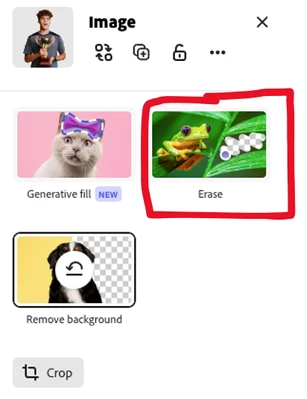
If you need to touch up what was made transparent, you can use the "Erase" feature to erase (make transparent) part of the image or restore (remove transparency) parts of the image.


I hope this helps.  Let me know if you have any problems trying this out.


My best,
    droopy

1 reply

droopydog500
Community Expert
droopydog500Community ExpertCorrect answer
Community Expert
September 2, 2024

Hello @Maxim23460688kvh0,


I was not aware of that hack! 😂


However, it is pretty easy to take an image to into Adobe Express and use that to make the image transparent. You can take it into Adobe Express by pressing the "Share" button on the lower right and then selecting "Open in Adobe Express":


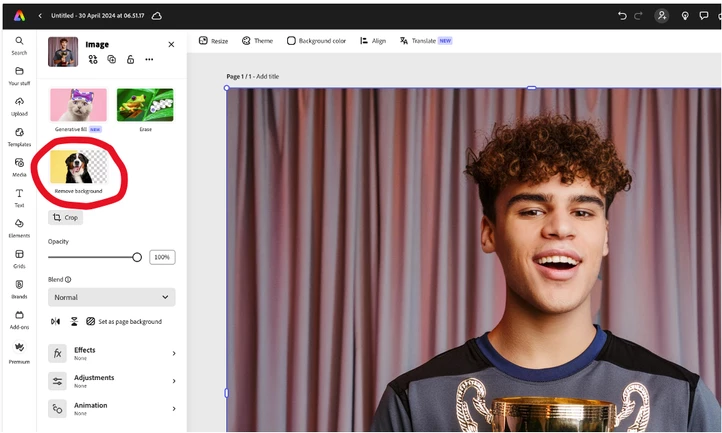
Once in Adobe Express, you can select "Remove Background":


If you need to touch up what was made transparent, you can use the "Erase" feature to erase (make transparent) part of the image or restore (remove transparency) parts of the image.


I hope this helps.  Let me know if you have any problems trying this out.


My best,
    droopy

Adobe Community Expert (not an Adobe employee)
Maxim23460688kvh0
Participant
September 2, 2024

Hey droopydog500,


thank you very much for the quick reply!

I tried it out with a complex object and it works fine, though I feel like it would have worked better at the source (Firefly) with cutting out every single detail of the background. But this should get the job done. 


Thanks !

Thanks in advance!