
Inspiring
January 14, 2024
Answered

Where Would I Find Previous Images I Have Generated ?

  • January 14, 2024
  • 5 replies
  • 18164 views

When I open Firefly, I don't see any window that shows me previous images I have generated. In other programs, it just shows you all others you have generated at the bottom of the screen. I don't see any tab or anything, so where would they be ?  As I understand it, every single image you create using text, is unique, so even if you use the exact same sentence of input words, the program will never give you those exact same results.  If my images are gone, then Adobe, please have a tab for your previously generated images.  Thank you.
Correct answer droopydog500

Hi @AnnetteMerriman,


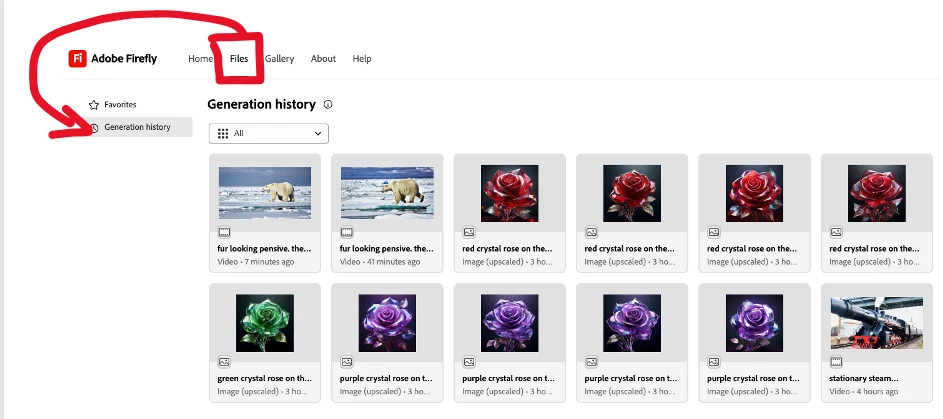
It has changed since this original post was made. You can now find them on the "Files" tab from the top menu on the Firefly home page:

My best,

    droopy

5 replies

New Participant
April 14, 2025

please - totally frustrated

droopydog500
Community Manager
droopydog500Community ManagerCorrect answer
Community Manager
April 14, 2025

Hi @AnnetteMerriman,


It has changed since this original post was made. You can now find them on the "Files" tab from the top menu on the Firefly home page:

My best,

    droopy

Adobe Community Expert (not an Adobe employee)
Inspiring
April 14, 2025

Thanks for this change and all the new things coming!! 

Samantha Fury Creating Characters you can love!
Participating Frequently
December 12, 2024

I wish I had realized this yesterday when I created a bunch of images. I downloaded a lot of them, but I didn't realize how low quality those images would be. Is there any way that I can upgrade them now or am I going to have to start over again? 

droopydog500
Community Manager
Community Manager
December 12, 2024

Hello @jenniferj254831,


Unfortunately, if you did not favourite them or save a link to them, you will not be able to return to them. For a complete description of existing features to save prompts and images, please see these documents:


My best,
    droopy

Adobe Community Expert (not an Adobe employee)
Participating Frequently
December 3, 2024

The worst bit about it not saving history for me is how bad the UI is.
I'm constantly clicking into an image to generate a fill/expansion, then I decide to go back and every single time I lose all everything and end up back on that stupid intro screen.

In relation to everyone's talk about losing credits. It's also worth noting how you HAVE to generate an image BEFORE you can get tot he interface that let's you finetune your prompt. Annoys me every time.

droopydog500
Community Manager
Community Manager
December 3, 2024

Hello @daledesilva,


If you just click generate without typing a prompt in the main firefly page, it takes you to the generation page without generating images (and using a credit). You can delete the prompt and styles and add your own.


    droopy

Adobe Community Expert (not an Adobe employee)
New Participant
March 31, 2024

Wow, I'm glad Adobe offers a 14 day money back guarantee. That's a terrible workflow. Every other gen AI platform I've ever used at least stores the images or even promts.


I generated some images and chewed through 20 credits or so, found one I half liked, went into generative fill to mess around, found it didn't do what I wanted and clicked the < Generative Fill option at the top left thinking it'd return me to my images. Nope, straight back to the Firefly front page sans every image I generated. 20 credits down the toilet.


With Copilot Designer, Leonardo, Stable Diffusion etc. why would I choose to pay for this platform? Terrible!

New Participant
April 17, 2024

Bing is the same as firefly in the sense that you need to visit your browser history to find previous generations if they're not showing in "recent". I dont teven think FF has a recent though.

droopydog500
Community Manager
Community Manager
January 14, 2024

They are not saved automatically. You have to take action to save them. There are several ways. They originate with the buttons on the top right of an image:

 The right one, "favourite", saves them in the local browser cache. This method allows you to go back and see the image and the prompts and styles that created it. The favourites are only available in that browser on that computer, and can be lost if you delete local browser data. You can see any favourites saved from the "Favourites" tab on the main Firefly page (this example is from a mobile phone):


The button on the left provides several options:


  • Download allows you to save the image to your local computer
  • Share a link allows to to copy a URL that takes you back to the image in firefly where you can see the prompt and styles 
  • Copy image allows you to paste the image into another application
  • Save to library allows to save a copy of the image to your Creative Cloud library (and access from other Adobe products)


If you do not save via one of these, the image is lost forever.


Adobe Community Expert (not an Adobe employee)
Inspiring
January 14, 2024

Hello, thanks very much for that info.  I wish I had thought about this before I made about 20 images.  I am on the $4.99 plan and cannot believe how few "tokens" I have left.  100 for a month is not many.  You play around for 5 minutes trying to generate different versions of an image and those tokens get eaten up very quickly.    Thank you for that info, now I know !

Inspiring
March 29, 2024

Somebody just upvoted one of my posts. Thanks.  Funny thing, I cancelled my subscription after my son told me of free software that has made Firefly a distant memory.  There are many very powerful AI generators available where you can generate unlimited photos per day, yes thousands.  That said, for those who want easy, just check out freepik's website under AI generation, and you have a lot of free images every single day, I think it's 20 per day free. The images it creates are stunning.  Ever tried Bing AI generator ? amazing also.  I've moved on to something that creates them locally on my own computer though, and is 100% free.  If you YouTube enough they are easy to find.  The program I use creates a new folder on my computer every single day for my images, as well as a log file in html format that shows a copy of the photo and all the settings that were used including seed number. Beyond insane, it's the best for documentation : if you ever want to go back and check how you created a photo.