Exit
  • Global community
    • Language:
      • Deutsch
      • English
      • Español
      • Français
      • Português
  • 日本語コミュニティ
  • 한국 커뮤니티
0

AE 2019 black screen .mov

New Here ,
Nov 15, 2020 Nov 15, 2020

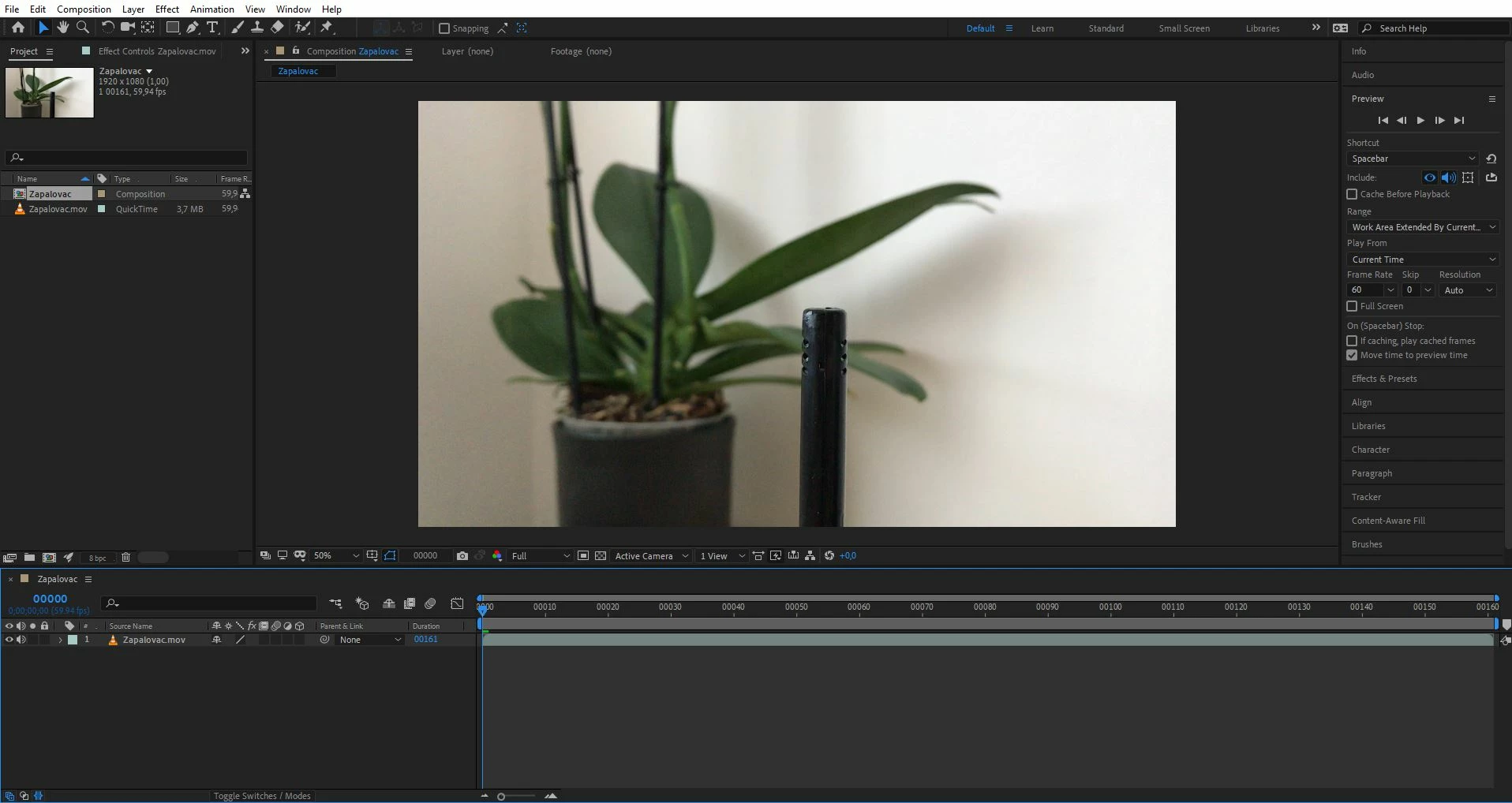
Hello, I am new to AE and I have started with AE 2019 and as my first thing I was trying to create "real life doodles" so I recorded video on my phone (iphone 7) and imported in AE 2019 as .mov file. 1.JPG2.JPGYesterday few videos were working and today when I recorded new one and imported it I have just a black screen and I dont know why. Tried to convert it to mp4 but there is just a half video rendered in it. Today I also started receiving the GPU effect error message for the new video.
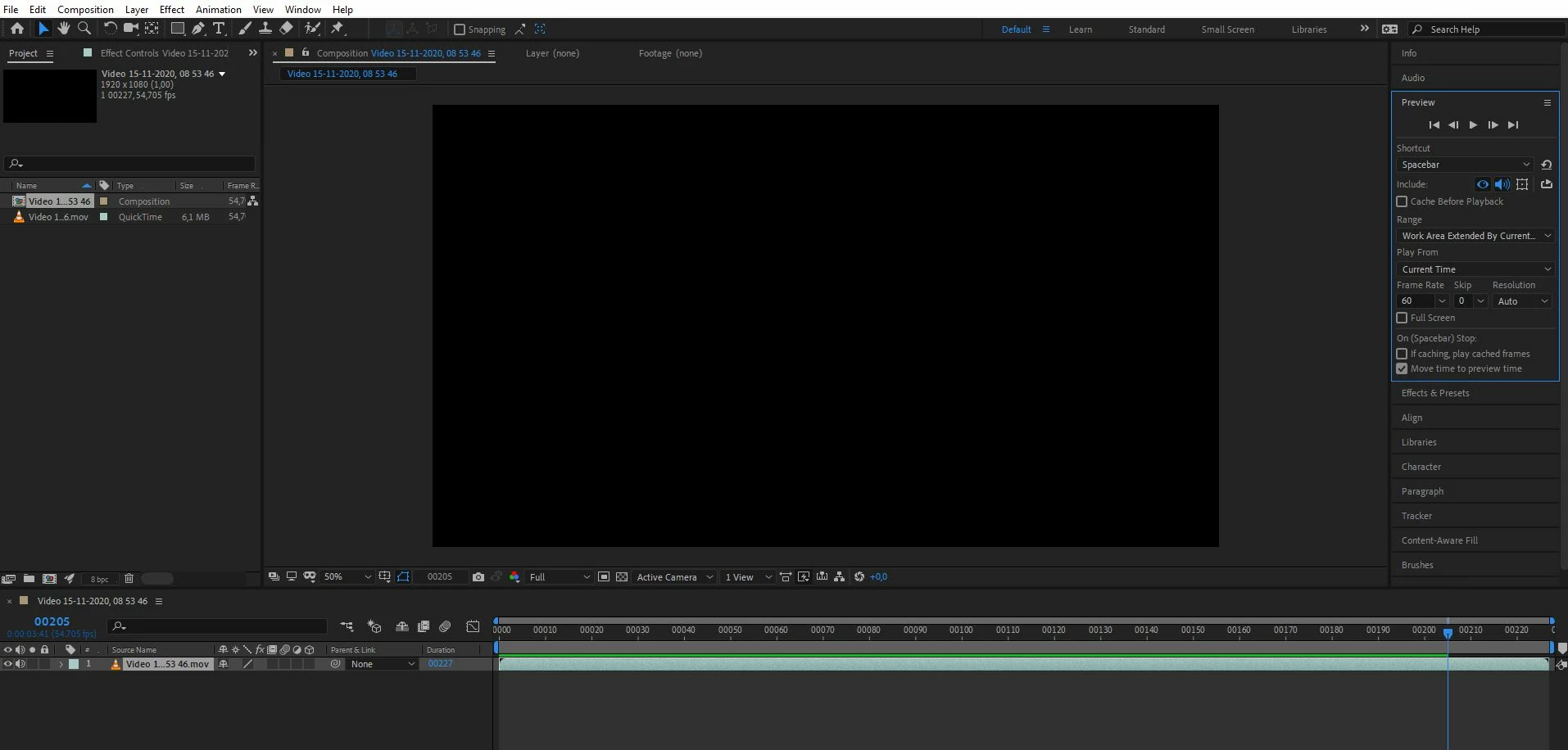

New recorded videos are playable via Windows media player without any issue.

I tried to purge the memory and tried to render it with software instead of GPU. The old videos are still visible and playable.


My specs:
OS: Win10 Pro
12GB RAM
Intel i5-4440 @ 3,10GHz 4 core
Nvidia 1050Ti 4GB - up to date
Any advise please? I am using AE few days now but each day I spend few hours googling about issues 😕

Thank you in advance

TOPICS
Error or problem , Performance , Preview
1.8K
Translate
Report
Community guidelines
Be kind and respectful, give credit to the original source of content, and search for duplicates before posting. Learn more
community guidelines
Community Expert ,
Nov 15, 2020 Nov 15, 2020
LATEST

If you created the comps by selecting the footage then the frame rate of the footage that is showing is 59.94fps, which is a standard frame rate, and the footage that is not showing is 54.705. That tells me that the second video was recorded using a variable frame rate, and that is not good. Sometimes you can force variable frame rate footage to a fixed frame rate by opening up the File/Interpret Footage/General tab and just entering a standard frame rate. Other times, you need to drop the footage into an encoder like the Adobe Media Encoder and render a DI (digital intermediate) making sure that you pick a standard frame rate by using one of the presets. The best way to avoid this problem is to use an app like Filmic Pro on the mobile device to lock in standard frame rates. It is also a very good idea to stick with standard video frame sizes. Until you become an expert in video standards, frame rates, and frame sizes, you should only use the standard presets.


One other point. It is almost always a waste of bandwidth to shoot at any frame rate higher than 29.97 in NTSC countries like the US or 25 in PAL countries (50Hz power). This is especially true if you are trying to do animation that is going to require you to set keyframes or make adjustments on every frame. Almost everything you see on TV or the Web is 29.97 fps and anything above about 24 fps is going to look very smooth when played back in real-time. Cartoons (Buggs Bunny) are animated at 12fps and they look pretty good.


Let us know if forcing the footage to the nearest standard frame rate fixes the problem. 

Translate
Report
Community guidelines
Be kind and respectful, give credit to the original source of content, and search for duplicates before posting. Learn more
community guidelines