Participating Frequently
March 18, 2019
Question

Imported Illustrator files are blank

  • March 18, 2019
  • 6 replies
  • 21837 views

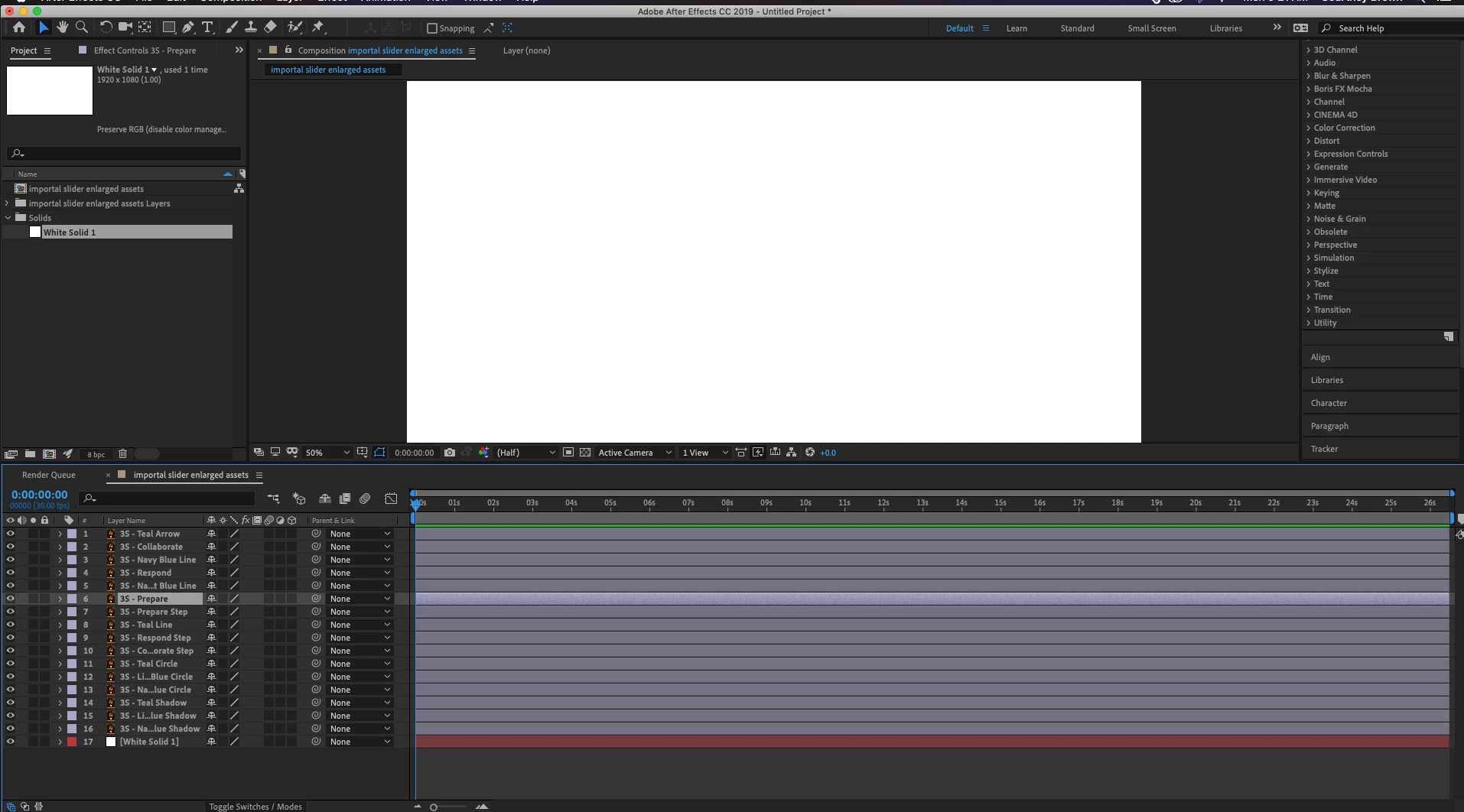
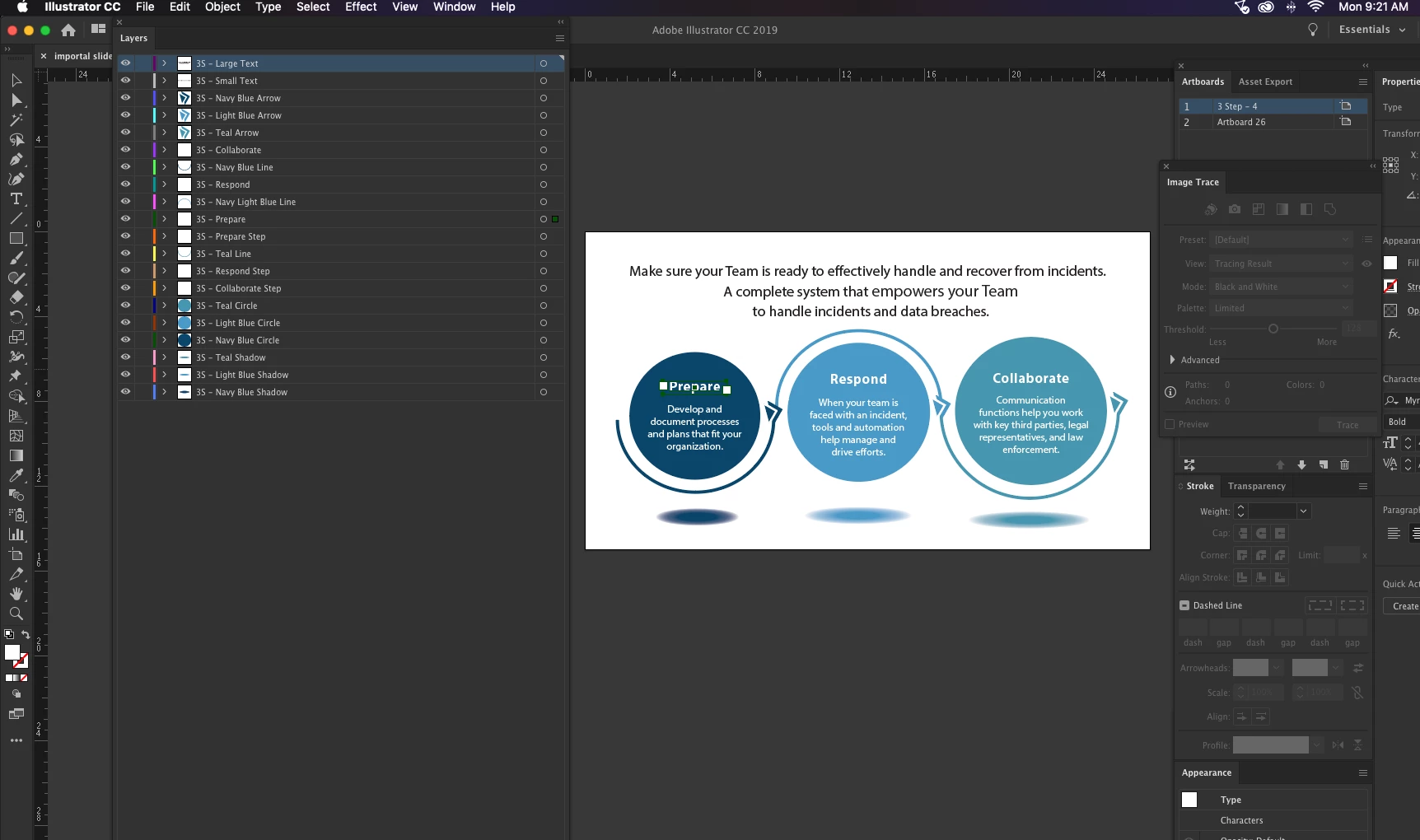
Every object is on its own layer. Saved with a compatible pdf. Imported as All Acceptable Files, Composition - Retain Layer Sizes. All of the layers appear as blank.
    6 replies

    Participant
    May 22, 2023

    Ok, one more thing that can be fixed. Make sure the resolution of the ai file is set to 72ppi. I initially created an artwork in a CMYK print preset. Changing the color profile didn't do the trick, but lowering the resolution from the print 300ppi to the video 72ppi helped.

    Participant
    August 2, 2020

    None of these solutions helped me. However after much try I figured that i had used textures in my AI file and upon removing them i was able to view my composition in after effects. 

    Participating Frequently
    October 1, 2020

    This has to be some sort of bug - maybe in AE. I'm experiencing this for the very first time since ver.1. I even created a PSD and PNG of the file and both of those come in blank. I've resized the artboard both up and down as well, checked the PDF compatible check box (which I believe is ticked by default) and still I don't see my eps logo. At this point I can see anything.


    Very strange.

    RhynoG
    Participant
    October 1, 2020

    I noticed some odd behavior in AE this morning after updating my Nvidia driver yesterday.  I was trying to resize an illustrator file I was working with and reloading them in AE after the updates were saved.  All I kept getting was a black screen after the files were reloaded in AE.  Could be a driver anomaly.......


    Nils_swe
    Participant
    April 2, 2020

    Even though this is a one year old thread I never saw a definitive answer here. As I've had the same problem and have now found a solution that works for me I thought I would share. Just as Rick_Gerard suggested about making the Ai-files PDF compatible - that did not solve it for me. What ultimately solved it for me after hours of frustration and Googeling was to make the artboard in the Ai-file smaller so it only incorporate the graphics and doesn't have a lot of empty space (if that makes sense). I have no idea why that worked, almost seems like a bug - but hey I'm glad it works!  I hope this helps someone out there 🙂

    RhynoG
    Participant
    June 21, 2020

    Thank you!


    This Solved my issue in AE 2020 as well. 


    Had a logo with several layers on a larger artboard and everything was importing into AE but the screen was black.  I could see the individual layers in the composition and select them, but only the bounding box appeared, no graphic.  After reducing the AI artboard down to only encompass the area needed, they showed up when imported into AE as expected. 


    Go figure.....

    Participant
    August 5, 2020

    Thank you! Likewise, spent hours searching and simple issue of snapping all my layers to artboard.

    onufrod
    Participant
    January 29, 2020

    You can't have more than one artboard in the AI file. You may notice that one of your files appears, while none of the others do. That's because AE is reading that artboard instead of the one(s) you want.

    EricHartmann
    Participant
    March 15, 2020

    Saved me. Thanks!

    cbrownncgAuthor
    Participating Frequently
    March 18, 2019

    I selected Illustrator PDF/EPS sequence when selecting the file to import and it seems to have imported the files (although in a different format).

    Community Expert
    March 18, 2019

    That is incorrect.

    When you save a file in AI you get this option:

    Importing as a sequence with AI or PSD files is only to be used if you have hand drawn a bunch of animation cells like a traditional animator. That creates a video from a bunch of sequentially numbered files. If you have not checked Create PDF Copmpatible File After Effects will not recognize any of the paths in the AI file and you get a blank layer or comp.

    You should take some time to learn about preparing graphics for video. It's not as simple as you think. Here's a fairly decent quick overview: https://www.austinsaylor.com/blog/illustrator-to-ae

    Not everything was covered, but it should get you started.

    Participant
    April 19, 2021

    Rick Gerard​ You are correct about the settings, but if you would read properly, you find that this options was checked - not in the cleanest English, yet understandable: "Every object is on its own layer. Saved with a compatible pdf. Imported as All Acceptable Files ..."

    RyanWing​ Could it be, that your artwork is simple not placed on the artbord, or the artboard is too small or something in this direction?

    Also, make sure that your AI file is in RGB color space.

    That's all I can think of right now.

    Good luck!

    *Martin


    Martin got it for me - I had copied layers from a single artboard in a series to a new single artboard document but pasted in-place which set it down off the artboard - Since I had a solid background Layer, I didn't even notice I was not on the artboard! this comment prompted me to check. So simple. So stupid. 

    Community Expert
    March 18, 2019

    Open your AE file, so a save as and when the save options pop up make sure PDF compatible file is checked. That should solve the problem.

    cbrownncgAuthor
    Participating Frequently
    March 18, 2019

    Hello Rick,

    It has been checked every time. I originally had another artboard in the same project with other assets and never had these issues with those assets. I've tried re-saving as a new project but none of these layers will appear after importing. Let me know if you have any other suggestions.

    Regards,

    Courtney