
Known Participant
December 28, 2018
Question

something is cutting off my graphic

  • December 28, 2018
  • 7 replies
  • 19687 views

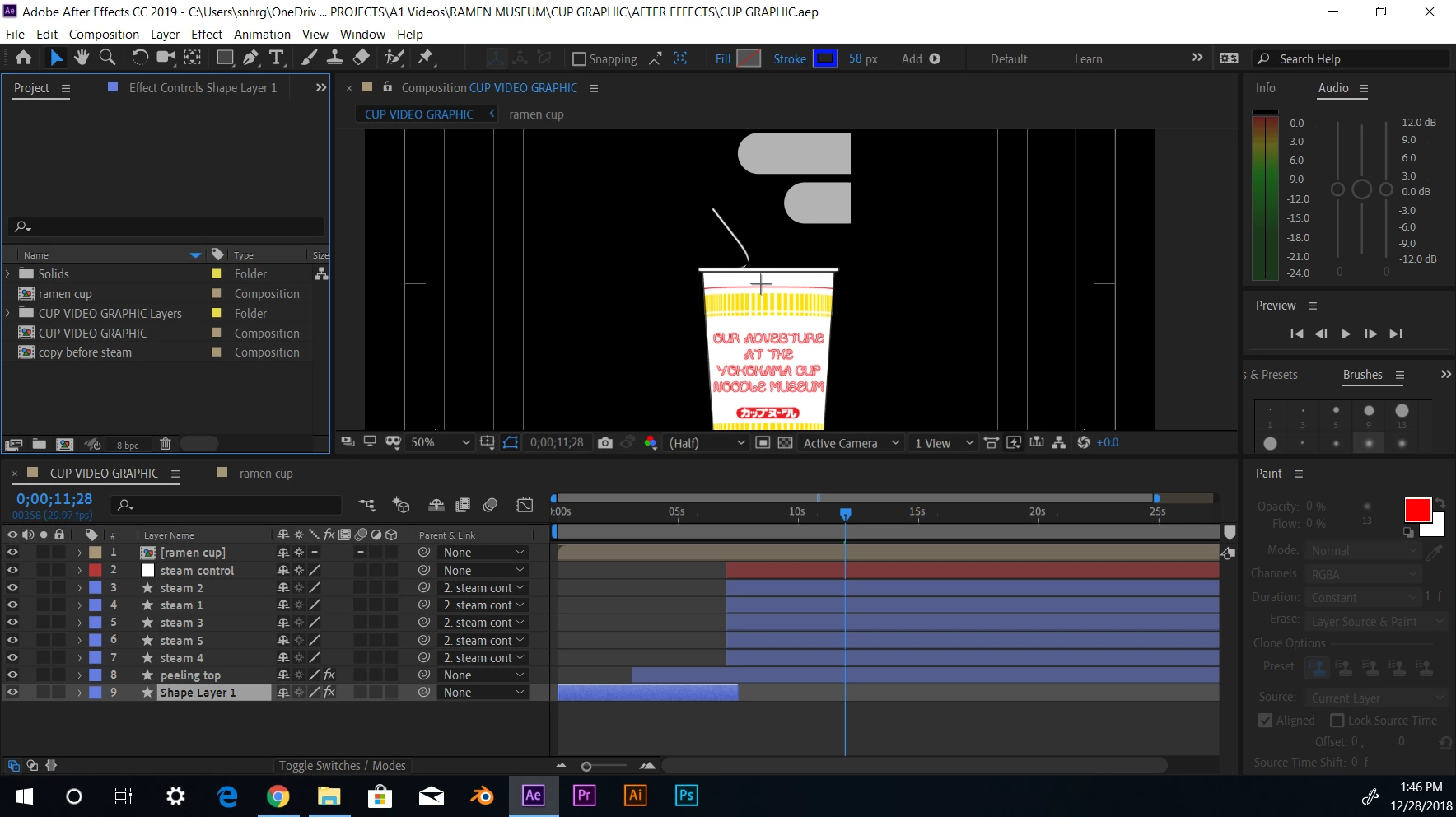
So I imported a graphic of a ramen cup from Illustrator into After Effects and the steam from the cup is being cut off for some reason. For the steam itself, I created in after effects. There should be no shapes or anything obstructing the steam.

Does anyone know how to fix this problem???

Also let me know it would be easier to include the file on the thread.
This topic has been closed for replies.

7 replies

Participant
May 15, 2024

you just have to make a big new artboard in your AI, bigger than the first one that you have 

Known Participant
July 3, 2022

In short, let After Effects (AE) handle your desired screen dimensions, not Illustrator (AI).


In AI, make sure the artboard is large enough to fully encompass all the graphics you want to bring into AE, then save the AI file and do the following:

  • (Optional) In you file explorer, make a copy of your project as a backup.
  • In AE, clear the cache: Preferences > Media & Disk Cache > Empty Disk Cache.
  • Quit out of AE
  • Re-open AE
  • Create a new project.
  • Try importing your AI file into the new project.
  • Resize the screen in AE to match the desired dimensions
lizardbreathdesigns
Participant
October 20, 2021

Hello,

I'm having a similar issue in that when I apply effects to my AI vector graphics they seem to crop at their bounding box. I would like to know how to make the bounding box bigger or just get rid of it altogether. When I have tried searching for removing the bounding box I just get tutorials on how to hide it. 

Known Participant
March 25, 2021

I'm having the same issue. I have a AI file with different elements in different layers, but for some reason, only a couple of layers get "clipped" only on the right side, mostly text layers.

Nothing is out of the artboard.

I'm importing the whole AI file as a composition with layer size selected. It seems that the size of the layers is wrongly estimated on import.

Sometimes converting text to outlines fixes it, but sometimes I have to copy the problem layer onto a completely new AI file and import again to fix it.

JoshWeiss
Known Participant
March 8, 2023

Same problem on my end, it's pretty annoying to have to convert to outlines every time.

Mo Moolla
Legend
January 4, 2019

Hi Sean

What are the comp settings for the Ramin Cup?

How did you create the main comp and what size is it?

Next question and a sentiment I share with Rick Gerard​ is that for AE prep work keep it all on one dartboard and use Layers in Illustrator.

Let me know as I am pretty interested in seeing the comp sizes

Mo

Known Participant
January 4, 2019

So here are the comp setting specifically for the ramen cup. The size of the comp is 1920 by 1080. I imported in from Illustrator as a composition while retaining the layer size.

I also found out that you should convert the Illustrator layers into shape layers. which is what I did today.

Everything is on one artboard on Illustrator separated into different layers for each general shape. Although, because each shape has different vectors on it, there are additional layers underneath making up each layer. Would it more complicated to redistribute every single sub layer into its own layer?

Kevin-Monahan
Community Manager
Community Manager
January 14, 2019

Solve this seanh? Let us know, please.

Thanks,
Kevin

Kevin Monahan - Sr. Community and Engagement Strategist – Adobe Pro Video and Audio
Inspiring
December 29, 2018

I think the problem is the AI file. The steam is inside of artboard? All graphics must be inside. resize artboard and save. Also, try create "shape from layers", and delete the (group 1) it's a square mask created by AE who cause this.

Community Expert
December 30, 2018

Any AI file prepared for video should only have one artboard. All artwork, including any clipping paths, must be inside the artboard. You should work with an artboard that is the same size as your comp in points or pixels. You should also have the document set up for RGB and measurements set to points or pixels. You should also have "snap to pixel" turned on and work with lines that have at least a 3 point stroke. 

Roei Tzoref
Legend
December 30, 2018

The help files recommend to work with the presets. HD preset comes with 2 artboards And that’s a good thing. The second artboard will allow artwork bleed out of the first artboard.

Mohammad.Harb
Community Expert
Community Expert
December 28, 2018

Turn on Transparency grid to see what cause the problem.

what effects are applied on the 1st/2nd layers?

Known Participant
December 29, 2018

I turned on the transparency grid, but I couldn't find the cause. But in the project panel, theres a thin black line about where the steam gets cut off but I have no idea what's causing it. Here's a picture of the transparency grid and the effects applied to each layer.

For the "[ramen cup] composition layer, the only effects that are applied to it are the changed to the position of the cup.

Community Expert
December 29, 2018

I see the Ramin Cup comp selected but I do not see any screenshots of the Ramin cup layer.

If you created the Ramin Cup in AI and the elements you wanted to animate were all on separate layers I would have just imported the AI file as a comp instead of importing all the elements.

Did you try soloing layers and looking for the black line? Did you try opening up individual layers in the Footage panel? The black line could be coming from anywhere. Dig through the layers until you find it or post a link to the AI file so someone here can take a look. The problem is probably with the AI file, not with anything you are doing in AE.

Just one more note on your design. I see a bunch of really thin lines. These do not work well in Video production. Minimum line width in AI for a line that is going to move is usually 3 or 4 points (pixels). Any thinner and the lines will tend to look like they are vibrating when they are moving.